What key data does the ForentX dashboard contain?
Open [Dashboard] on Web or [Home] on App to review the current operational cards for listings, occupancies, contracts, reservations, charges, bills, and smart devices.
Entry:
- Web: [Dashboard]
- App: [Home]
Web
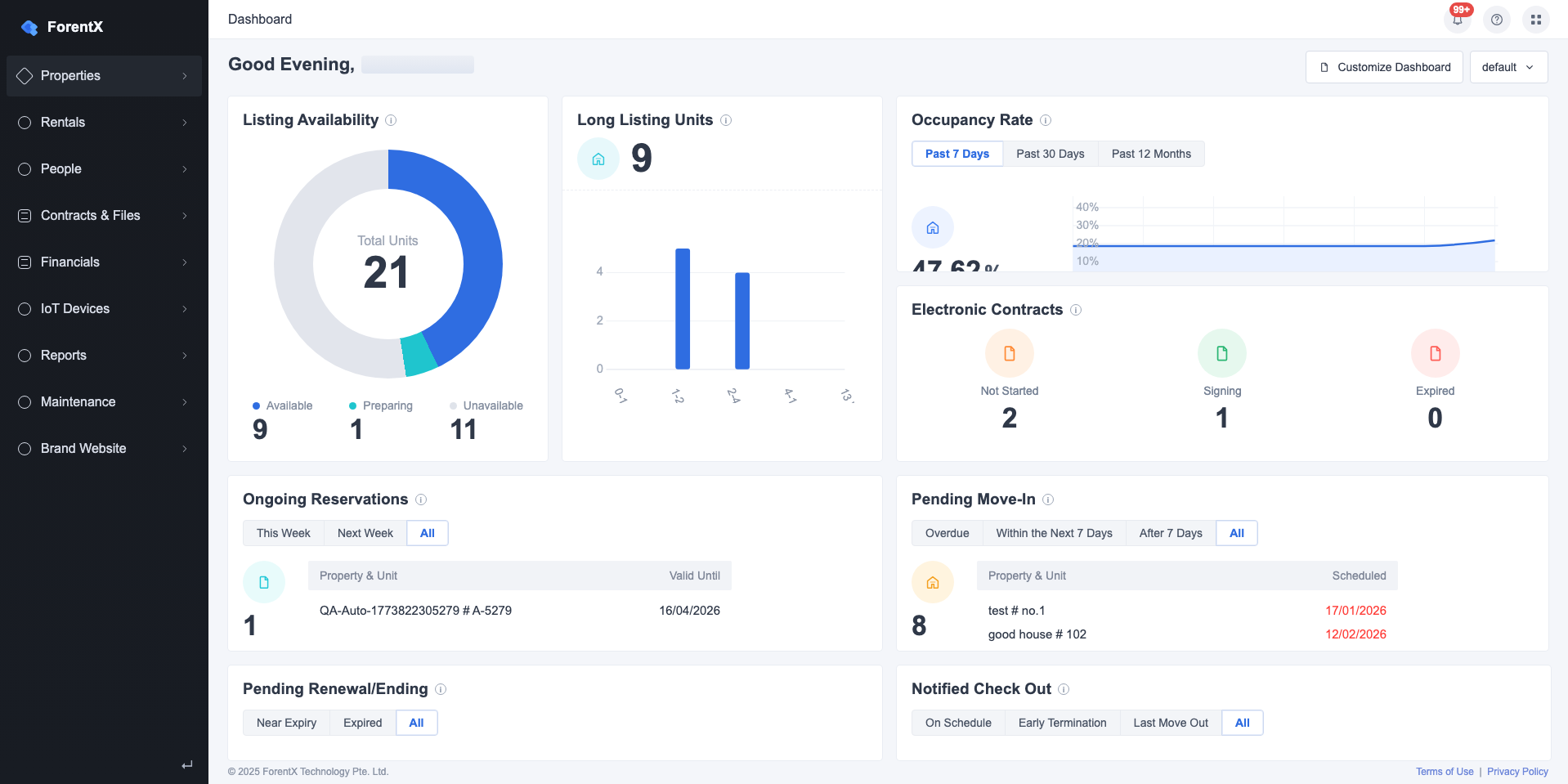
Step 1 Open [Dashboard] and review the cards in your current dashboard view.
- Your current view can include cards such as [Listing Availability], [Long Listing Units], [Occupancy Rate], [Electronic Contracts], [Ongoing Reservations], [Pending Move-In], [Pending Renewal/Ending], [Notified Check Out], [Overdue Charges], [Overdue Bills], [Smart Lock], and [Smart Meter]
- Some cards include built-in filters such as [Past 7 Days], [Past 30 Days], [This Week], or [All]
- The exact card set depends on your current dashboard view and your permissions
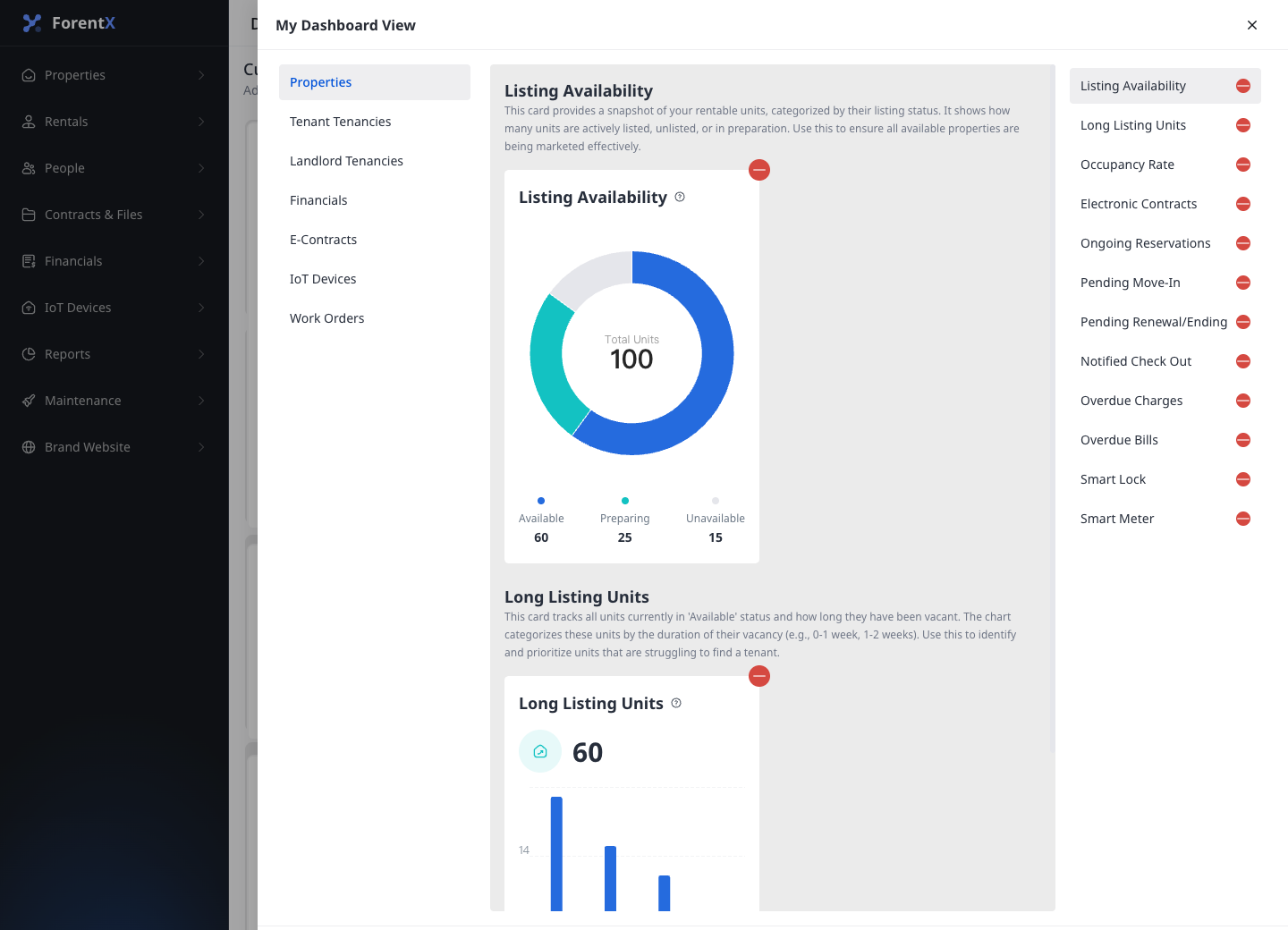
Step 2 Click [Customize Dashboard], then click [Add Card] to manage the cards shown in the current view.
- Web groups cards by [Properties], [Tenant Tenancies], [Landlord Tenancies], [Financials], [E-Contracts], [IoT Devices], and [Work Orders]
- After you finish editing, click [Confirm], then click [Save]
App
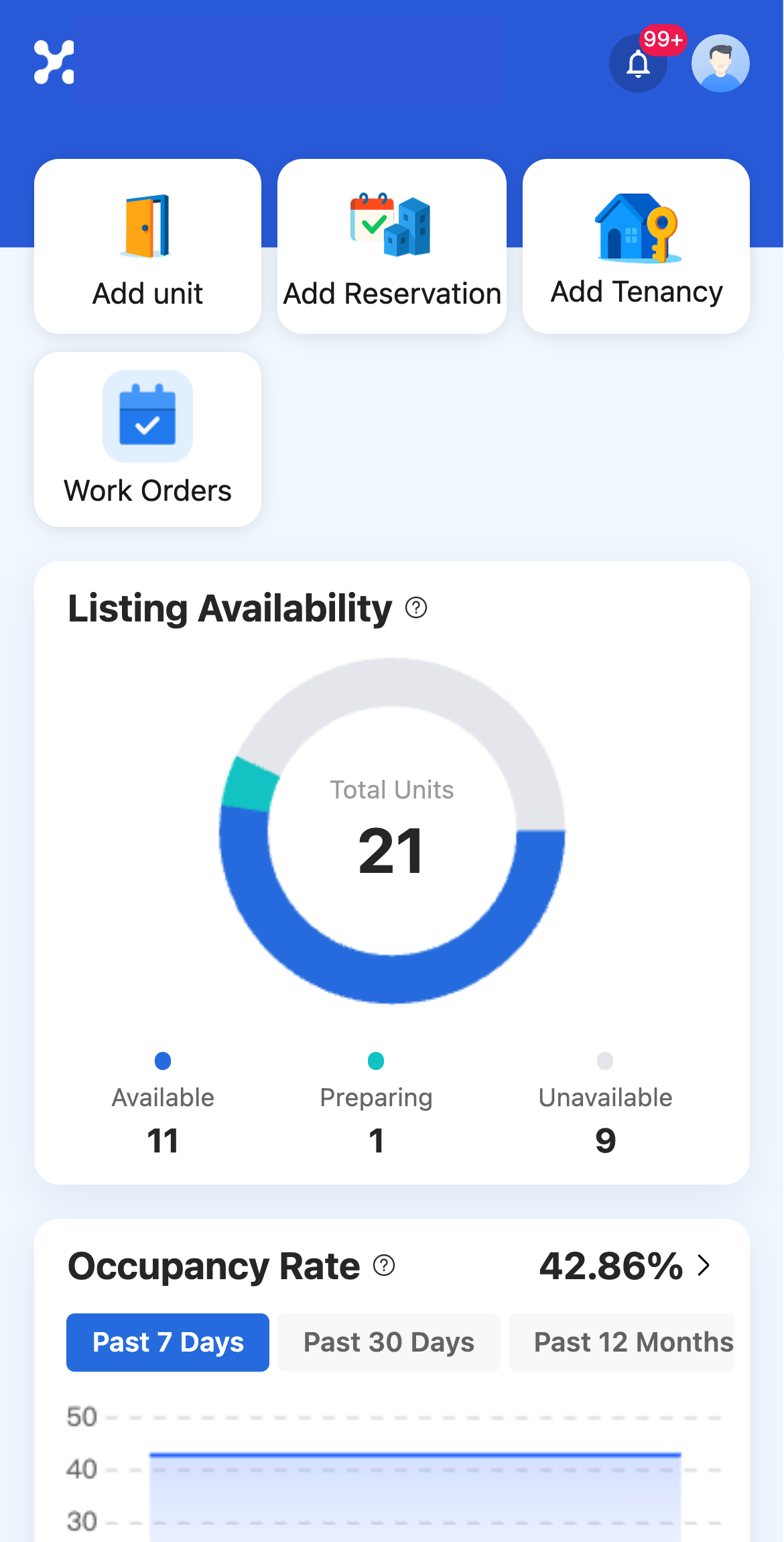
Step 1 Open [Home]. The dashboard appears below the quick actions area.
- Home can show cards such as [Listing Availability], [Occupancy Rate], [Electronic Contracts], [Due Charges], [Overdue Charges], [Smart Lock], and [Smart Meter]
- The exact card set depends on the active dashboard modules and your permissions
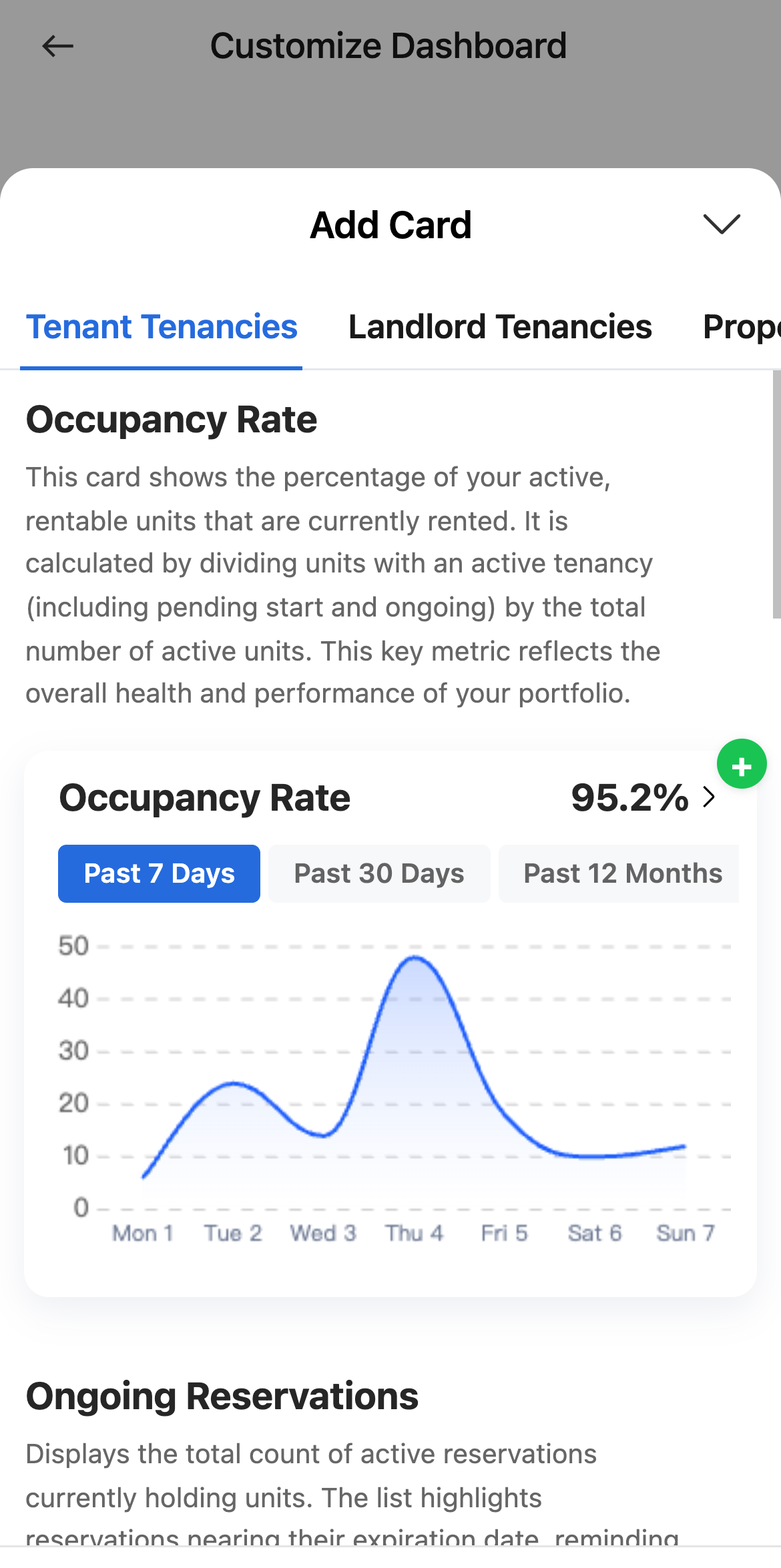
Step 2 Open [Customize Dashboard], then tap [Add Card] to review the available card groups and card previews.
- App groups cards by [Tenant Tenancies], [Landlord Tenancies], [Properties], [E-Contracts], [Financial], and [IoT Devices]
- After you finish selecting cards, tap [Save]
Platform differences
| Topic | Web | App |
|---|---|---|
| Entry | [Dashboard] in the left navigation | [Home] in the bottom navigation |
| Card layout | Multi-card desktop grid with dashboard views | Mobile home feed with quick actions above the dashboard |
| View management | Supports switching between dashboard views such as [default] | Uses the mobile dashboard module list for the current account |
| Edit flow | [Customize Dashboard] -> [Add Card] -> [Confirm] -> [Save] | [Customize Dashboard] -> [Add Card] -> [Save] |
Note:
- If a dashboard view has no saved cards, Web or App shows an empty-state prompt asking you to add cards.
- Some cards or categories only appear when your role can access the related module.
- The same card family can appear on both Web and App, but the layout and editing controls follow each platform.