How do I log in to my ForentX account for the first time?
Open the public ForentX [Log in] page and sign in with the account you already created.
Entry:
- Web: public [Log in] page
- App: open the ForentX app to the [Log in] screen
Web
Step 1 Open the [Log in] page.
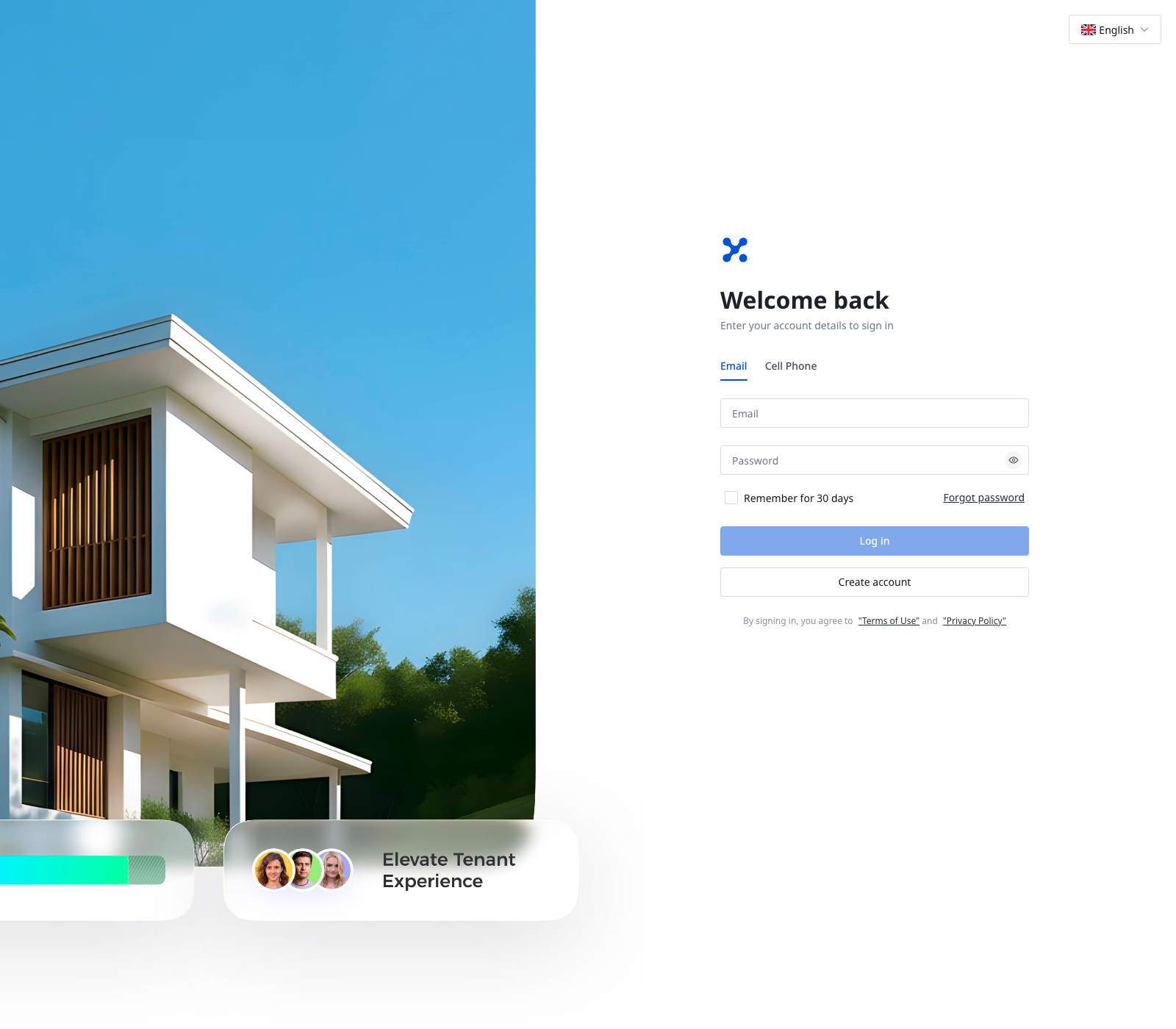
Step 2 Choose the sign-in method that matches your account.
- [Email]
- [Cell Phone]
Step 3 Enter your account details.
- If you use [Email], enter your email address and password.
- If you use [Cell Phone], switch to the [Cell Phone] tab, then enter your cell phone number and password.
Step 4 Click [Log in].
Step 5 After sign-in succeeds, the system opens [Dashboard] or the last allowed page for your account.
App
Step 1 Open the ForentX app to the [Log in] screen.
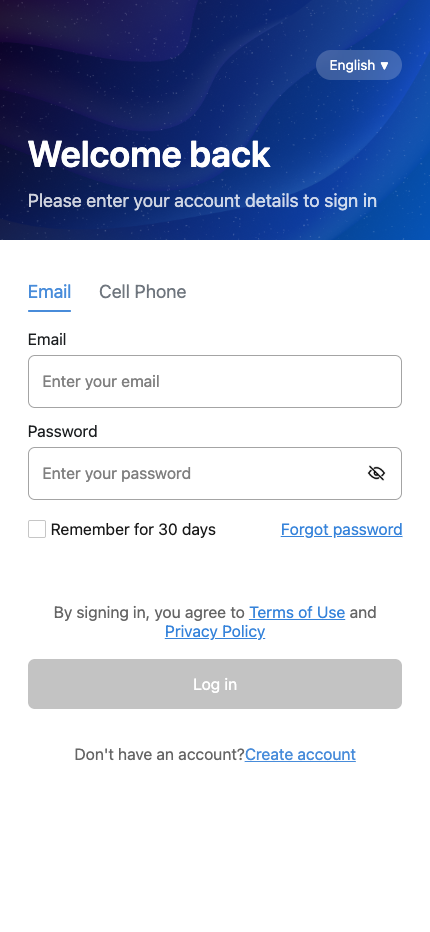
Step 2 Choose the sign-in method that matches your account.
- [Email]
- [Cell Phone]
Step 3 Enter your account details, then tap [Log in].
- If you use [Email], enter your email address and password.
- If you use [Cell Phone], switch to the [Cell Phone] tab, then enter your cell phone number and password.
Step 4 After sign-in succeeds, the app opens [Home].
Platform differences
- Web opens [Dashboard] or the last allowed page for your account after sign-in.
- App opens [Home] after sign-in.
- Web shows [Create account] as a separate button, while App shows it as a link below the [Log in] button.
Note:
- Both Web and App also provide [Create account] and [Forgot password].
- Both login pages let you switch between [Email] and [Cell Phone].
- This article covers signing in with an existing account. Registration is covered separately.