How do I configure date, time, and address formats based on my country/region?
Use [Region and Currency] to review which country/region your account uses and how that affects date, time, and address formatting. On Web, the same section also shows example formats directly.
Entry:
- Web: [My Profile] -> [Account Settings]
- App: [Home] -> tap your avatar to open the side drawer -> [Account Settings]
Web
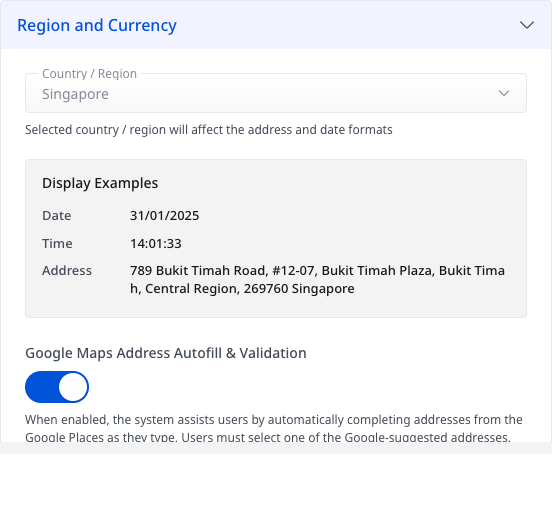
Step 1 Open [My Profile] -> [Account Settings], then find the [Region and Currency] card.
Step 2 In [Region and Currency], review the current [Country / Region] setting, then check [Display Examples] for:
- [Date]
- [Time]
- [Address]
App
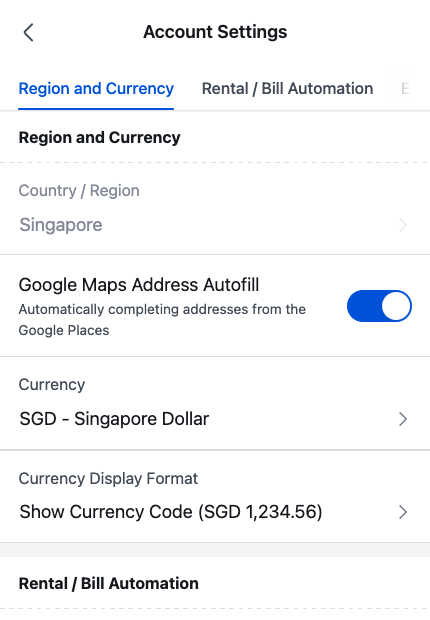
Step 1 From [Home], tap your avatar to open the side drawer, then tap [Account Settings].
Step 2 In [Region and Currency], review the current [Country / Region]. The same section also shows [Google Maps Address Autofill], [Currency], and [Currency Display Format].
Platform differences
| Topic | Web | App |
|---|---|---|
| Entry | [My Profile] -> [Account Settings] | [Home] -> avatar side drawer -> [Account Settings] |
| Date, time, and address preview | Shows [Display Examples] for [Date], [Time], and [Address] | Does not show a separate [Display Examples] block |
| Related settings in the same section | Shows [Google Maps Address Autofill & Validation], [Currency], and [Currency Display Format] below the examples | Shows [Google Maps Address Autofill], [Currency], and [Currency Display Format] in the same section |
Note:
- The [Country / Region] field is view-only on this page in both Web and App.
- The selected country/region affects how dates and addresses are displayed across the system.
- Use Web if you need to confirm a concrete date, time, or address example before sharing instructions or screenshots.