How do I register and create my main ForentX account?
Create your main operator account from the public [Log in] page, then complete the verification-code and password steps on the same registration flow.
Entry:
- Web: Public [Log in] page -> [Create account]
- App: [Log in] -> [Create account]
Web
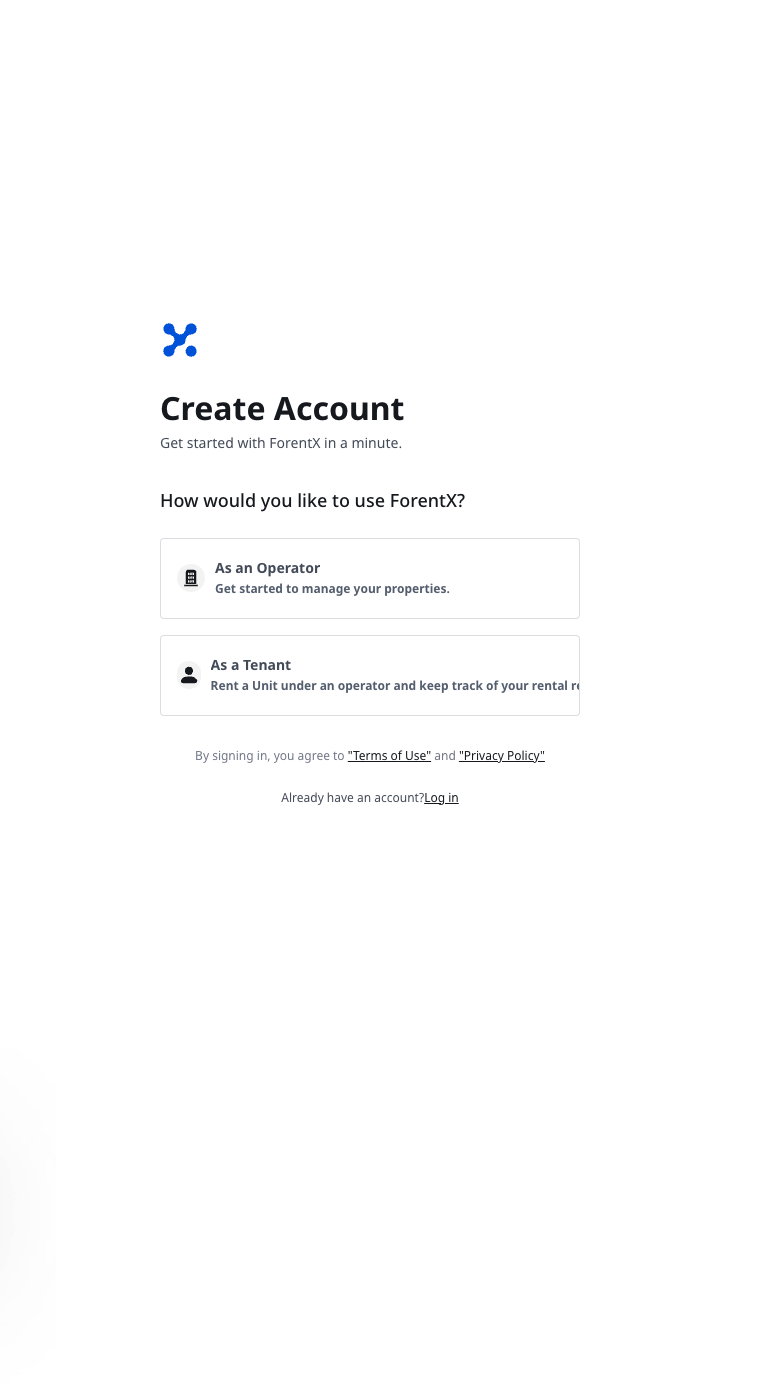
- On the [Create Account] page, choose [As an Operator].
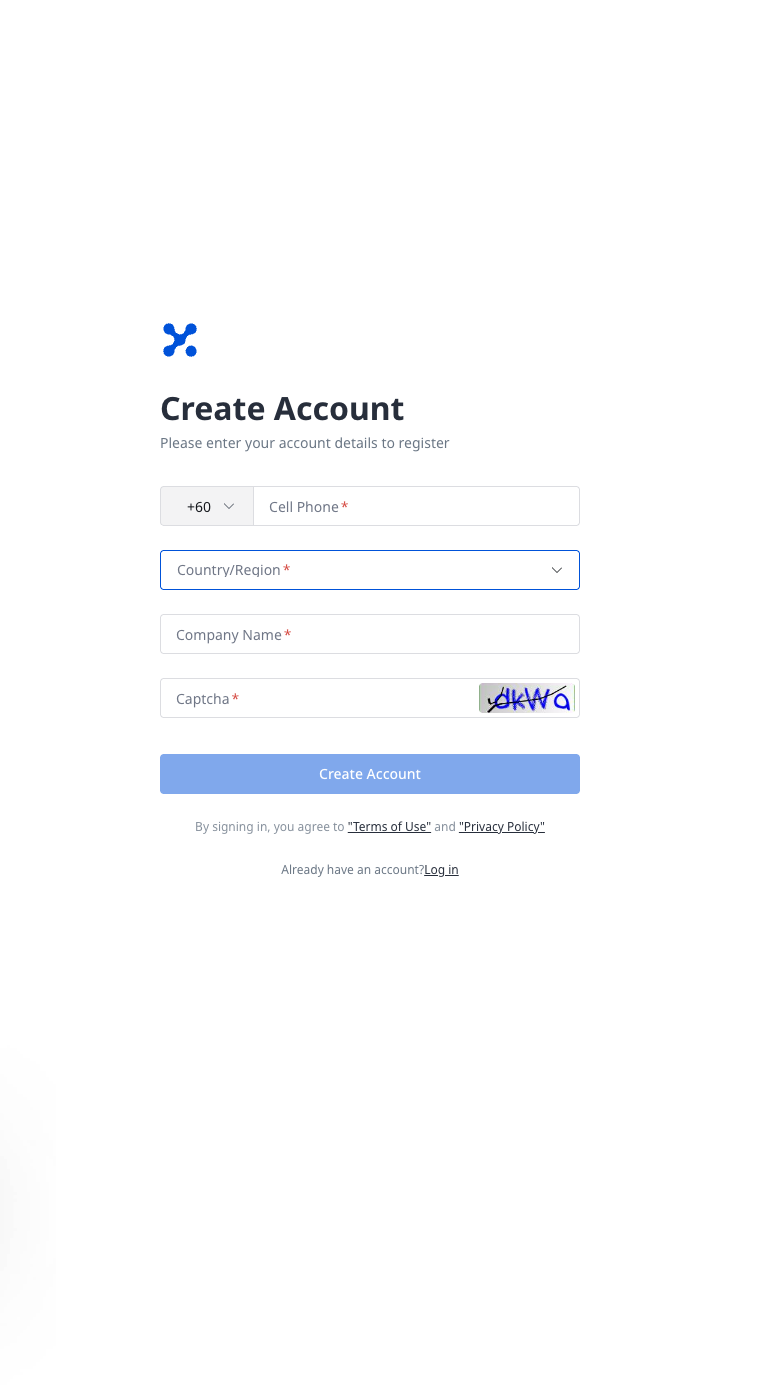
- On the account details form, enter these required fields, then click [Create Account]:
- [Cell Phone]
- [Country/Region]
- [Company Name]
- [Captcha]
-
Enter the 6-digit verification code sent to your cell phone, then click [Submit].
-
Create your password, then click [Confirm].
- 10-32 characters
- At least one uppercase letter, one lowercase letter, and one number
- No spaces
-
After registration succeeds, click [Log in now] to return to the sign-in page.
App
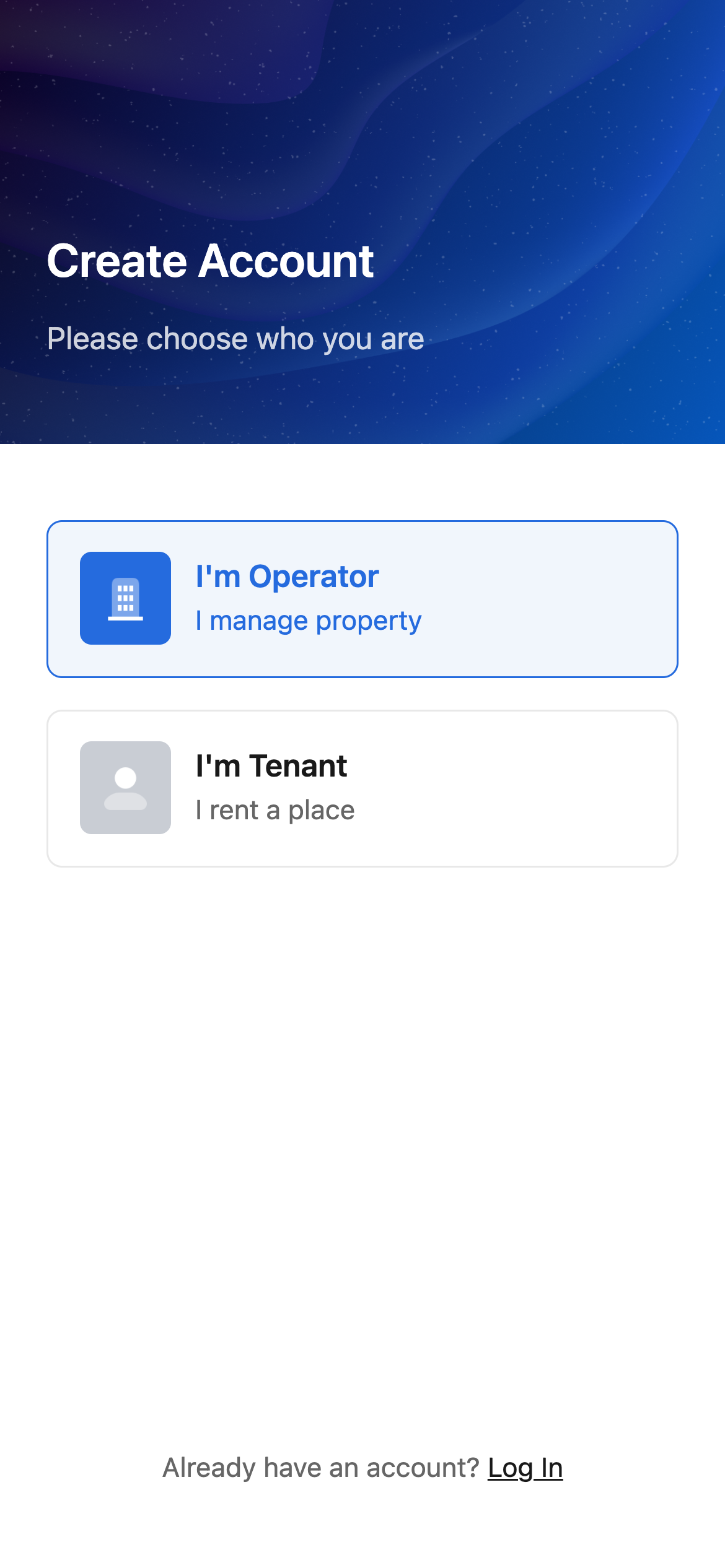
- On the [Create Account] page, choose [I'm Operator].
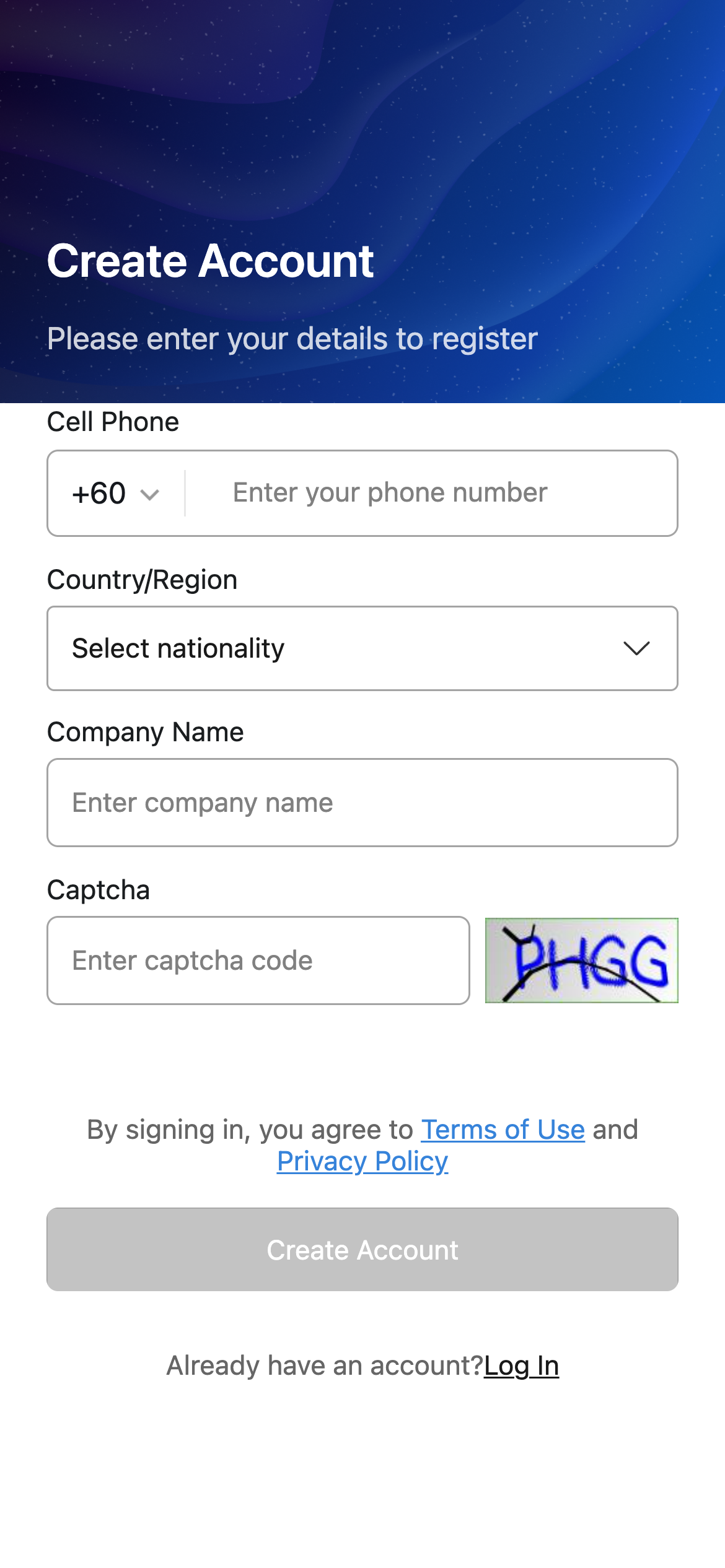
- Fill in these required fields, then tap [Create Account]:
- [Cell Phone]
- [Country/Region]
- [Company Name]
- [Captcha]
-
Enter the 6-digit verification code, then tap [Submit].
-
Create your password, then tap [Confirm].
- Minimum 8 characters
- At least one uppercase letter, one lowercase letter, and one number
- No spaces
-
After registration succeeds, tap [Log in now].
Platform differences
- Both platforms let operators create the main account with cell phone verification, then continue to password setup.
- Web uses [As an Operator] and [As a Tenant]. App uses [I'm Operator] and [I'm Tenant].
- Web password rules require 10-32 characters. App password rules require at least 8 characters.
- If you choose the tenant path, Web shows a download prompt for ForentX App, while App shows a notice that tenants usually receive an invitation instead of registering here.
Note:
- Use a phone number that can receive the verification code.
- The first registration step starts with [Cell Phone] on both platforms. The current first step does not show an email field.