How do I set up my personal profile and preferred language?
Use [My Profile] on Web to update your current personal or company information. If you need to change the interface language, use the Web language selector in the top-right user drawer, or use the language selector on the App [Log in] screen.
Entry:
- Web personal profile: [My Profile]
- Web preferred language: top-right profile avatar -> language selector
- App preferred language: [Log in] -> top-right language label
Web
Update your personal or company profile
Open [My Profile], then review the section you need to update.
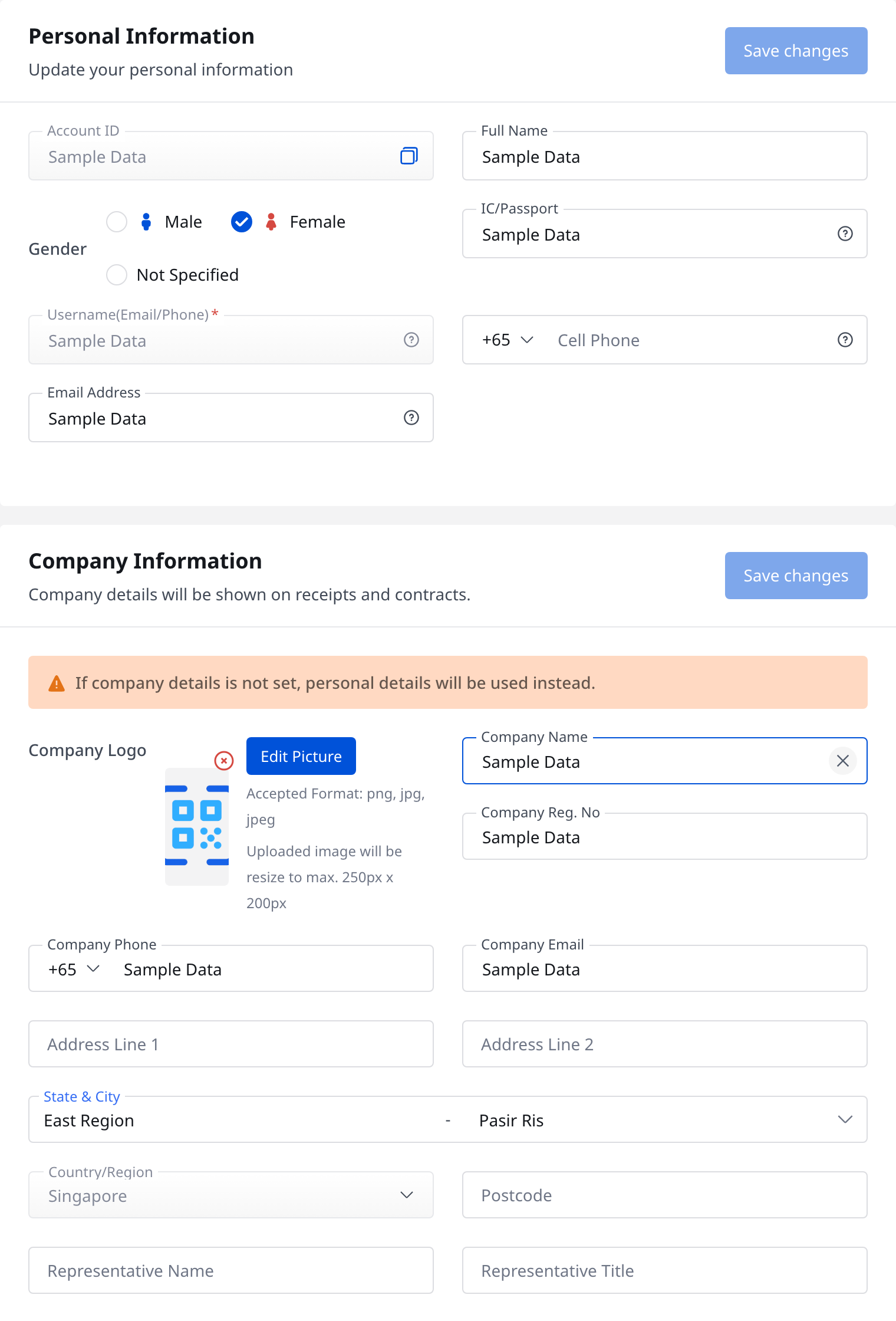
- [Full Name]
- [Gender]
- [IC/Passport]
- [Cell Phone]
- [Email Address]
- Company details in [Company Information], if you also need them on receipts and contracts
Click [Save changes] in the section you updated. [Account ID] and [Username(Email/Phone)] stay read-only on this page.
Change your preferred language on Web
Click the profile avatar in the top-right corner to open the user drawer, then use the language selector to choose [English] or [中文(繁體)].

After you change the language, the current page reloads in the selected language.
App
Change your preferred language in the operator app
Open the operator App [Log in] screen. The current language selector is in the top-right corner of this page.
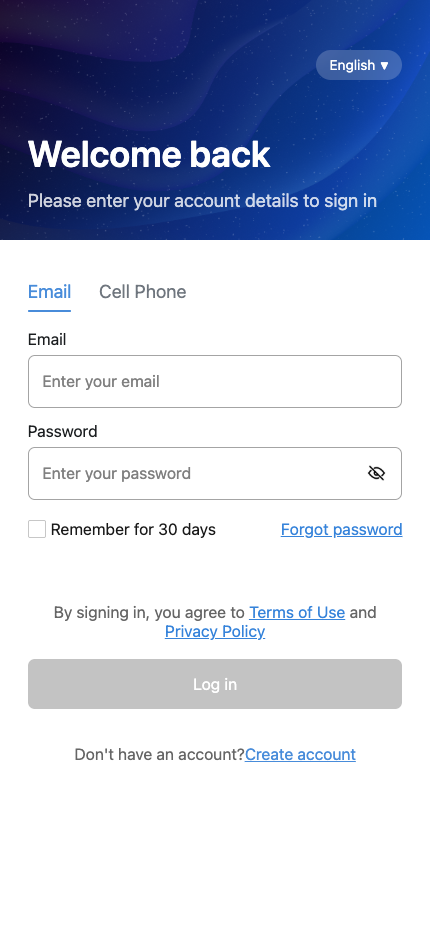
Tap the current language label, then choose [English] or [繁體中文].
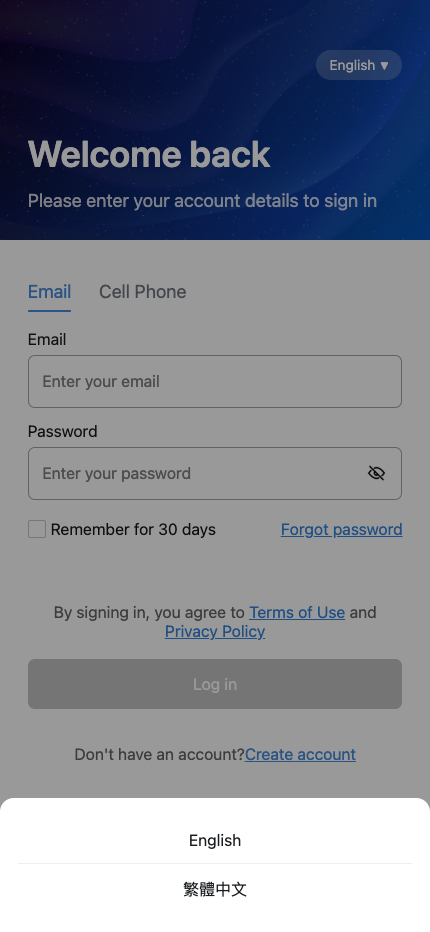
The login screen updates immediately after you choose a language. When you sign in, the App syncs the selected language to your account.
Platform differences
- Web supports both profile editing and preferred language changes.
- The current operator App supports preferred language changes on the [Log in] screen, but it does not provide a dedicated operator [My Profile] page for editing personal or company information.
Note:
- If you need to update personal or company information, use Web [My Profile].
- If you are already signed in on the App and need to change the language, sign out and use the [Log in] screen selector.