How should I add and manage my bank account information?
Use [Bank Accounts / Cards] in [My Profile] to add a bank account for the contract generator and manage the bank accounts you can keep as the default option there.
Entry:
- Web: [My Profile] -> [Bank Accounts / Cards]
- App: The current Property Operator App does not provide a bank account management page.
Web
Step 1 Open [My Profile], then select [Bank Accounts / Cards]. Confirm you are on the [Bank Accounts] page before you continue.
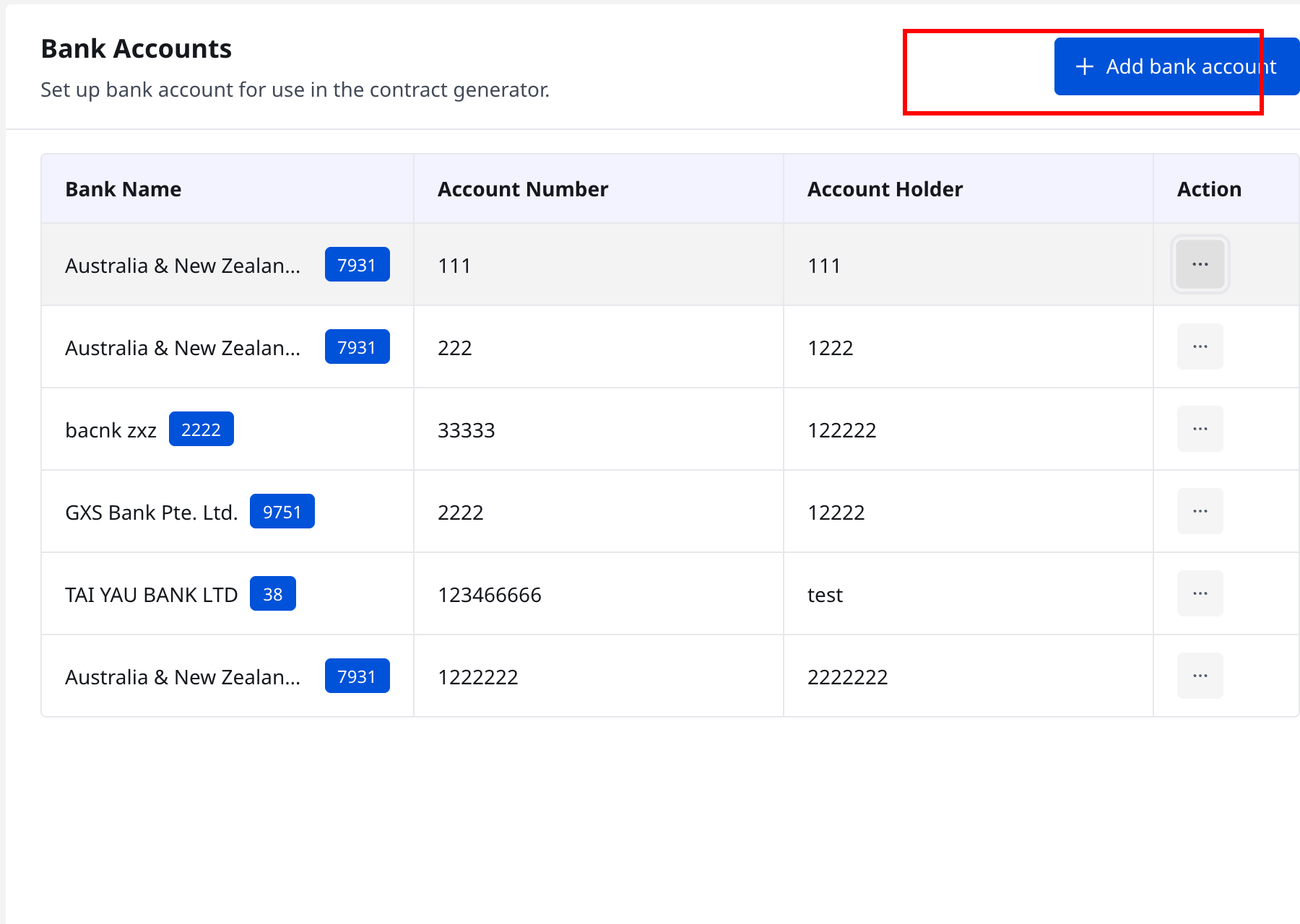
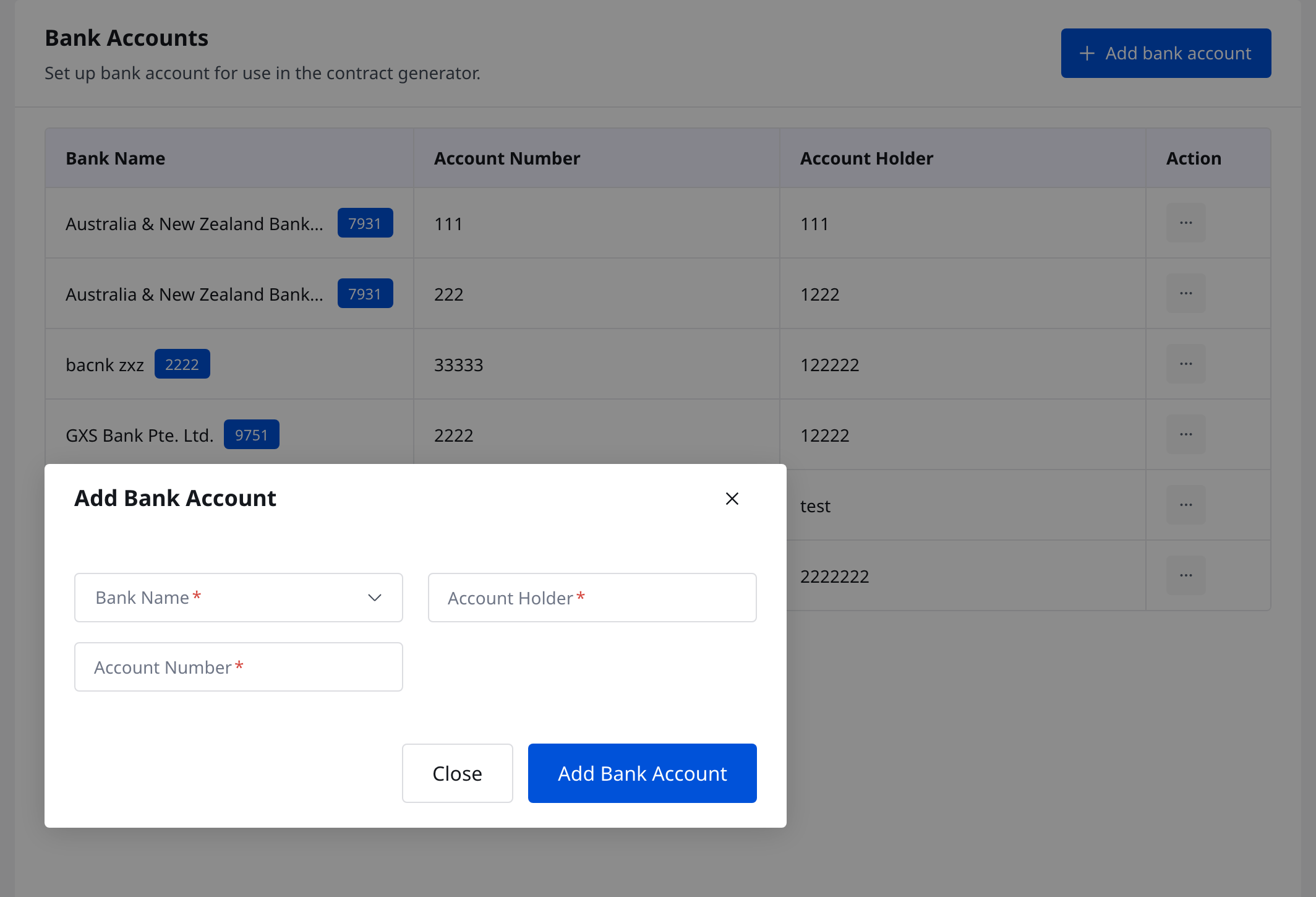
Step 2 Click [Add bank account], then complete the dialog:
- [Bank Name]
- [Account Holder]
- [Account Number]
After you finish, click [Add Bank Account].
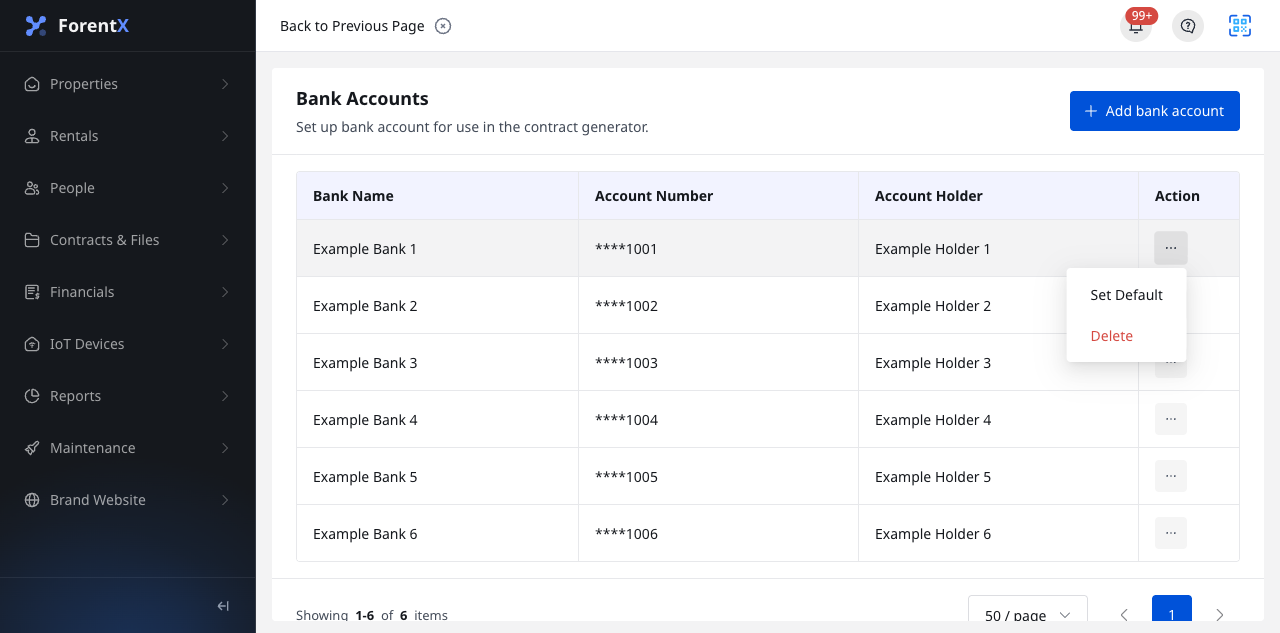
Step 3 To manage an existing bank account, open the row [Action] menu and choose the action you need:
- [Set Default] to make that bank account the default option
- [Delete] to remove that bank account
App
The current Property Operator App does not include a bank account management page or an [Account Settings] section for adding these contract-generator bank accounts.
Platform differences
- Web supports adding bank accounts, viewing the current bank account list, and using [Set Default] or [Delete].
- App currently has no matching entry or management flow for this feature.
Note:
- The page subtitle states that these bank accounts are used in the contract generator.
- If a bank account is already marked as the default account, that row does not show [Set Default] or [Delete].
- Deleting a bank account is irreversible.