How do I enable the Google Maps auto-fill feature for address input?
Use [Account Settings] -> [Region and Currency] to turn the Google Maps address autofill setting on or off.
Entry:
- Web: [My Profile] -> [Account Settings]
- App: [Home] -> profile avatar -> [Account Settings]
Web
Open [Account Settings], then go to the [Region and Currency] card.
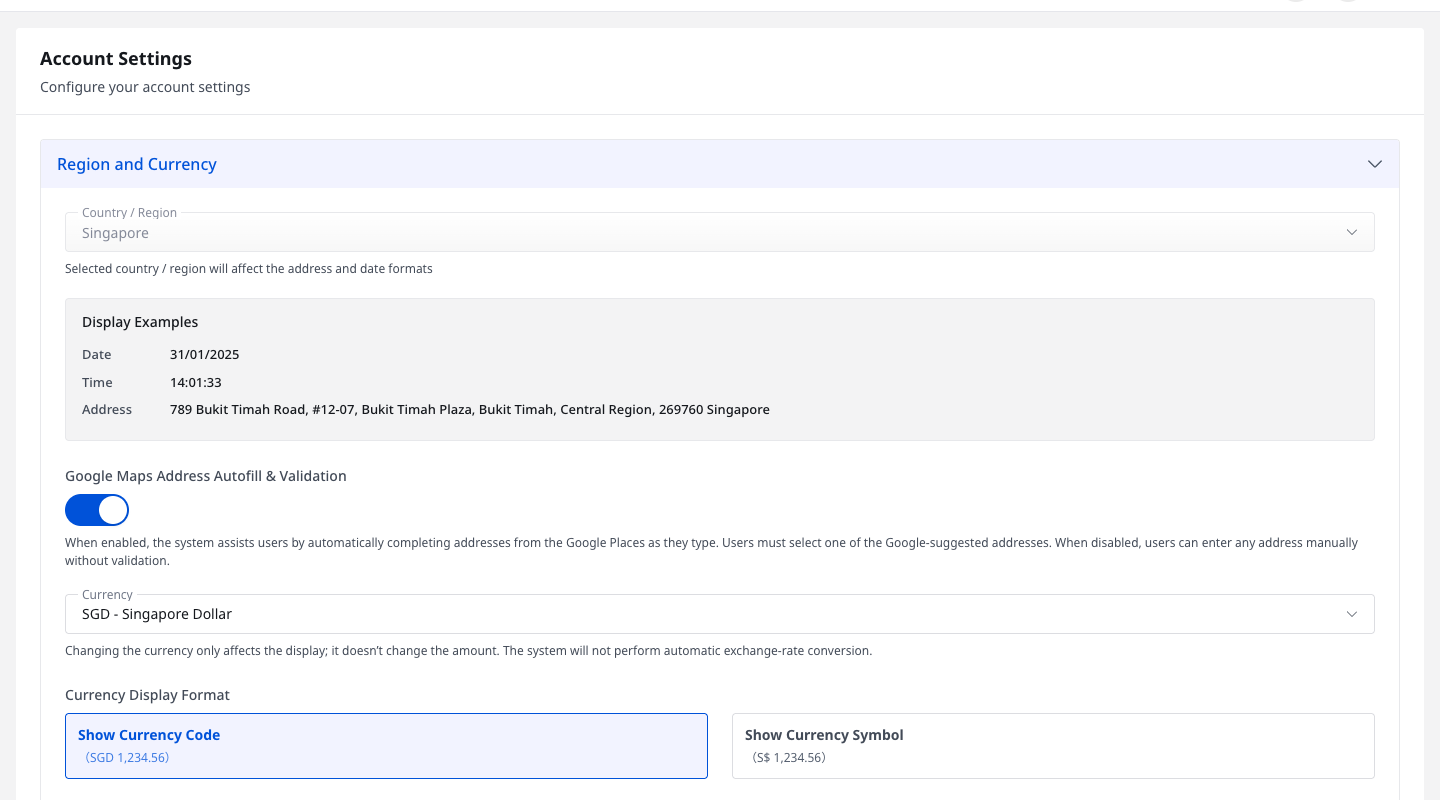
Turn on [Google Maps Address Autofill & Validation] if you want address fields to use Google-suggested results. Turn it off if you want users to type addresses manually.
App
Open [Account Settings], then stay on the [Region and Currency] section.
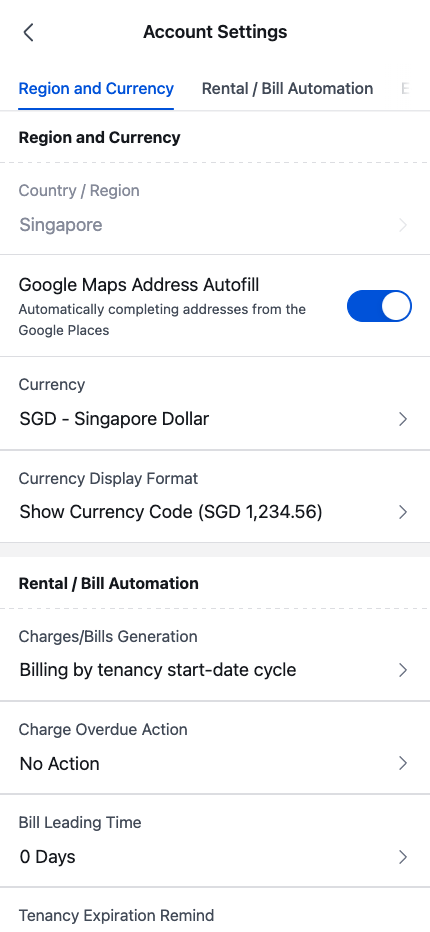
Turn on [Google Maps Address Autofill] to use Google Places suggestions in supported address fields. Turn it off if you want manual address entry without Google autofill.
Platform differences
- Web labels this setting as [Google Maps Address Autofill & Validation].
- App labels the same setting as [Google Maps Address Autofill].
- Both Web and App save the change immediately after you switch it.
Note:
- On Web, the helper text explains that enabled address fields use Google-suggested, validated addresses.
- On App, the helper text focuses on Google Places auto-complete for supported address fields.
- When the setting is off, users can enter addresses manually.