How do I configure my company information in the system?
Use [My Profile] -> [Company Information] to maintain the company details shown on receipts and contracts.
Entry:
- Web: [My Profile] -> [Company Information]
Web
Step 1 Open [My Profile], then scroll to the [Company Information] section.
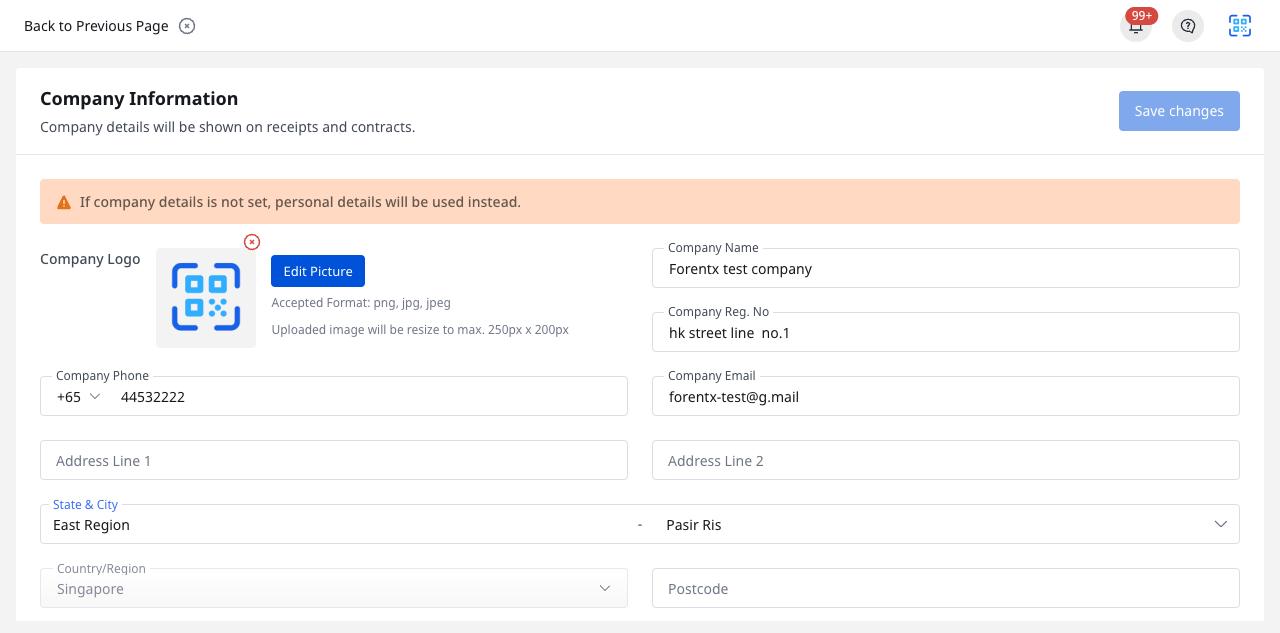
Step 2 If needed, click [Edit Picture] to update the company logo.
Step 3 Fill in or update the main company details:
- [Company Name]
- [Company Reg. No]
- [Company Phone]
- [Company Email]
- [Address Line 1]
- [Address Line 2]
- [State & City]
- [Country/Region]
- [Postcode]
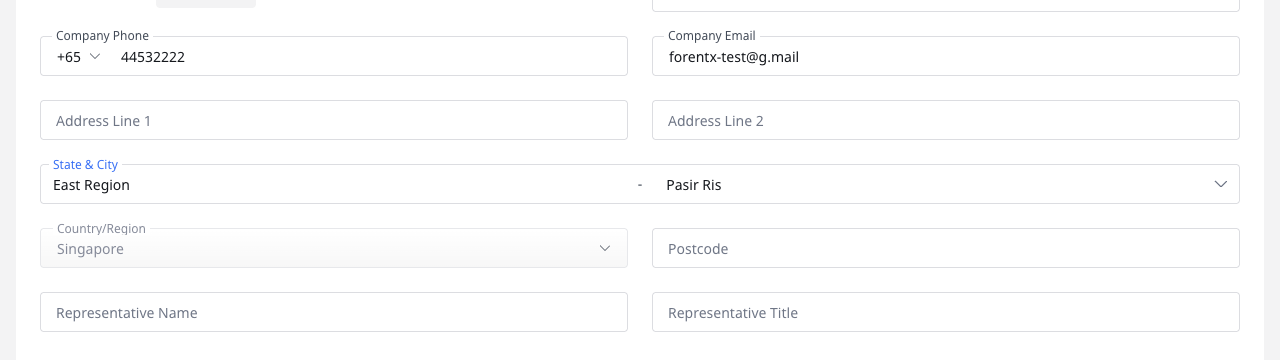
Step 4 Continue with the company contact and representative fields:
- [Representative Name]
- [Representative Title]
Step 5 Click [Save changes].
Platform differences
- App does not currently provide a [Company Information] editor for operators.
- Use Web to update the company logo, address, and representative details.
Note:
- The [Country/Region] field is view-only on this page.
- If company details are not set, the system indicates that personal details may be used instead.
- This page uses a manual [Save changes] action. Your edits are not auto-saved.