How to unbind a smart lock when it is no longer in use?
Use the operator App to open the smart lock you no longer need and unbind it from the current property or unit.
Entry:
- [IoT Devices] -> [Smart Locks]
Web
The current unbind action is not available from Web Admin. Use the operator App to remove the smart lock instead.
App
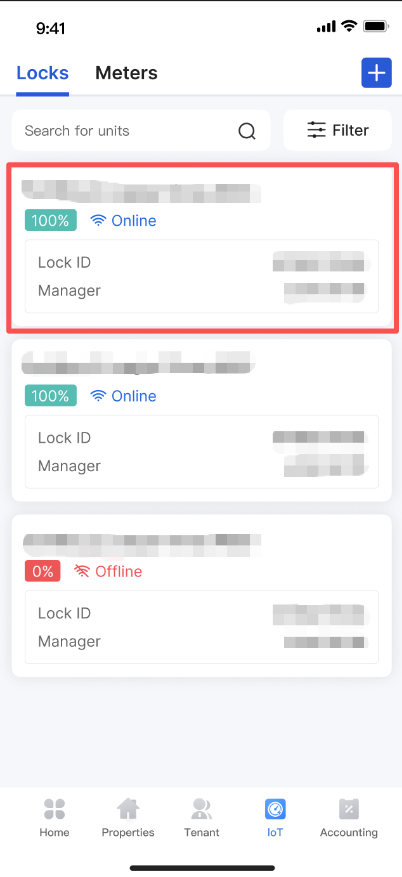
Step 1 Open [IoT Devices] -> [Smart Locks] in the operator App, then select the smart lock you no longer need.
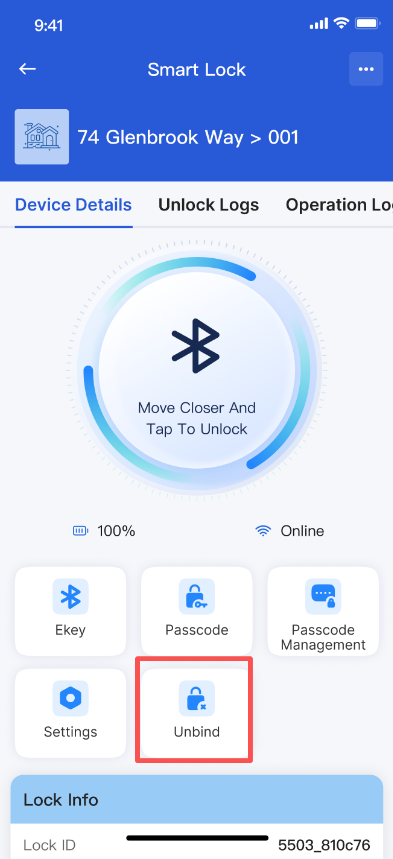
Step 2 Open the smart lock detail page, tap [Unbind], and confirm the removal.
Platform differences
- The unbind action is currently handled in the operator App, not in Web Admin.
- After the unbind is confirmed, the smart lock is removed from the current property or unit.
Note:
- Unbinding removes the relationship between the smart lock and the property or unit.
- Confirm that the lock is no longer needed by the current tenancy or property before you continue.