How to bind a new smart lock to my property or unit?
Use the operator App near the lock to scan, pair, and bind a new smart lock to the correct property or unit.
Entry:
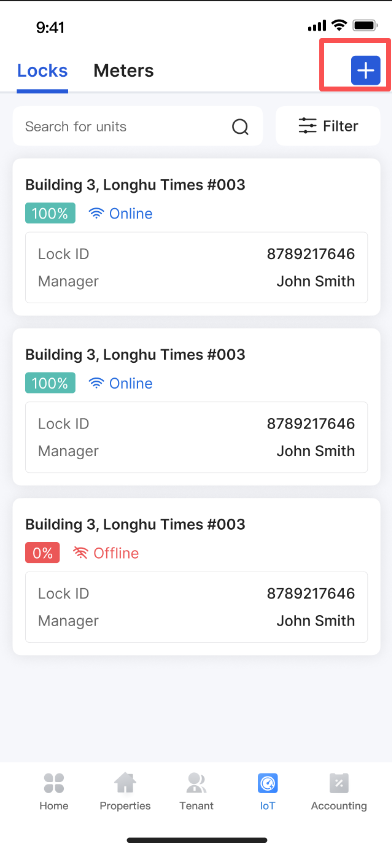
- [IoT Devices] -> [Add Locks]
Web
The current bind-new-smart-lock flow is not completed from Web Admin. Use the operator App near the device instead.
App
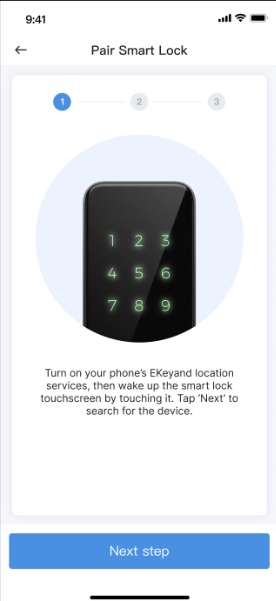
Step 1 Turn on Bluetooth, stay close to the lock, and open [IoT Devices] -> [Add Locks].
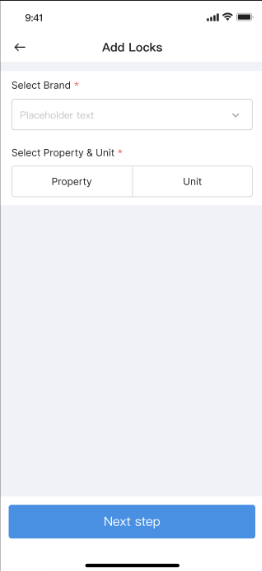
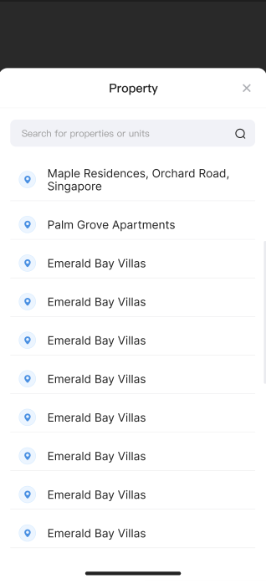
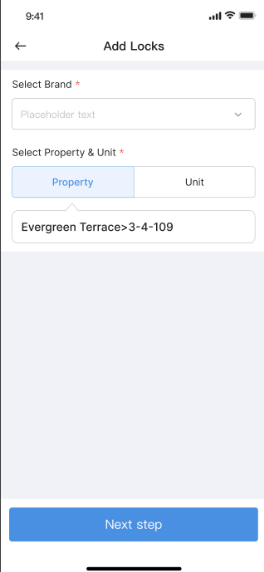
Step 2 Select the smart lock brand, then choose the property or unit you want to bind.
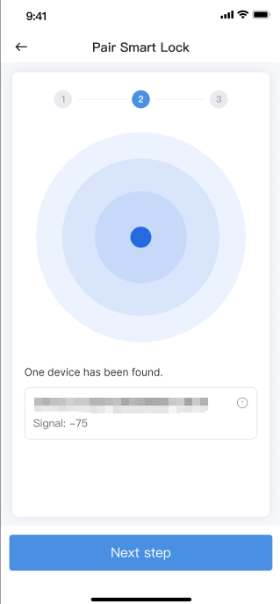
Step 3 Start scanning for nearby locks, choose the target [Lock ID], and continue until the bind flow finishes.
Platform differences
- The current bind flow depends on native Bluetooth permission, scanning, pairing, and bind actions in the operator App.
- Web Admin can review locks after they are already bound, but it does not replace the app-side bind flow.
Note:
- Keep the phone close to the lock during scanning and pairing.
- If the lock does not appear, confirm the lock is powered on and not already bound elsewhere.