How do I view the details and history of a bound smart meter?
Use the smart meter detail page to review the current setup, available actions, and history tabs for a linked smart meter.
Entry:
- [Smart Devices] -> [Smart Meters]
Web
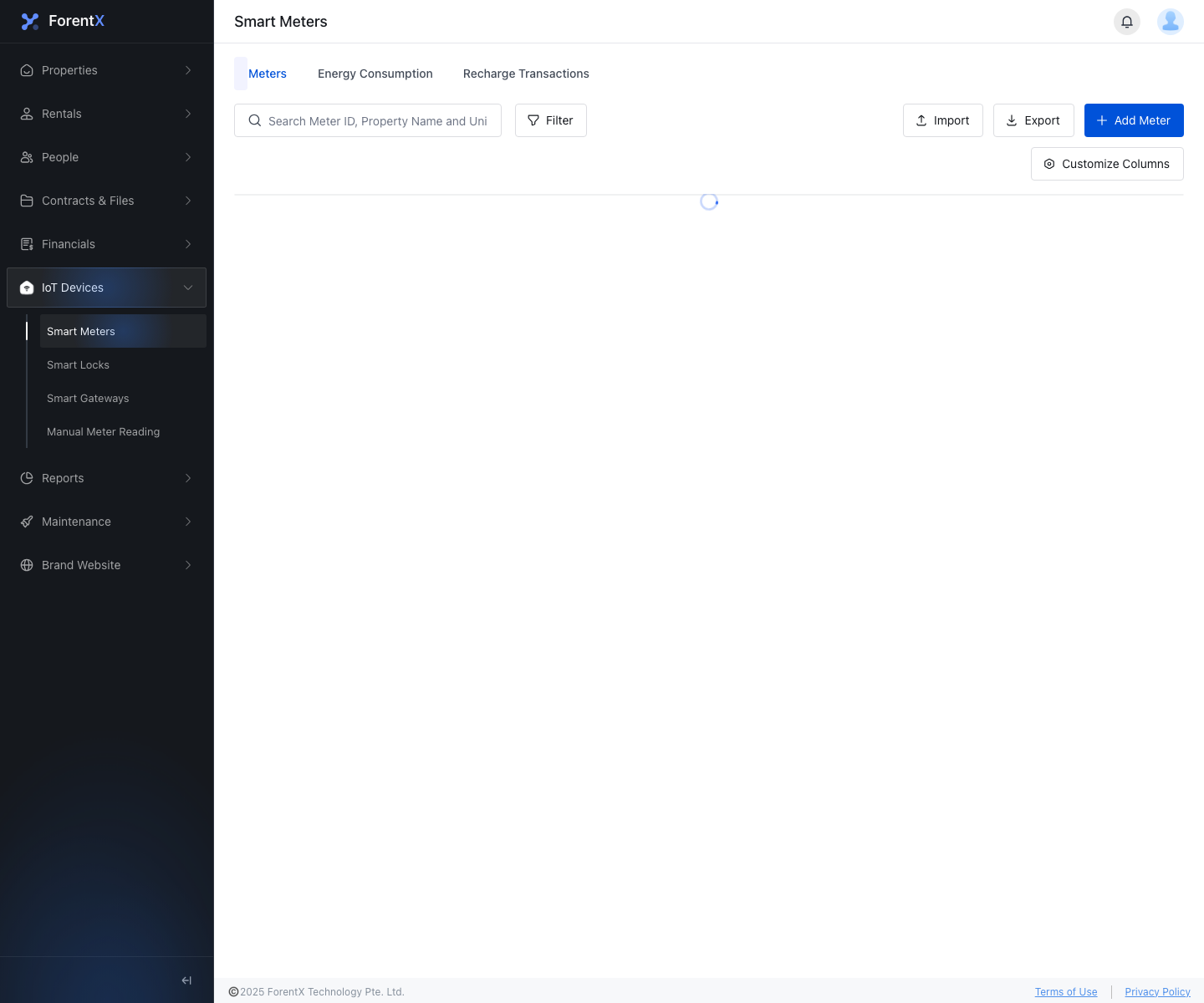
Step 1 Open [Smart Meters] and enter the detail page for the meter you want to review.
- On the current list page, clicking the meter row opens
/SmartMeters/Detailfor that device.
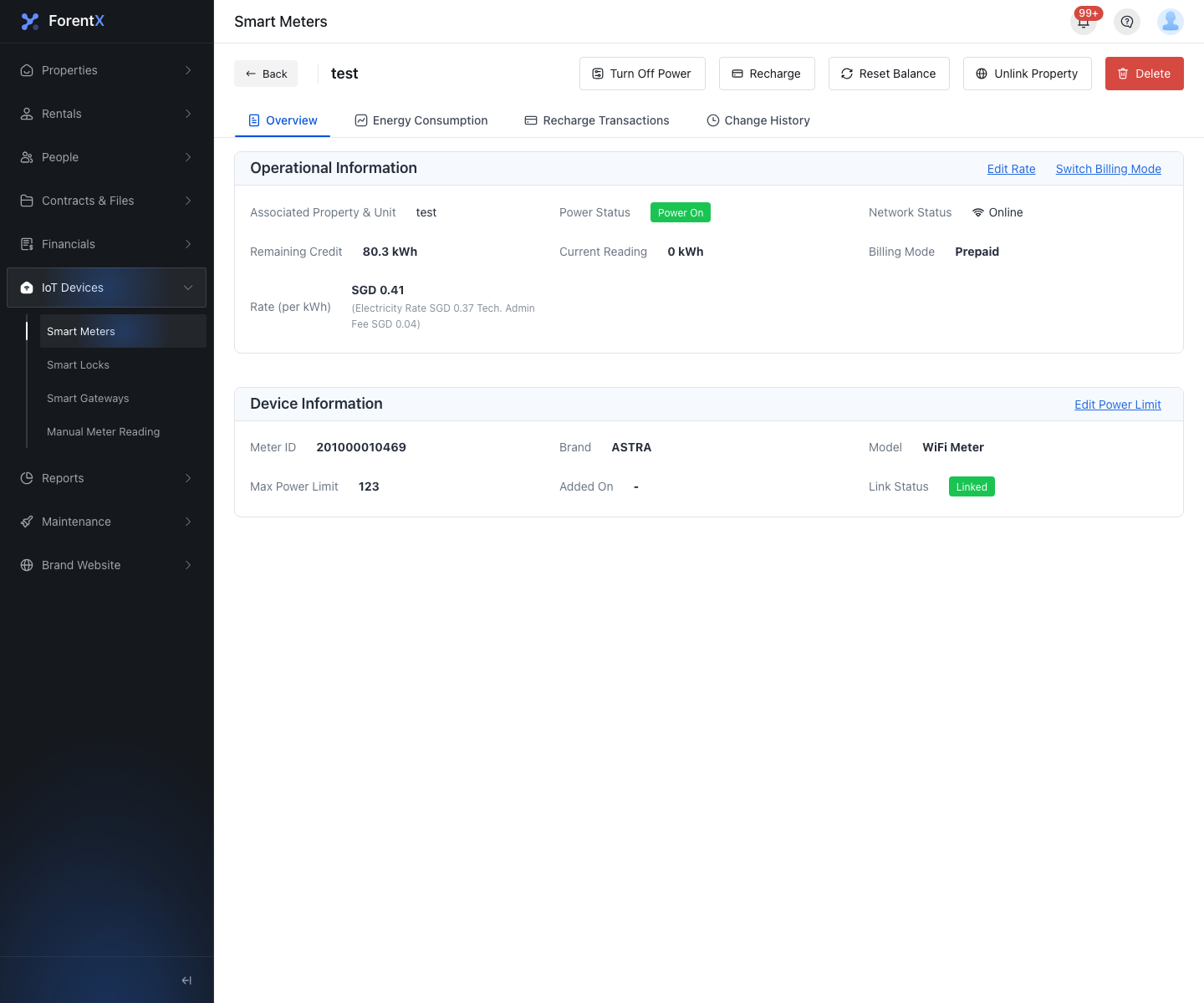
Step 2 Start on the [Overview] tab to review the current smart meter setup.
- The page header can include [Turn Off Power], [Recharge], [Reset Balance], [Unlink Property], and [Delete], depending on the meter status and billing mode.
- The overview shows operational information and device information for the current smart meter.
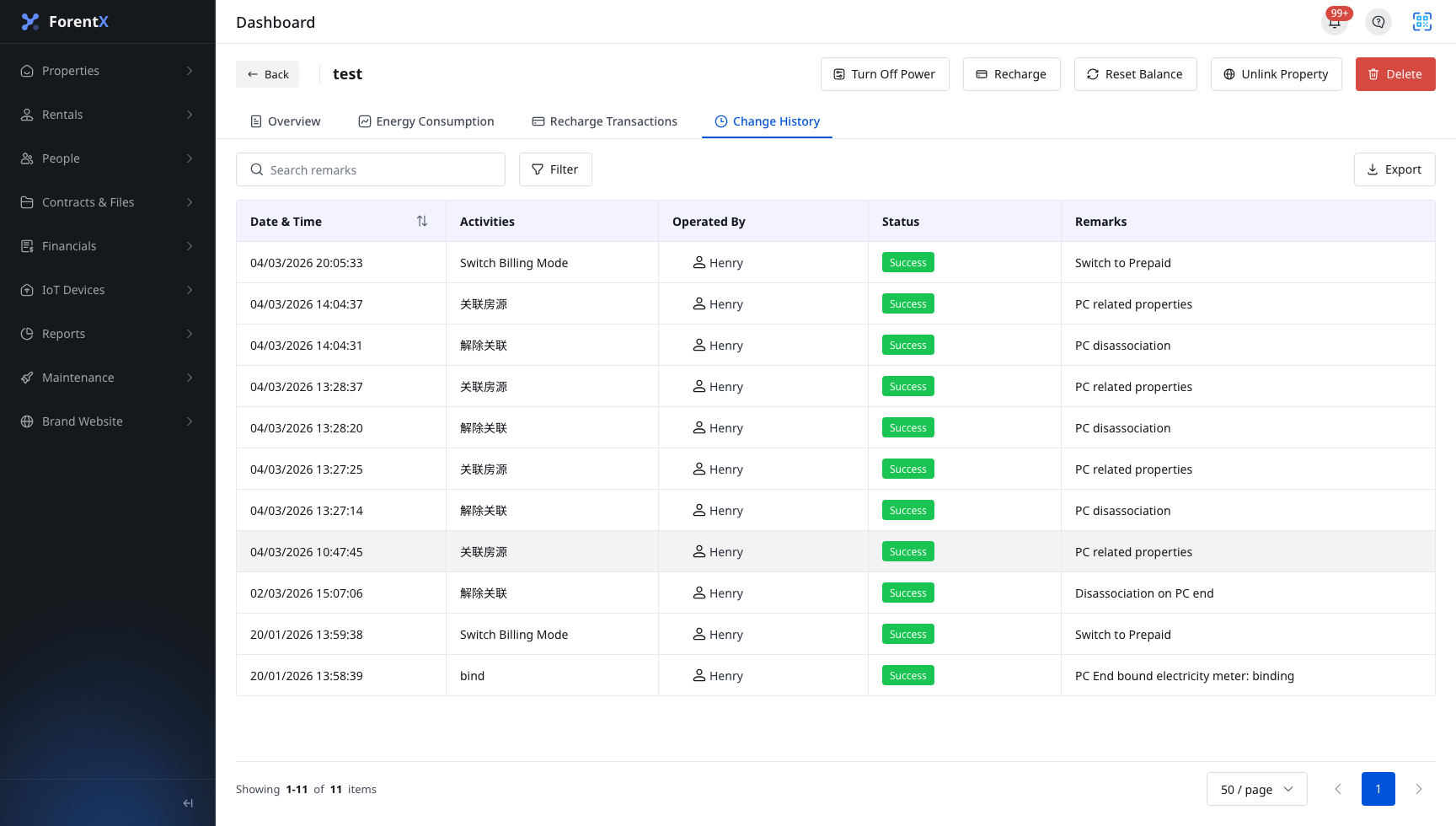
Step 3 Switch to the history tabs that match what you need to check.
- [Energy Consumption] shows usage records for the selected smart meter.
- [Change History] shows activity history, operators, statuses, and remarks.
- [Recharge Transactions] appears for prepaid meters.
- [Meter Reading & Billing Logs] appears for postpaid meters.
Note:
- The available header actions change with online status, link status, and billing mode.
- The detail tabs are not identical for every meter. Prepaid meters show [Recharge Transactions], while postpaid meters show [Meter Reading & Billing Logs].