How do I recharge a tenant's smart meter?
Use the smart meter recharge flow to top up an online prepaid meter for a tenant. If the selected meter is linked to an eligible tenancy, you can also create a payment record as part of the recharge.
Entry:
- Web: [IoT Devices] -> [Smart Meters] -> [Recharge], or open [Recharge] from a meter row or meter detail page
- App: [IoT] -> [Meters] -> [+] -> [Recharge Meter], or open [Recharge] from a prepaid meter detail page
Web
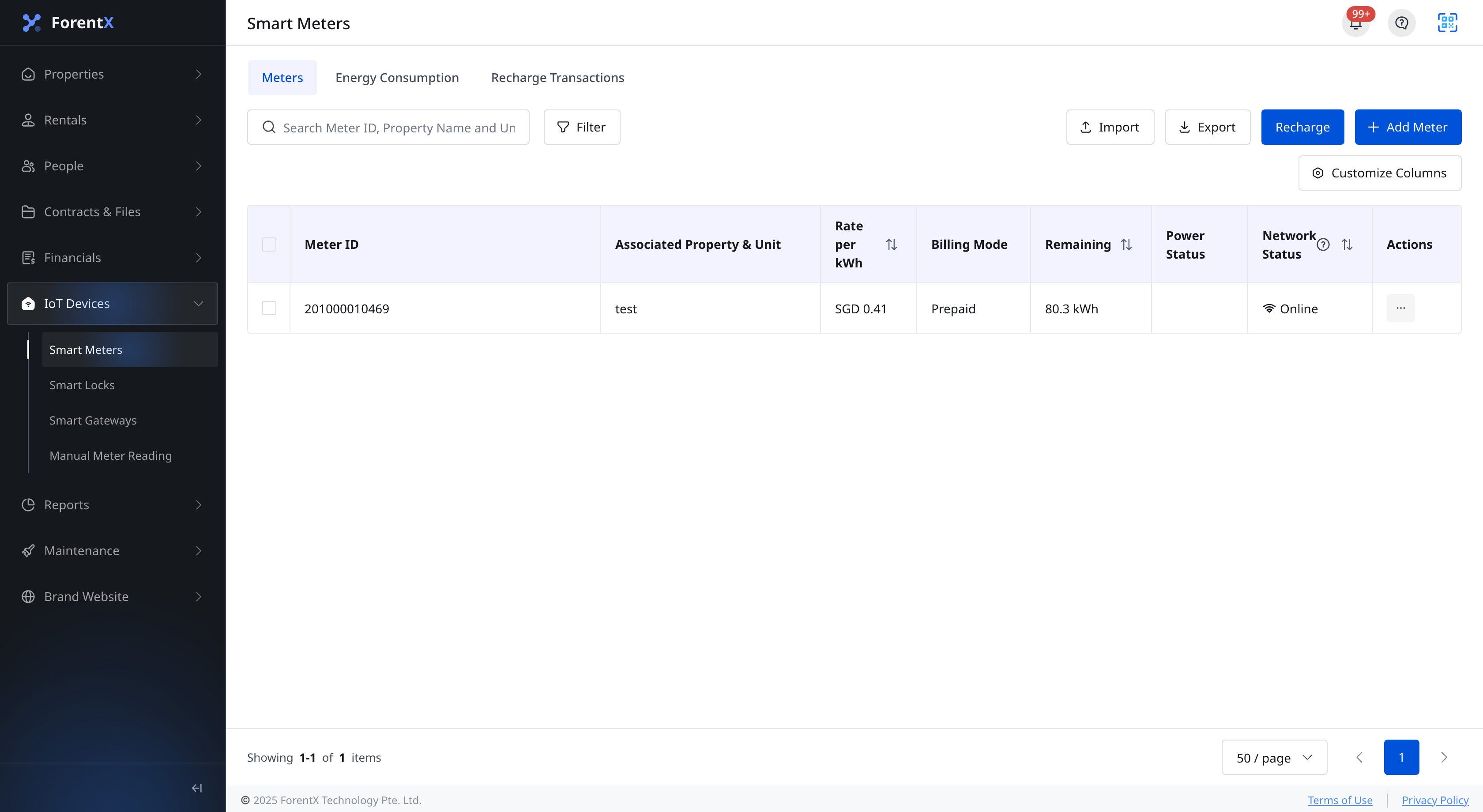
Step 1 Open [Smart Meters], then click [Recharge].
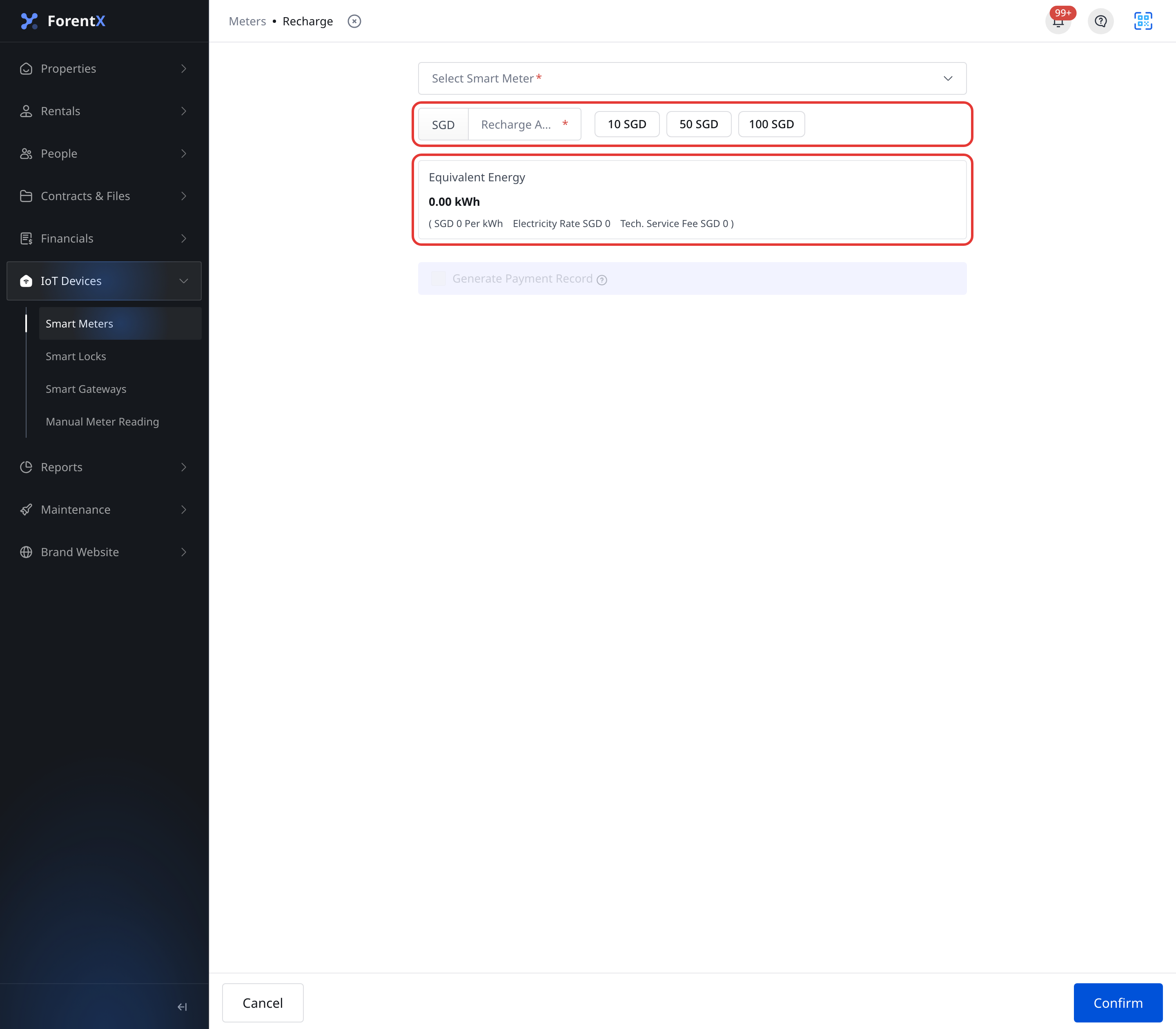
Step 2 Use the recharge page to choose the meter and amount:
- If you entered from the top [Recharge] button, choose the meter in [Select Smart Meter]
- If you entered from a meter action, the meter is already filled in
- Enter [Recharge Amount] manually or use a quick amount such as [10 SGD], [50 SGD], or [100 SGD]
- Review [Equivalent Energy] before you continue
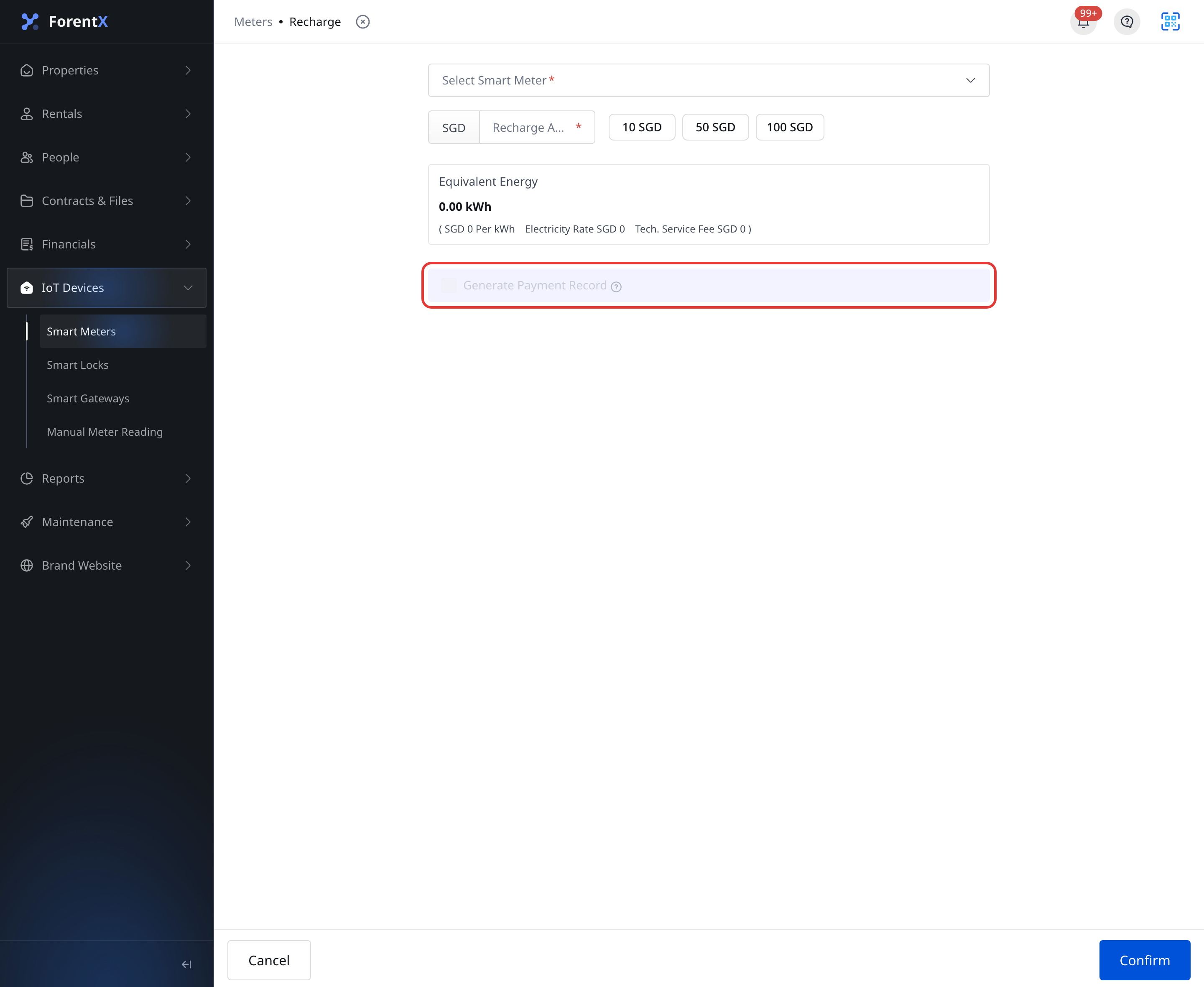
Step 3 Review the payment-record section before you confirm:
- [Generate Payment Record] is available only when the selected meter can create a related collection record
- When it is available and you keep it on, finish the embedded payment form on the same page
- Click [Confirm] to submit the recharge
App
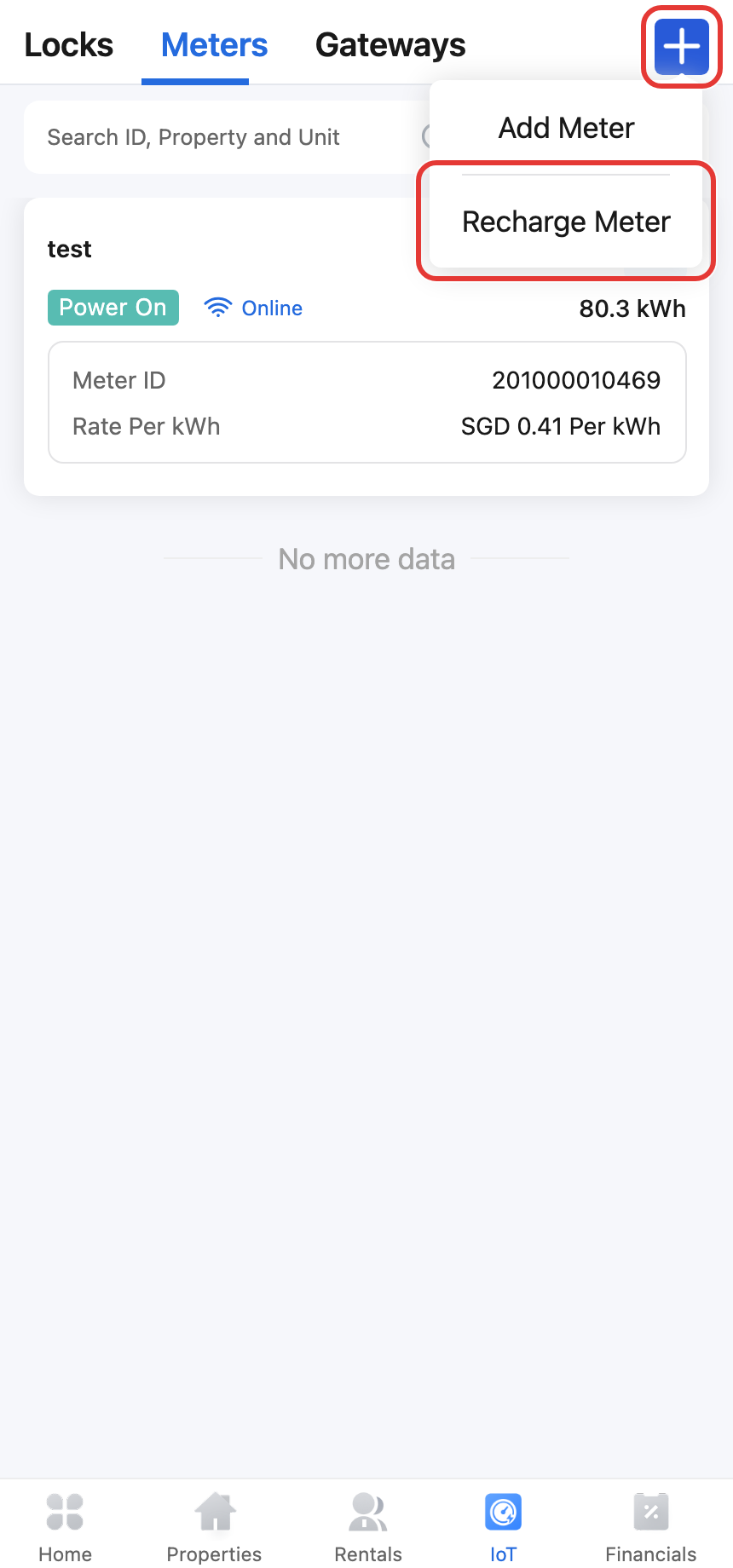
Step 1 Open the [IoT] tab, stay on [Meters], then tap [+] and choose [Recharge Meter].
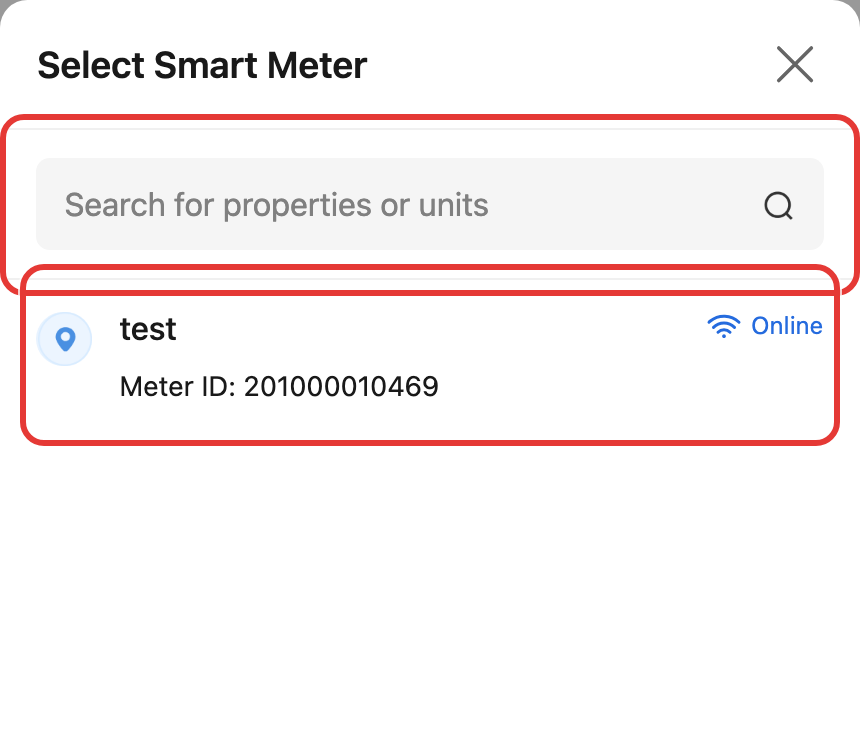
Step 2 On the [Recharge Credit] page, tap [Select Smart Meter], then choose an online prepaid meter from the popup.
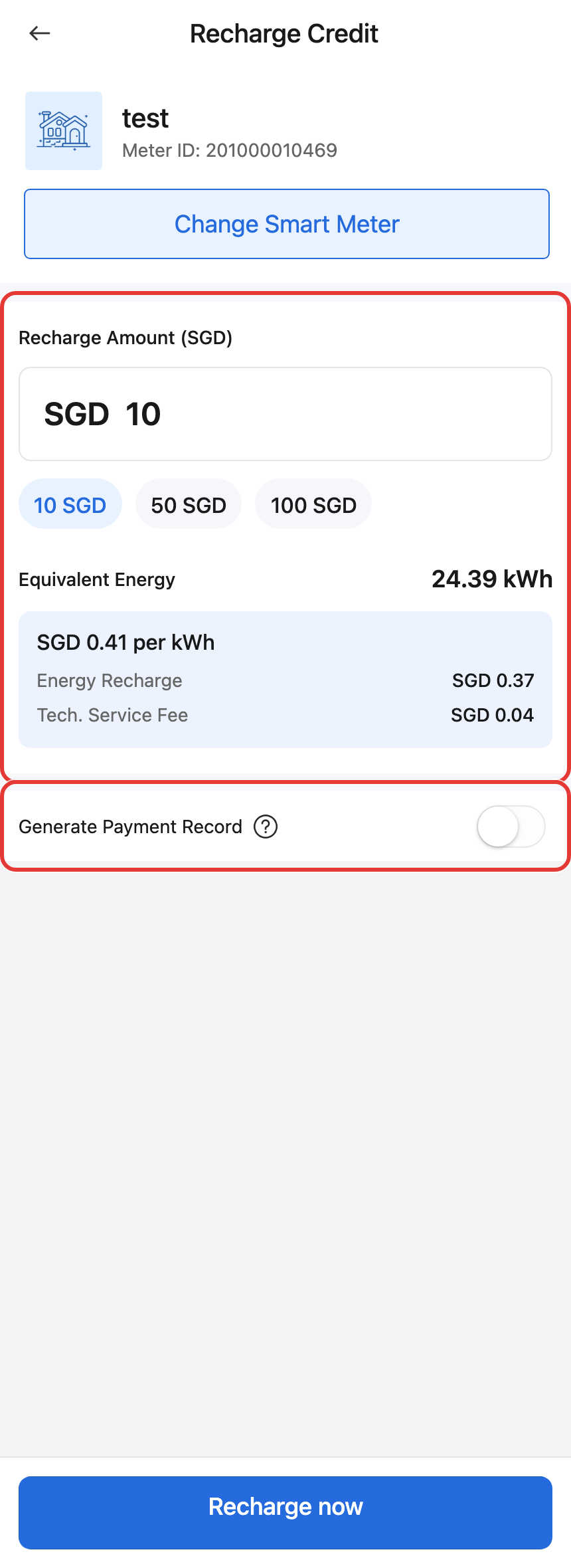
Step 3 After you return to [Recharge Credit], finish the recharge details:
- Enter the amount or tap a quick amount button
- Review [Equivalent Energy] and the rate breakdown
- If [Generate Payment Record] is available, decide whether to keep it on before you tap [Recharge now]
Platform differences
| Topic | Web | App |
|---|---|---|
| Main entry | [IoT Devices] -> [Smart Meters] -> [Recharge], or row/detail [Recharge] | [IoT] -> [Meters] -> [+] -> [Recharge Meter], or detail [Recharge] |
| Meter selection | Dropdown on the same recharge page | Bottom-sheet picker from [Select Smart Meter] / [Change Smart Meter] |
| Payment-record flow | The additional payment form stays on the same page when [Generate Payment Record] is available | The app can continue to a second payment-details page before the recharge is saved |
| Submit button | [Confirm] | [Recharge now] |
Note:
- Recharge is available only for online prepaid smart meters.
- The quick amounts and minimum recharge amount come from the smart meter global settings.
- If the selected meter has no active tenancy or no eligible collection context, [Generate Payment Record] stays unavailable.
- After the recharge is submitted, review the recharge history or recharge transactions view if you need to check the record.