How do I bind a new smart meter to my property or unit?
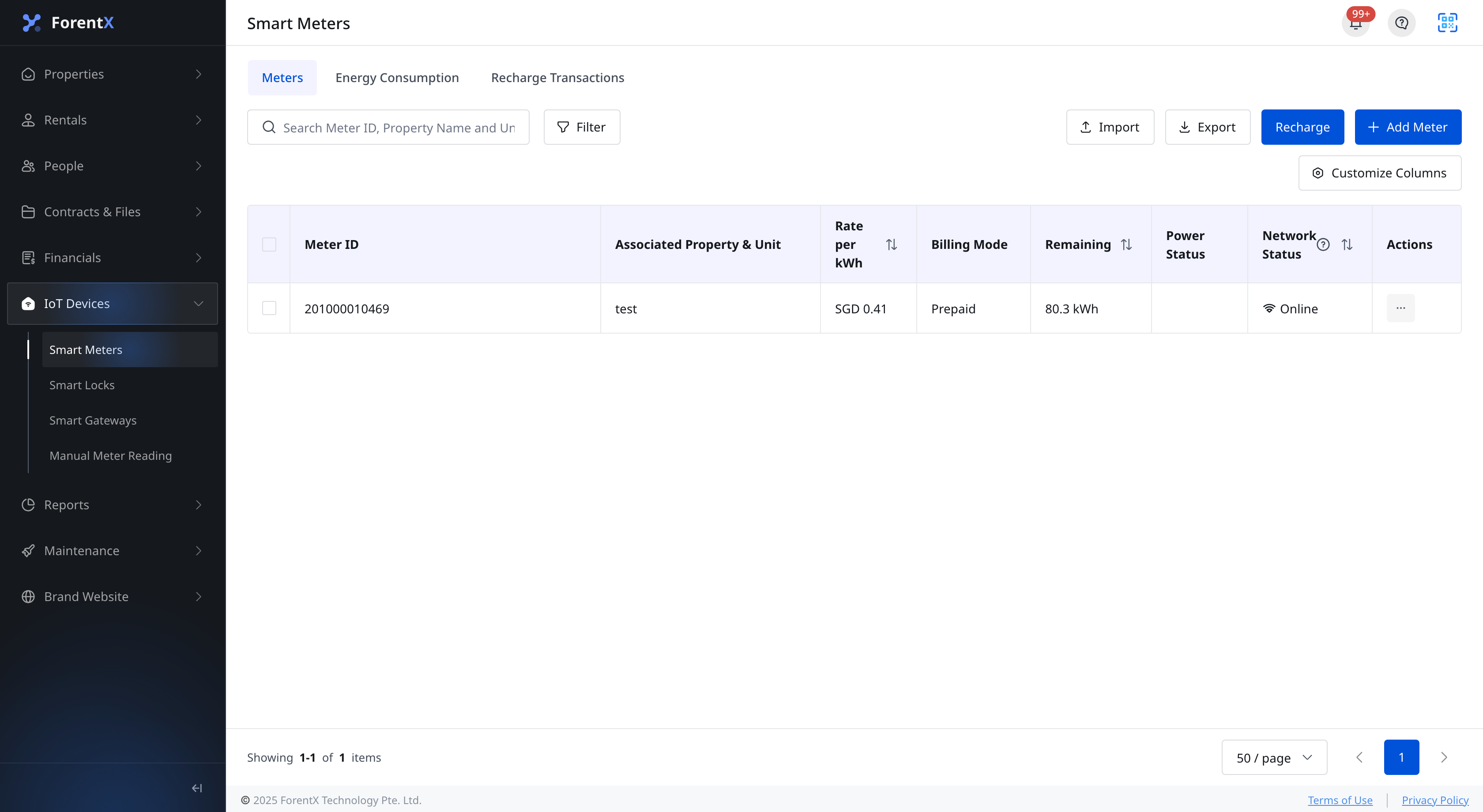
Use the smart meter add flow to bind a new meter to a [Property] or [Unit]. On Web, the entry is under [IoT Devices]. On App, you open the [Meters] tab from [IoT Devices].
Entry:
- Web: [IoT Devices] -> [Smart Meters] -> [Add Meter]
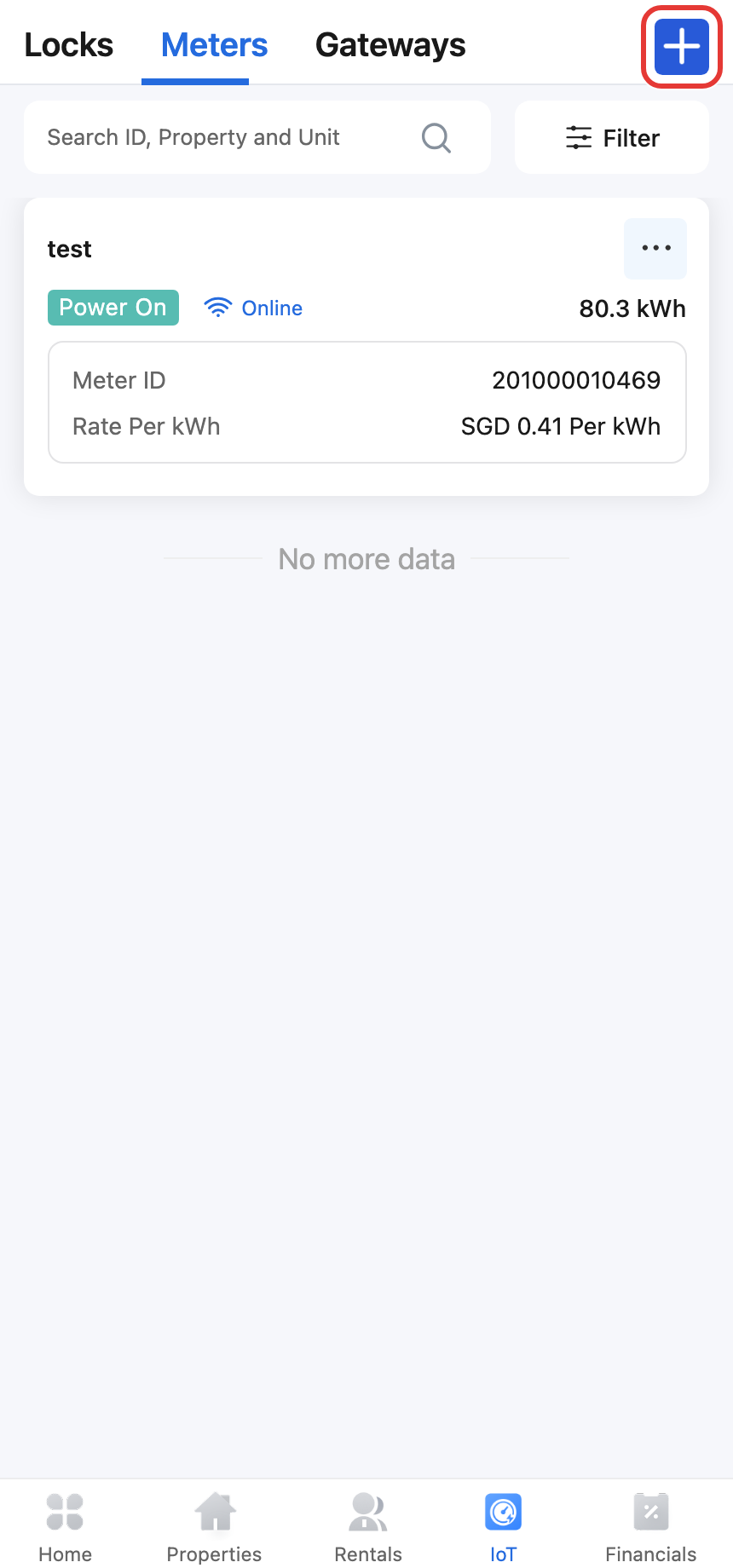
- App: [IoT Devices] -> [Meters] -> add icon -> [Add Meter]
Web
Step 1 Open [Smart Meters], then click [Add Meter].
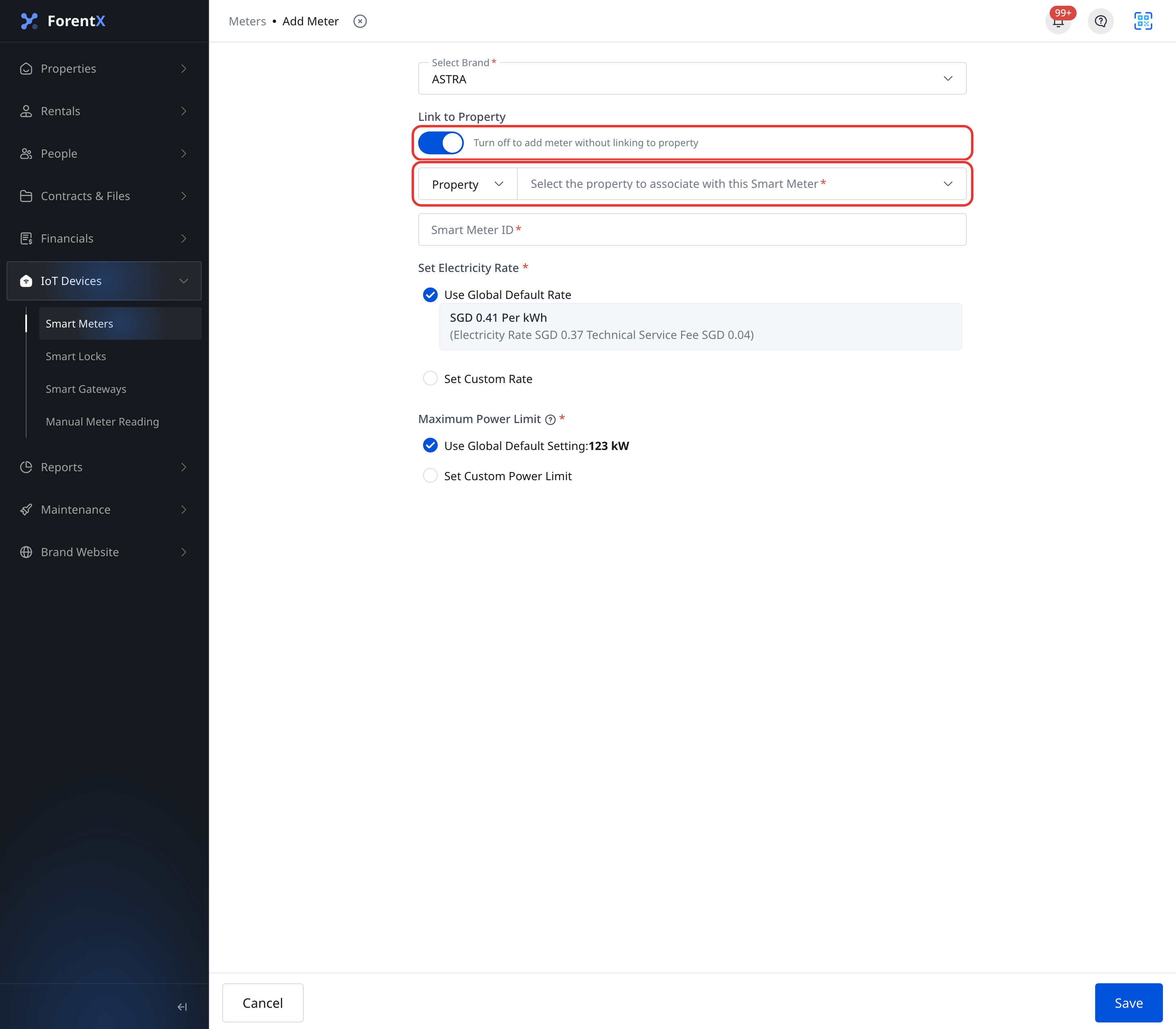
Step 2 Choose the meter brand and decide whether [Link to Property] should stay on.
- Leave [Link to Property] on when you want to bind the meter immediately.
- Choose [Property] or [Unit], then pick a target from the current bindable list.
- Turn [Link to Property] off only when you need to add the smart meter first and link it later.
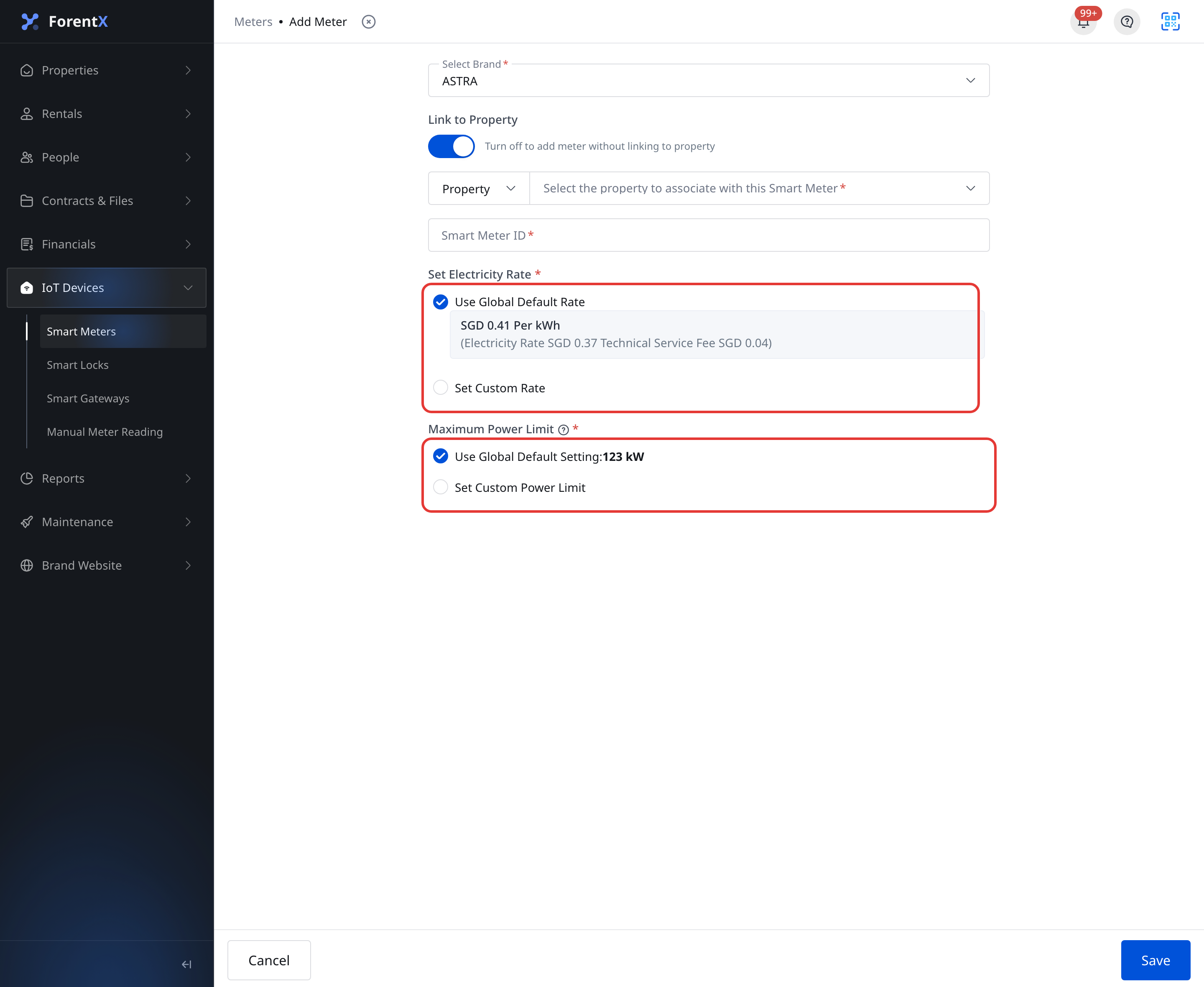
Step 3 Complete the remaining meter settings, then click [Save].
- Enter [Smart Meter ID].
- Choose [Use Global Default Rate] or [Set Custom Rate].
- Choose [Use Global Default Setting] or [Set Custom Power Limit].
- If the current brand supports it, choose a [Billing Mode].
App
Step 1 Open [IoT Devices], stay on the [Meters] tab, tap the add icon, then choose [Add Meter].
Step 2 Choose the brand, leave the toggle in [Select Property & Unit] on, then select whether you are binding to a [Property] or [Unit].
- Tap [Property] or [Unit] to open the picker.
- Select a target from the current bindable list.
- If you turn the toggle off, the meter is added without a linked property or unit.
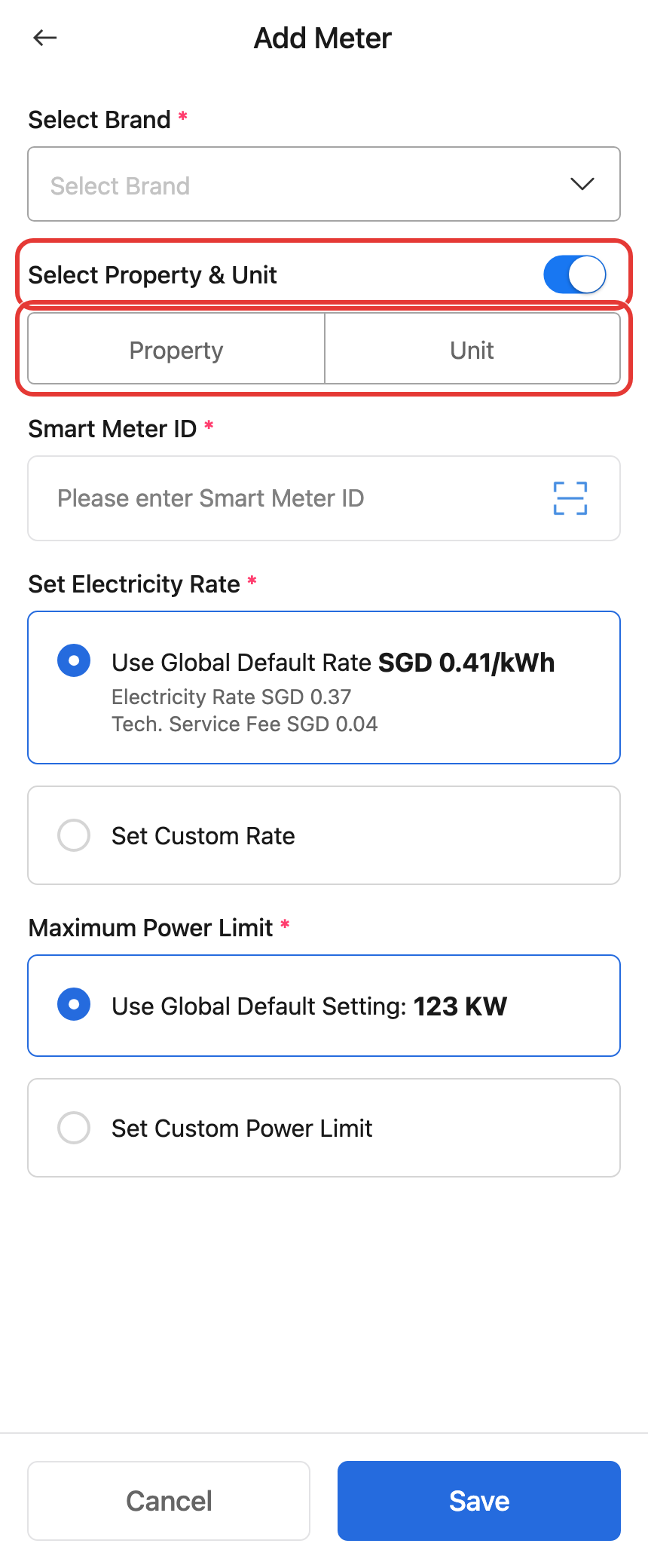
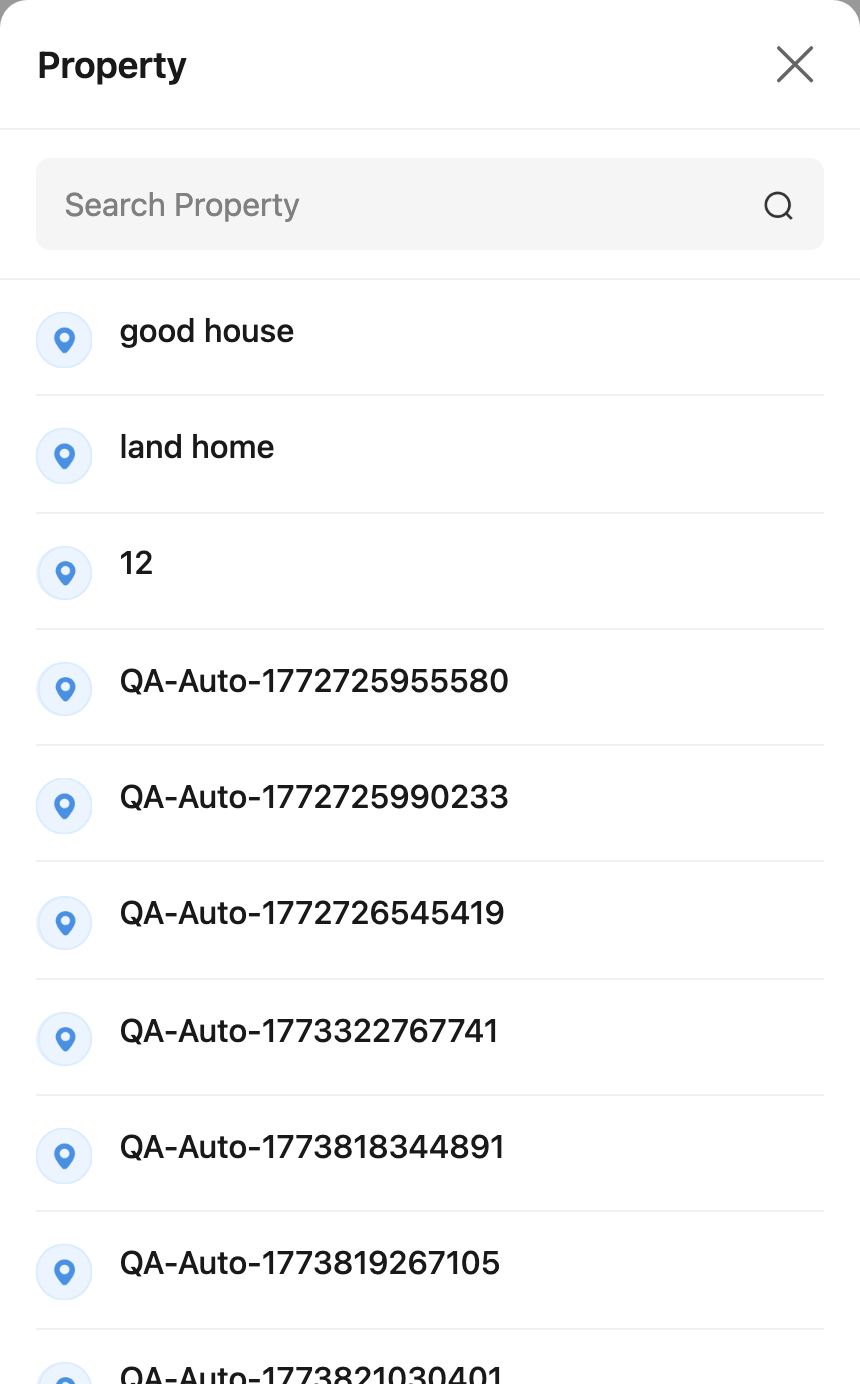
Step 3 Finish the meter settings, then tap [Save].
- Enter [Smart Meter ID].
- Choose the global or custom rate.
- Choose the global or custom power limit.
- If the selected brand supports it, choose the billing mode.
Platform differences
| Topic | Web | App |
|---|---|---|
| Entry | [IoT Devices] -> [Smart Meters] -> [Add Meter] | [IoT Devices] -> [Meters] -> add icon -> [Add Meter] |
| Target selection | Inline [Property] / [Unit] selector inside the add form | [Property] / [Unit] buttons open a picker popup |
| Save action | Click [Save] in the add page action bar | Tap [Save] at the bottom of the add page |
| Add without linking | Turn [Link to Property] off, then link it later from [Link Property] | Turn the toggle off in [Select Property & Unit], then link it later from [Link Property] |
Note:
- The target selector only shows properties or units that are currently bindable.
- Some fields, such as [Billing Mode], only appear for brands or account configurations that support them.
- If you add the meter without linking it, you can open [Link Property] later from the meter list or detail page.