How do I configure the global settings for smart meters?
Use [IoT Settings] to manage the company-wide default rules for smart meters. These settings control the default billing mode, recharge rules, billing-cycle timing, safety limits, and overdue triggers used across your portfolio.
Entry:
- Web: [Personal Center] -> [IoT Settings]
- App: [Home] -> profile menu -> [IoT Settings]
Web
Step 1 Open [Personal Center], then select [IoT Settings].
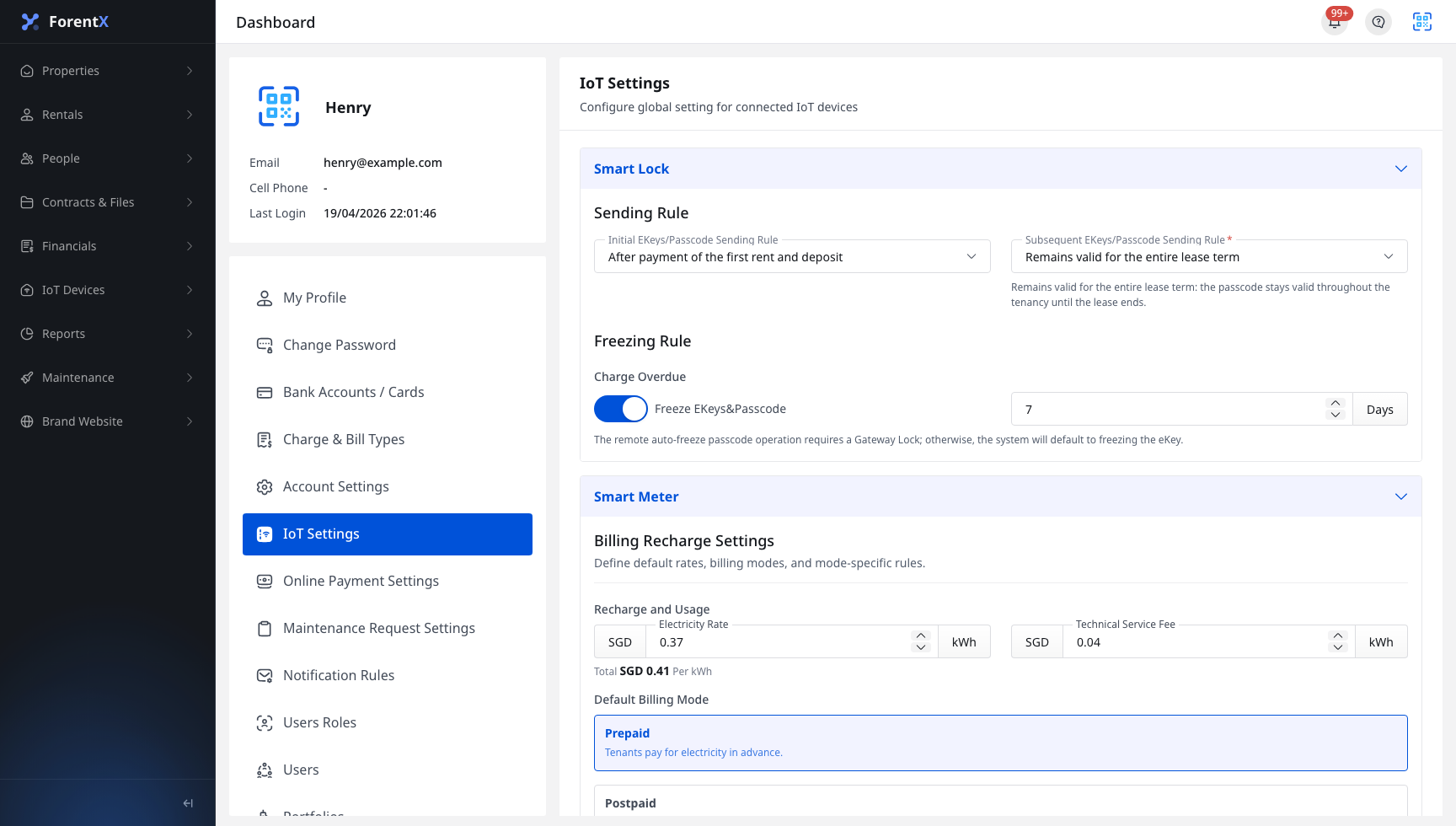
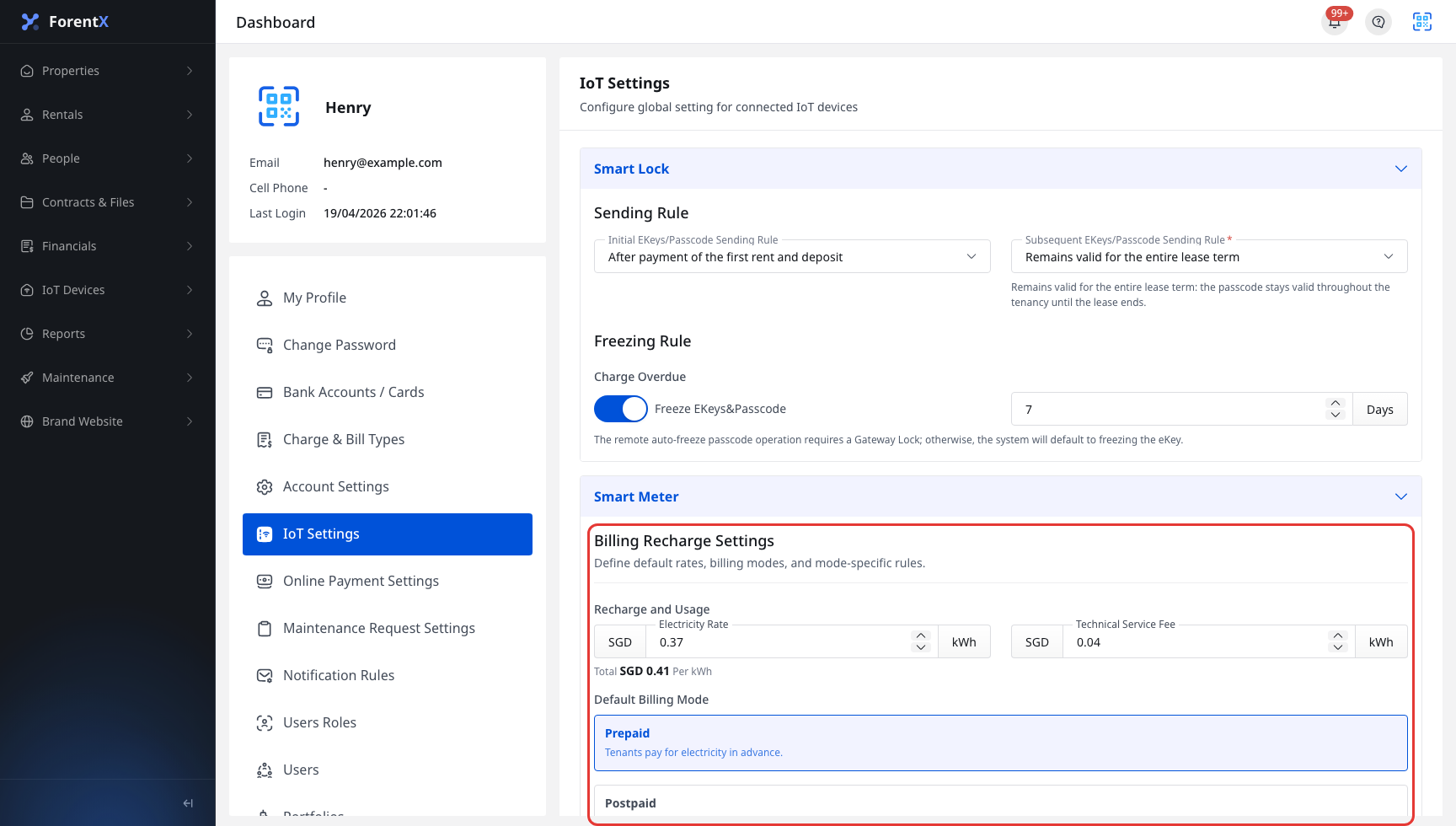
Step 2 Update the top smart meter default sections on the page:
- In [Billing Recharge Settings], set [Electricity Rate], [Technical Service Fee], and the [Default Billing Mode]
- In [Prepaid Mode: Global Settings], update [Quick Recharge Amounts], [Minimum Recharge Amount], and [Low Balance Reminder]
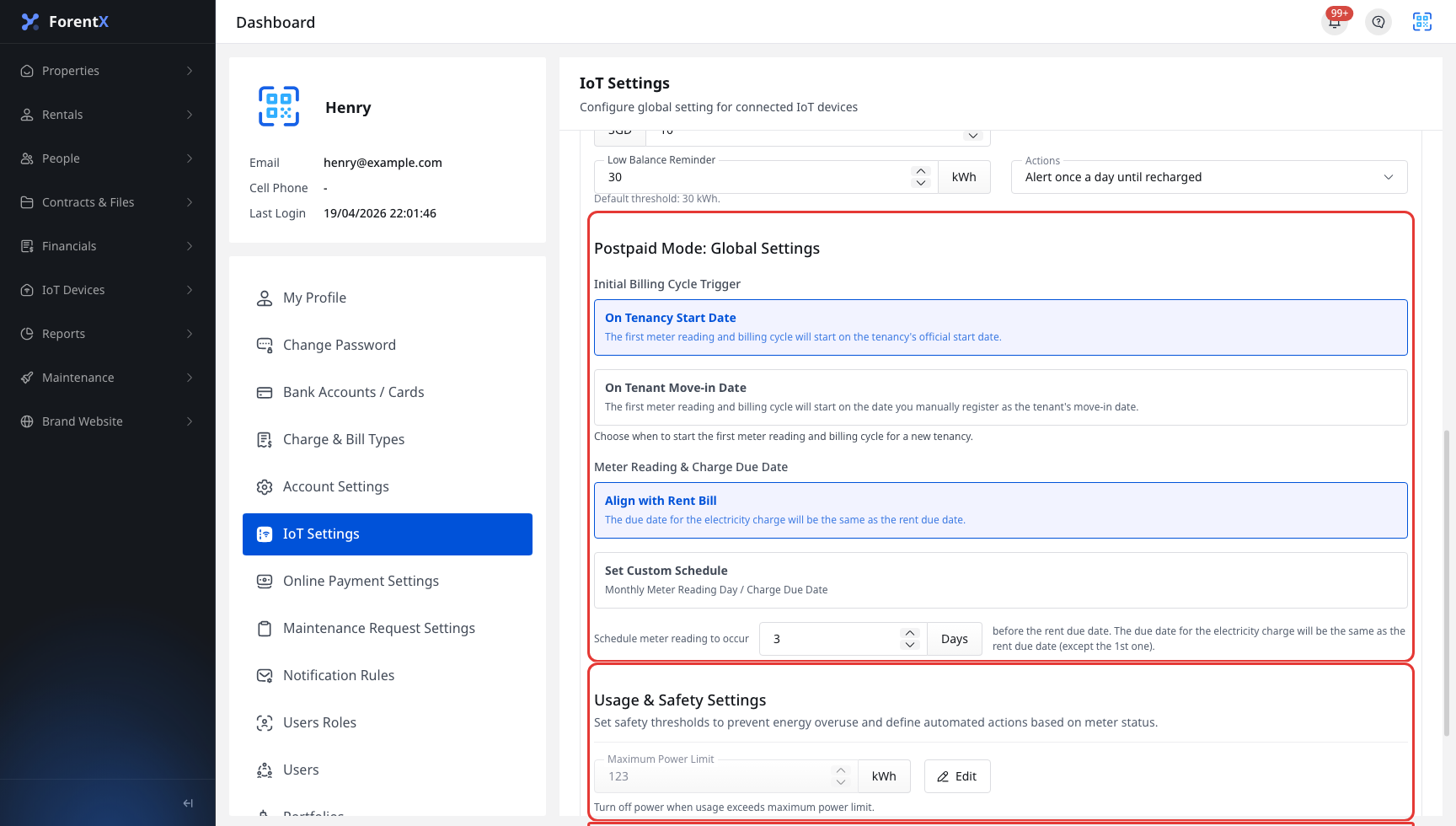
Step 3 Continue with the later smart meter rules on the same page:
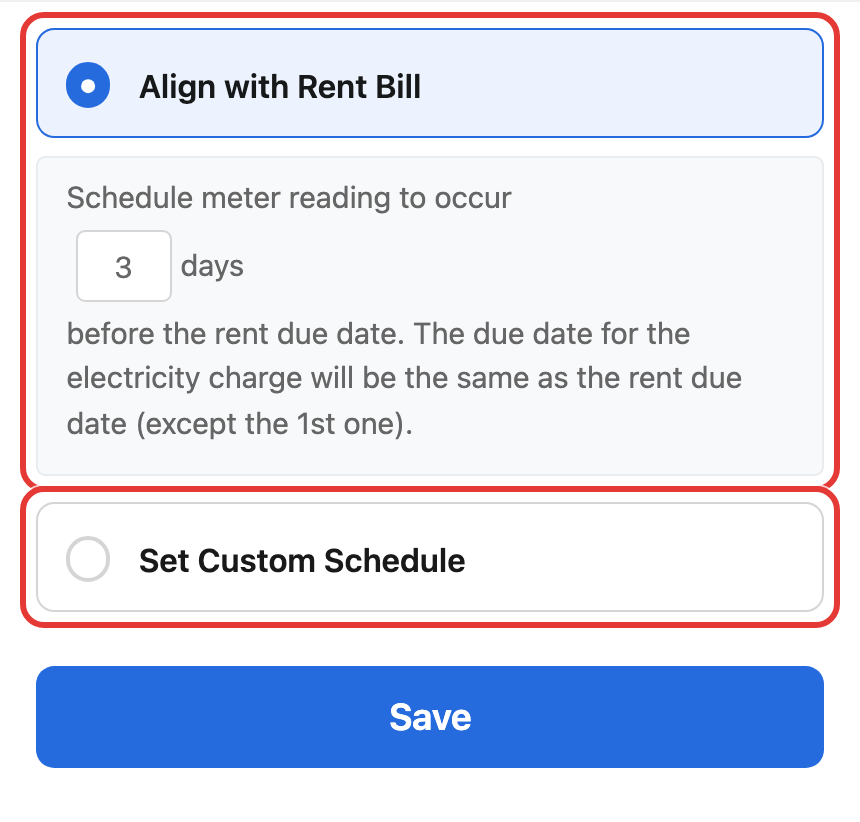
- In [Postpaid Mode: Global Settings], choose [Initial Billing Cycle Trigger] and [Meter Reading & Charge Due Date]
- In [Usage & Safety Settings], use [Edit] to update [Maximum Power Limit]
- In [Rental & Financial IoT Triggers], turn [Charge Overdue] on or off and set the grace days when needed
Web saves most valid changes directly on the page. For [Maximum Power Limit], open the dialog, confirm the value, and save it there.
App
Step 1 Open the profile menu from [Home], then tap [IoT Settings].

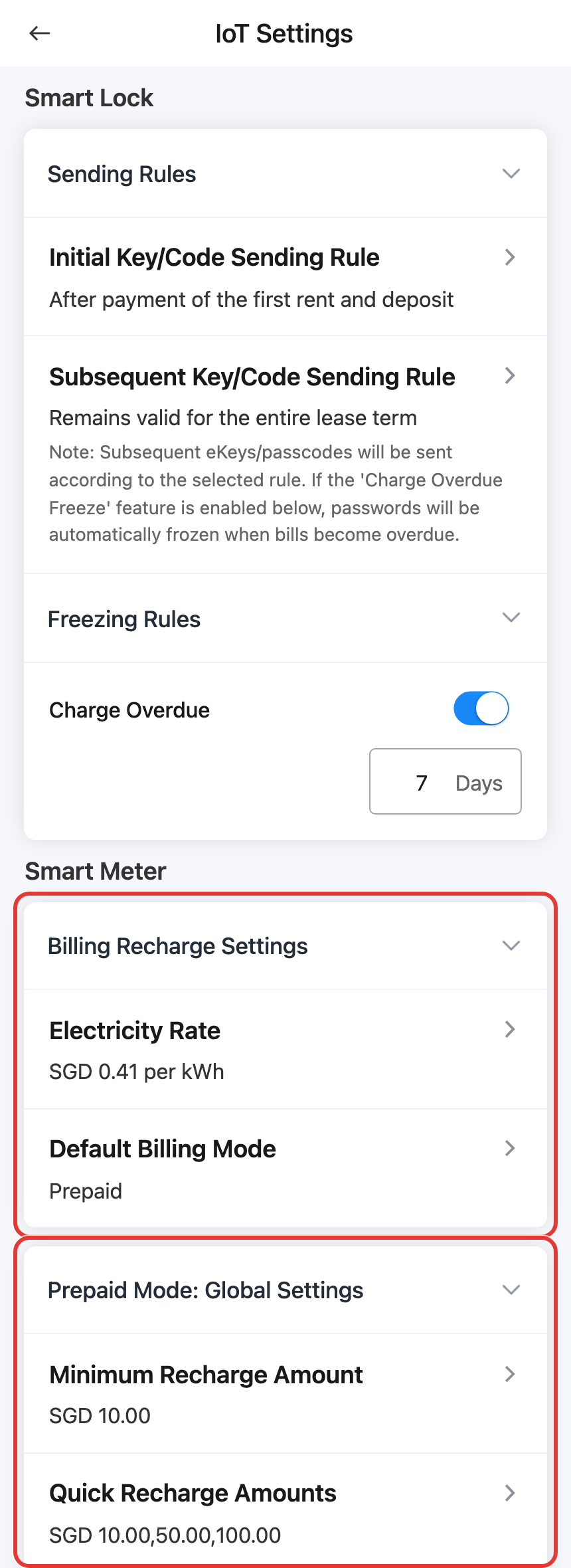
Step 2 Go to the [Smart Meter] section and open the rows you want to update:
- In [Billing Recharge Settings], tap [Electricity Rate] or [Default Billing Mode]
- In [Prepaid Mode: Global Settings], tap [Minimum Recharge Amount], [Quick Recharge Amounts], or [Low Balance Reminder]
- Review the value in the popup, then tap [Save]
Step 3 Use the lower smart meter sections for billing-cycle timing and trigger rules:
- In [Postpaid Mode: Global Settings], tap [Initial Billing Cycle Trigger] or [Meter Reading & Charge Due Date]
- In [Usage & Safety Settings], tap [Maximum Power Limit]
- In [Rental & Financial IoT Triggers], tap [Charge Overdue]
- Choose [Align with Rent Bill] or [Set Custom Schedule] where needed, then tap [Save]
Platform differences
| Topic | Web | App |
|---|---|---|
| Entry | [Personal Center] -> [IoT Settings] | [Home] -> profile menu -> [IoT Settings] |
| How you edit | Most settings are edited directly on the page; [Maximum Power Limit] uses an [Edit] dialog | Each smart meter row opens its own popup or bottom sheet |
| Save behavior | Most valid changes save automatically on the page; dialog-based settings are confirmed inside the dialog | Each popup is saved when you tap [Save] |
| Setting scope | Updates the same company-wide smart meter defaults | Updates the same company-wide smart meter defaults |
Note:
- [Default Billing Mode] only applies to newly added smart meters.
- [Quick Recharge Amounts] must stay equal to or above the [Minimum Recharge Amount].
- If you need a different rule for only one meter, use the smart meter list, batch setting, or the meter detail actions instead of changing the company-wide defaults.