How to configure automatic password distribution and overdue freezing rules for individual properties/units?
Set smart-lock sending rules and overdue freezing rules for a specific property or unit while completing the tenancy setup flow.
Entry:
- [Rentals] -> [Tenant Reservations] or [Active Tenants]
- Open the tenancy setup flow and go to the [IoT Settings] section for the selected property or unit
Web
Step 1 Open the tenancy setup flow and finish the lease information section for the selected property or unit.
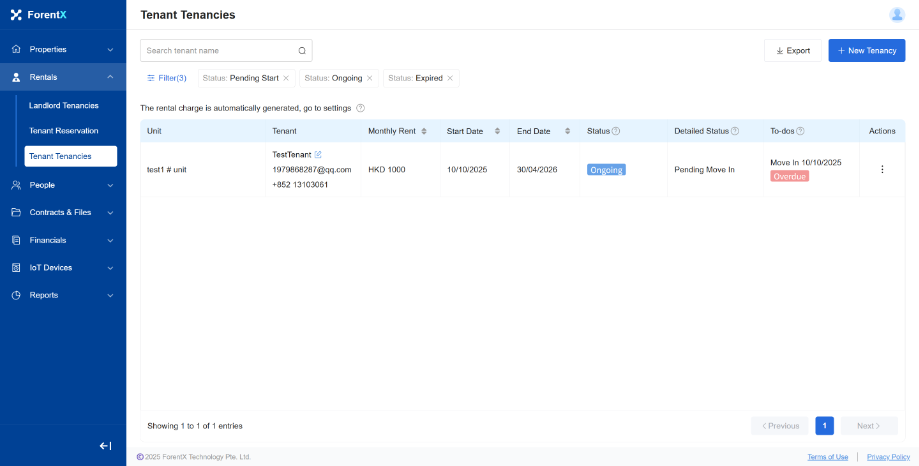
Step 2 Go to the [IoT Settings] area for the current property or unit.
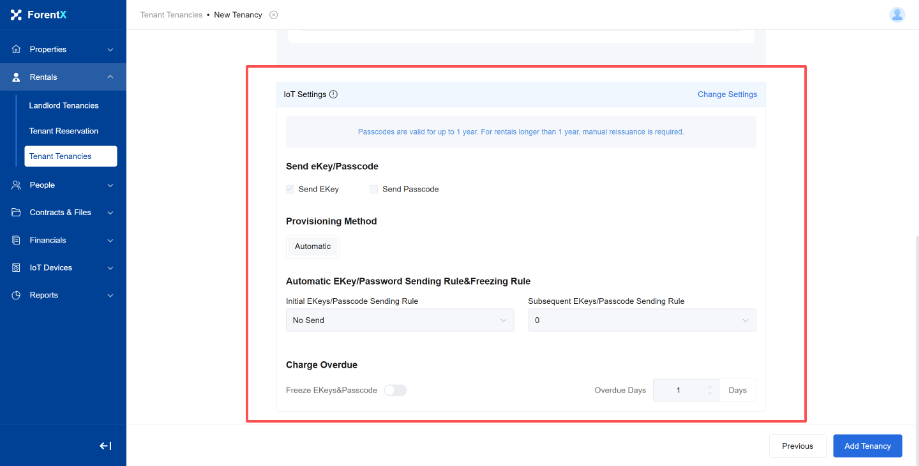
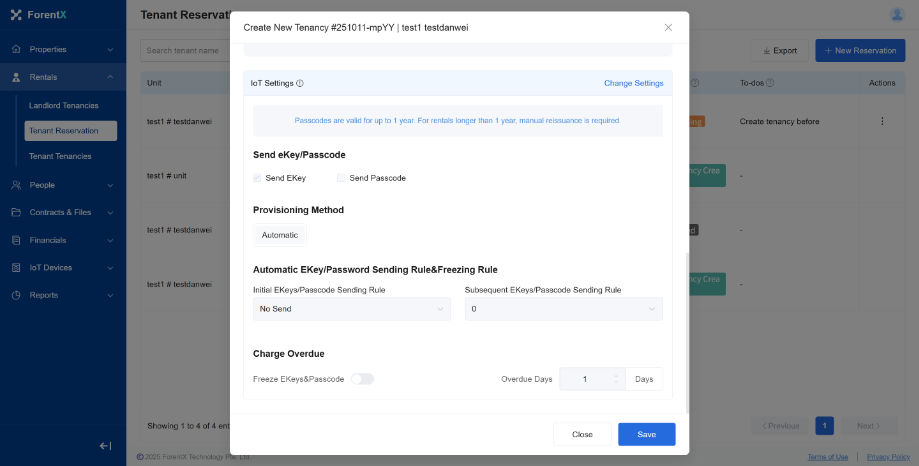
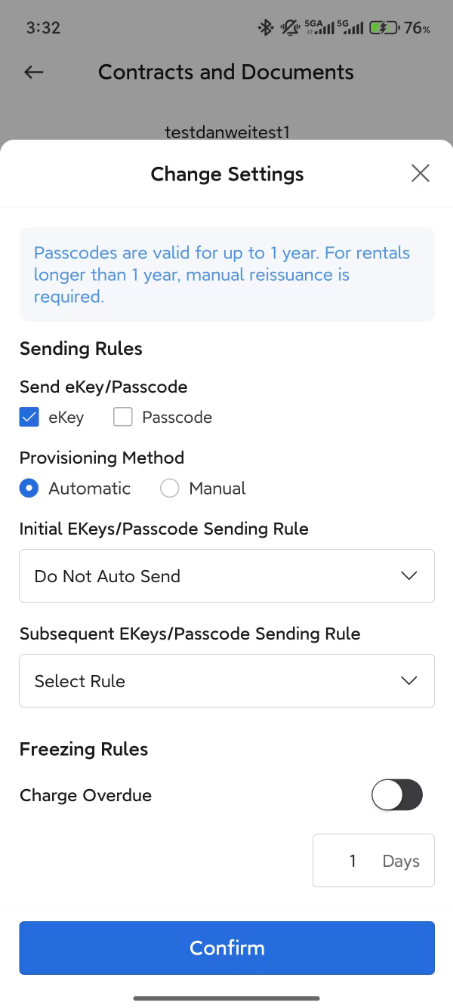
Step 3 Set the automatic password sending rule and the overdue freezing rule you want this property or unit to use.
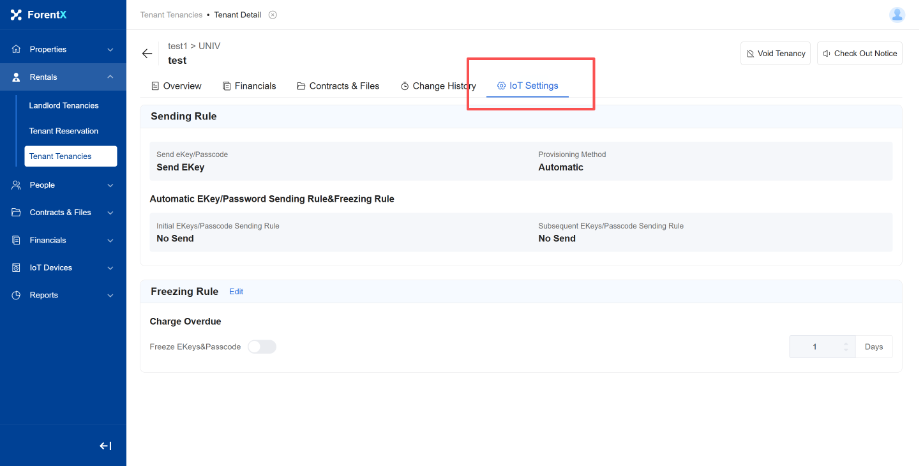
Step 4 Complete the tenancy flow so the locks under this property or unit follow the rule set you configured.
App
Step 1 Open the same tenancy flow in the operator App and finish the lease information section.
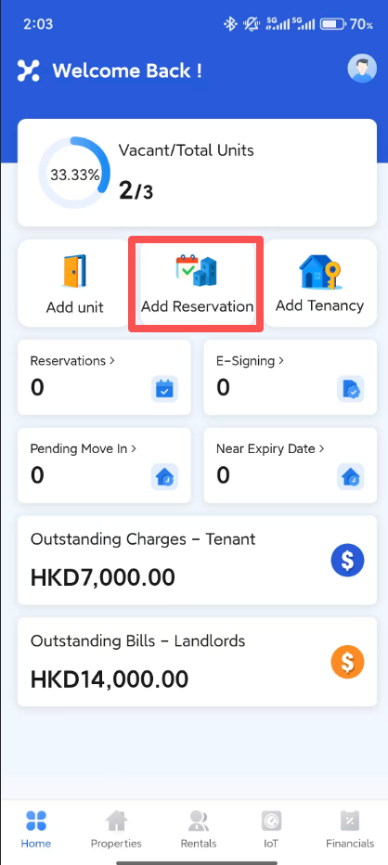
Step 2 Enter the [IoT Settings] section for the selected property or unit.
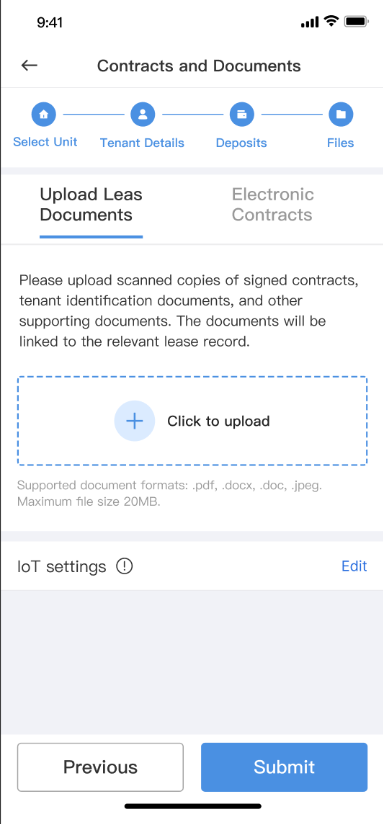
Step 3 Set the sending and overdue freezing rules for the current property or unit, then finish the flow.
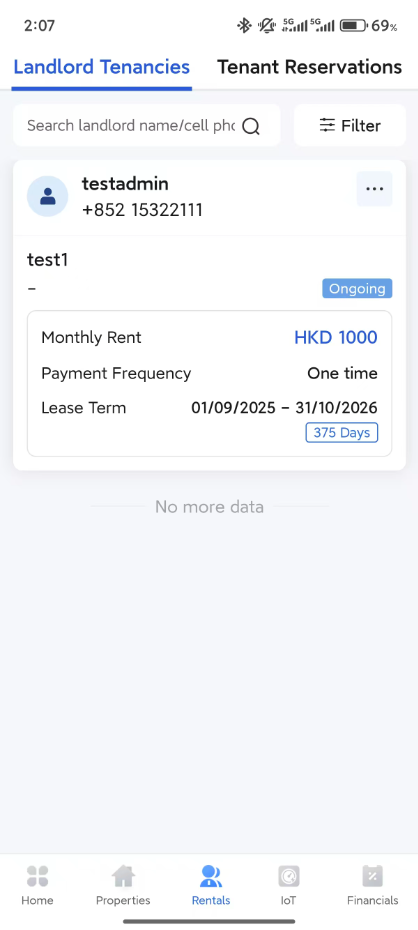
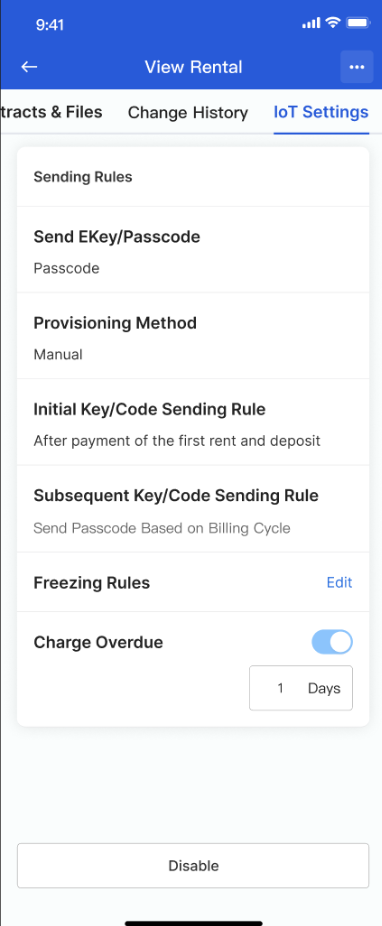
Platform differences
- These settings are property-level or unit-level overrides, not the operator-wide defaults.
- Web and App place the rules inside the tenancy setup flow, but labels and layout can differ.
Note:
- The property or unit must already have smart-lock capability before these IoT settings appear.
- Use [Personal Center] -> [IoT Settings] if you need to change the operator-wide default rule set instead.