How to send keys/passcodes for smart locks?
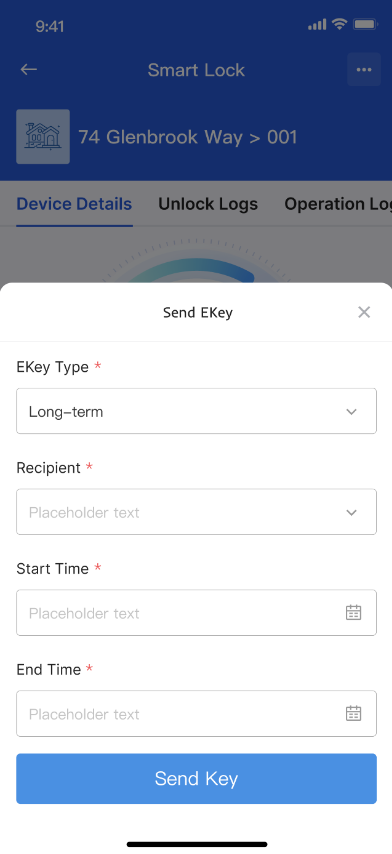
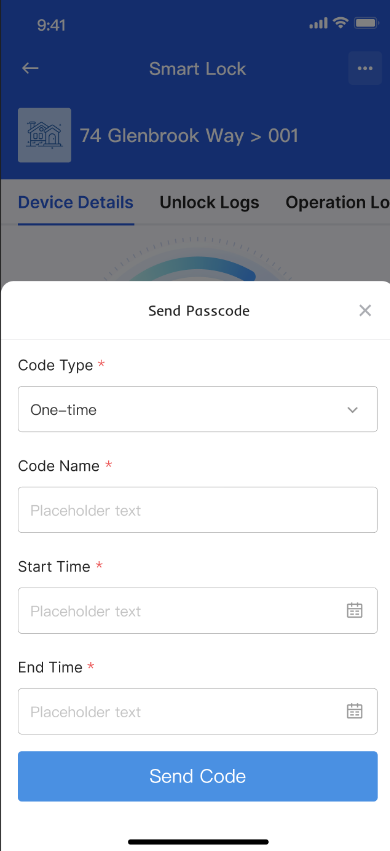
Open the target smart lock, enter the eKey or passcode sending area, and send the credential from the current lock detail flow.
Entry:
- [IoT Devices] -> [Smart Locks]
Web
Step 1 Select the smart lock you want to use from the current lock list.
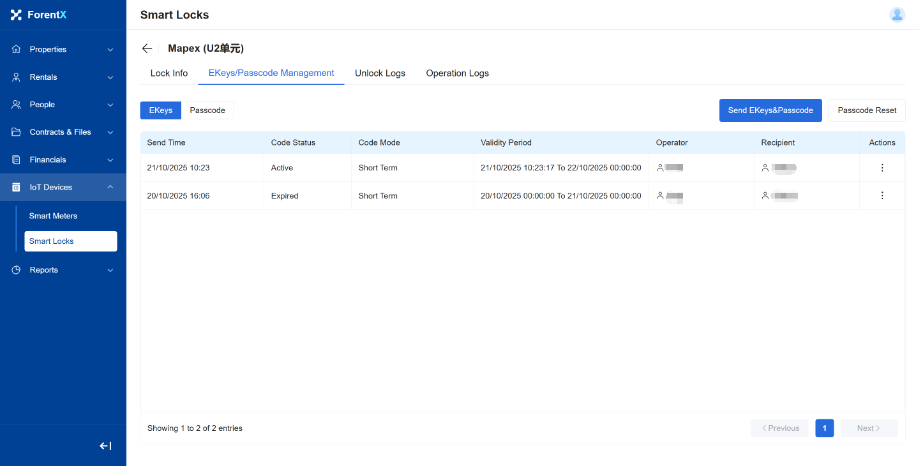
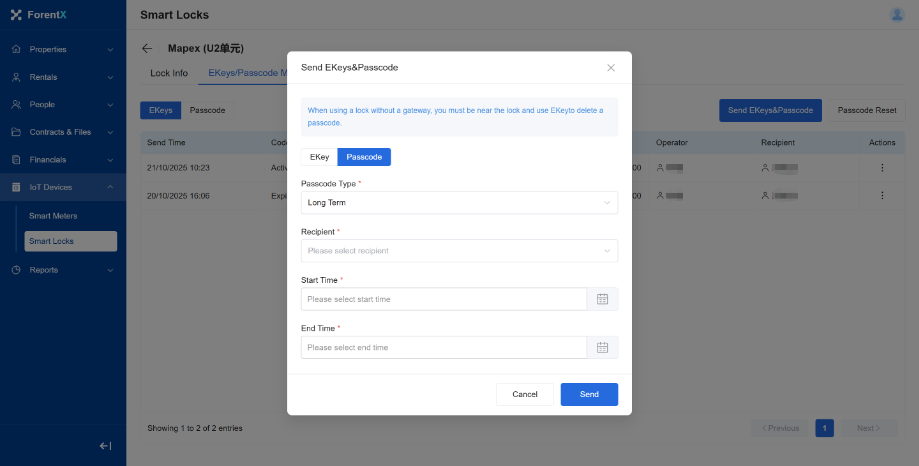
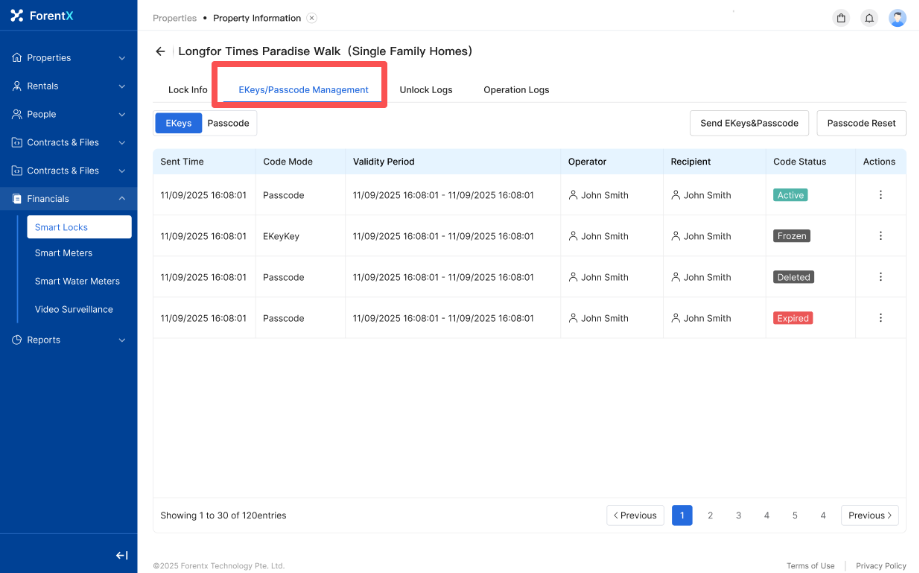
Step 2 Open the lock detail page and choose [Ekey/Passcode] to start sending the credential.
App
Step 1 Select the smart lock from the lock list in the operator App.
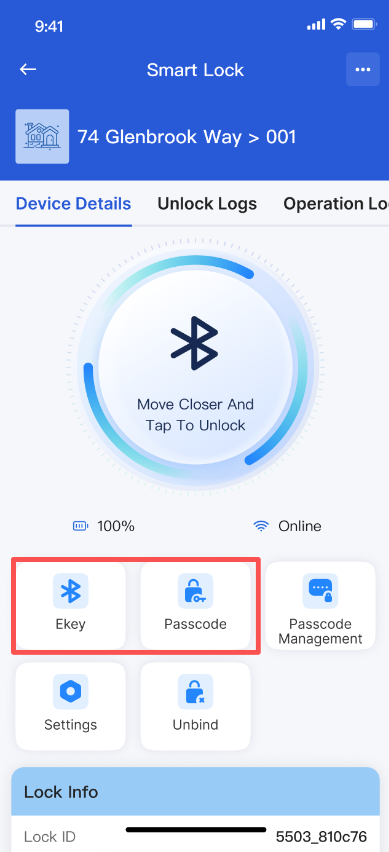
Step 2 Open the smart lock detail page and choose [Ekey/Passcode].
Platform differences
- Web and App both start from the same smart lock detail context, but the mobile flow is arranged as stacked pages.
- The current sending options depend on the smart lock status and the credential rules already configured for it.
Note:
- Confirm the recipient and credential type before sending.
- If a credential cannot be sent, check whether the current smart lock is available and whether the current sending rule allows it.