What should I do if I forget my password?
Reset your password from the public [Log in] page. On both Web and App, you start from [Forgot password], complete the verification step, and then set a new password.
Entry:
- Web: public [Log in] page -> [Forgot password]
- App: public [Log in] page -> [Forgot password]
Web
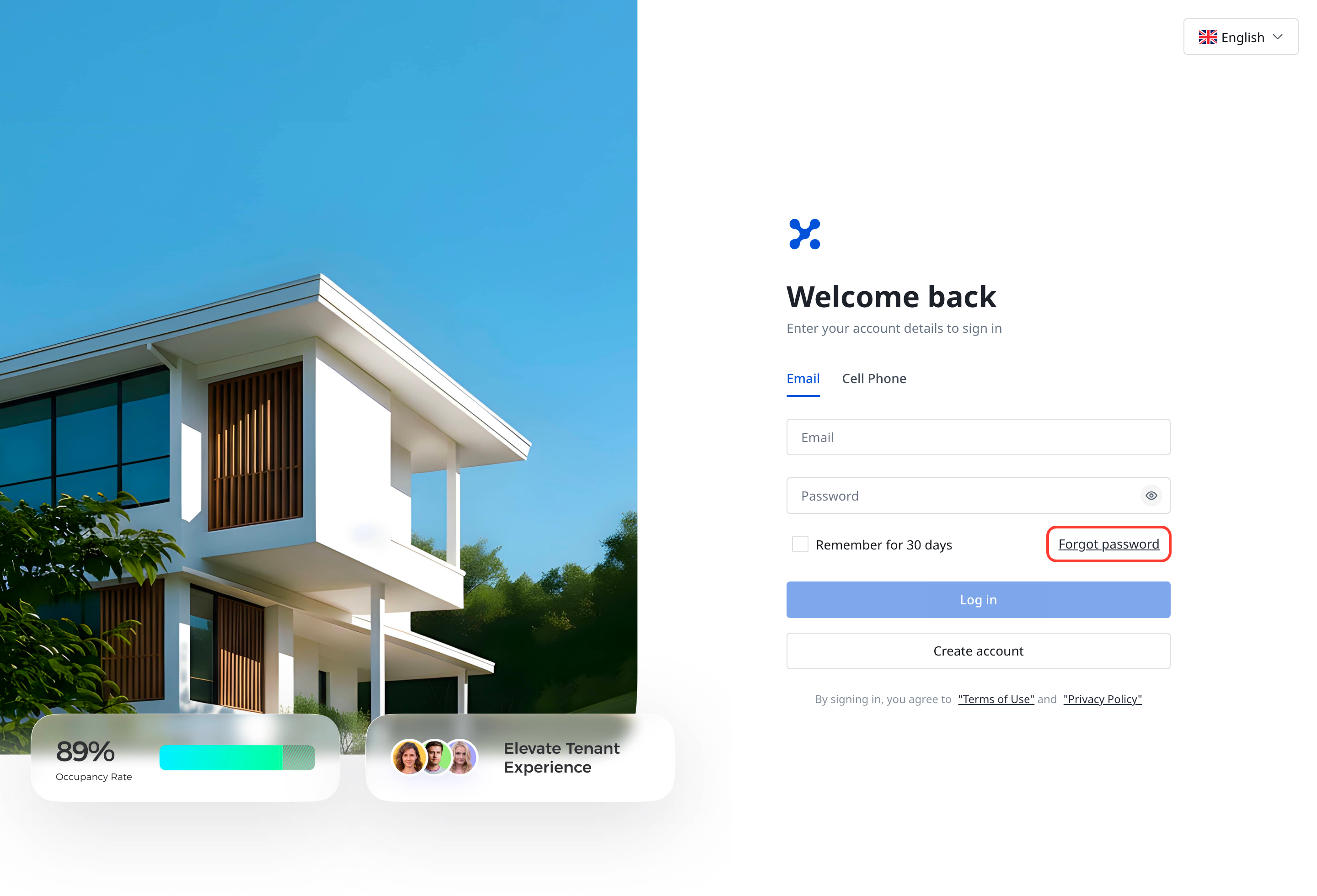
Open the reset page
- On the public [Log in] page, click [Forgot password].
- The current login page passes your selected login type into the reset page. If you start from [Email], the reset page opens the email form. If you start from [Cell Phone], it opens the phone form.
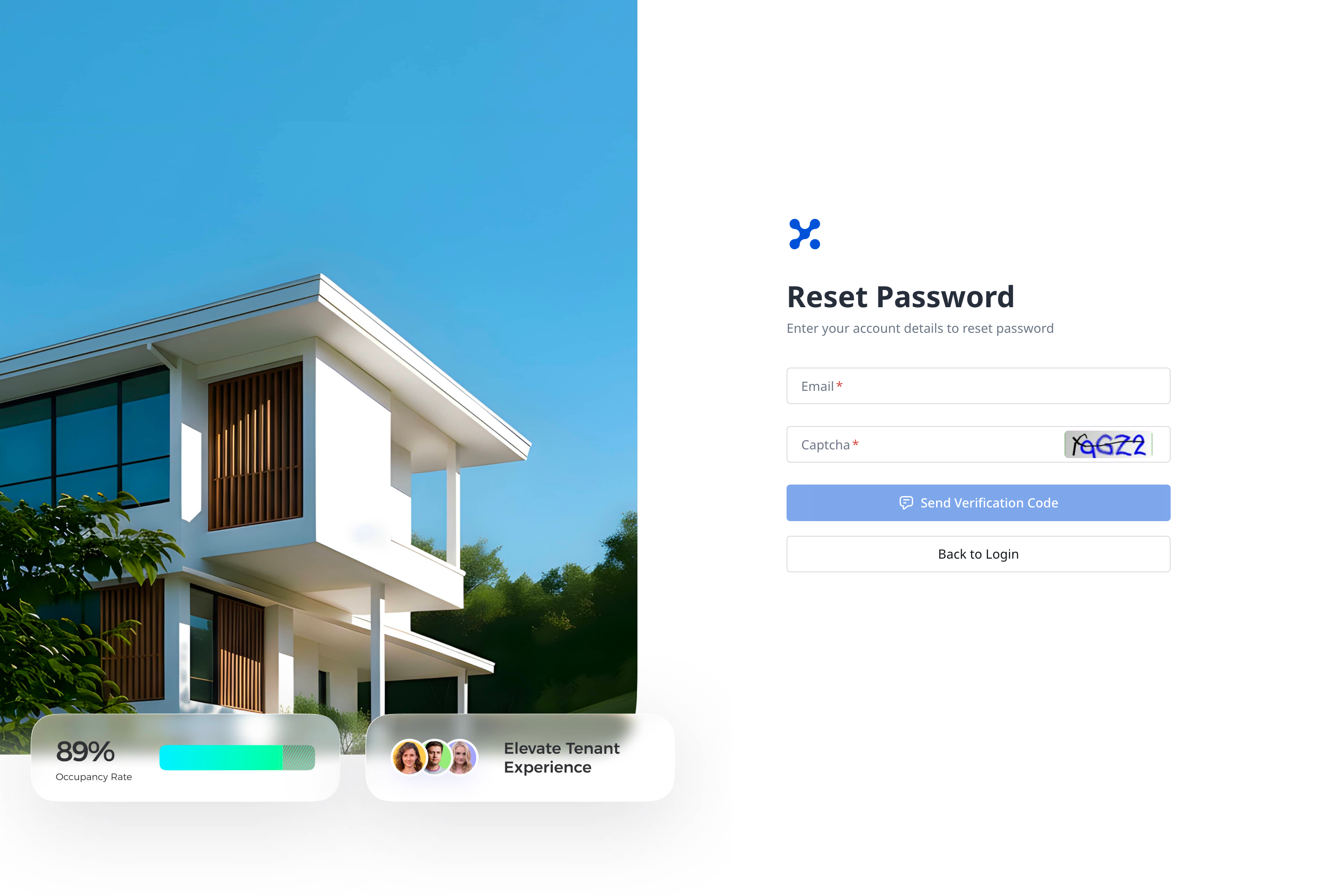
Send the verification code
- On [Reset Password], enter your email address or cell phone number.
- Enter the [Captcha], then click [Send Verification Code].
- If the code expires later in the process, use the resend action on the verification step to request another code.
Verify your identity and set a new password
- Enter the 6-digit verification code on the security verification step, then click [Submit].
- On [Set New Password], enter your new password and follow the rules shown on screen:
- 10-32 characters
- at least one uppercase letter, one lowercase letter, and one number
- no spaces
- After [Password Reset Successful] appears, click [Back to Login] and sign in with the new password.
App
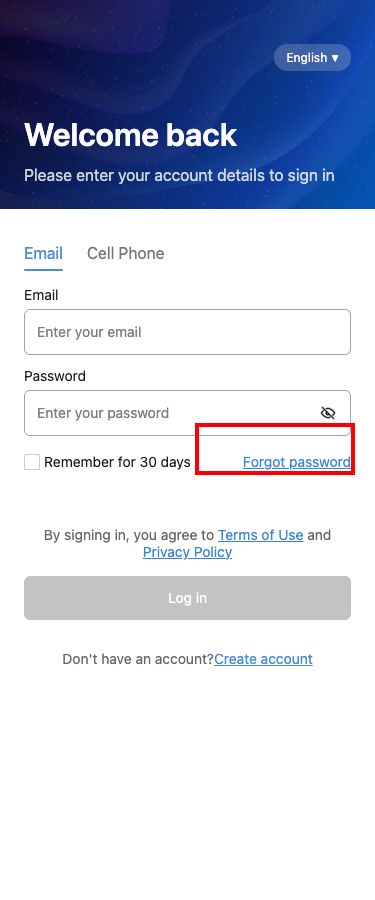
Open the reset page
- On the public [Log in] screen, tap [Forgot password].
- If you need to reset by phone number, switch the login screen to [Cell Phone] before you tap the link.
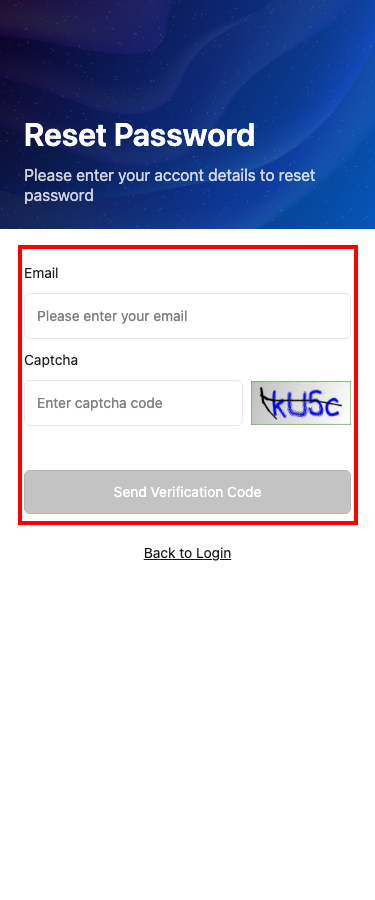
Send the verification code
- On [Reset Password], enter your email address or cell phone number.
- Enter the [Captcha], then tap [Send Verification Code].
- The App then opens [Security Verification].
Complete verification and create a new password
- Enter the 6-digit code on [Security Verification].
- If the countdown ends before you receive it, tap [Send] to request another code.
- On [Create Your Password], enter the new password and follow the current on-screen rules.
- After the success page appears, tap [Back to Login].
Platform differences
- Web keeps the reset flow inside the public
/ForgotPasswordroute and changes steps on the same page. - App splits the flow across separate pages: [Reset Password], [Security Verification], [Create Your Password], and the success page.
- Web currently shows a
10-32 characterspassword rule. App currently shows amin. 8 characterspassword rule with uppercase, lowercase, number, and no spaces. - Both Web and App support email and phone reset entry, but the reset form follows the login type you selected before opening [Forgot password].
Note:
- Only reset your own account on the shared QA environment.
- If you do not receive the verification code, request a new one from the current verification step instead of opening multiple reset attempts in parallel.