How do I configure automatic charge generation rules?
Use [Charges/Bills Generation] to choose whether tenancy-related bills follow the tenancy start-date cycle or the calendar month.
Entry:
- Web: [My Profile] -> [Account Settings]
- App: [Home] -> top-right profile avatar -> [Account Settings]
Web
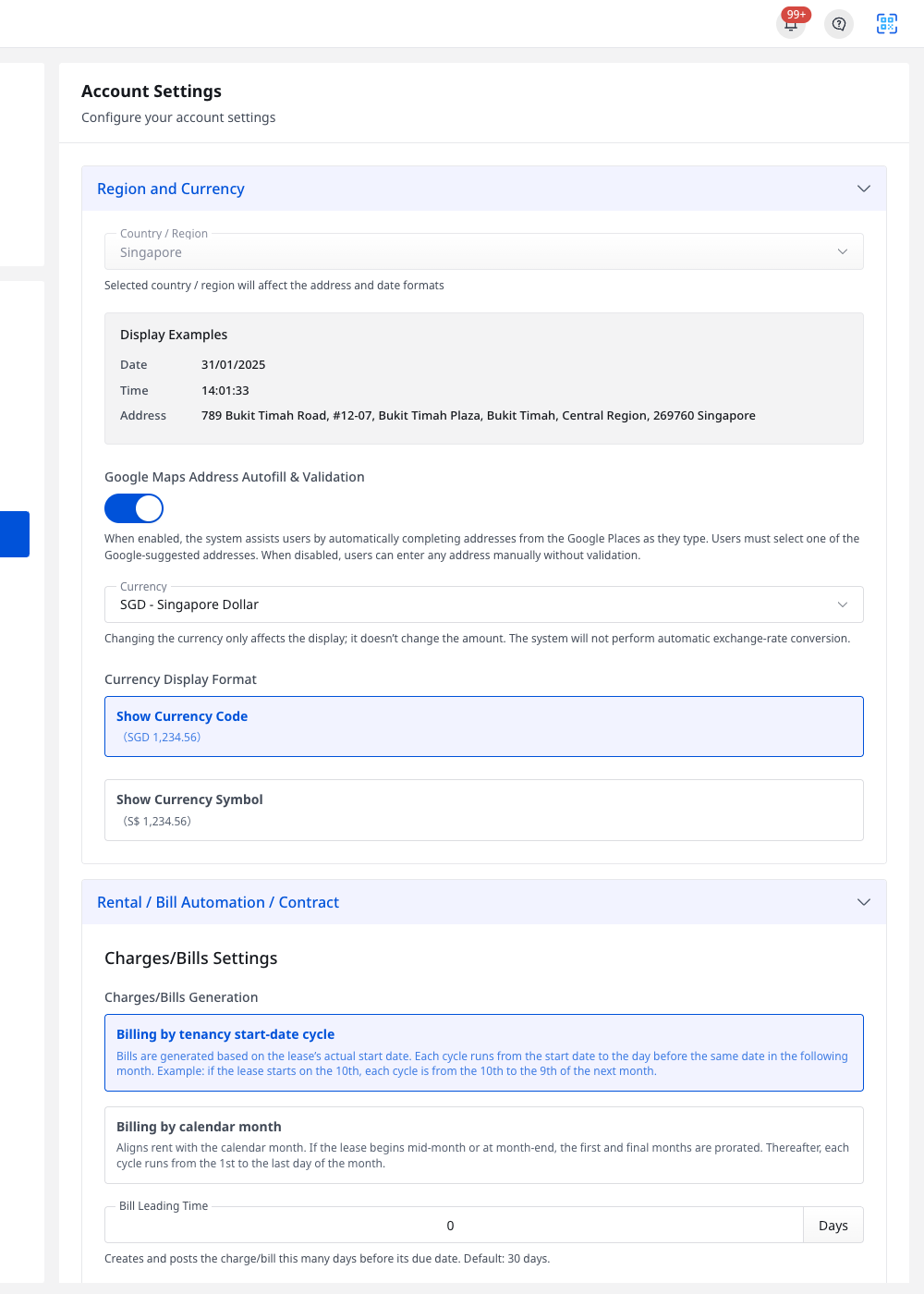
Step 1 Open [Account Settings], then scroll to [Rental / Bill Automation / Contract].
Step 2 In [Charges/Bills Settings], review the two available generation rules, then select the one that matches your billing policy:
- [Billing by tenancy start-date cycle]
- [Billing by calendar month]
App
Step 1 Open [Account Settings], then switch to the [Rental / Bill Automation] tab.
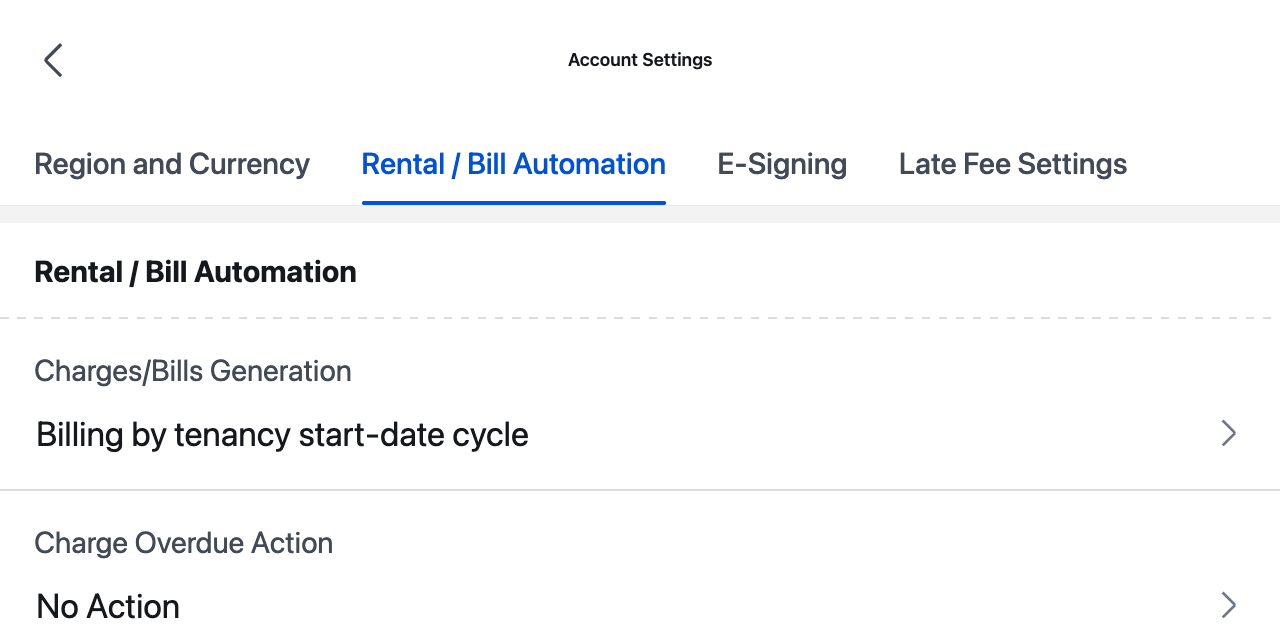
Step 2 Tap [Charges/Bills Generation], then choose the generation rule you want to use:
- [Billing by tenancy start-date cycle]
- [Billing by calendar month]
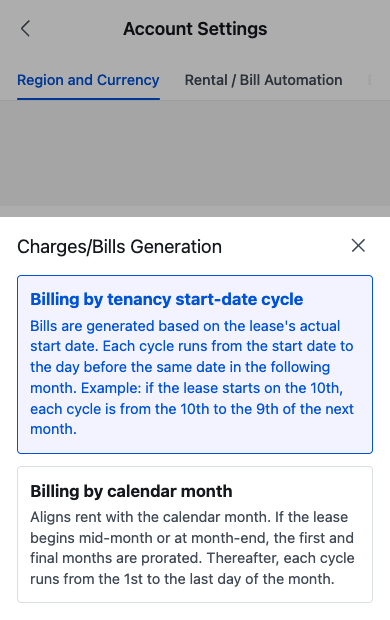
Step 3 After you choose an option, App saves the updated mode automatically.
Platform differences
| Topic | Web | App |
|---|---|---|
| Entry | [My Profile] -> [Account Settings] | [Home] -> profile avatar -> [Account Settings] |
| Section name | [Rental / Bill Automation / Contract] | [Rental / Bill Automation] |
| Where you change the rule | Inline under [Charges/Bills Settings] | Choice sheet opened from [Charges/Bills Generation] |
| Save behavior | Saves valid changes automatically after you switch the rule | Saves automatically after you choose an option |
Note:
- [Billing by tenancy start-date cycle]: each bill cycle follows the tenancy start date. For example, if a tenancy starts on the 10th, the cycle runs from the 10th to the 9th of the next month.
- [Billing by calendar month]: bills align to the calendar month. If a tenancy starts mid-month or near month-end, the first and last months are prorated, and later cycles run from the 1st to the last day of each month.
- The selected generation mode is used for future bills created from tenancy cycles.