How do I configure late fee rules for tenant charges?
Use [Late Fee Settings] to manage the company-wide late fee rules for tenant charges. The same global setting is available on both Web and App.
Entry:
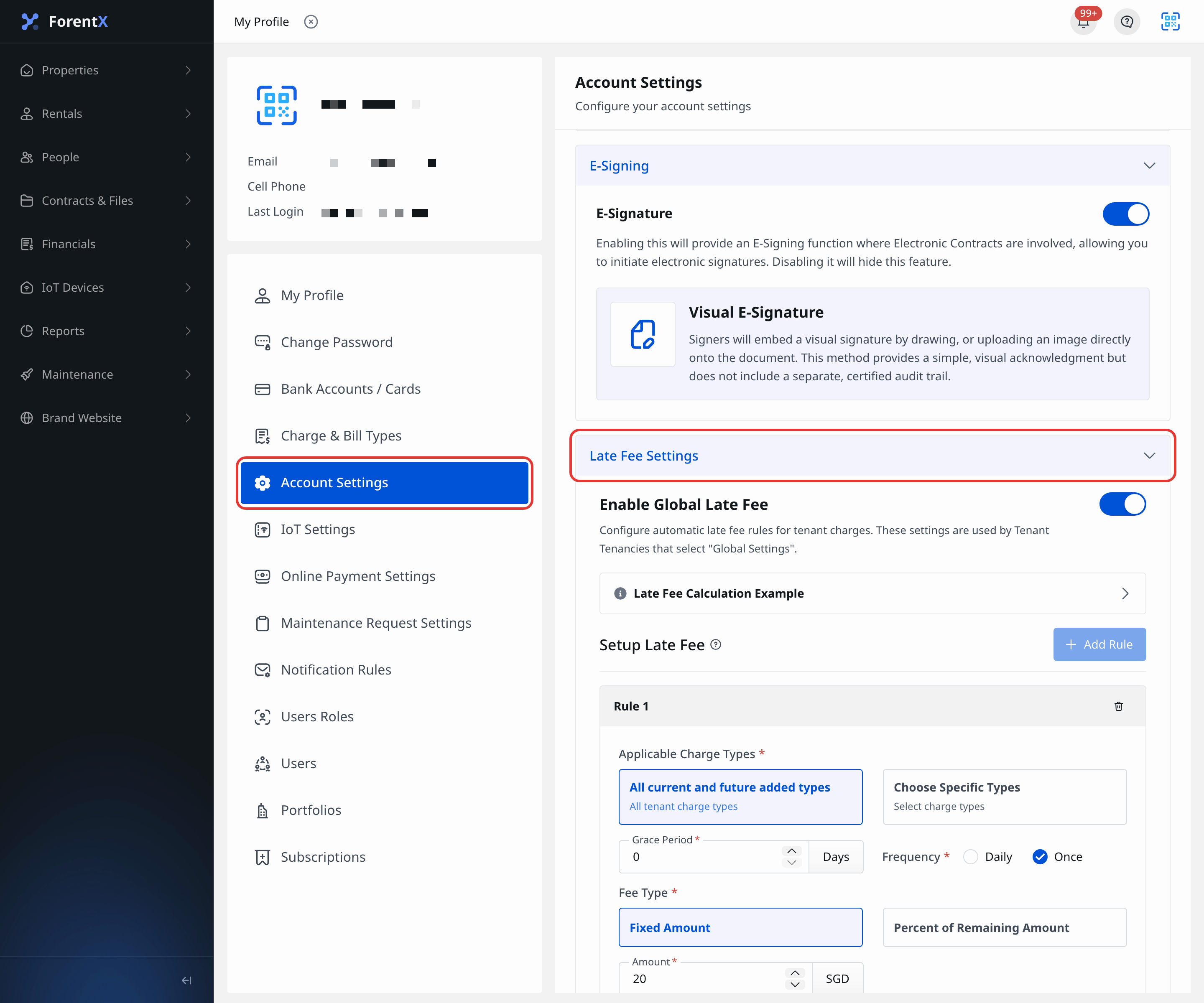
- Web: [My Profile] -> [Account Settings] -> [Late Fee Settings]
- App: [Account Settings] -> [Late Fee Settings]
Before you start
- Open an account that can access [Account Settings].
- Decide whether your changes should apply to current tenancies as well as future tenancies.
- Prepare the rule scope, grace period, fee type, amount or percentage, and description you want to use.
Web
Step 1 Open [My Profile], then go to [Account Settings]. Expand [Late Fee Settings] if the card is collapsed.
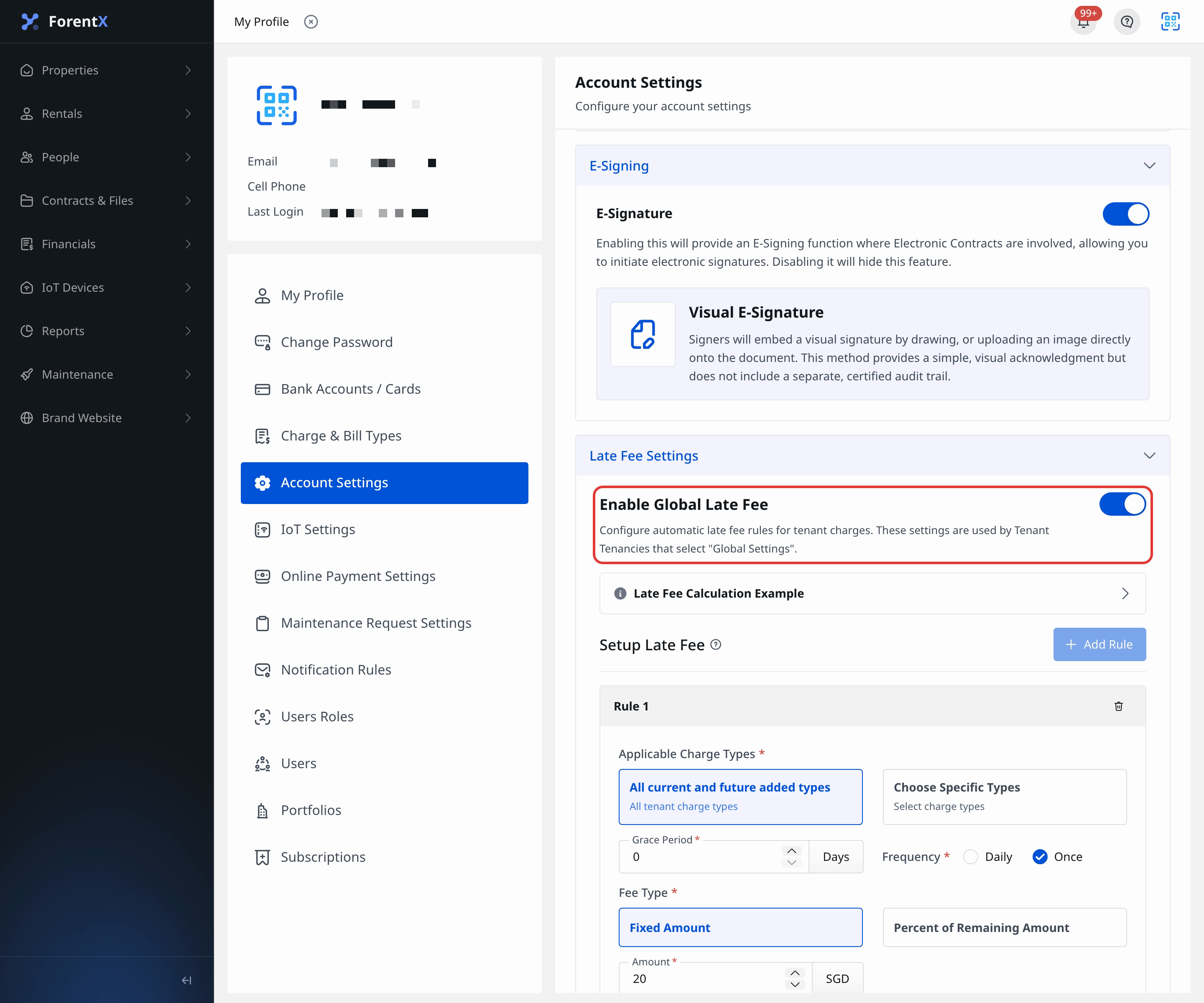
Step 2 Turn on [Enable Global Late Fee] if the global rule is currently off.
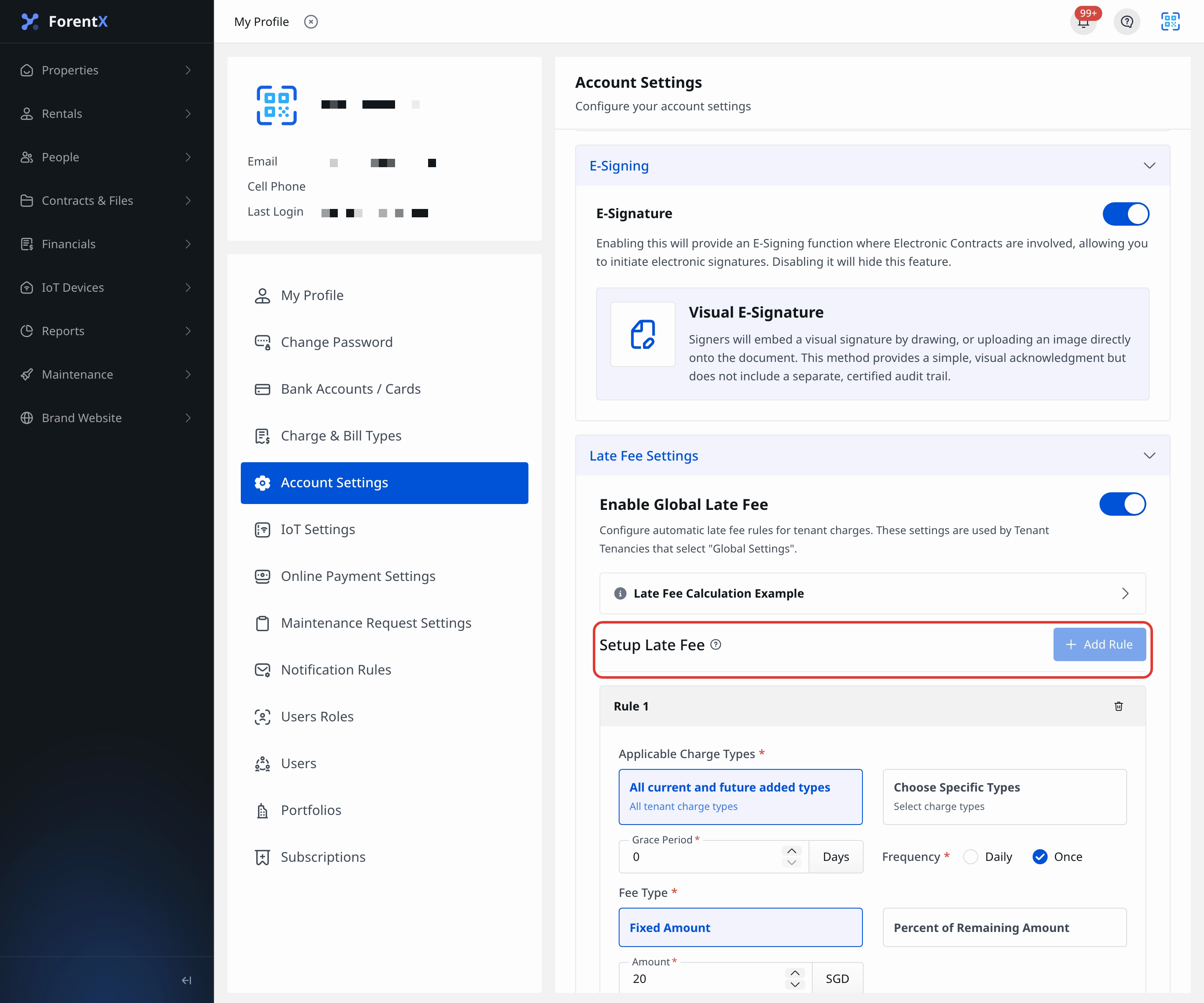
Step 3 In [Setup Late Fee], click [Add Rule]. You can add up to 2 rules.
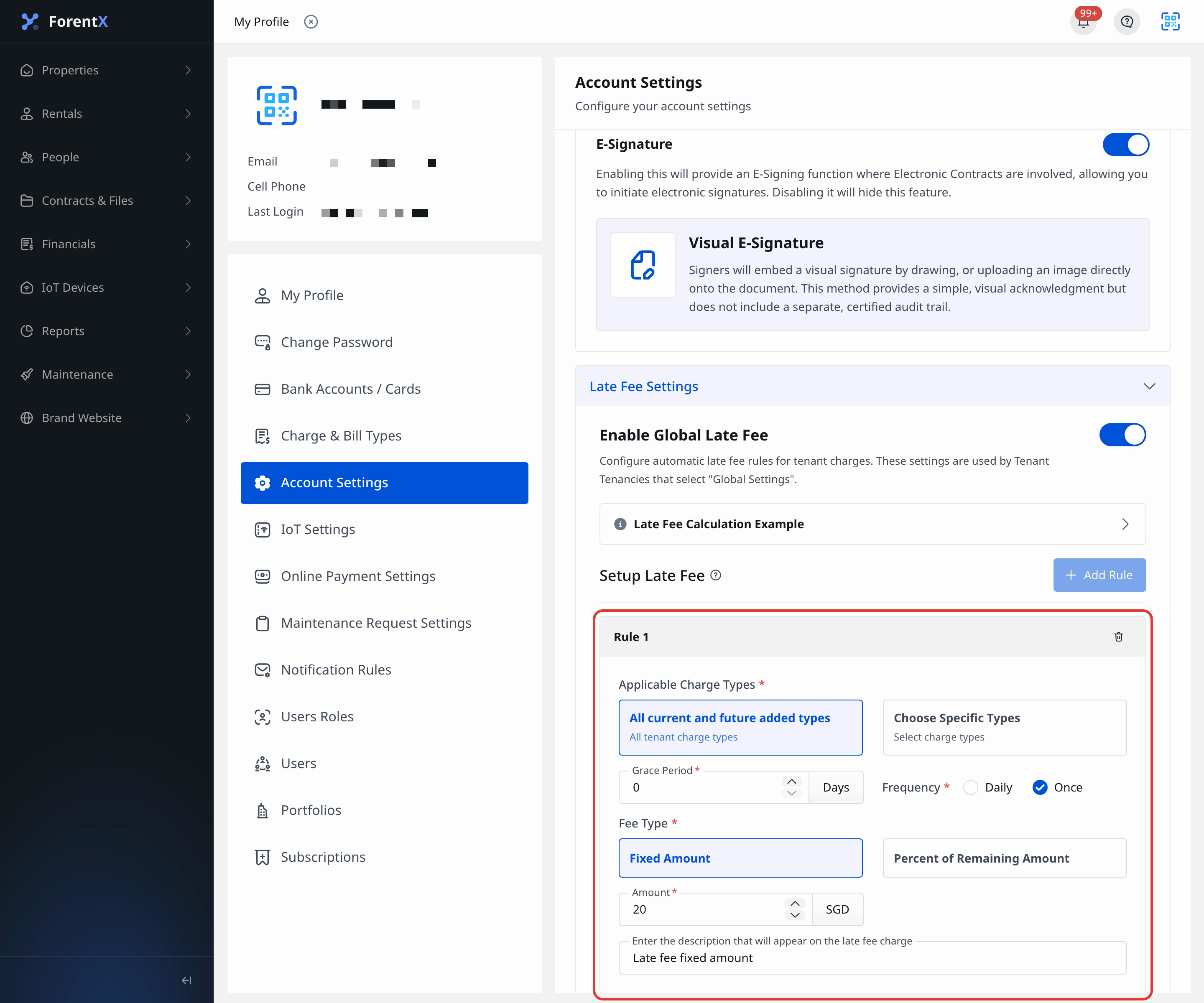
Step 4 For each rule, complete the rule details:
- Choose the applicable charge scope as [All current and future added types] or [Choose Specific Types]
- Set [Grace Period]
- Choose [Frequency] as [Daily] or [Once]
- Choose [Fee Type] as [Fixed Amount] or [Percent of Remaining Amount]
- Enter the amount or percentage
- Enter the description that should appear on the late fee charge
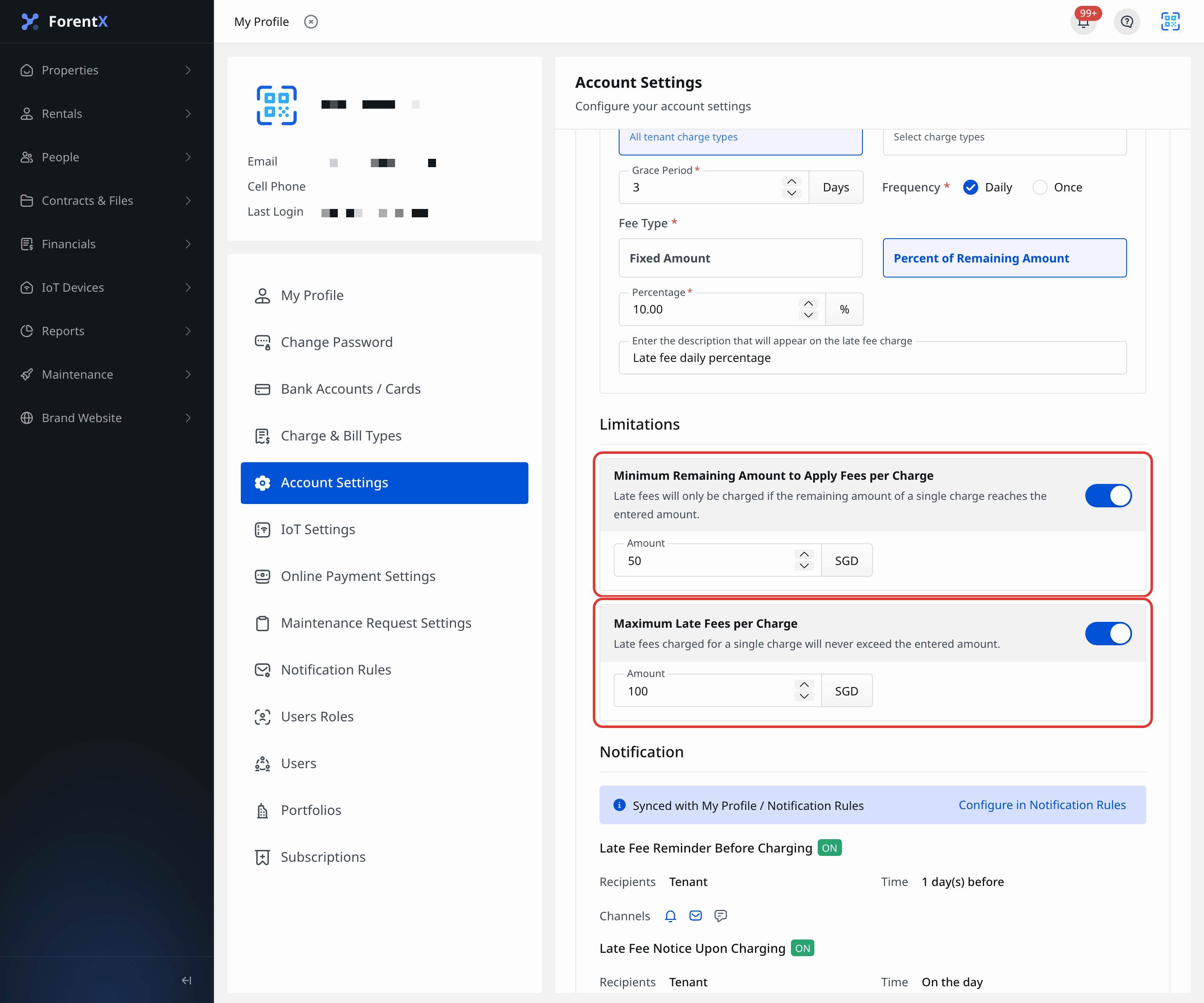
Step 5 If needed, configure the optional limitation rules:
- [Minimum Remaining Amount to Apply Fees per Charge]
- [Maximum Late Fees per Charge]
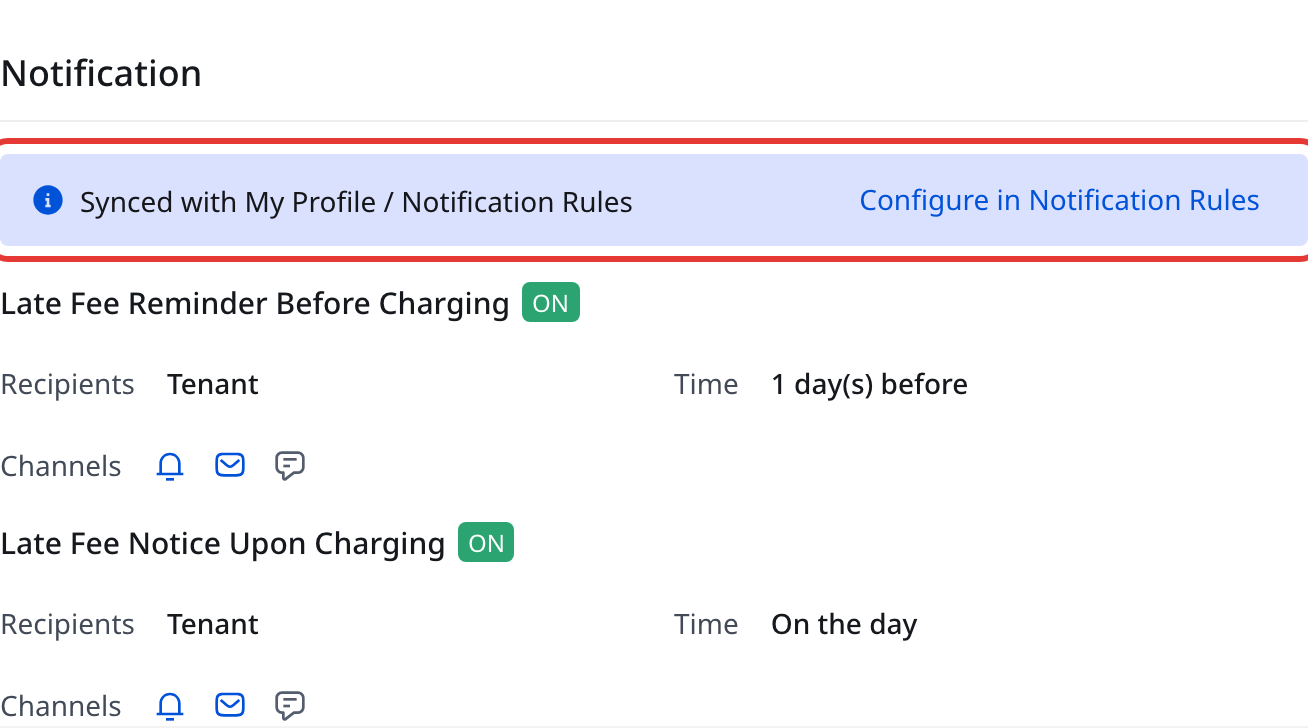
Step 6 Review [Late Fee Notifications]. If you need to change the reminder timing or channels, open [Notification Rules].
Step 7 After you finish a valid change, Web saves it automatically. If the impact dialog appears, choose whether the updated global rules should apply to [current and future tenancies] or [future tenancies only], then confirm.
App
Step 1 Open [Account Settings], then go to the [Late Fee Settings] section.
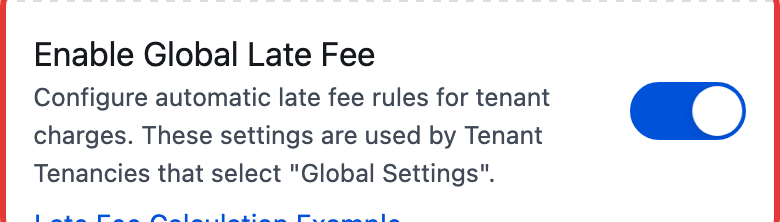
Step 2 Turn on [Enable Global Late Fee] to start using global late fee rules.
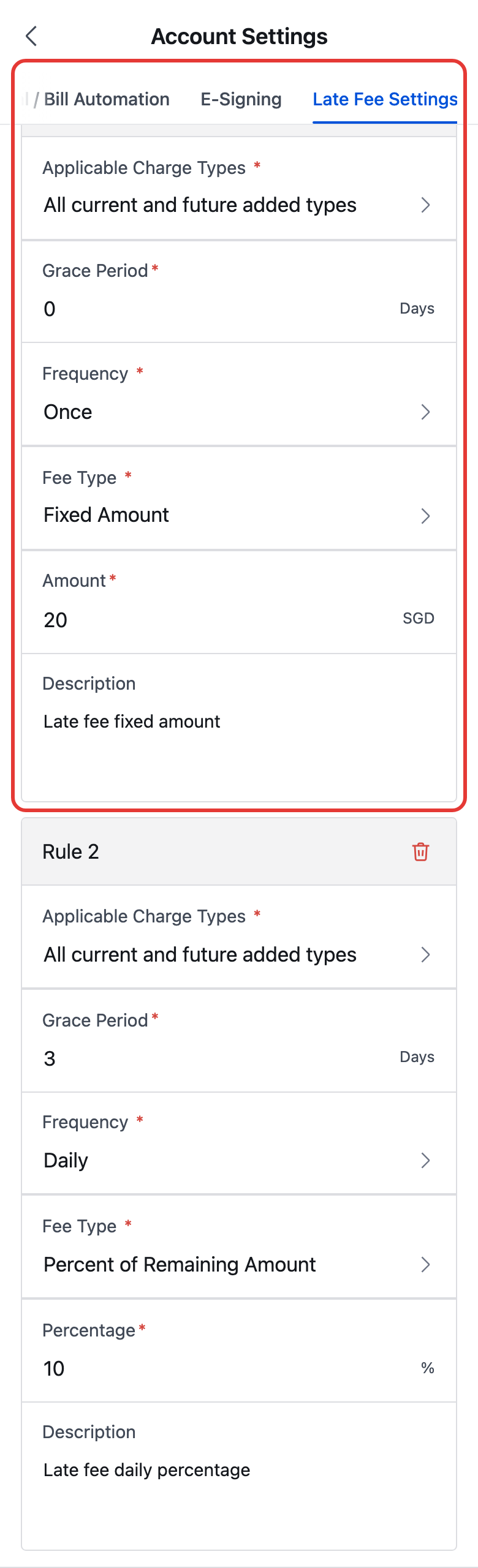
Step 3 In [Setup Late Fee], tap [Add Rule]. You can add up to 2 rules.

Step 4 For each rule, complete the rule details:
- Choose the applicable charge scope as [All current and future added types] or [Choose Specific Types]
- Set [Grace Period]
- Choose [Frequency] as [Daily] or [Once]
- Choose [Fee Type] as [Fixed Amount] or [Percent of Remaining Amount]
- Enter the amount or percentage
- Enter the description that should appear on the late fee charge
Step 5 If needed, configure the optional limitation rules:
- [Minimum Remaining Amount to Apply Fees per Charge]
- [Maximum Late Fees per Charge]
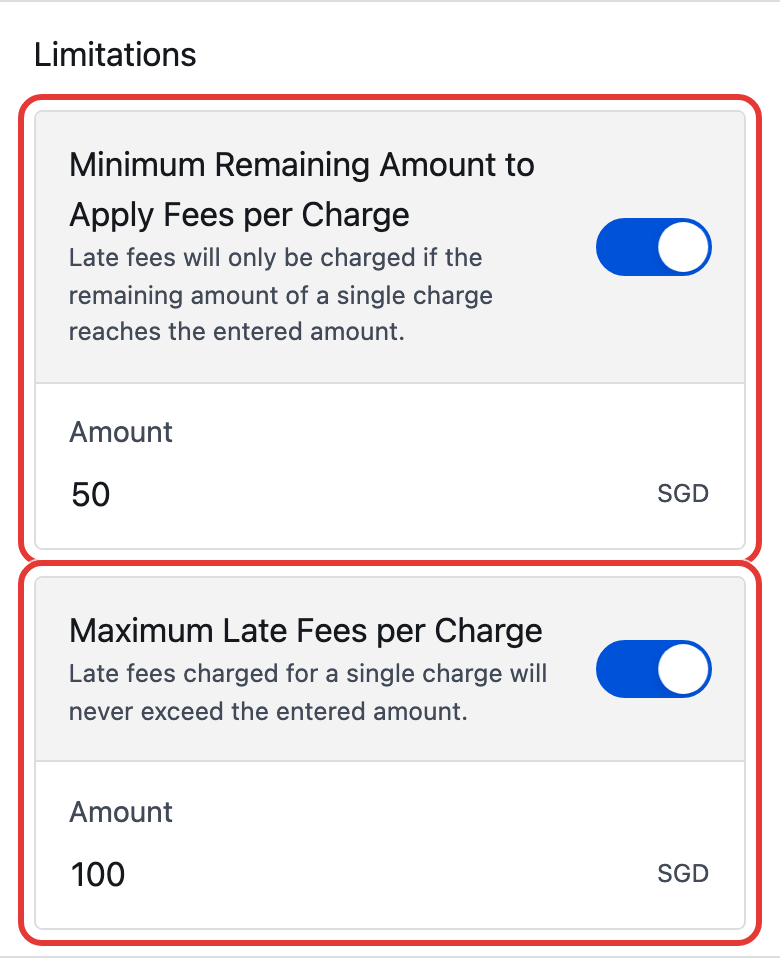
Step 6 Review [Late Fee Notifications]. If you need to change the reminder timing or channels, open [Notification Rules].
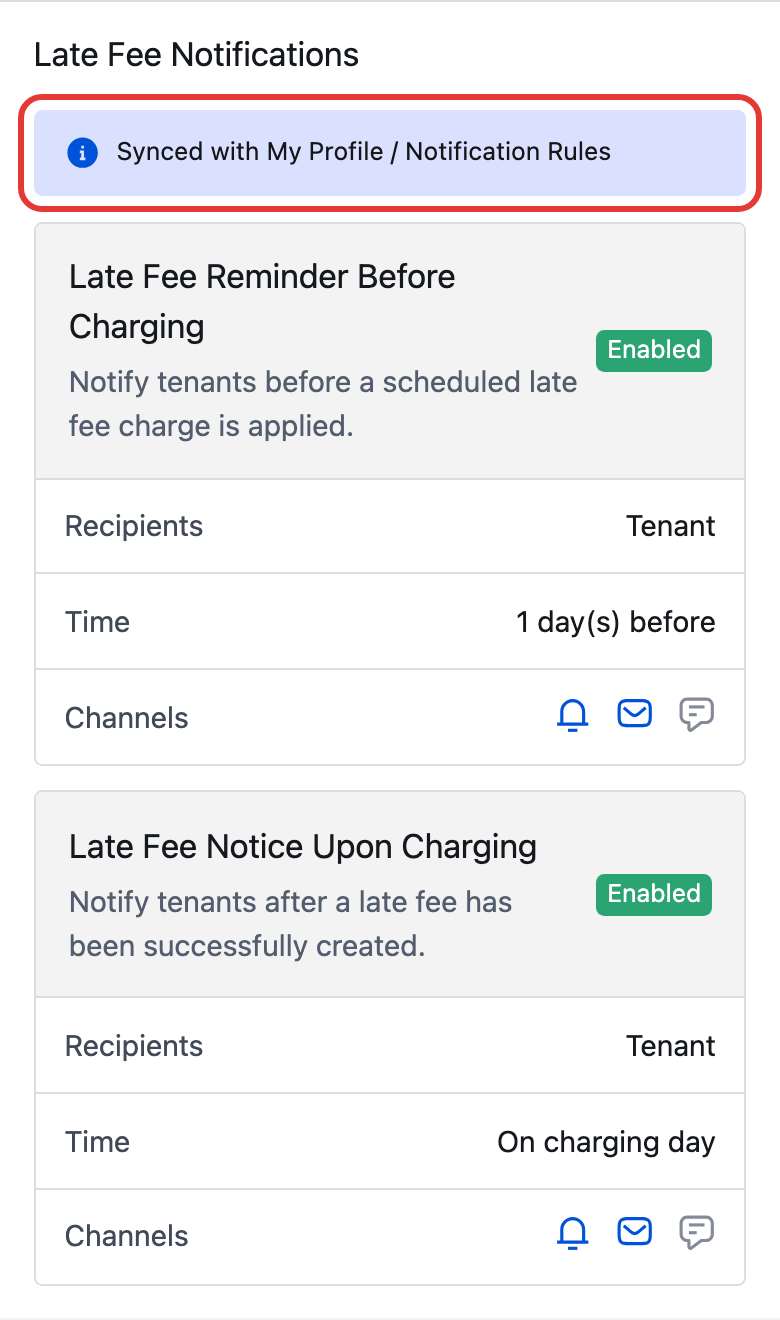
Step 7 Tap [Save]. If the impact dialog appears, choose whether the changes should apply to [current and future tenancies] or [future tenancies only], then confirm the save.
Platform differences
| Topic | Web | App |
|---|---|---|
| Entry | [My Profile] -> [Account Settings] -> [Late Fee Settings] | [Account Settings] -> [Late Fee Settings] |
| Global setting scope | Updates the same company-wide late fee configuration | Updates the same company-wide late fee configuration |
| Form presentation | Card-based Web form under [My Profile] | Mobile settings page in [Account Settings] |
| Save behavior | Saves automatically after a valid change. If needed, choose whether changes apply to current tenancies and future tenancies, or future tenancies only | Tap [Save]. If needed, choose whether changes apply to current tenancies and future tenancies, or future tenancies only |
Note:
- This section supports a maximum of 2 late fee rules.
- Late fee notifications are synced with [Notification Rules].
- [Late Fee], [Offset], and [Refund] charges are excluded from the applicable charge types.
- Depending on the save scope you choose, current tenancies may either follow the latest global rules or keep their existing snapshot.
- On Web, the impact dialog only appears when there are current tenancies still following the current global late fee settings.