How do I set the number of days for advance generation of recurring charges/bills?
Use [Bill Leading Time] in Account Settings to control how many days before the due date recurring charges and bills are generated and posted.
Entry:
- Web: [My Profile] -> [Account Settings]
- App: [Home] -> profile avatar -> [Account Settings]
Web
-
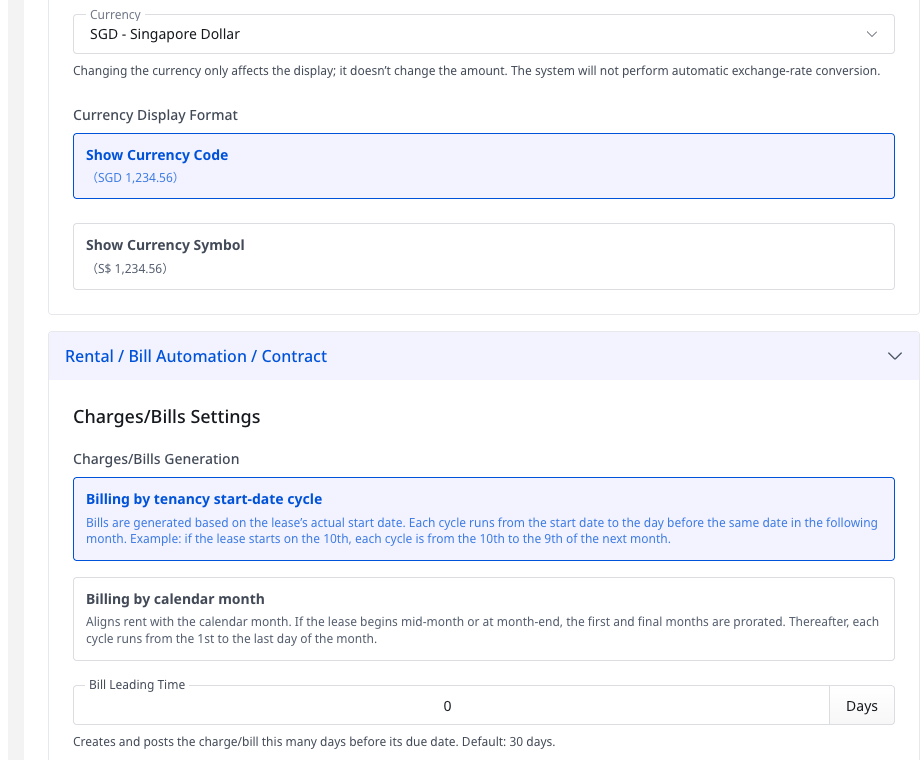
Open [Account Settings], then go to [Rental / Bill Automation / Contract].
-
Find the [Bill Leading Time] field under [Charges/Bills Settings].
-
Enter the number of days you want the system to use before the due date.
-
Click outside the input field so the new value is saved.
App
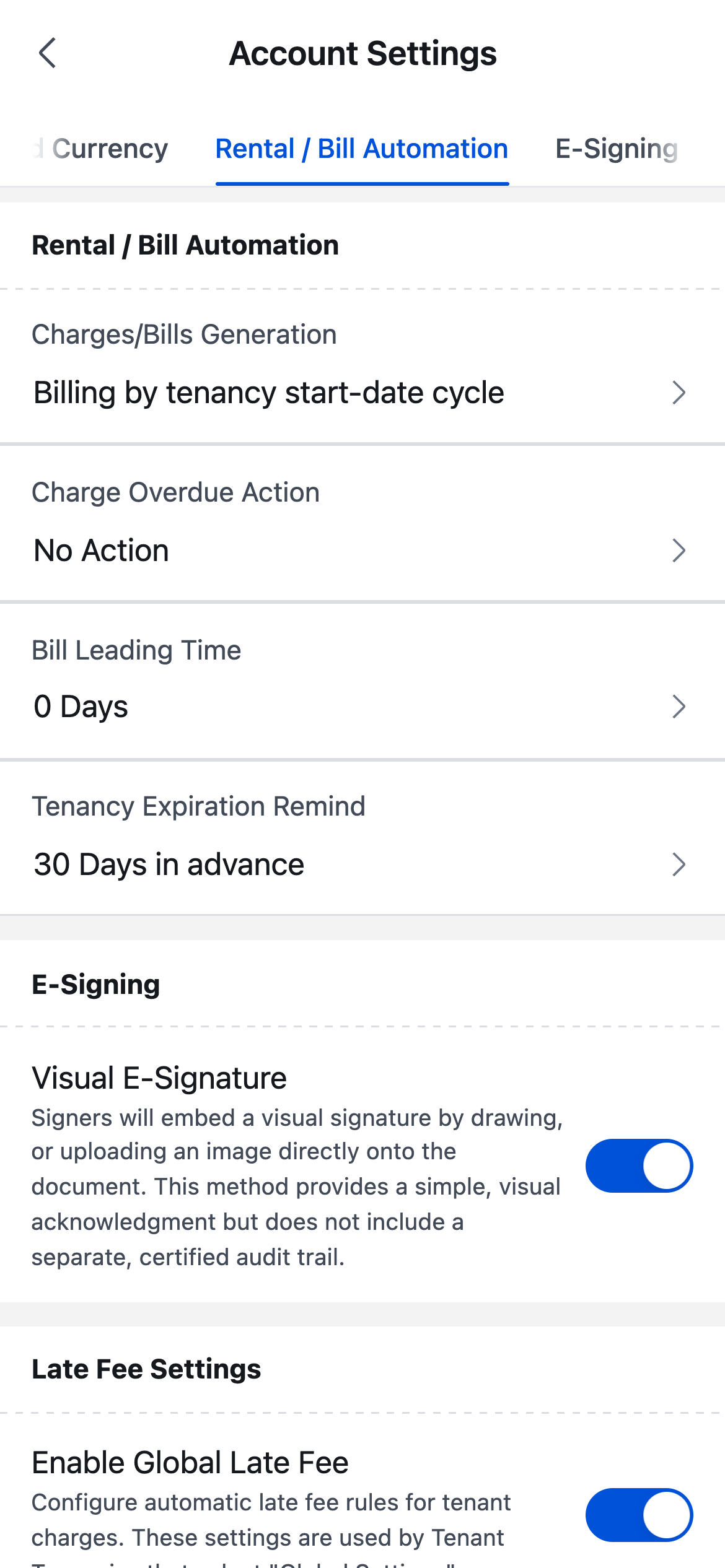
- Open [Account Settings], then switch to the [Rental / Bill Automation] tab.
-
Tap [Bill Leading Time].
-
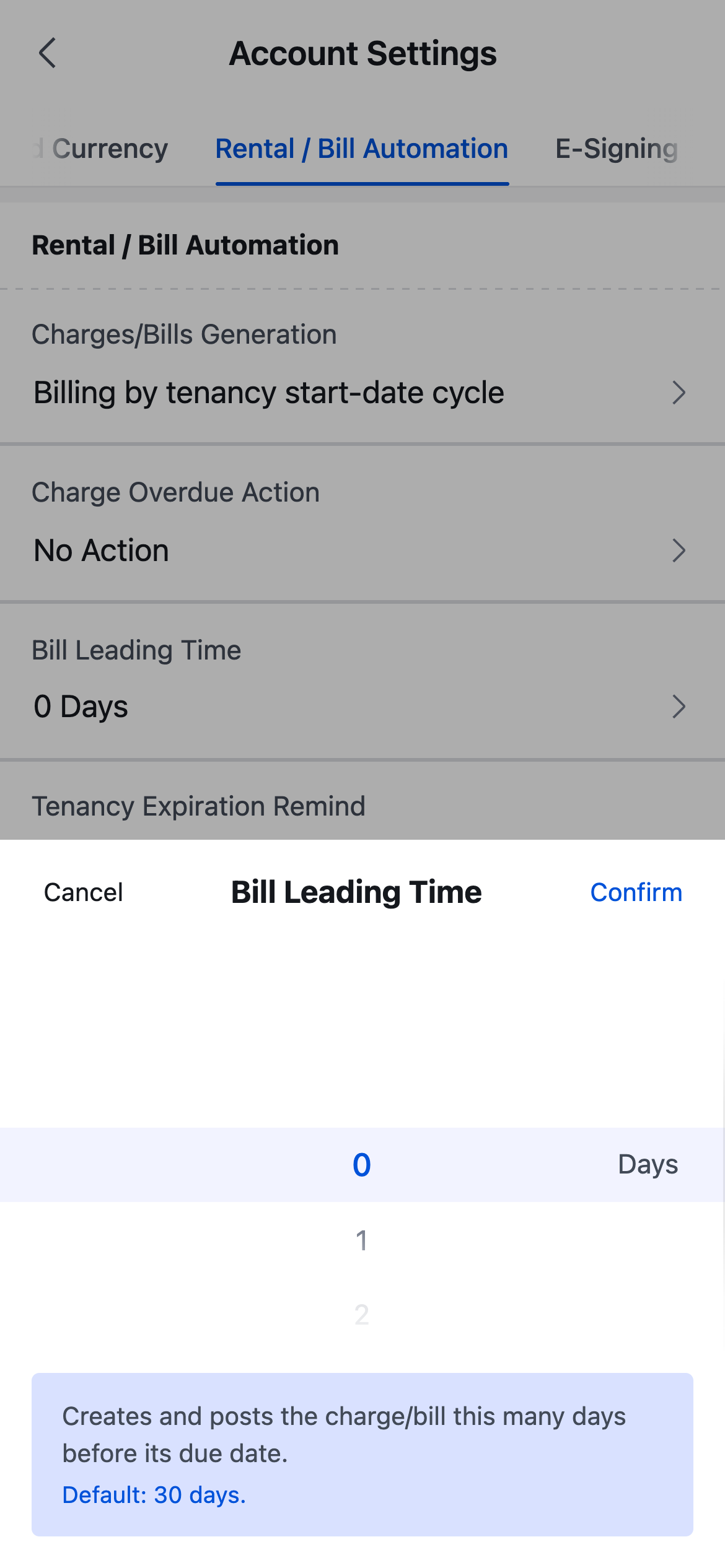
In the popup, choose the number of days you want to use, then tap [Confirm].
Platform differences
- Web shows [Bill Leading Time] as an inline number input inside [Rental / Bill Automation / Contract].
- App shows [Bill Leading Time] as a row inside [Rental / Bill Automation], then opens a number-wheel popup when you tap it.
- Web saves the change after the field loses focus. App saves the change after you tap [Confirm] in the popup.
Note:
- The current description on both platforms states that the default setting is [30] days.
- The saved [Bill Leading Time] is used by the recurring bill generation task for future charge and bill posting dates.