How do I change my login password?
Use [Change Password] when you need to update the password you use to sign in to your operator account on Web or App.
Entry:
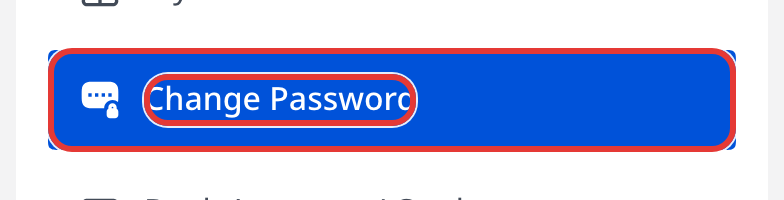
- Web: [My Profile] -> [Change Password]
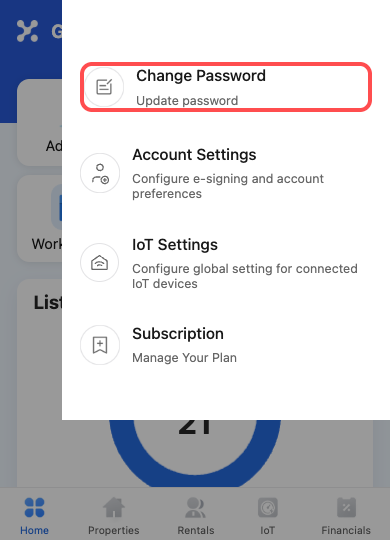
- App: [Home] -> top-right profile avatar -> [Change Password]
Web
Step 1 Open [My Profile], then select [Change Password].
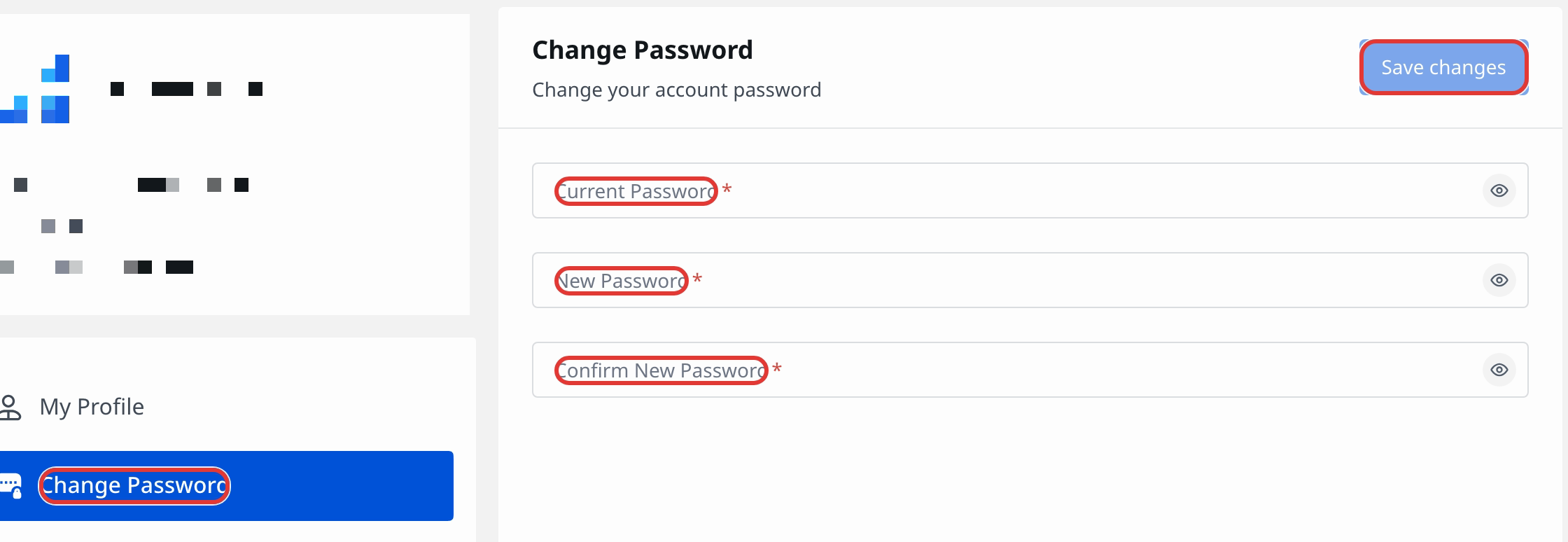
Step 2 Complete the password form, then click [Save changes].
- Enter [Current Password]
- Enter [New Password]
- Enter [Confirm New Password]
App
Step 1 On [Home], tap the profile avatar in the top-right corner, then tap [Change Password].
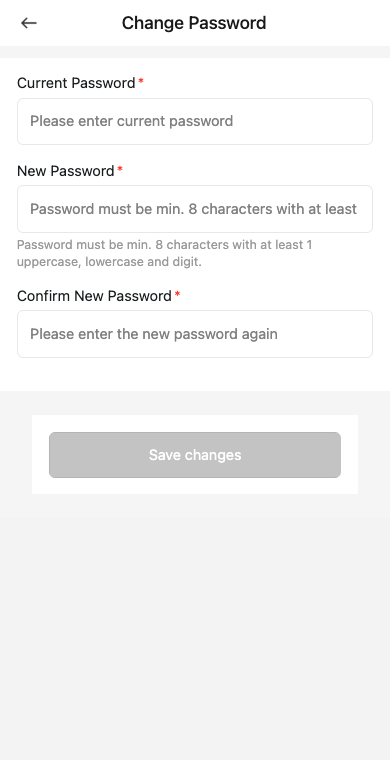
Step 2 Enter [Current Password], [New Password], and [Confirm New Password], then tap [Save changes].
Platform differences
| Topic | Web | App |
|---|---|---|
| Entry | [My Profile] -> [Change Password] | [Home] -> profile avatar -> [Change Password] |
| Form layout | Password form inside [My Profile] | Dedicated mobile password page |
| After a successful change | Shows a success message and clears the form | Signs you out and returns to [Login] |
Note:
- The new password must be at least 8 characters and include at least 1 uppercase letter, 1 lowercase letter, and 1 digit.
- The new password cannot be the same as the current password.
- The confirmation field must match the new password before you can submit the change.