How do I activate and connect my HitPay payment gateway sub-account?
Use [Online Payment Settings] to start or continue your HitPay payment gateway setup for tenant payments and Auto Pay.
Entry:
- [My Profile] -> [Online Payment Settings]
Before you start
- Open an account that can access [Online Payment Settings].
- Prepare the [Country/Region], business type, supporting documents, bank account information, and any API credentials you expect to copy from HitPay.
- If your HitPay card already shows [Incomplete], continue the existing application instead of starting a new one.
Web
Step 1 Open [Online Payment Settings] and find the [HitPay] card in [Payment Gateway].
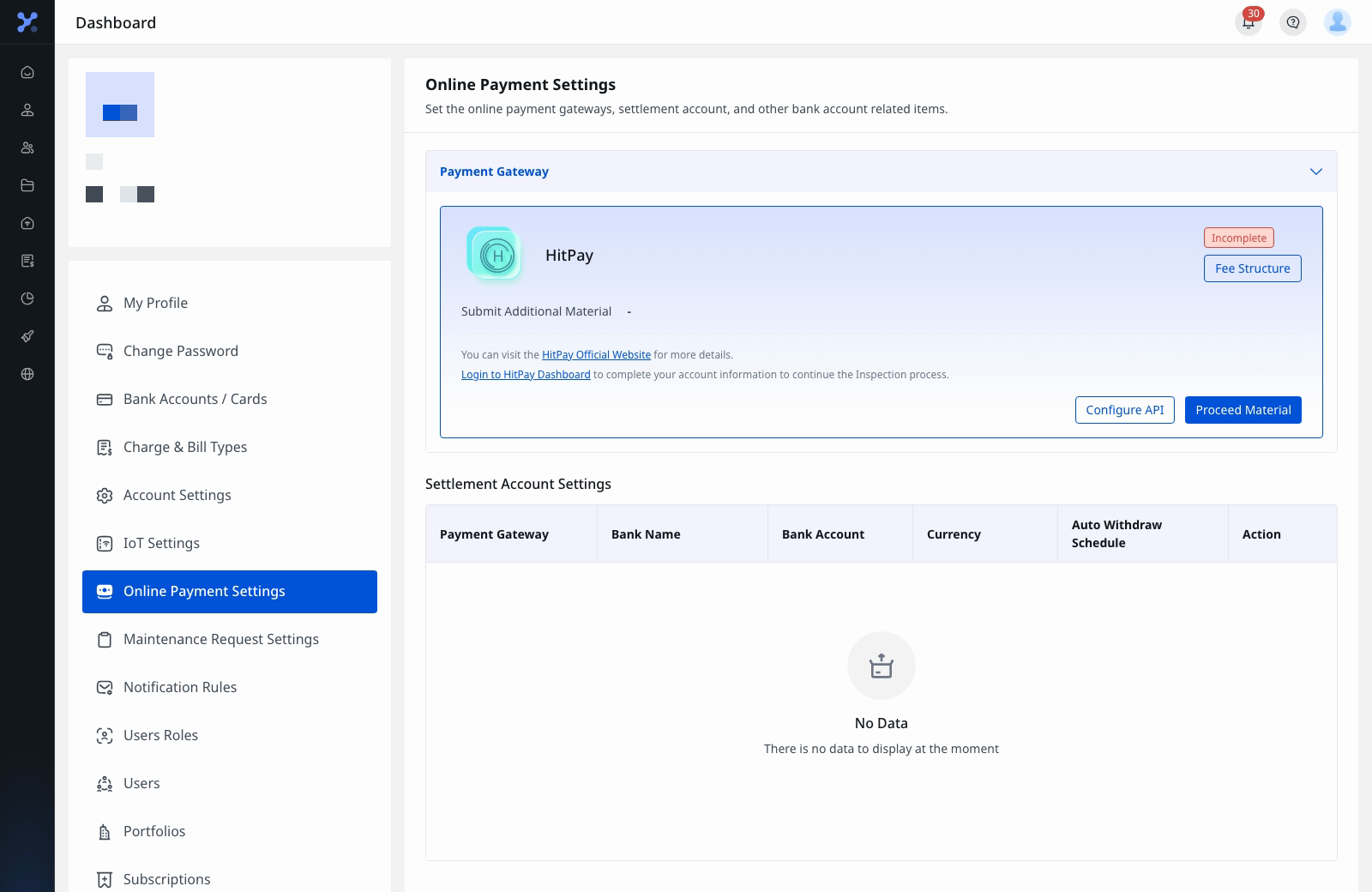
Step 2 If the card shows [Apply], click it, select [Country/Region] and [Business Type], review the supported payment capabilities and document requirements, then click [Confirm].
Step 3 Complete the remaining onboarding on HitPay.
- If your card already shows [Incomplete], click [Proceed Material] to continue the KYC flow on HitPay Dashboard.
- HitPay handles the external KYC, document upload, and bank onboarding on its own site.
Step 4 After HitPay provides your [Business API Key] and [Salt], return to ForentX and click [Configure API].
Step 5 Enter [Business API Key], [Salt], and the same [Country/Region] used in your HitPay application, then click [Verify Connection].
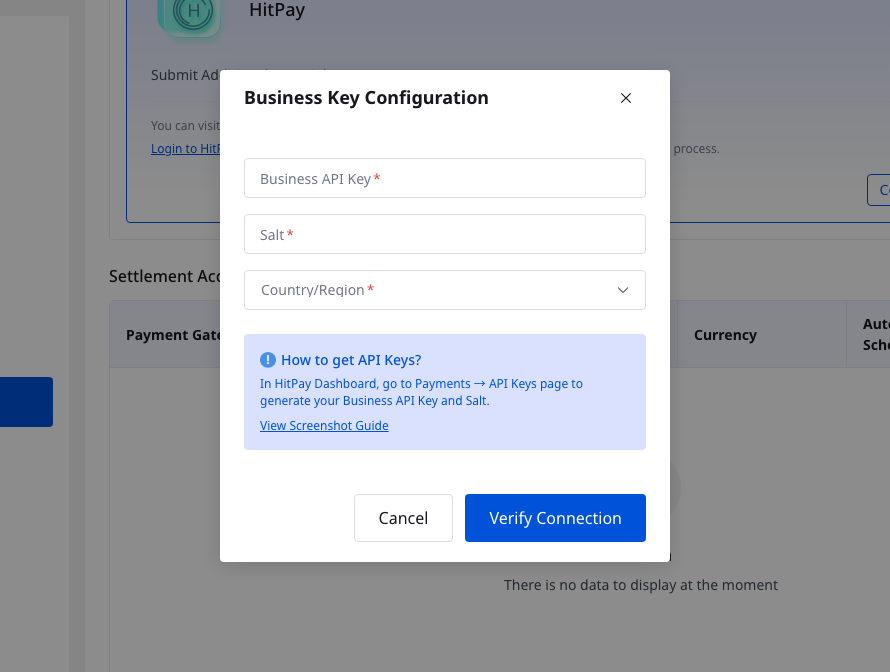
Step 6 Wait for ForentX to verify the connection and refresh the HitPay status. When HitPay completes the review, the status changes from [Incomplete] to [Completed].
Note:
- If your account already has a HitPay record in [Incomplete] state, the page may show [Configure API] and [Proceed Material] instead of [Apply]. In that case, continue from [Configure API].
- The [Country/Region] in [Configure API] must exactly match the country used when you applied through HitPay. If it does not match, verification is blocked.
- The [Fee Structure] button only shows the current fee reference. It does not complete the onboarding flow.