How do I manage the payment methods for my subscription?
Use [Subscriptions] on Web or [Subscription] in the App to check the card used for subscription billing. On Web, you can also add another card, set the default card, or delete a non-default card.
Entry:
- Web: [My Profile] -> [Subscriptions] -> [Payment Method]
- App: [Home] -> profile avatar -> [Subscription]
Web
Step 1 Open [Subscriptions], then select [Payment Method].
The page shows the saved cards currently available for subscription billing.
- The page shows the card brand
- The masked last 4 digits
- [Expiry Date]
- Whether a card is tagged [Default Card]
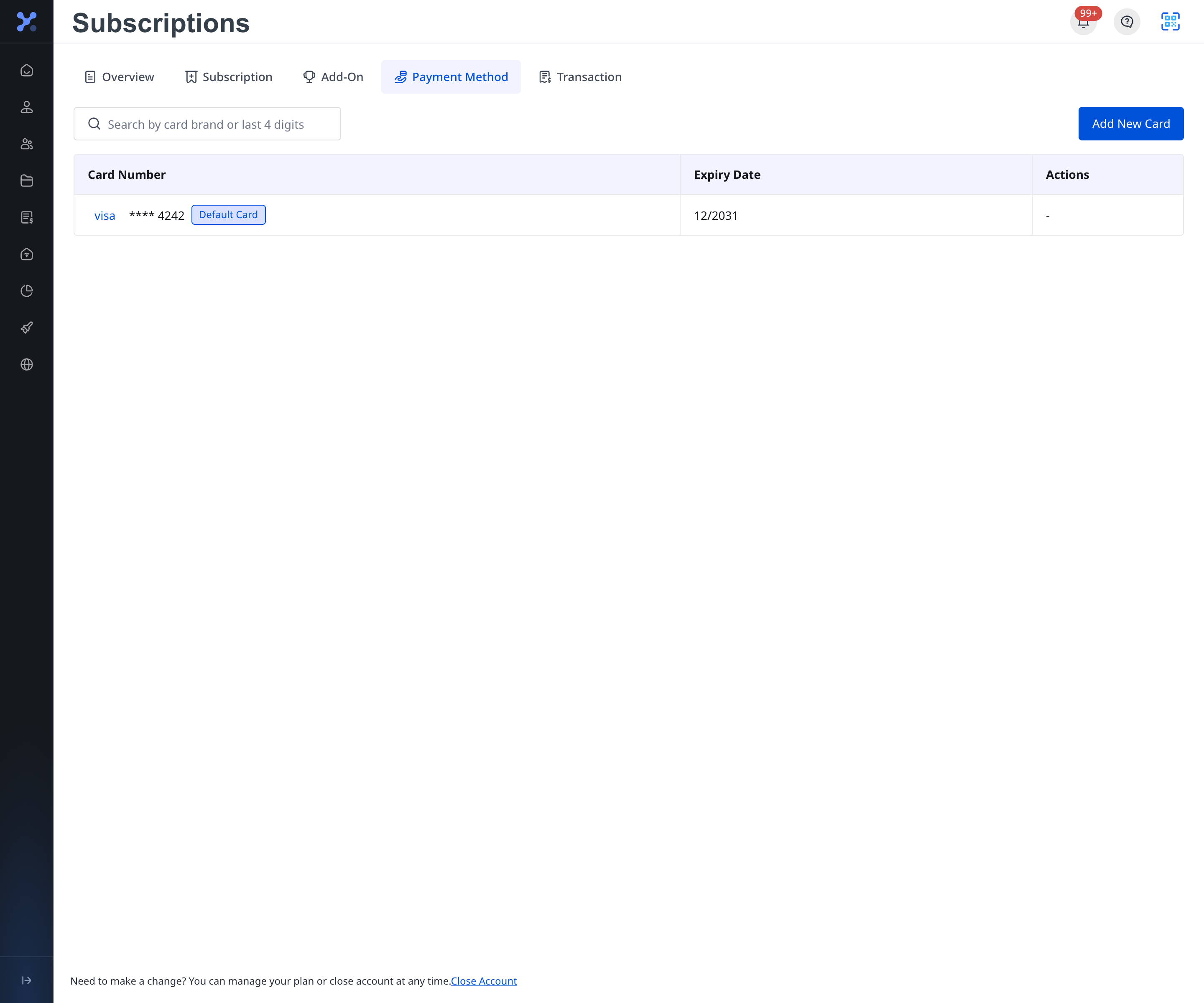
Step 2 If you need to add another card, click [Add New Card].
The system opens a secure hosted card page. When the card flow finishes, you return to [Payment Method].
Step 3 If a saved card is not the current default card, open its row action menu to [Set Default] or [Delete].
App
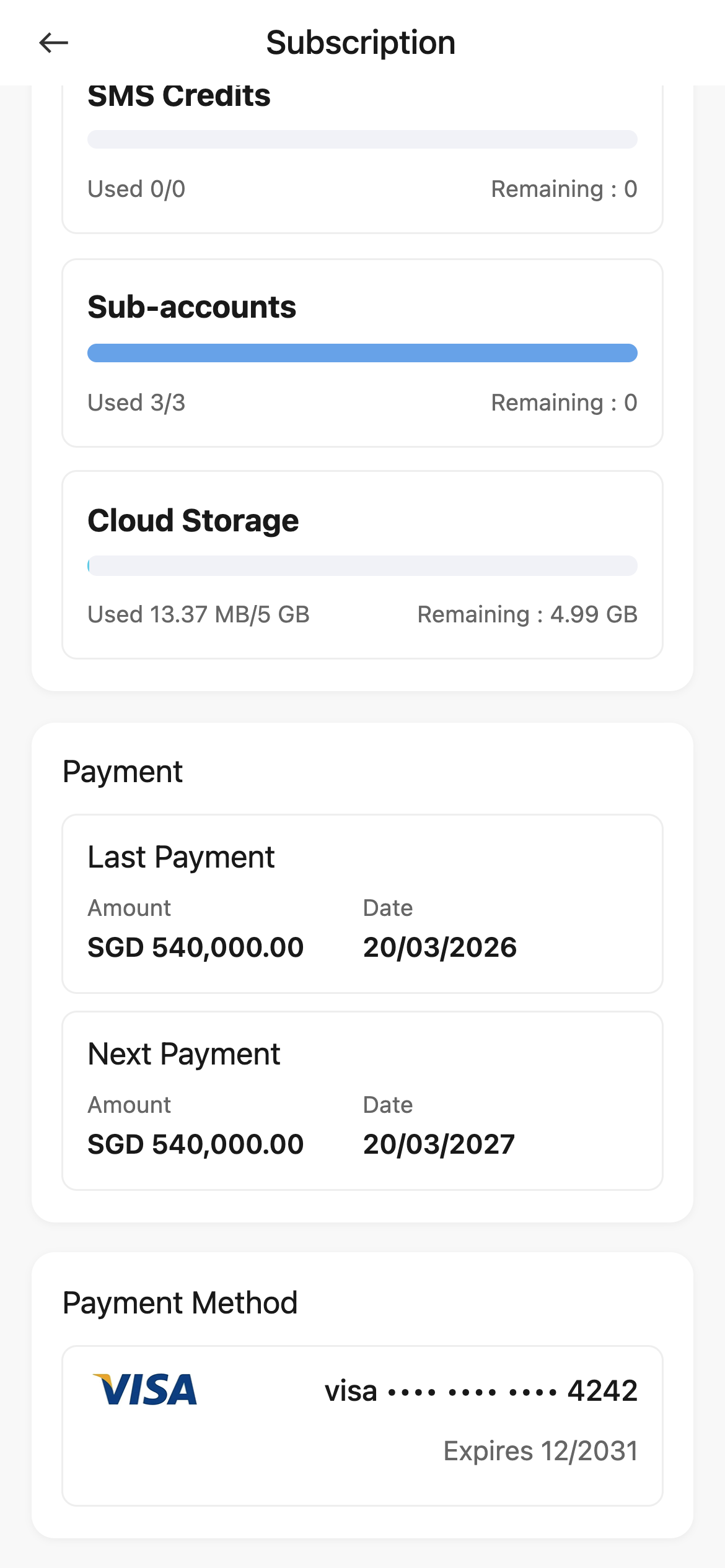
Step 1 Open [Subscription], then scroll to [Payment Method].
The App shows the card currently used for subscription billing.
- Card brand
- Masked card number
- Expiry date
Platform differences
- Web lets you review saved cards, add another card, set a non-default card as the default card, or delete a non-default card.
- App currently shows the default card only. It does not provide [Add New Card], [Set Default], or [Delete] controls.
Note:
- If only one saved card exists and it is already [Default Card], the [Actions] column on Web may show
-. - Deleting a saved card is irreversible.