How do I bulk-generate statements of account for tenants?
Use [Lease Statements] on Web to select multiple tenancies from one report page and download separate or combined statement files.
Entry:
- Web: [Reports] -> [Lease Statements]
Web
Step 1 Open [Lease Statements], then review the tenancy list and current filters before you start the batch download flow.
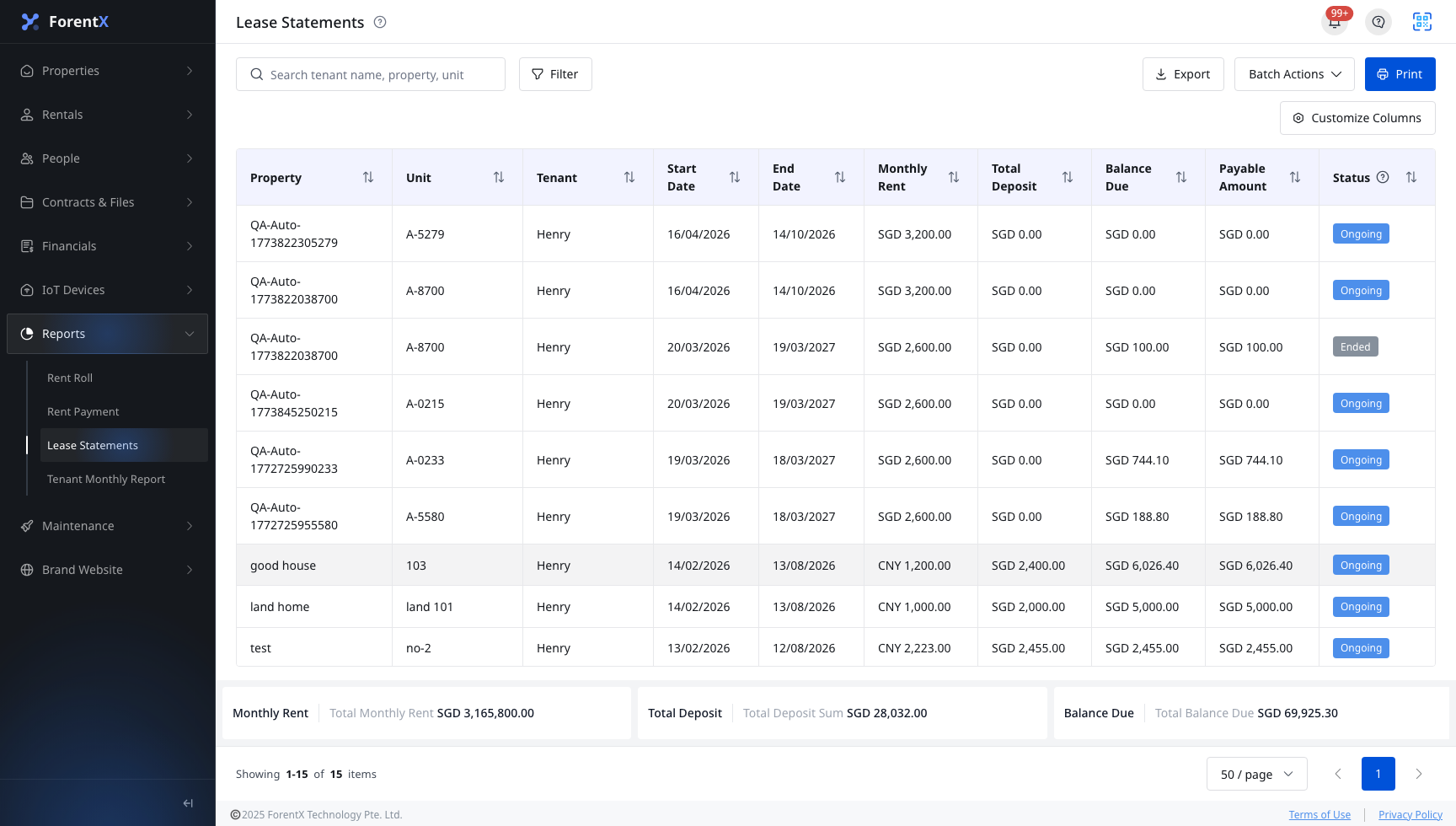
Step 2 Select [Batch Actions], then choose the download mode you need:
- [Download Selected Lease Statement]: downloads one file for each selected tenancy
- [Download Selected Lease Statement (Combined into one report file)]: combines all selected tenancies into one report file
Step 3 After you choose a download mode, the page enters batch selection mode. Select one or more tenancies from the table. The batch selection toolbar at the top shows how many rows are selected and keeps the download action available in the same bar.
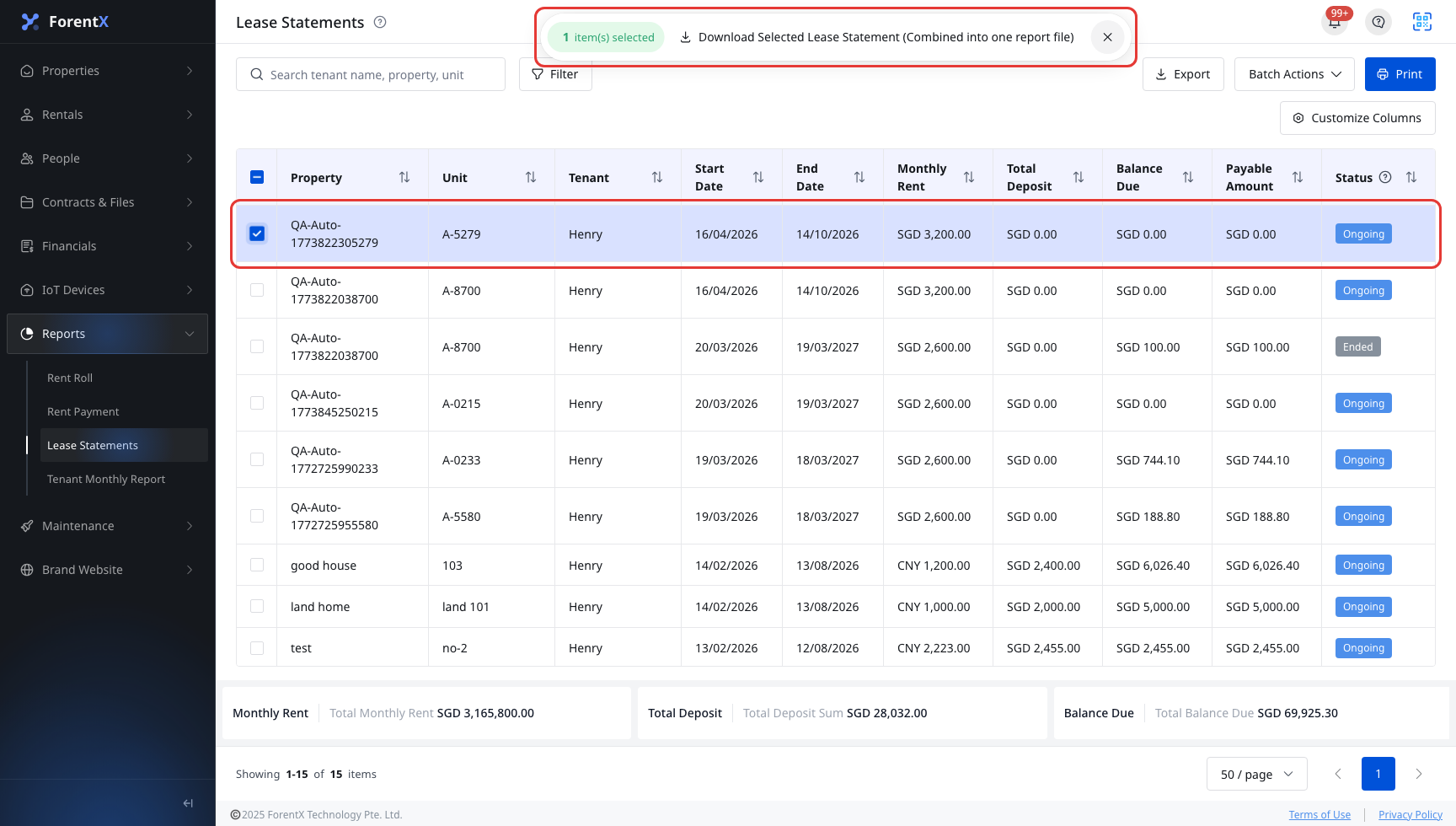
Step 4 Select the download button in the batch selection toolbar to start the export.
App
The current App does not provide a [Lease Statements] page. Use Web when you need to batch-download statement files for multiple tenancies.
Platform differences
- Web supports the full [Lease Statements] workflow, including filters, batch actions, row selection, and statement downloads.
- App currently does not provide a matching report page for this workflow.
Note:
- You can search or filter the list before entering batch selection mode.
- Use the close button on the batch selection toolbar if you want to leave selection mode without downloading.
- The combined download option merges all selected tenancies into one report file.