How do I create a work order in the tenant app?
Use the [Services] tab in the Tenant App to open [My Work Orders], then tap [Create Work Order] to submit a new [Maintenance] or [Cleaning] request.
Entry:
- [Services]
Web
- Tenants do not create self-service work orders from the current Web flow.
App
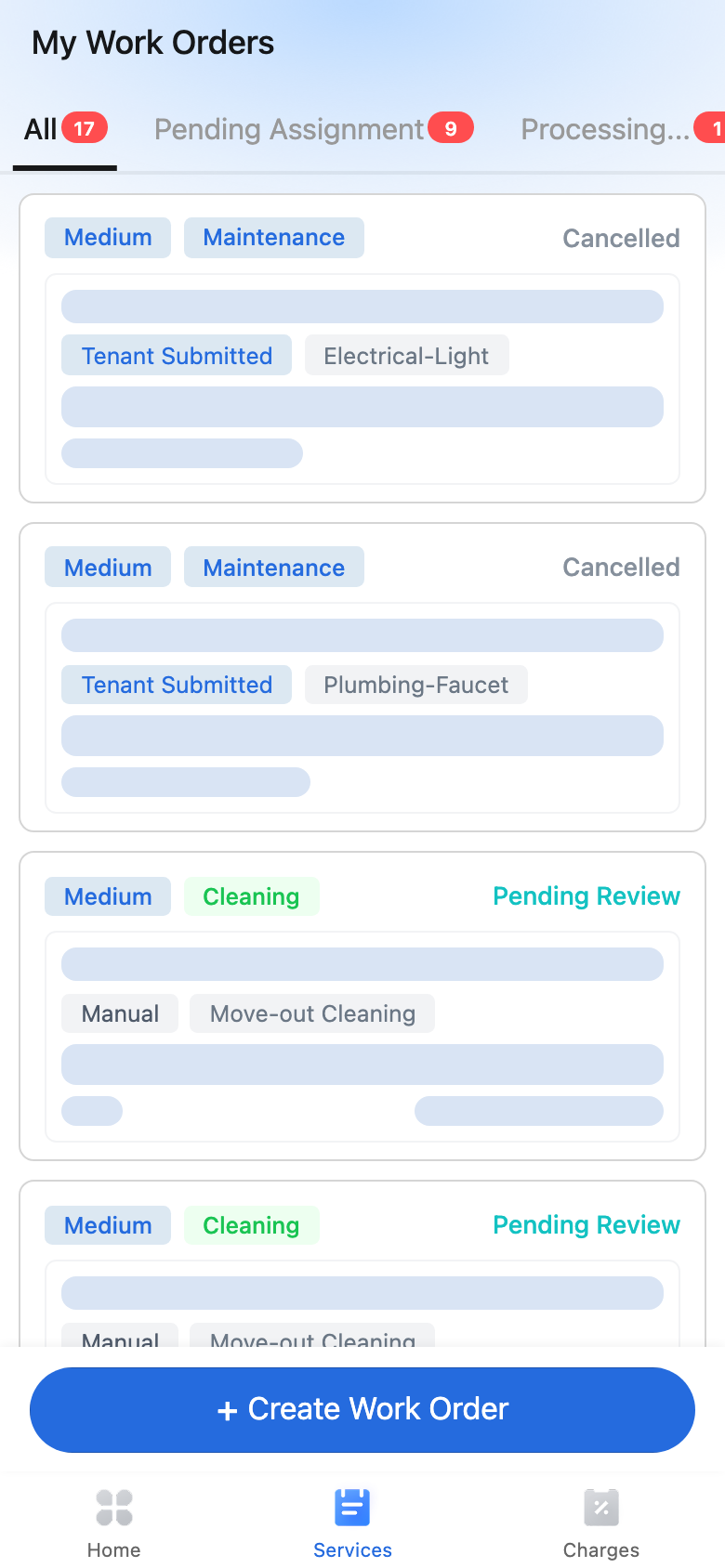
Open [My Work Orders]
- Sign in to the Tenant App.
- Tap [Services] in the bottom tab bar.
- On [My Work Orders], tap [Create Work Order].
Complete the form
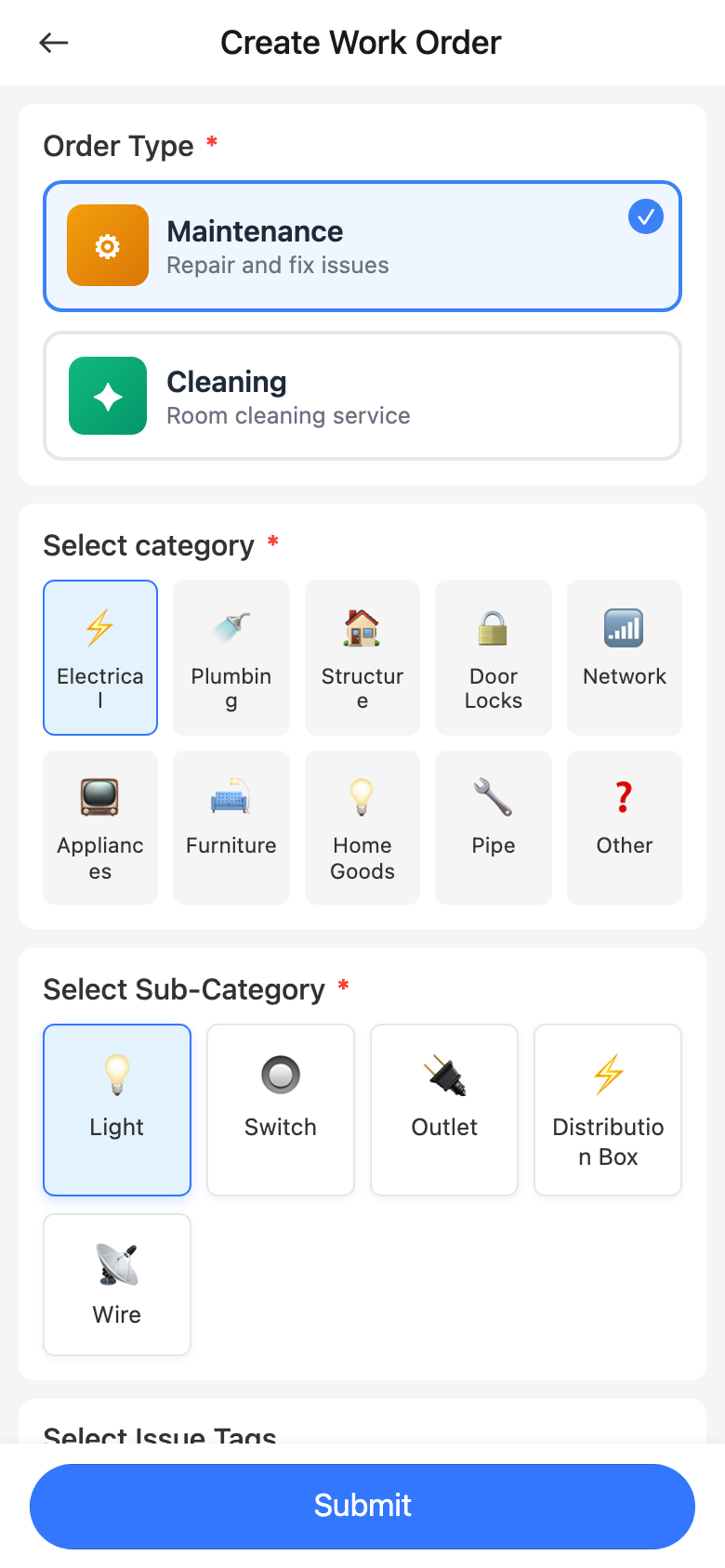
- Choose [Order Type]: [Maintenance] for repair issues, or [Cleaning] for cleaning services.
- If you selected [Maintenance], choose both [Select category] and [Select Sub-Category].
- If you selected [Cleaning], choose [Select cleaning type].
- Add [Description] when needed.
- Set [Appointment Time], [Priority], and confirm [Contact Phone].
- Tap [Submit].
Check the submitted result
After submission, the app returns to [My Work Orders]. In the current live sample, the new tenant work order appeared with source [Tenant Submitted] and status [Pending Assignment].
Platform differences
- Tenant self-service work-order creation is currently available in the App.
- Web work-order pages are for operator or service-staff workflows, not the tenant self-service entry.
Note:
- [Upload Images] is available only in the current [Maintenance] flow.
- [Description] becomes required when the selected category, sub-category, or issue tag is [Other].
- [Contact Phone] can be prefilled from the current tenant profile when that data is available.