How do I create a property portfolio for easier permission assignment?
Use [Portfolios] to group the properties and units that should be managed together before you assign access to team members.
Entry:
- Web: [My Profile] -> [Portfolios]
Web
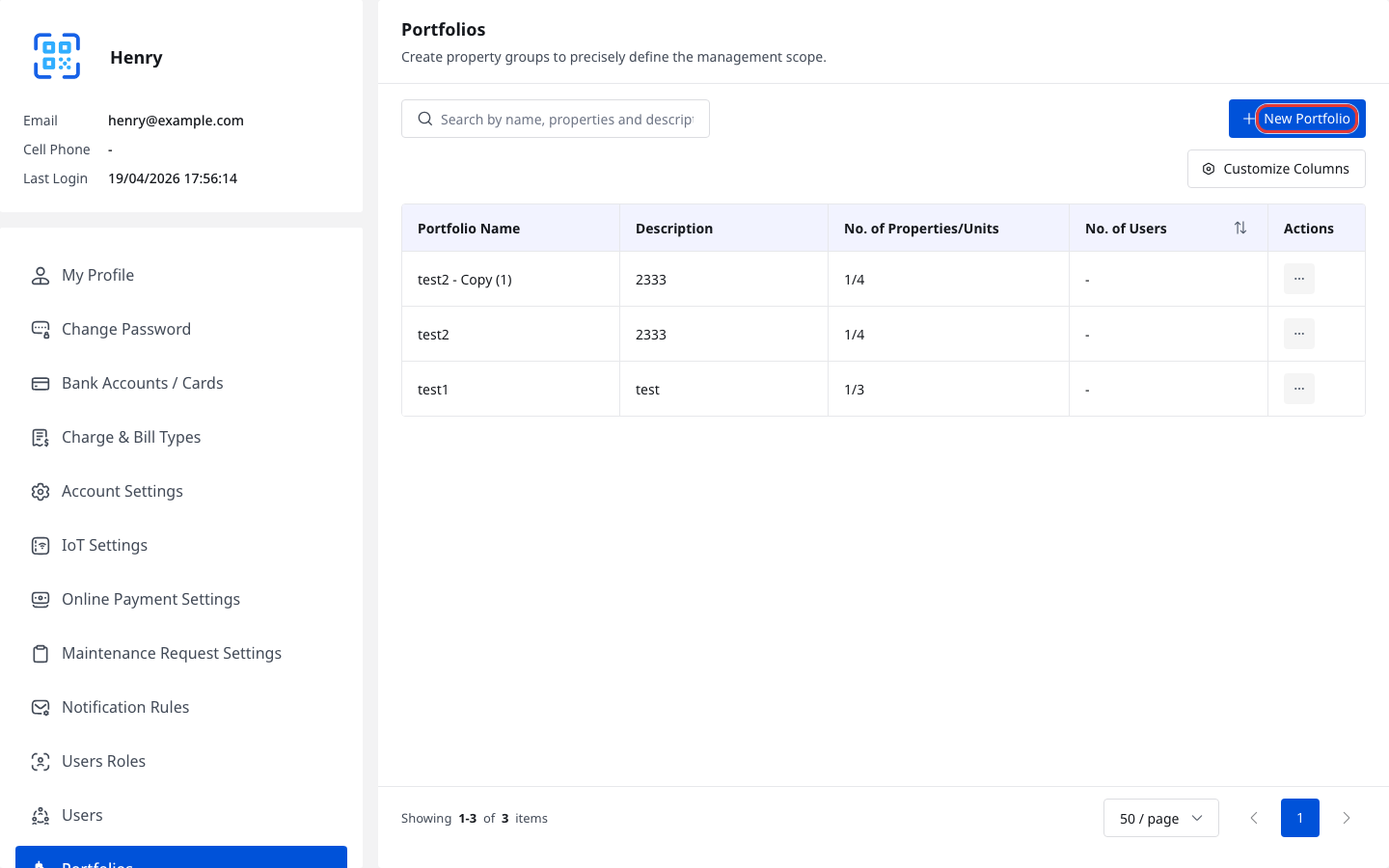
Step 1 Open [My Profile] -> [Portfolios], then click [New Portfolio].
Step 2 In [Create New Portfolio], complete the portfolio details:
- [Portfolio Name]
- [Description]
- In [Property], choose at least one property to include in this portfolio
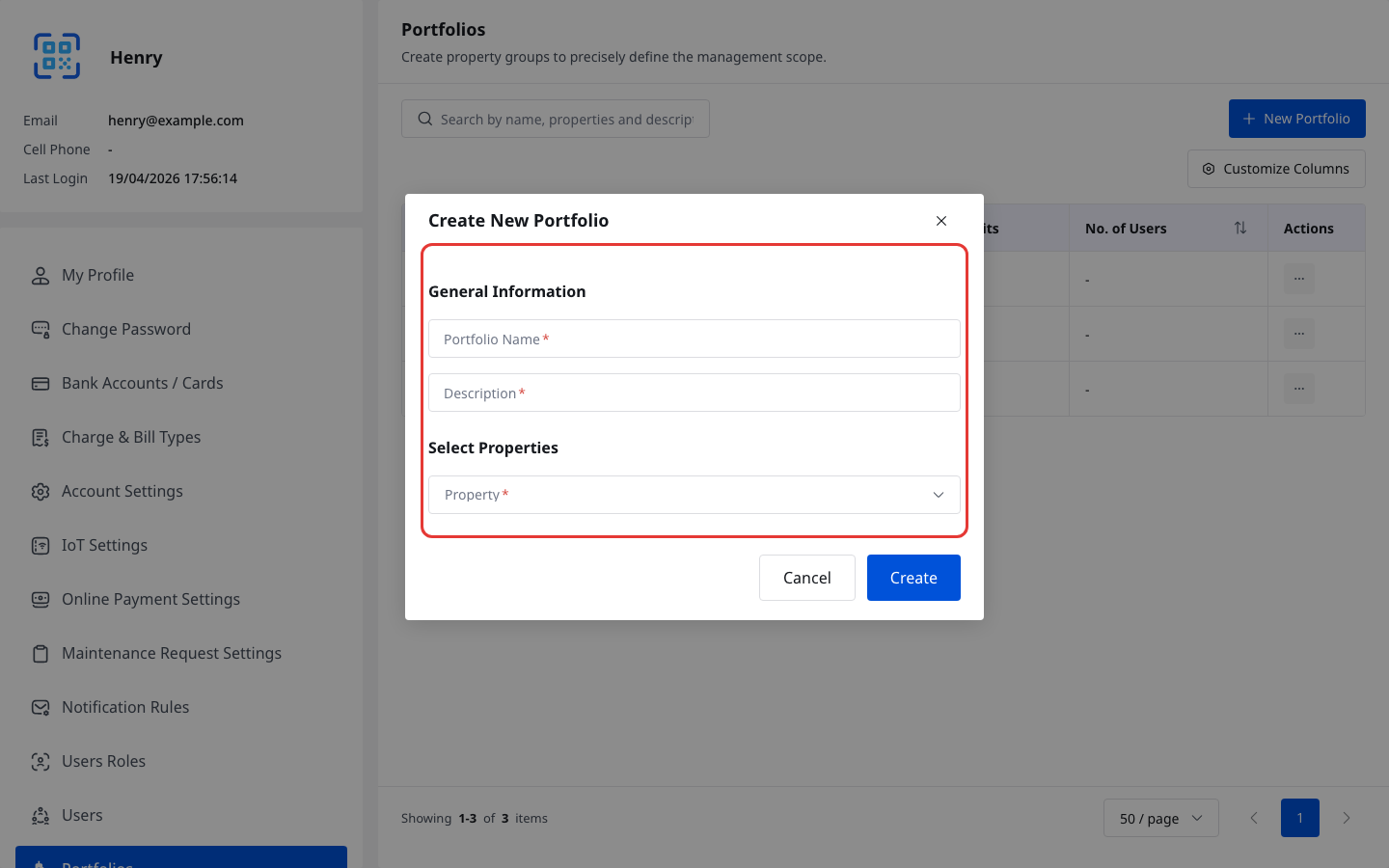
Step 3 Click [Create].
The new portfolio is ready to be assigned from the [Users] form.
Platform differences
| Topic | Web | App |
|---|---|---|
| Entry | [My Profile] -> [Portfolios] | No property portfolio management entry in the current App |
| Create and maintain portfolios | Create portfolios, review the portfolio scope, and reuse them when assigning permissions | Not available in the current App |
| Recommended use | Set up the property scope before you create or edit a sub-user | Use Web when you need to create or update portfolios |
Note:
- [Portfolio Name], [Description], and at least one [Property] are required in the current Web form.
- In the current Web implementation, each portfolio name must be unique.
- If a user should not be restricted to selected portfolios, use [All Properties] from the [Users] form instead.