How do I view my charges and start online payment in the tenant app?
Use the tenant app [Charges] page to review your outstanding charges and start online payment.
Entry:
- [Home] -> [Pay Now]
- [Charges] -> [Outstanding]
App
Step 1 Open [Charges] from the bottom tab bar, or tap [Pay Now] from the [Recent Outstanding Bill] card on [Home].
Step 2 Stay on the [Outstanding] tab and find the charge you want to pay.
The current card can show:
- Charge type, such as [Rent], [Rental Deposit], [Utility Deposit], or [Electricity]
- Status, such as [Due], [Overdue], or [Partly Paid]
- [Due Date]
- [Amount]
- [Paid]
- The remaining balance
- [Upload Voucher]
- [Pay Now]
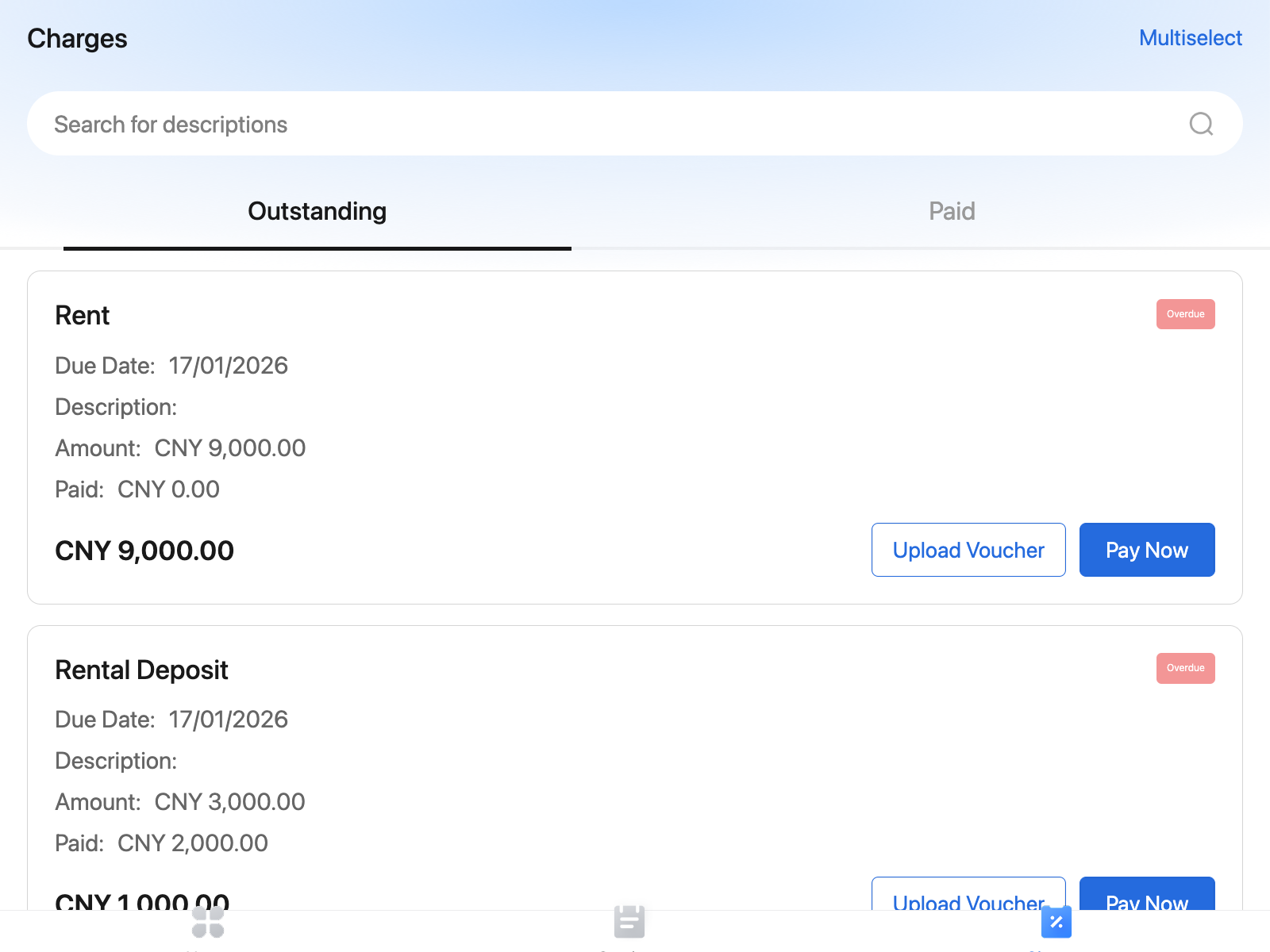
Step 3 Tap [Pay Now] on the charge you want to settle.
Step 4 If the account can continue with online payment, the app opens [Checkout]. Review the main payment information there:
- Charge type
- [Due Date]
- The amount you are about to pay
- The available payment methods
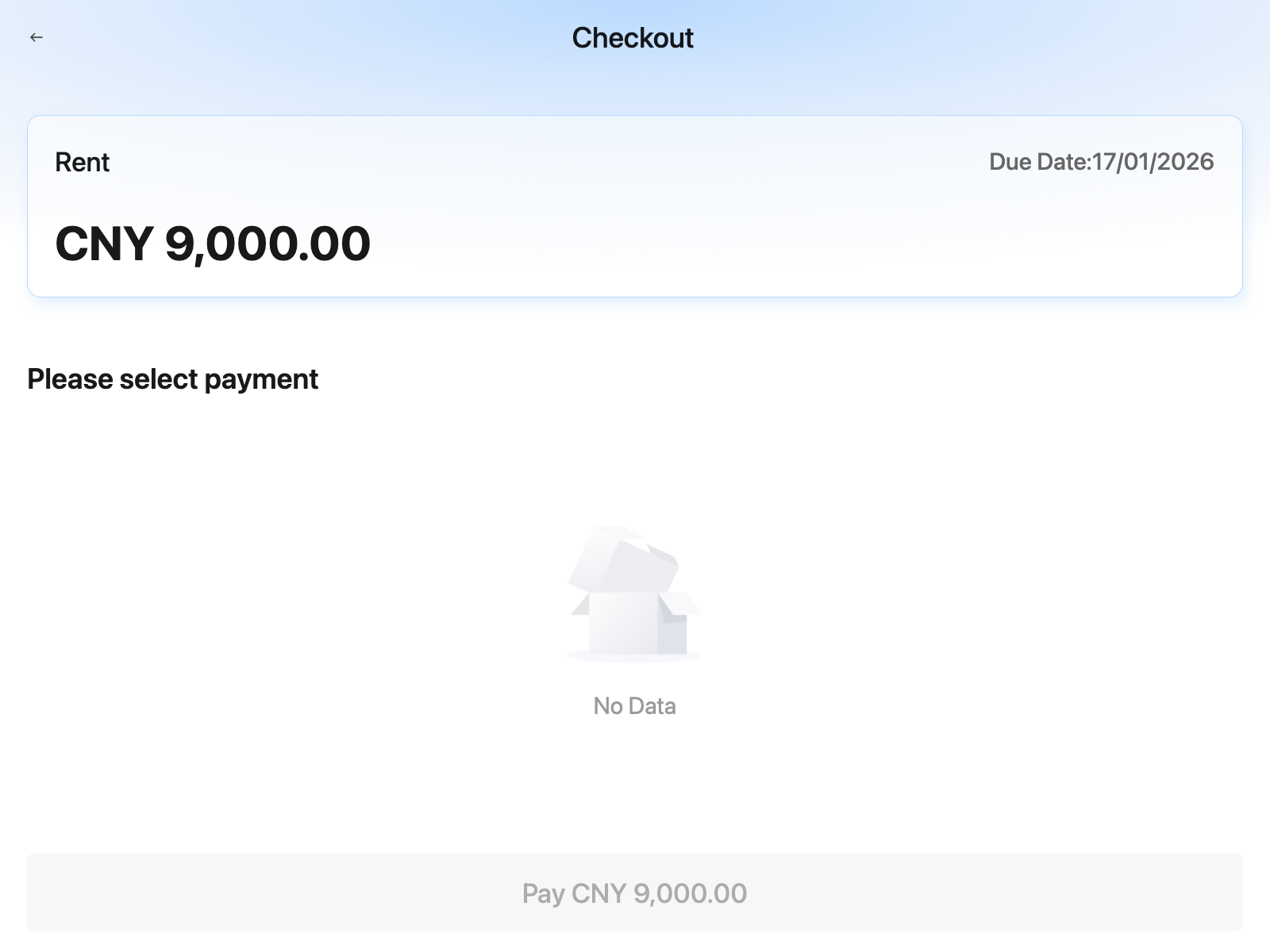
Step 5 If at least one payment method is available, select a payment method and tap [Pay].
Step 6 After the payment is completed, return to [Charges] and review the latest result from the [Paid] tab.
Note:
- In the current tenant app behavior, [Home] -> [Pay Now] is a shortcut to [Charges], not a direct jump to a payment gateway.
- If the app shows [Error] with [The configured currency is incorrect. Please contact property manager to update.], the charge currency does not match the tenant country currency configuration that the app checks before checkout.
- If [Checkout] opens but shows [No Data], there is currently no available payment method for this tenant account.
- If you use [Upload Voucher] instead of online payment, the charge may stay outside [Paid] until the voucher review is completed.