How can I check the latest status of my charges after making a payment?
Use the [Paid] tab on [Charges] to confirm whether a charge has reached its latest terminal state.
Entry:
- [Charges] -> [Paid]
App
Step 1 Open [Charges] and switch from [Outstanding] to [Paid].
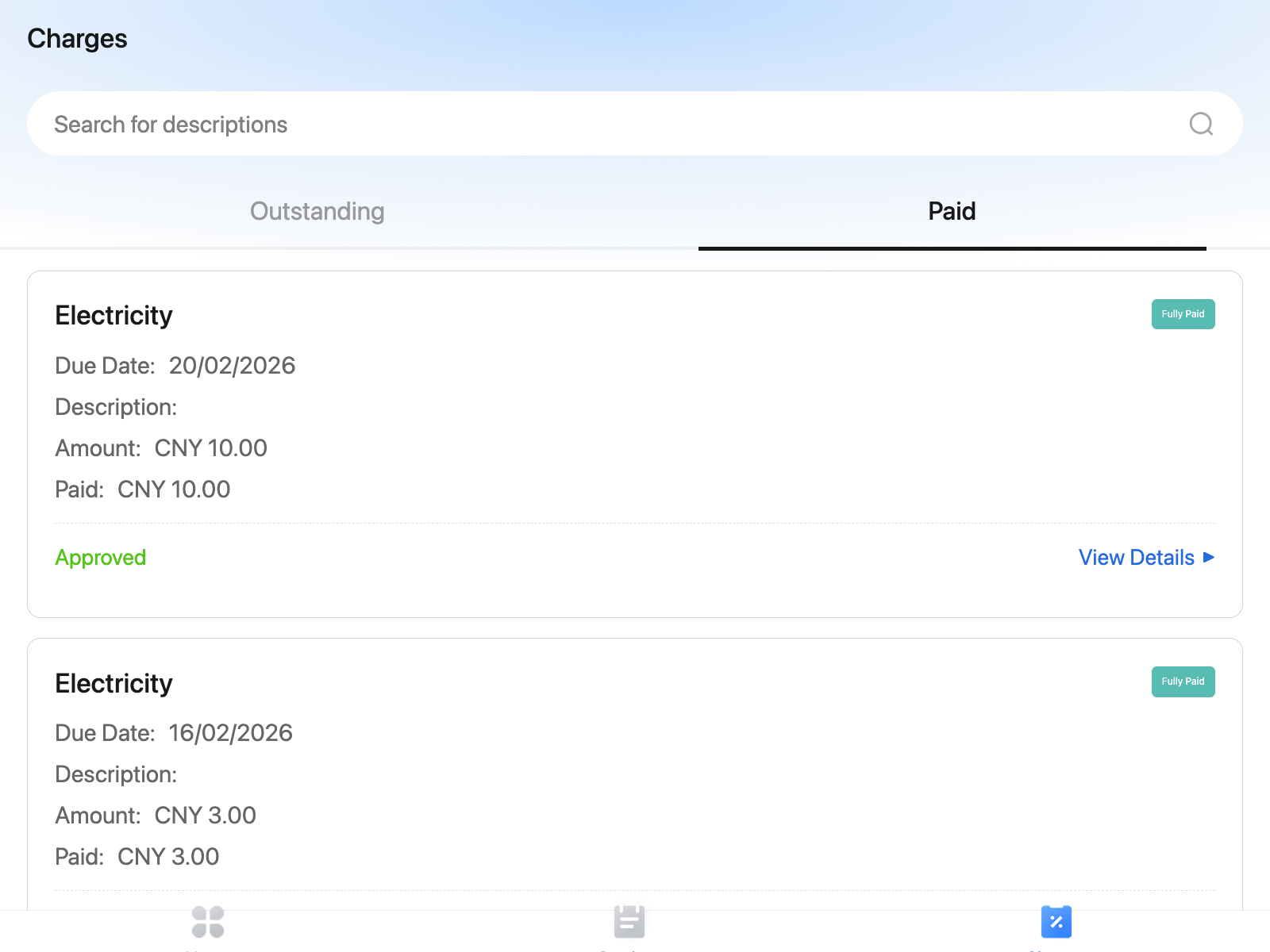
Step 2 Review the card status on the [Paid] list.
In the current app behavior, a completed paid charge can show:
- [Fully Paid]
- [Due Date]
- [Amount]
- [Paid]
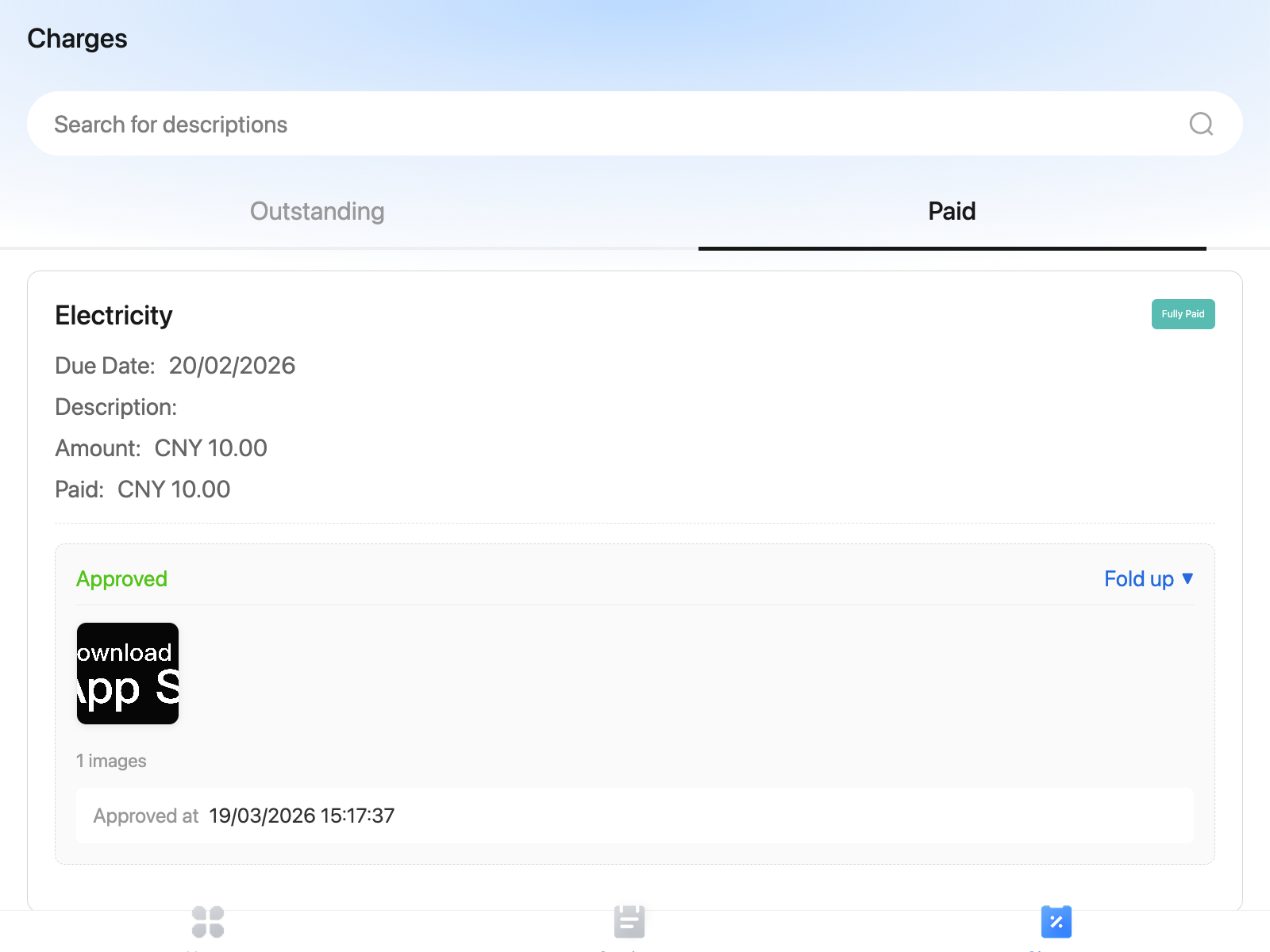
Step 3 If the charge includes a payment voucher review record, tap [View Details] in the voucher section.
Step 4 Check the voucher review result after expansion. The current paid-state voucher section can show:
- [Approved]
- The image count, such as [1 images]
- [Approved at]
Step 5 If you do not see the charge under [Paid] yet, go back to [Outstanding] and check whether it is still waiting for voucher review.
In the current tenant app behavior:
- A voucher-based payment can still remain under [Outstanding]
- The card can show [Pending Review]
- The card can still show [Withdraw Voucher] before the review finishes
- After approval or full settlement, the charge can appear under [Paid]
Note:
- The current paid-state label in the app is [Fully Paid], not just [Paid].
- Voucher-based payments and gateway-based payments do not always update in exactly the same way or at the same speed.
- If a voucher section is visible, use the voucher status first to understand whether the payment is still waiting for review.