How can I reset my password if I forget it for the tenant portal?
Use [Forgot password] on the tenant app login page when you need to reset the password for your tenant account.
Entry:
- App: tenant app login page -> [Forgot password]
App
Step 1 Open the tenant sign-in page, then tap [Forgot password].
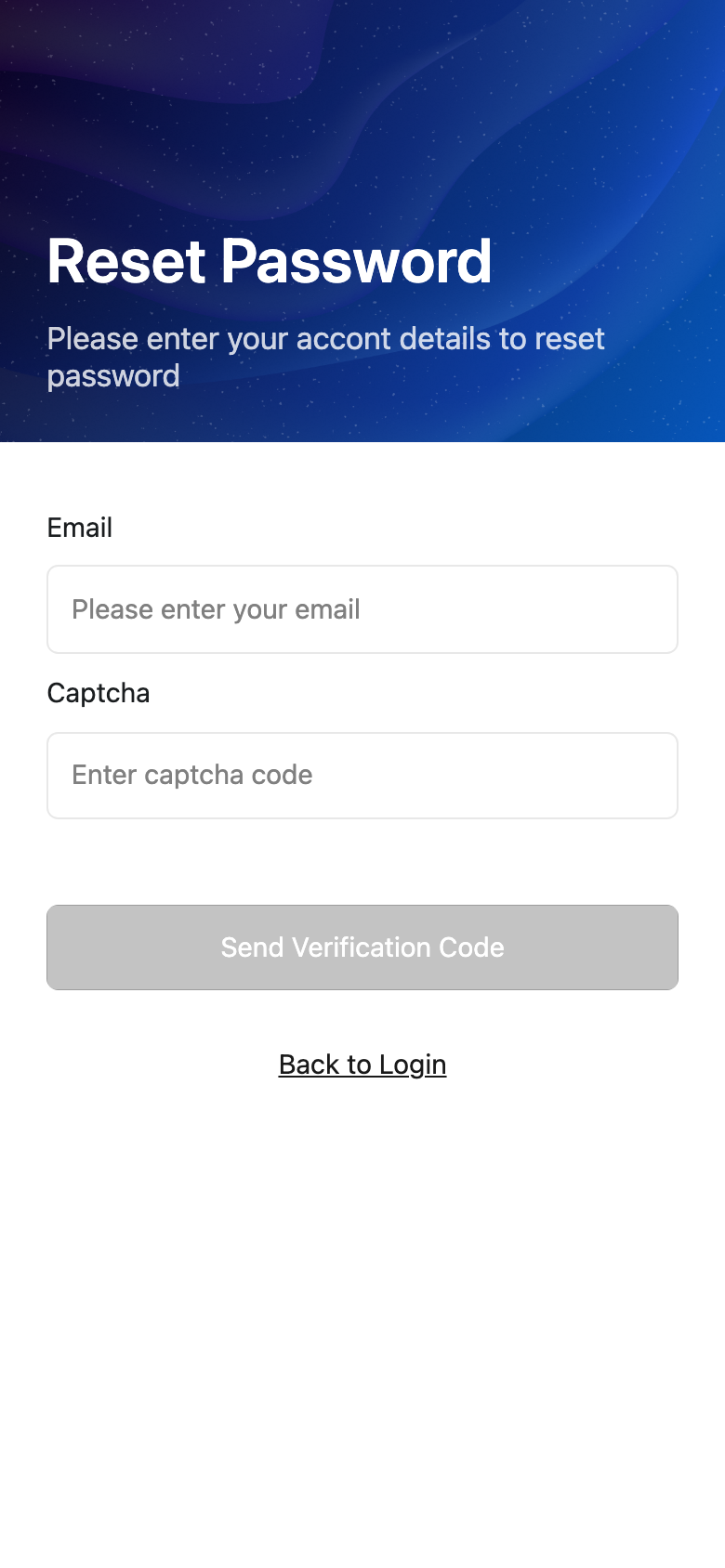
Step 2 On [Reset Password], enter the account you use to sign in.
- If you reset by email, enter [Email]
- If you reset by phone, enter [Cell Phone]
- Complete [Captcha]
- Tap [Send Verification Code]
Step 3 On [Security Verification], enter the 6-digit code that was sent to your email address or phone number, then tap [Submit].
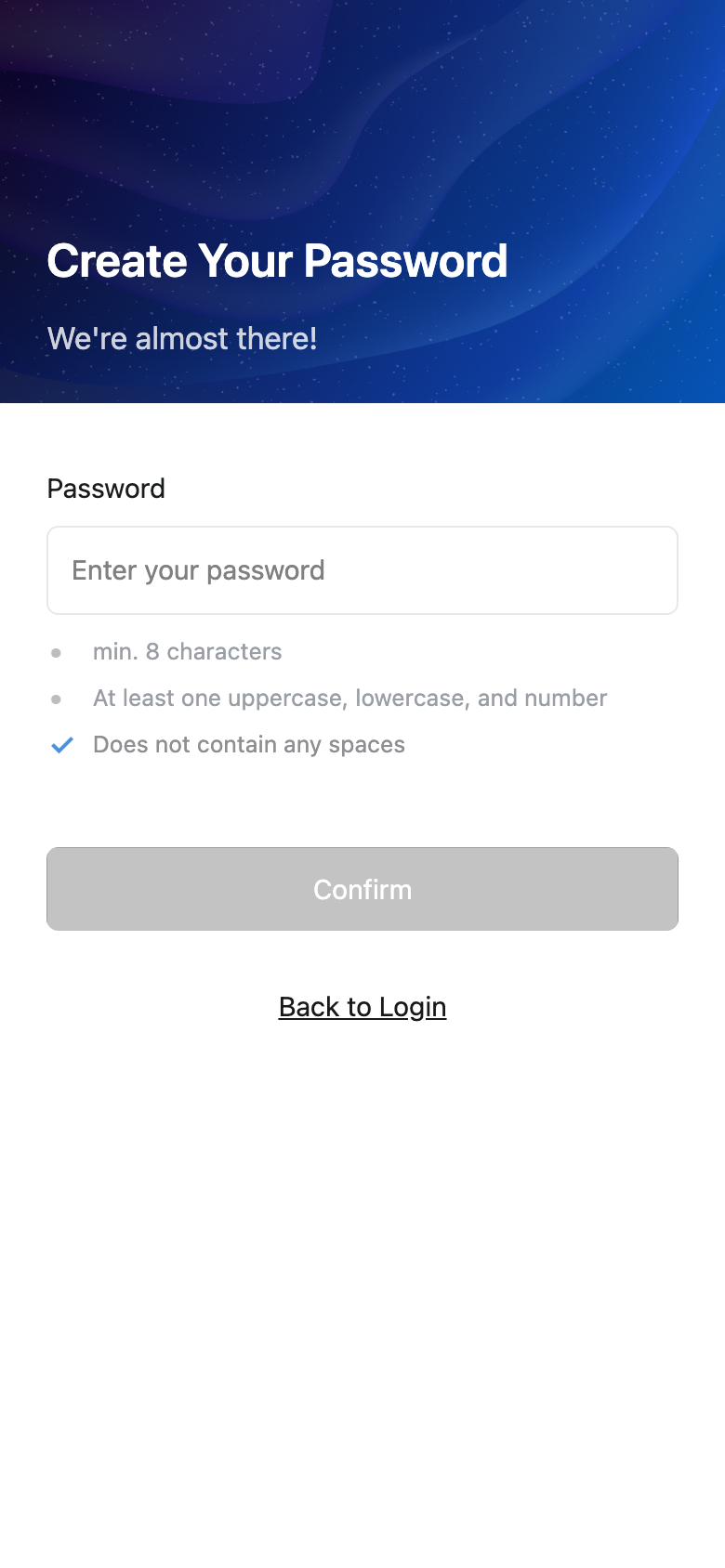
Step 4 On [Create Your Password], enter the new password you want to use.
The current password rules require:
- Minimum 8 characters
- At least one uppercase letter
- At least one lowercase letter
- At least one number
- No spaces
Note:
- The current reset flow is [Forgot Password] -> [Security Verification] -> [Create Your Password].
- You must complete the captcha step before the app sends the verification code.
- After the reset succeeds, return to the login page and sign in with the new password.