How do I manage my team members (sub-accounts)?
Use [Users] to review each team member's status, role, assigned portfolio, and available actions.
Entry:
- Web: [My Profile] -> [Users]
Web
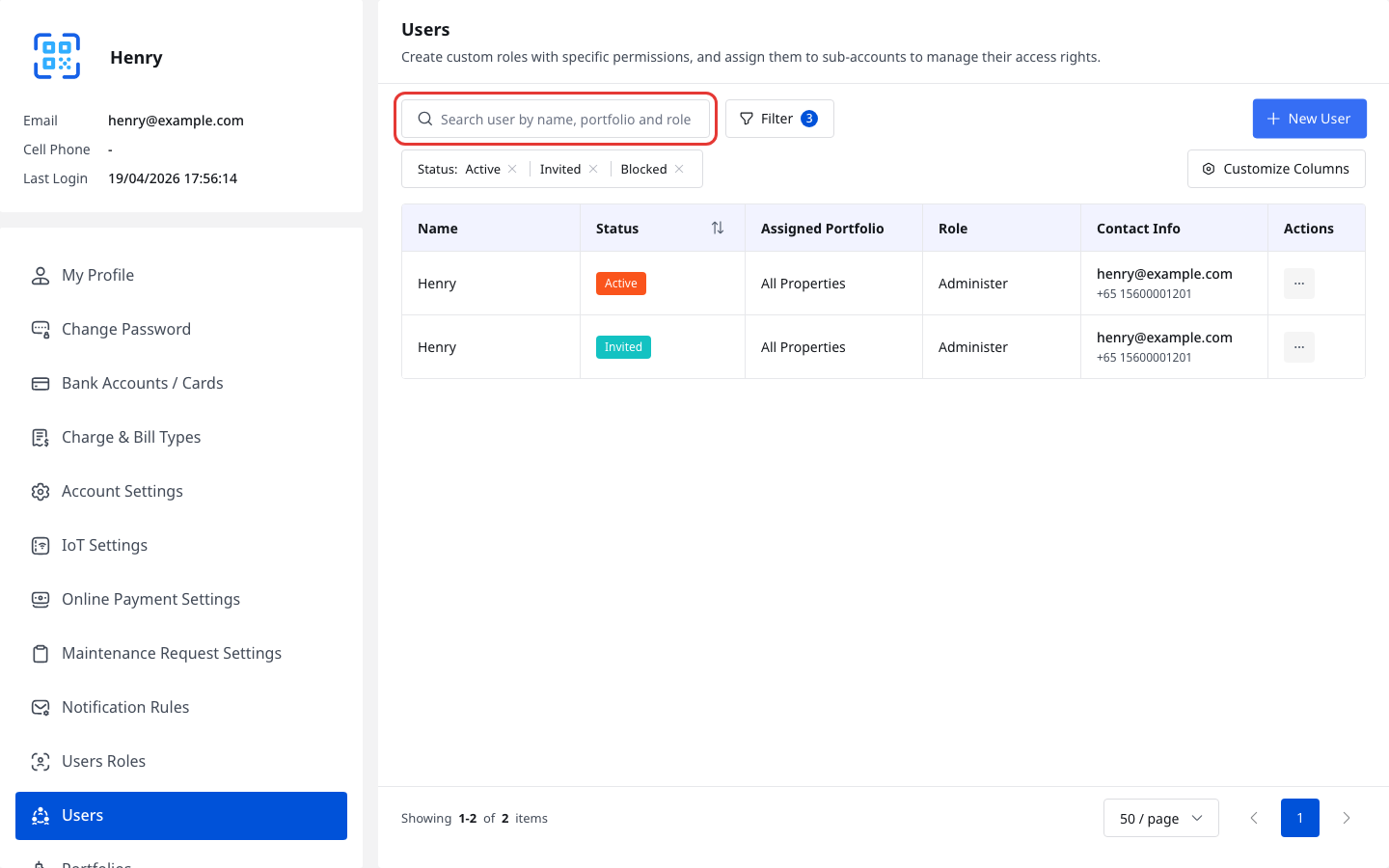
Step 1 Open [My Profile] -> [Users], then use the search box or the [Active], [Invited], and [Blocked] status filters to find the user you want to manage.
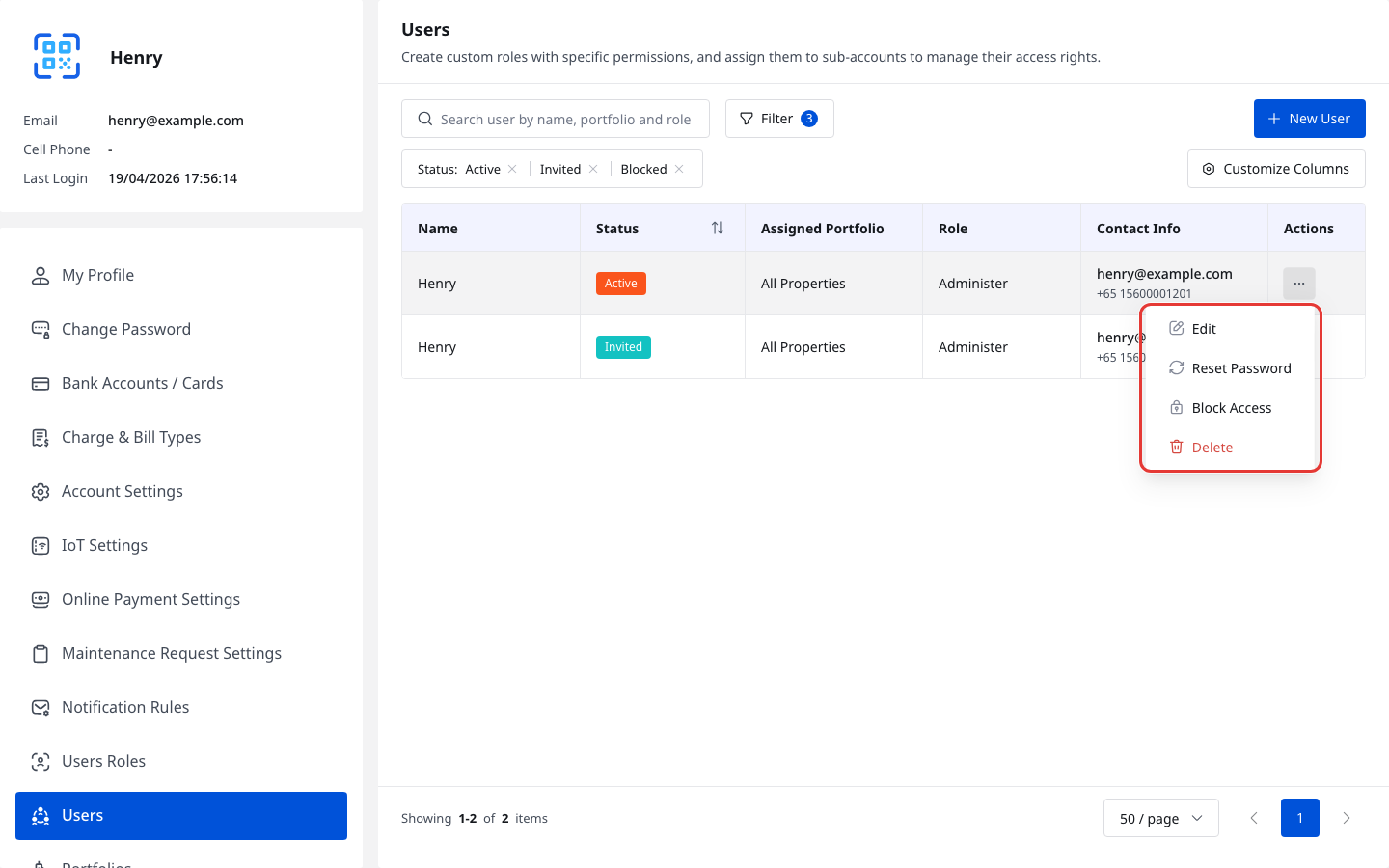
Step 2 For a user in [Active], open the row action menu.
From this menu, you can use [Edit], [Reset Password], [Block Access], or [Delete].
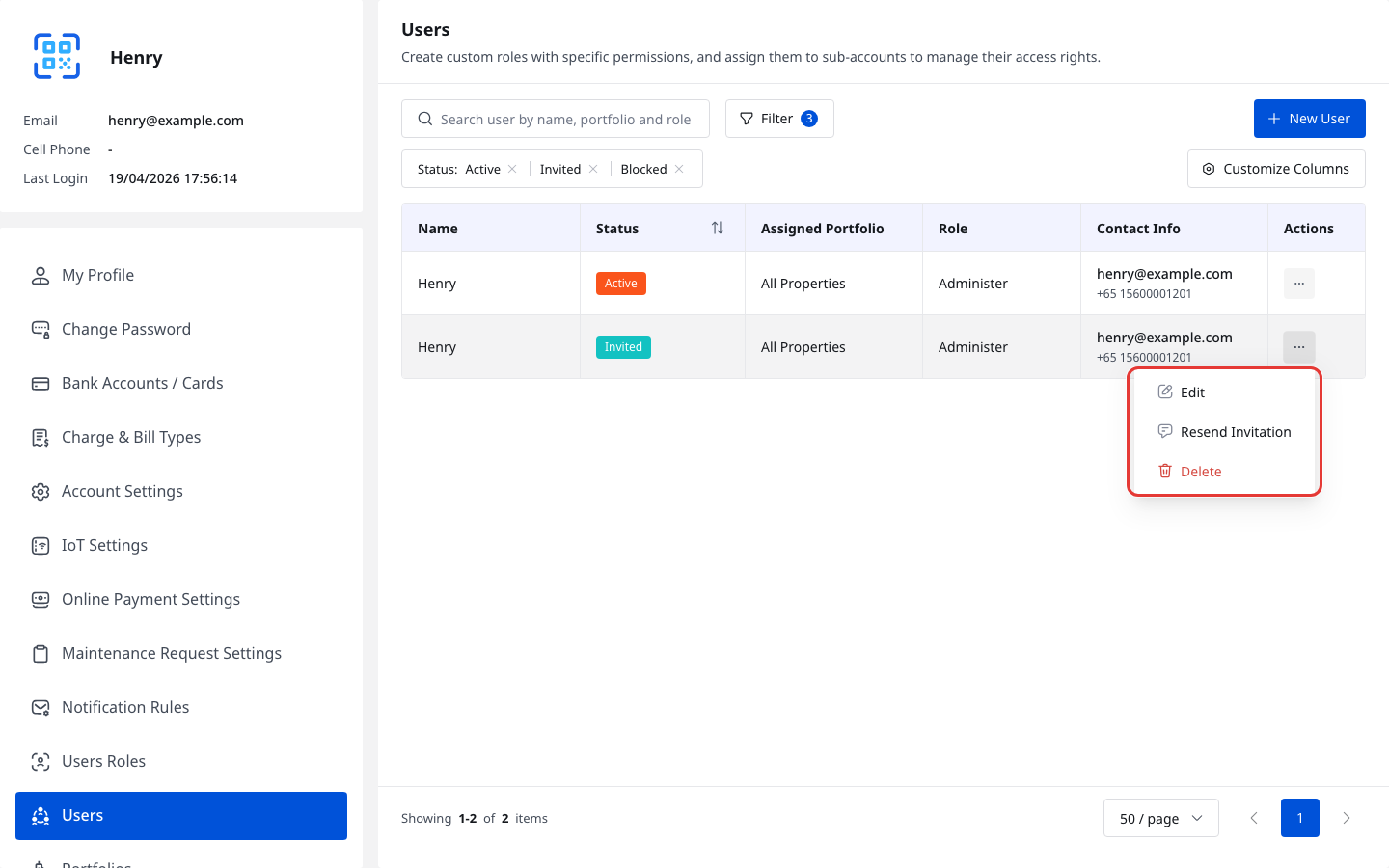
Step 3 For a user in [Invited], open the row action menu.
From this menu, you can use [Edit], [Resend Invitation], or [Delete].
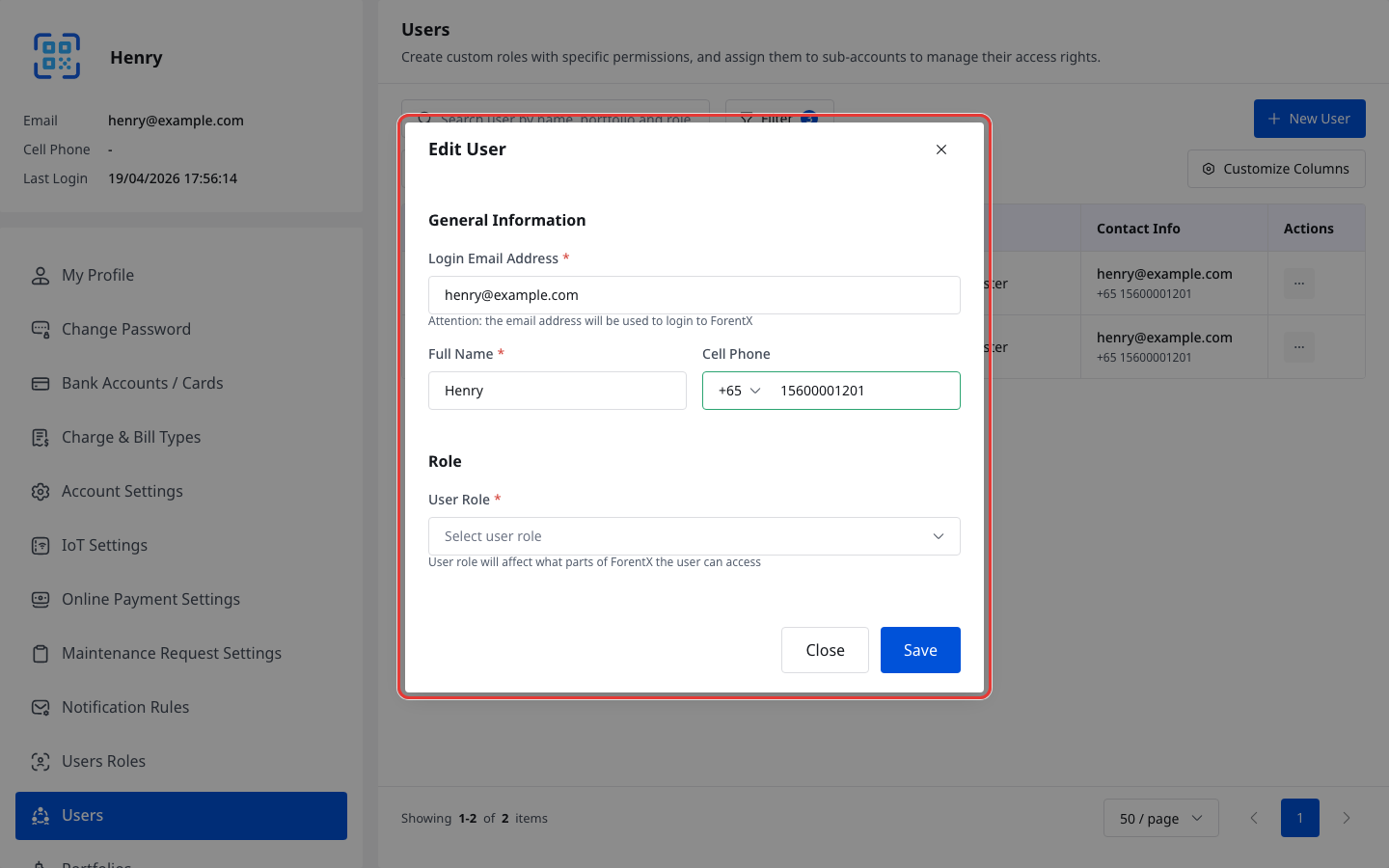
Step 4 Use [Edit] whenever you need to update the user's [User Role], [Assigned Portfolio], or [All Properties] access.
Platform differences
| Topic | Web | App |
|---|---|---|
| Entry | [My Profile] -> [Users] | No team-member management entry in the current App |
| Daily management actions | Review user status, edit permissions, resend invitations, reset passwords, and block or unblock access | Not available in the current App |
| Recommended use | Maintain sub-user access from the central team-member list | Use Web when you need to manage sub-accounts |
Note:
- [Active] users can already sign in. [Invited] users still need to finish activation. [Blocked] users cannot access the system until they are unblocked.
- In the current Web implementation, users already in [Blocked] switch to [Unblock Access] in the same row action area.
- The current signed-in account does not show the normal action menu for itself.
- The [Edit] dialog uses the same access form contract as the create-sub-user flow.