How do I add a new sub-account (team member)?
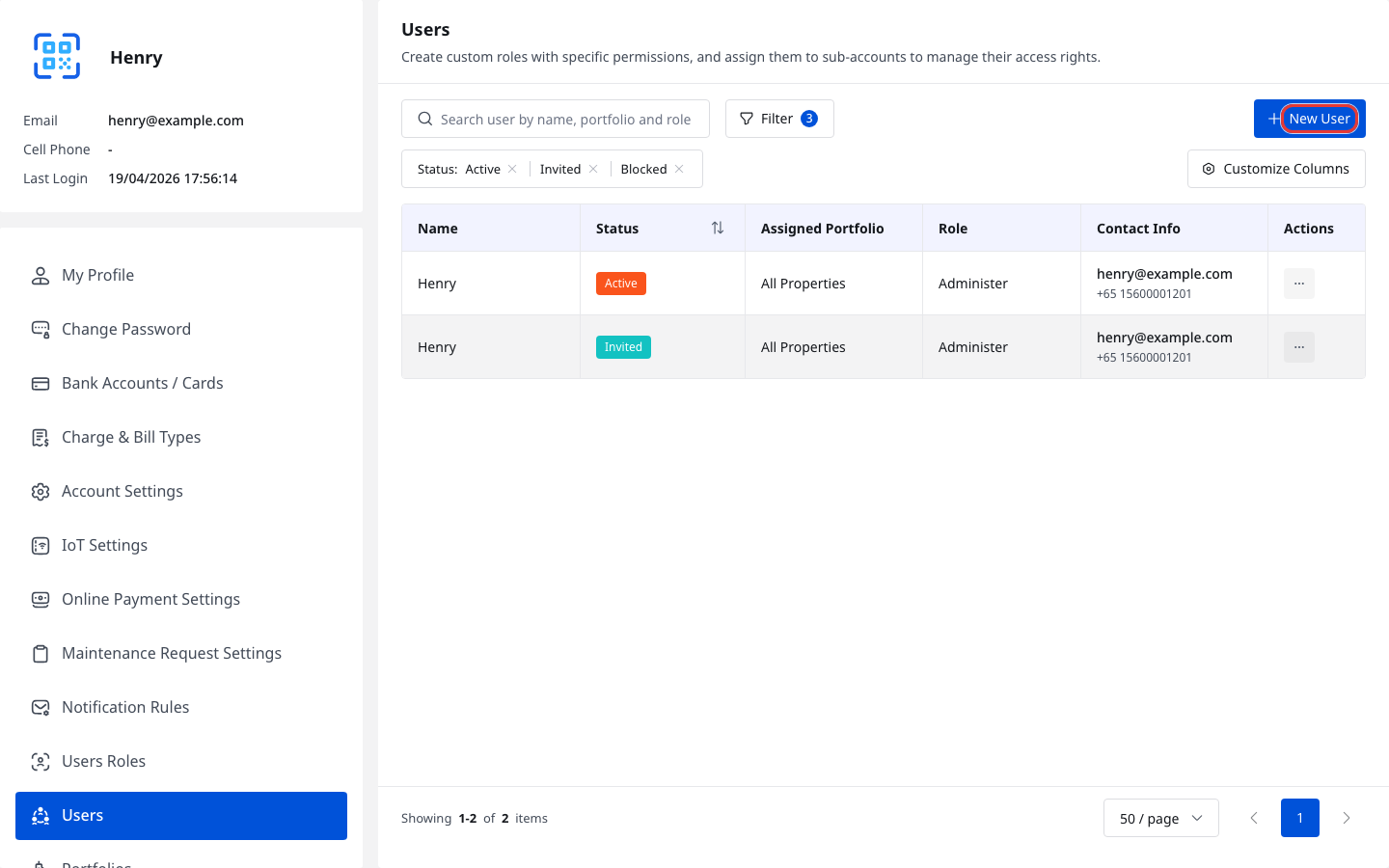
Use [Users] to invite a new team member, set their role, and control which properties they can access.
Entry:
- Web: [My Profile] -> [Users]
Web
Step 1 Open [My Profile] -> [Users], then click [New User].
Step 2 In [Create New User], complete the required setup:
- [Login Email Address]
- [Full Name]
- Optional [Cell Phone]
- [User Role]
- For non-vendor roles, keep [All Properties] on or choose [Assigned Portfolio]
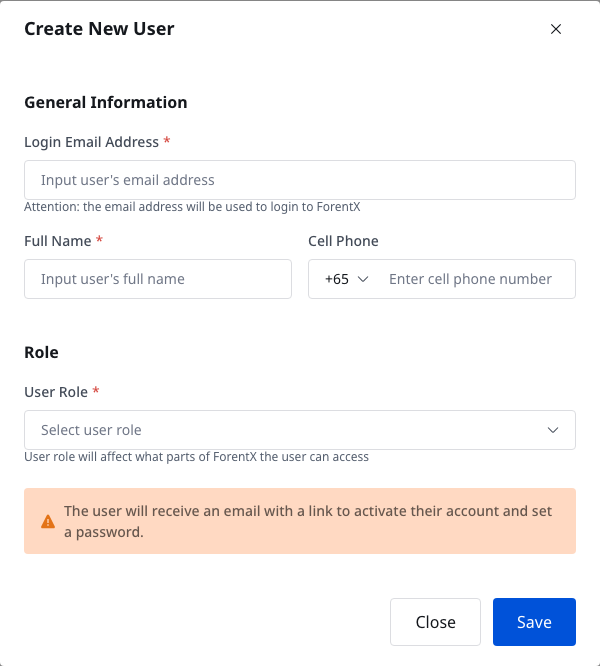
Step 3 Click [Save].
The system sends an activation email and adds the new user to the list with [Invited] status.

App
The current operator App does not provide a team-member sub-account creation entry. Use Web for this task.
Platform differences
| Topic | Web | App |
|---|---|---|
| Entry | [My Profile] -> [Users] | Not available |
| Create flow | Open [Create New User], complete the form, then click [Save] | Not available |
| Result | New user appears with [Invited] status | Not available |
Note:
- The create form uses the same main access fields as the current [Edit] dialog.
- Vendor roles switch the lower part of the form from property access to vendor selection.
- If your workspace reaches its sub-account limit, [New User] is blocked until you add or free a slot.