How do I switch between my leases and view my profile in the tenant app?
Use [Home] in the Tenant App to confirm which lease you are working under, switch the active lease when more than one lease is available, and open [Personal Center] for profile and account actions.
Entry:
- [Home] -> [My Leases]
- [Home] -> avatar -> [Personal Center]
App
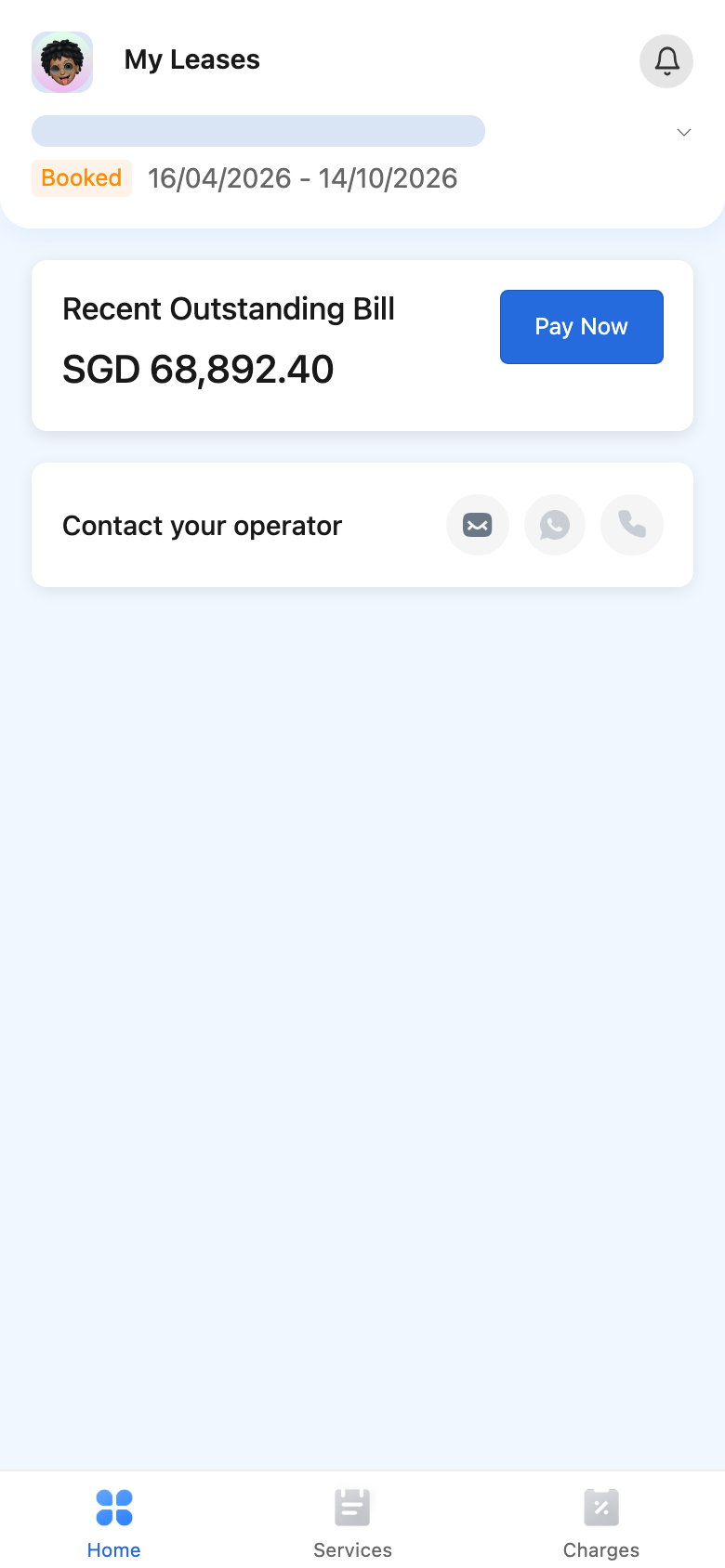
Check the current lease on [Home]
On [Home], the active lease card under [My Leases] can show:
- The current property and unit
- The current lease status, such as [Checked In]
- The current lease date range
- Related cards that refresh under the active lease, such as [Recent Outstanding Bill] and [Contact your operator]
Switch the active lease
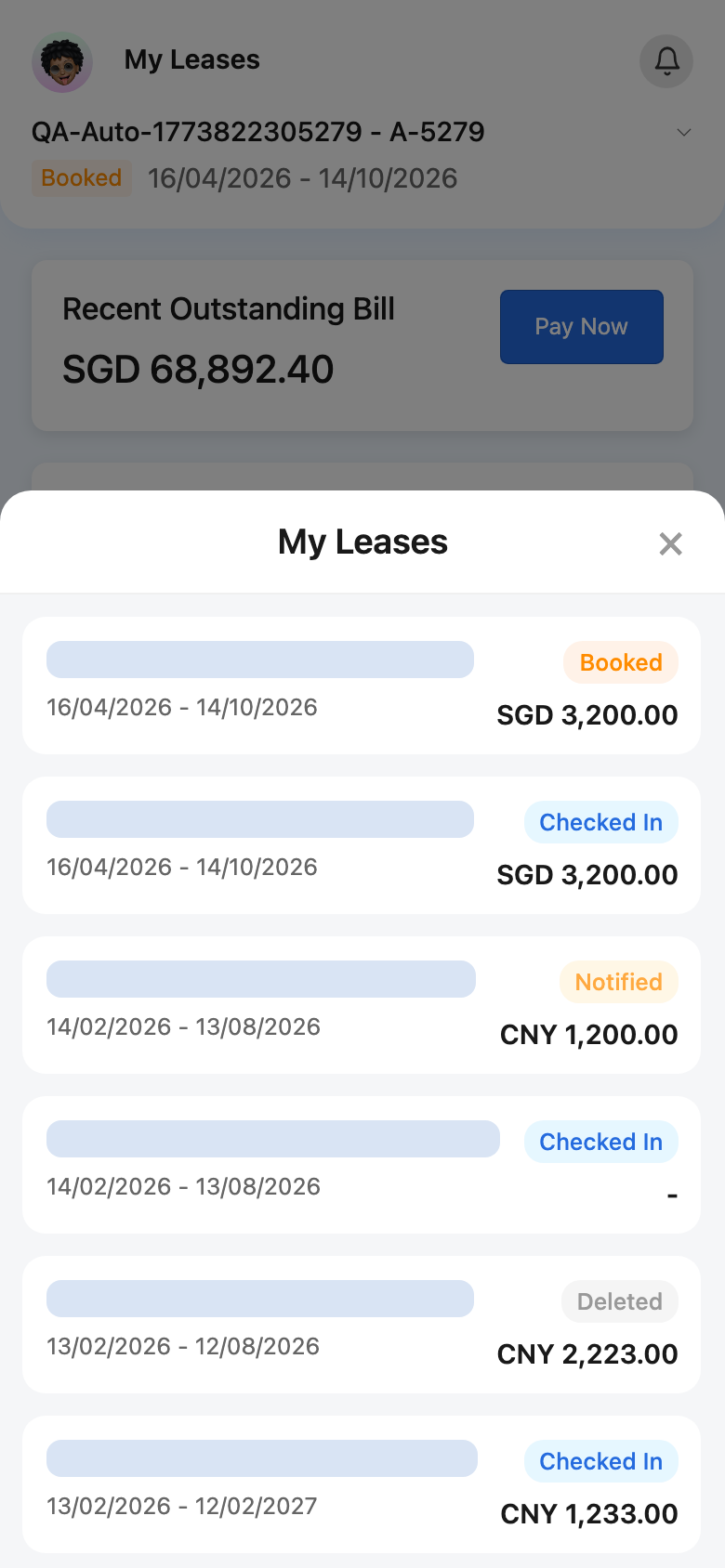
- On [Home], tap the current lease card under [My Leases].
- In the [My Leases] selector, choose another active lease.
- The app stores the selected lease and refreshes the lease-linked content on [Home].
Open [Personal Center]
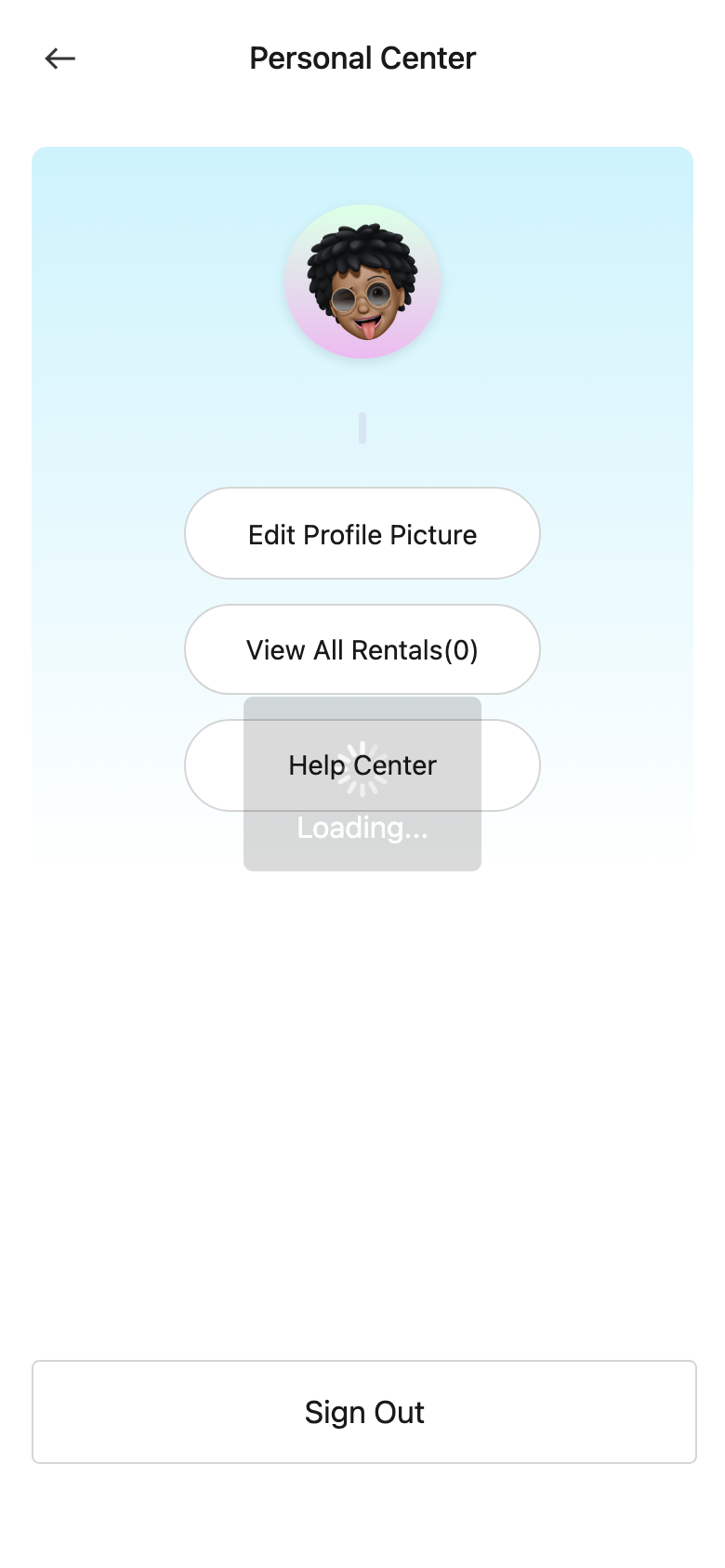
- On [Home], tap your avatar.
- In [Personal Center], you can:
- Review your name, phone number, and email
- Use [Edit Profile Picture]
- Open [View All Rentals]
- Open [Help Center]
- Use [Sign Out]
Platform differences
- This lease switch and [Personal Center] flow is available in the Tenant App.
- Web tenant records managed by a property operator are separate from the tenant-side [Personal Center].
Note:
- If your account has only one available lease, there is nothing else to switch on [Home].
- Checked-out or unavailable rentals can appear disabled in the selector.
- [View All Rentals] can show rentals under more than one operator when the tenant account has that access.