How do I skip reservation and directly add a new active tenancy?
Use [New Tenancy] when the lease is already confirmed and you want to create the tenancy immediately instead of holding the unit with a reservation first.
Entry:
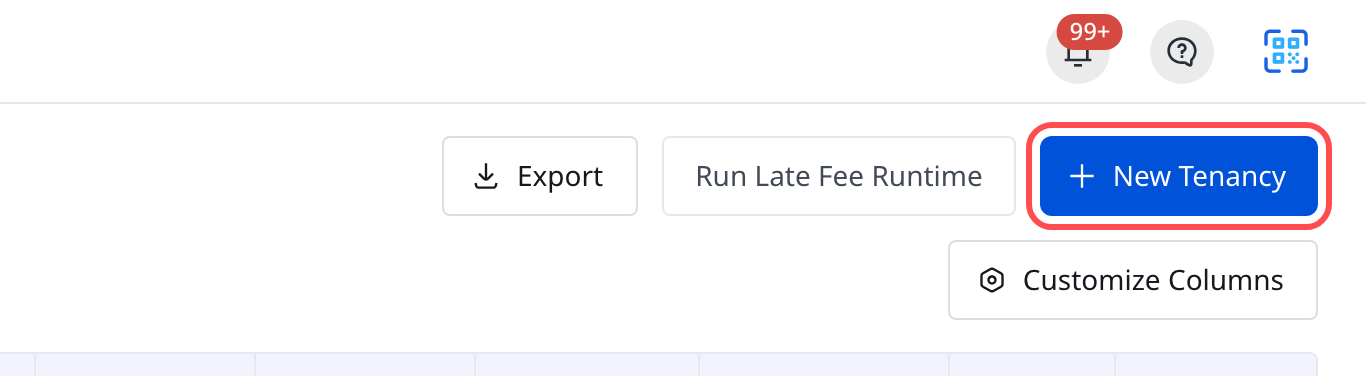
- Web: [Rentals] -> [Tenant Tenancies] -> [New Tenancy]
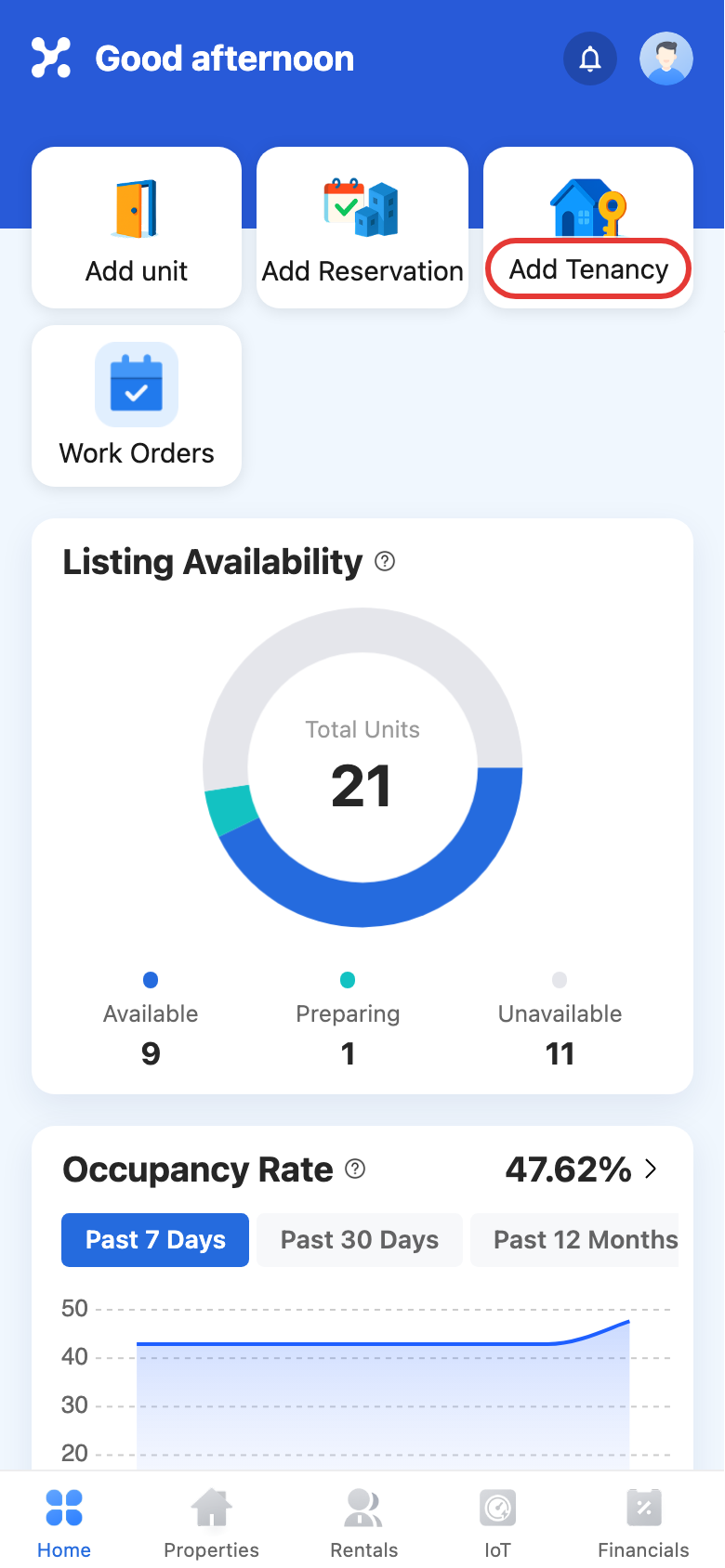
- App: [Home] -> [Add Tenancy]
Web
Step 1 Open [Tenant Tenancies], then select [New Tenancy].
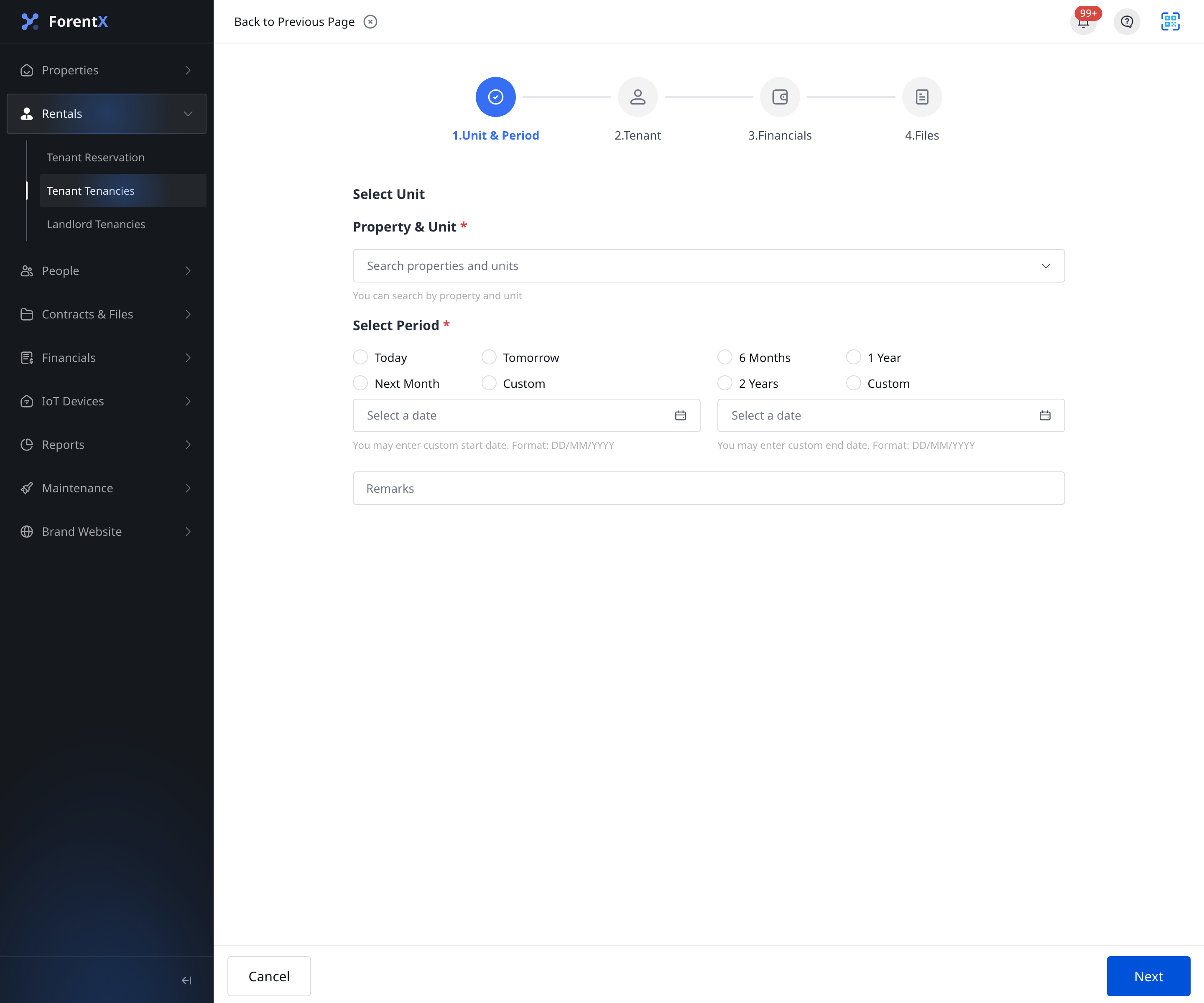
Step 2 In [1.Unit & Period], complete the tenancy setup block:
- choose [Property & Unit]
- set the rental start date with [Today], [Tomorrow], [Next Month], or [Custom]
- set the rental end date with [6 Months], [1 Year], [2 Years], or [Custom]
- add [Remarks] if needed
The direct tenancy flow creates the tenancy immediately, so reservation-only fields are not shown here.
Step 3 On [2.Tenant], enter the tenant email, tenant name, phone number, welcome-email preference, and any additional tenant details that apply to your process. If the email already belongs to an existing tenant, the current flow reuses that tenant profile instead of creating a duplicate.
Step 4 On [3.Financials], complete the tenancy financial block:
- [Rent]
- [Payment Frequency]
- [Payment Date]
- deposit bill rows such as [Bill Date], [Bill Type], and [Amount]
If needed, also review [Late Fee Settings] and the meter-cycle settings on the same step.
Step 5 On [4.Files], use [Upload Files] or continue with the contract method that applies to this tenancy. If the selected unit already has smart locks, [IoT Settings] can also appear on this step. When everything is ready, select [Add Tenancy].
App
Step 1 Open the current App quick action from [Home], then select [Add Tenancy].
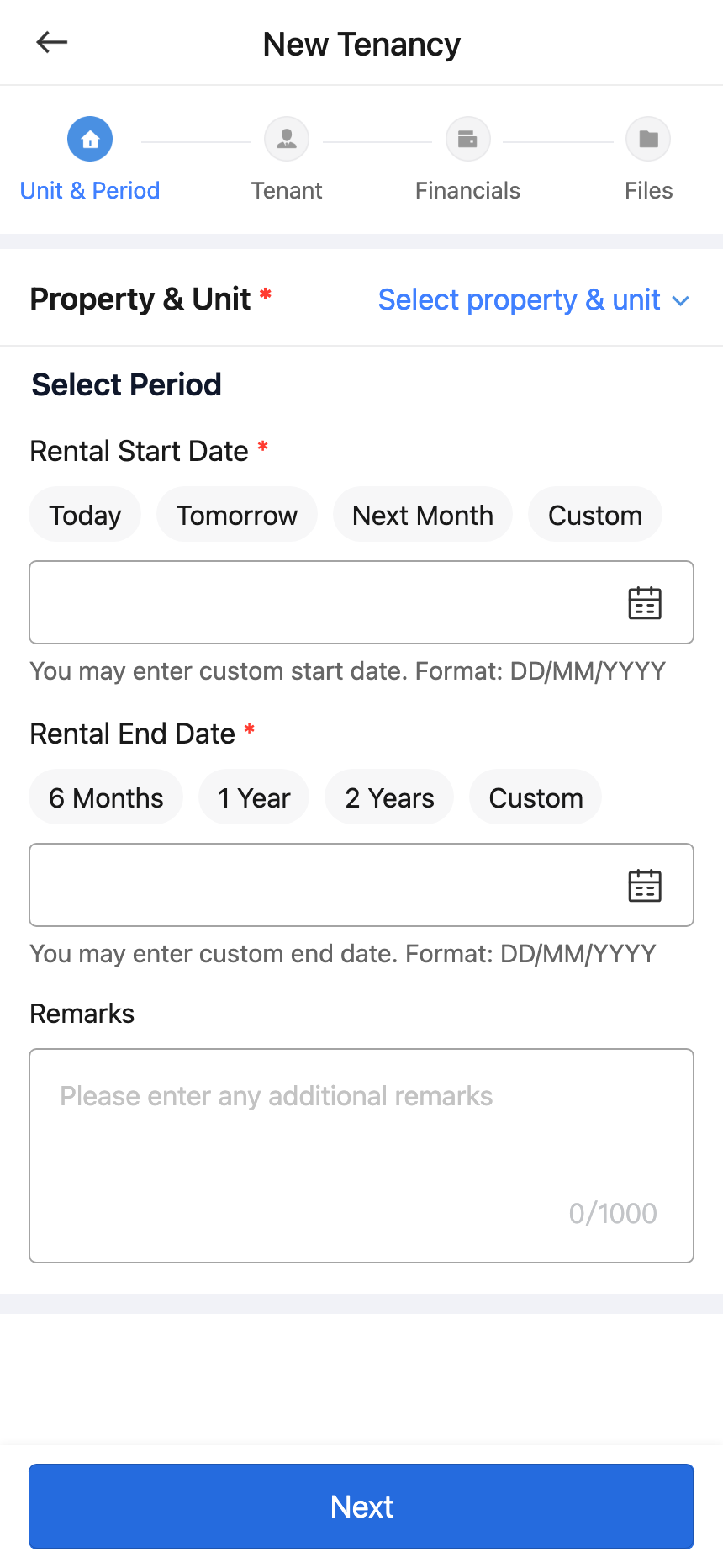
Step 2 In [New Tenancy], complete the [Property & Unit] and [Select Period] block:
- choose the property and unit
- use [Today], [Tomorrow], [Next Month], or [Custom] for the rental start date
- use [6 Months], [1 Year], [2 Years], or [Custom] for the rental end date
- add [Remarks] if needed before you continue
The current App also skips reservation-only fields in this direct tenancy flow.
Step 3 On [Tenant], add the tenant email, tenant name, phone number, welcome-email setting, and the other tenant details required by your process. If the email already matches an existing tenant, the App loads that tenant profile instead of creating another one.
Step 4 On [Financials], confirm the rent, payment schedule, deposit rows, and the current tenancy-level late-fee or bill-preview settings before you continue.
Step 5 On [Files], upload supporting files or continue with [Electronic Contract], then select [Add Tenancy] to finish the direct tenancy flow.
Platform differences
- Web enters the flow from [Tenant Tenancies], while the current App entry is exposed from the [Home] quick-action area.
- Both platforms use the same 4-step direct-tenancy structure: [Unit & Period], [Tenant], [Financials], and [Files].
- Both platforms show the quick start-date option [Today] and do not show reservation-only expiry fields in this flow.
- Web uses the desktop wizard layout, while App shows the same blocks in a mobile step page with bottom action buttons.
Note:
- Use a reservation first if you still need to hold the unit before the lease is confirmed.
- Saving this flow creates a real tenancy immediately and can trigger follow-up bills, contract work, or IoT setup tasks.
- After the tenancy is saved, the tenancy status follows the lease dates, such as [Pending Start] or [Ongoing].