How do I convert a reservation into a tenancy (Create Tenancy)?
Use this flow when an [Ongoing] reservation is ready to become a formal tenancy. On Web the action is called [Create Tenancy]. On App the same conversion action appears as [Move-In].
Entry:
- Web: [Rentals] -> [Tenant Reservation] -> [Actions] -> [Create Tenancy]
- App: [Rentals] -> [Tenant Reservations] -> [More Operations] -> [Move-In]
Before you start
- Open a reservation whose [Status] is [Ongoing].
- Confirm the lease dates, rent, payment frequency, payment date, and any contract or file requirements before you save.
- If [Payment Frequency] or [Payment Date] is blank, complete those fields in [Basic Settings] before moving to [Charge Preview].
Web
Open the conversion flow
- Go to [Tenant Reservation].
- Find the target reservation, open [Actions], and choose [Create Tenancy].
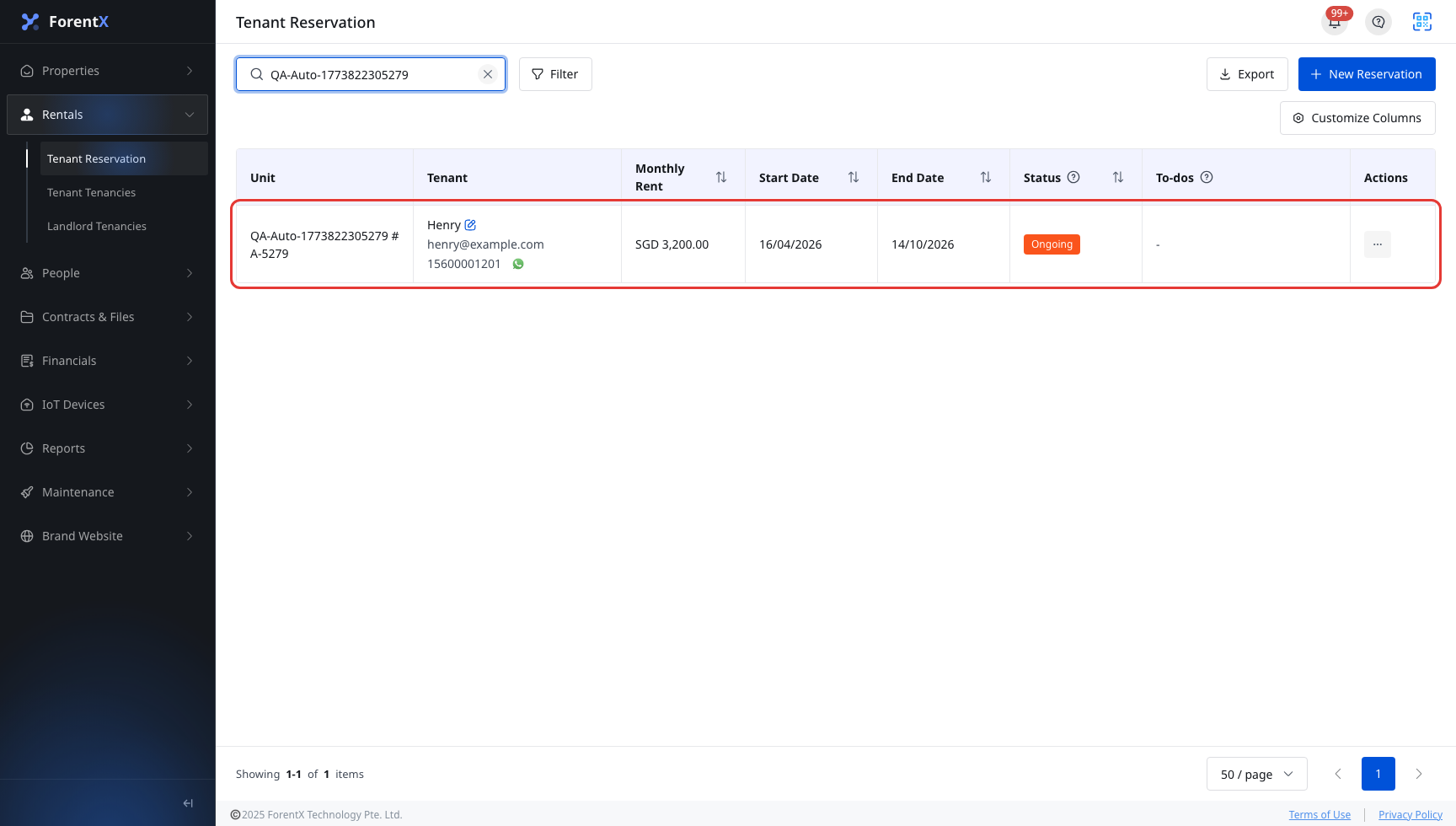
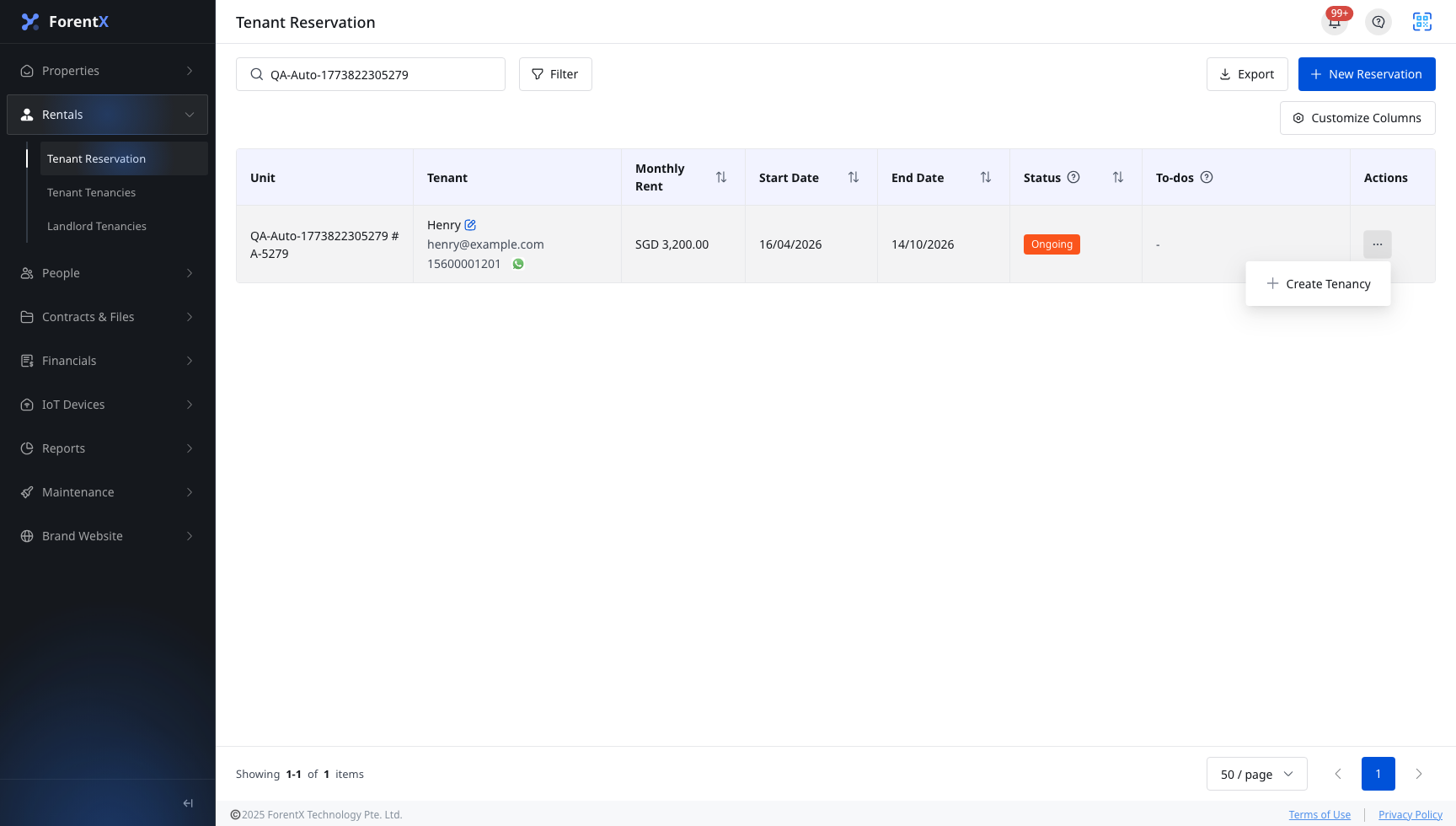
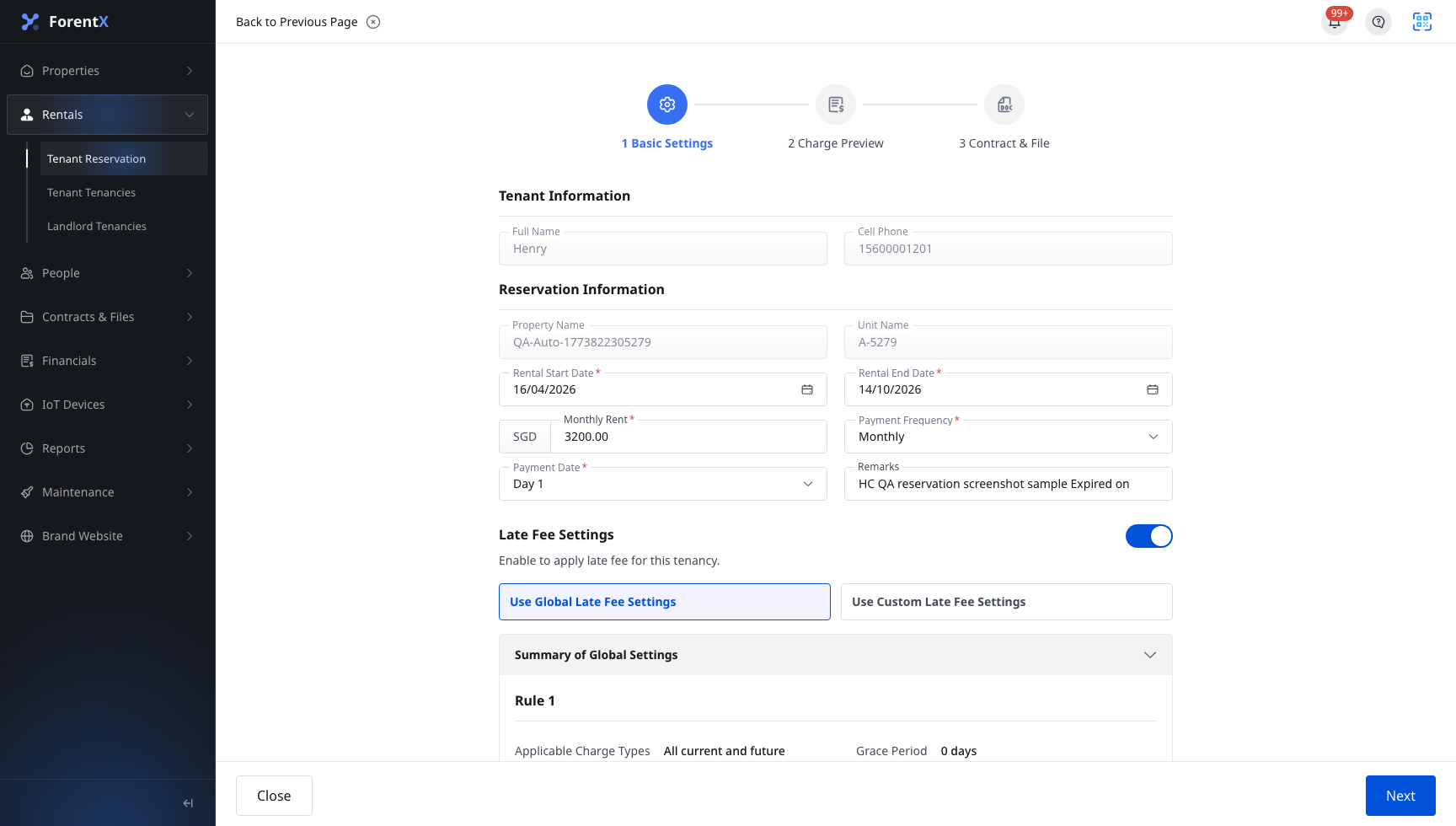
Review [Basic Settings]
- Check the tenant, property, unit, and lease period.
- Confirm or update [Rental Start Date], [Rental End Date], [Rent], [Payment Frequency], [Payment Date], and [Remark].
- Adjust [Late Fee Settings] if this tenancy needs a different late-fee setup.
- Click [Next] after the required fields are complete.
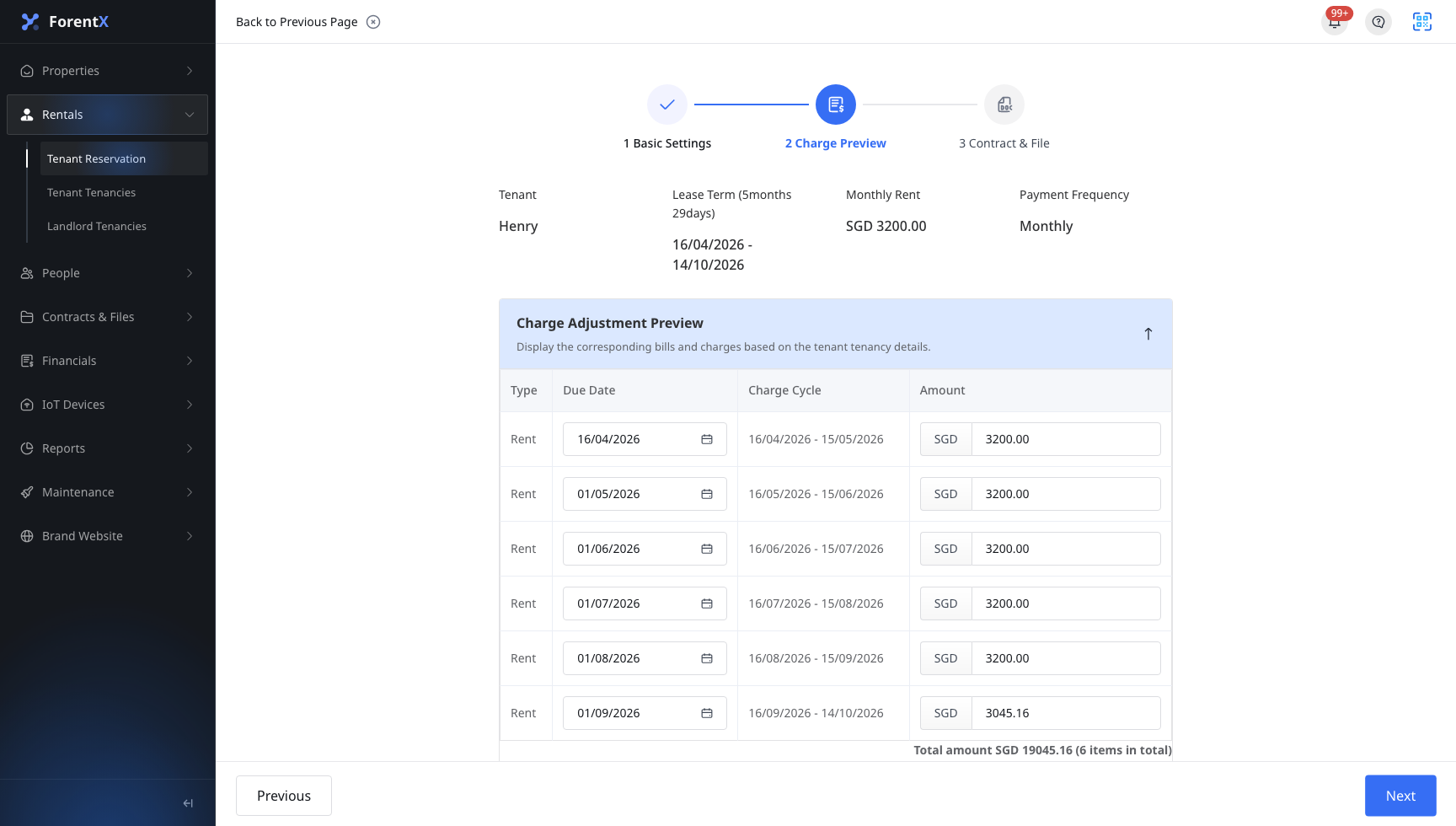
Review [Charge Preview]
- Check the generated charge schedule, due dates, and amounts.
- Confirm the preview matches the lease dates and payment setup from the first step.
- Click [Next] to continue.
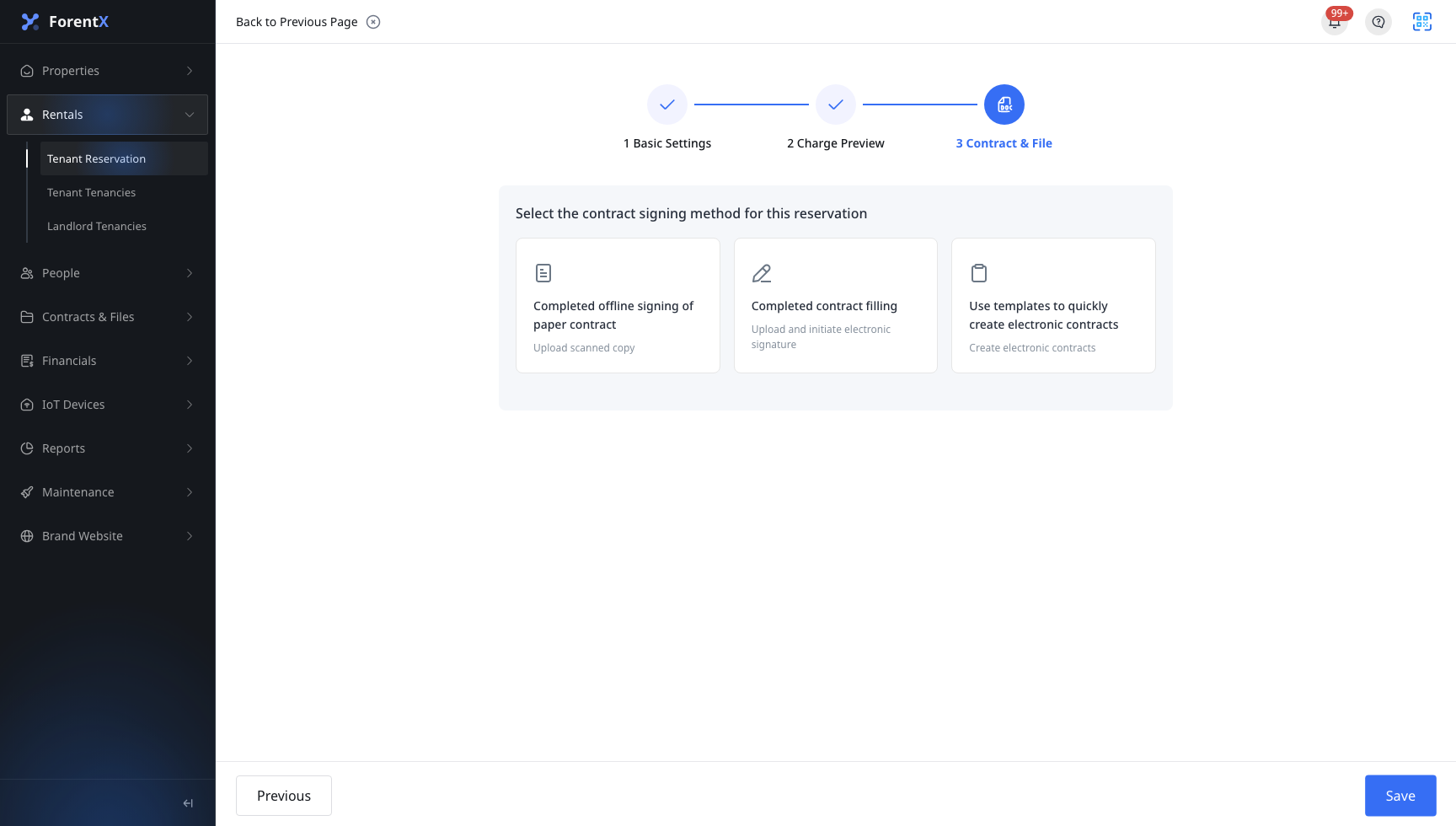
Finish [Contract & File] and save
- Choose the contract handling method that applies to this tenancy.
- Upload lease files or continue with the electronic-contract section if your account uses e-signing.
- Review any optional sections that appear for the current property, then click [Save].
App
Open the conversion flow
- Open [Tenant Reservations] in [Rentals].
- Find the target reservation card, tap [More Operations], and choose [Move-In].
Review [Basic Settings]
- Confirm the tenant, property, unit, and lease period carried over from the reservation.
- Complete or update [Payment Frequency], [Payment Date], rent, dates, and notes as needed.
- Tap [Next] after the required fields are ready.

Review [Charge Preview]
- Check the bill preview generated from the reservation details.
- Make sure the payment schedule and amounts are correct before you continue.
- Tap [Next].

Finish [Contract & File] and save
- Upload the required lease files or continue into the electronic-contract section when it is enabled for the account.
- Review the final step and save the tenancy.

Platform differences
| Topic | Web | App |
|---|---|---|
| Entry action label | [Create Tenancy] | [Move-In] |
| Entry surface | Reservation list row [Actions] menu | Reservation card [More Operations] sheet |
| Step flow | [Basic Settings] -> [Charge Preview] -> [Contract & File] | [Basic Settings] -> [Charge Preview] -> [Contract & File] |
| Result | The reservation becomes [Tenancy Created] and the tenancy is available in [Tenant Tenancies] | The reservation becomes [Tenancy Created] and the tenancy is available in [Tenant Tenancies] |
Note:
- This flow only works for reservations that are currently [Ongoing].
- The conversion reuses the reservation's tenant, property, and unit context. It does not start from a blank tenancy form.
- Contract, e-sign, file-upload, or property-specific sections can vary by account setup and property configuration.
- After the save succeeds, the same reservation should not be converted again because its status changes to [Tenancy Created].