How to understand the "Occupancy Status" and "Detailed Status" of a rental unit?
Use [All Units] to understand a unit's current [Occupancy Status], [Listing Availability], and [Detailed Status]. Web shows these values in list columns, while App shows them on each unit card, in [Unit Details], and in [Filter].
Entry:
- Web: [Properties] -> [All Units]
- App: [Properties] -> [All Units]
Web
Step 1 Open [All Units]. Review the [Occupancy Status] and [Detailed Status] columns for the unit you want to check. In the current Web list, [Listing Availability] is shown in the same column as [Occupancy Status].
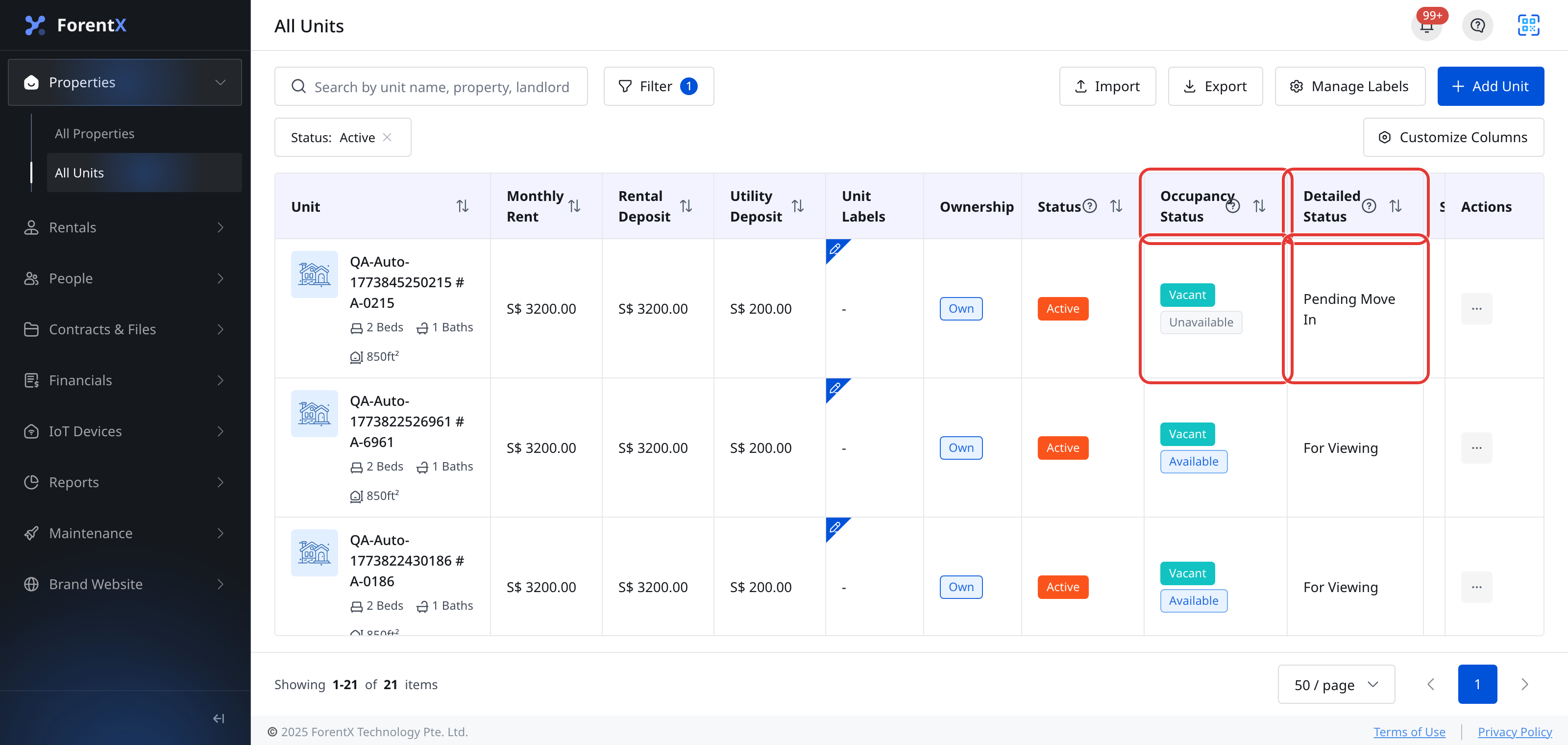
Step 2 If you want the built-in Web explanations, hover the info icon beside [Occupancy Status] or [Detailed Status], then use the current value to interpret the unit's stage:
Occupancy Status
- [Occupied]: The unit currently has a tenant living in it.
- [Vacant]: The unit currently does not have a tenant living in it.
Listing Availability
- [Unavailable]: The unit cannot be listed right now because it is occupied or already tied to an upcoming tenancy stage.
- [Preparing]: The unit is being prepared, such as through cleaning or renovation.
- [Available]: The unit is vacant and ready to be listed.
Detailed Status
- [Reserved]: The unit has an active reservation and is locked for the reserved dates.
- [Pending Move In]: A tenancy already exists, but the tenant has not completed move-in yet.
- [For Viewing]: The unit is vacant and ready for viewing or a new tenancy application.
- [For Construction]: The unit is under construction or renovation.
- [For Cleaning]: The unit is being cleaned for the next tenant.
- [Moved In]: The tenant has completed move-in and the unit is occupied.
- [Near Expiry Date]: The tenancy is approaching its end date and no renewal or move-out has been arranged yet.
- [Tenancy Renewed]: The tenancy has already been renewed for a future term.
- [Notified Move Out: On Schedule]: A move-out notice was sent and the checkout is planned as an on-schedule move-out.
- [Notified Move Out: Early Termination]: A move-out notice was sent and the checkout is planned as an early termination.
- [Notified Move Out: Overdue]: A move-out notice was sent and the checkout is planned as an overdue move-out.
- [Tenancy Expired]: The tenancy end date has passed, but the tenancy has not been formally ended and the tenant has not moved out.
App
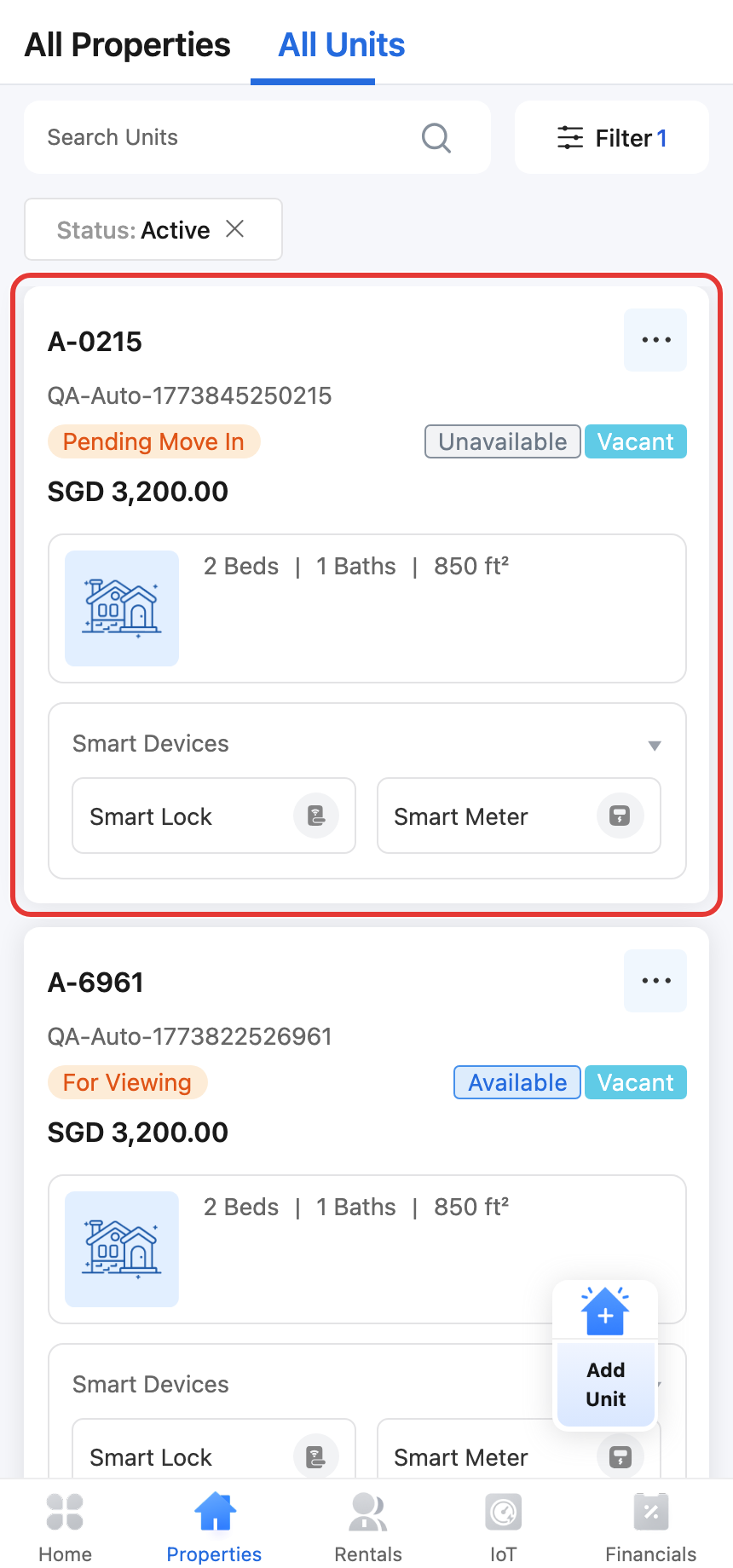
Step 1 Open [All Units]. Each unit card shows the current [Detailed Status] first, then [Listing Availability] and [Occupancy Status] on the same row of status tags.
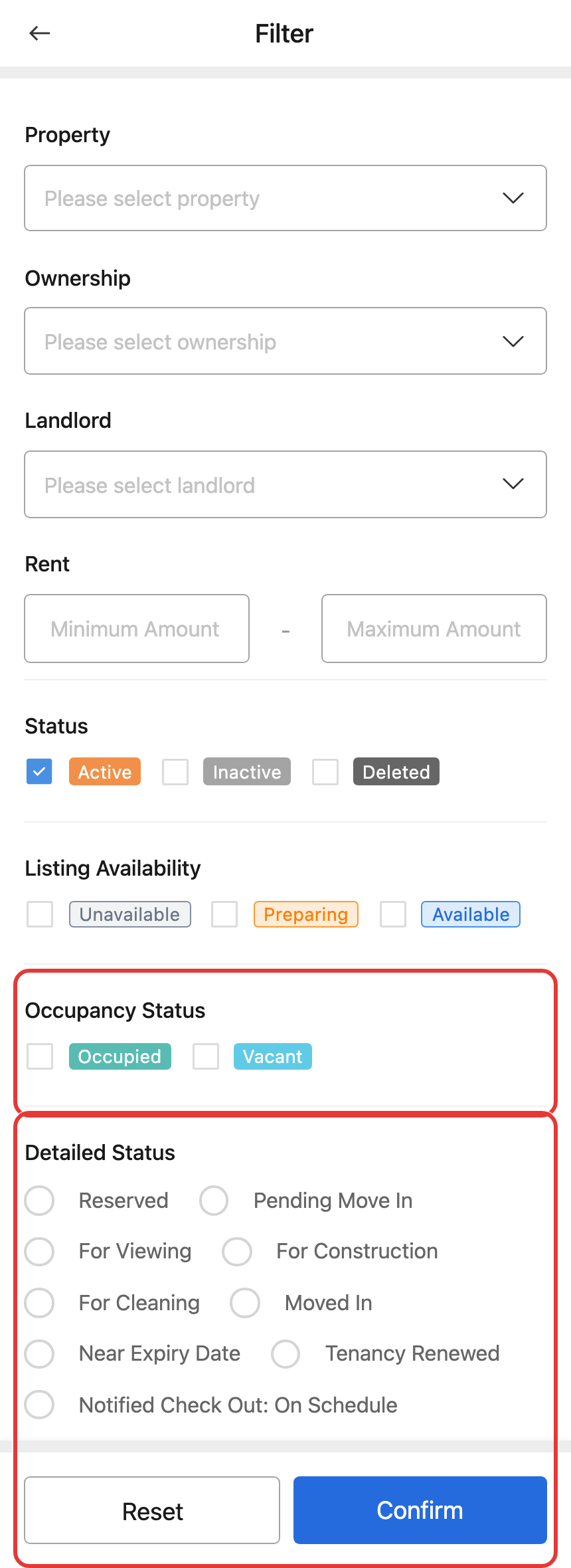
Step 2 Tap [Filter] if you want to narrow the list by status. The current App filter includes both [Occupancy Status] and [Detailed Status].
Step 3 Tap any unit card to open [Unit Details]. The overview section shows [Occupancy Status], [Detailed Status], and [Listing Availability] together for that unit.
Platform differences
- Web shows [Occupancy Status] and [Listing Availability] in the same table column, while [Detailed Status] is shown in its own column.
- App shows the same status facts on the unit card and again in [Unit Details].
- On App, [Update Detailed Status] appears in [More Operations] only when the current detailed status is [For Viewing], [For Construction], or [For Cleaning].
Note:
- [Listing Availability] is derived from the current detailed status, not maintained as a separate free-text note.
- Not every unit shows the same detailed status. The available value depends on the unit's current tenancy stage.