How do I add associated landlord tenancy information when adding a property?
Use the Web [Add Property] wizard when you need to create a chartered property and record the landlord tenancy information in the same setup flow. The [Tenancy Information] section only appears when the property is kept as [Charter].
Entry:
- Web: [Properties] -> [All Properties] -> [Add Property]
Web
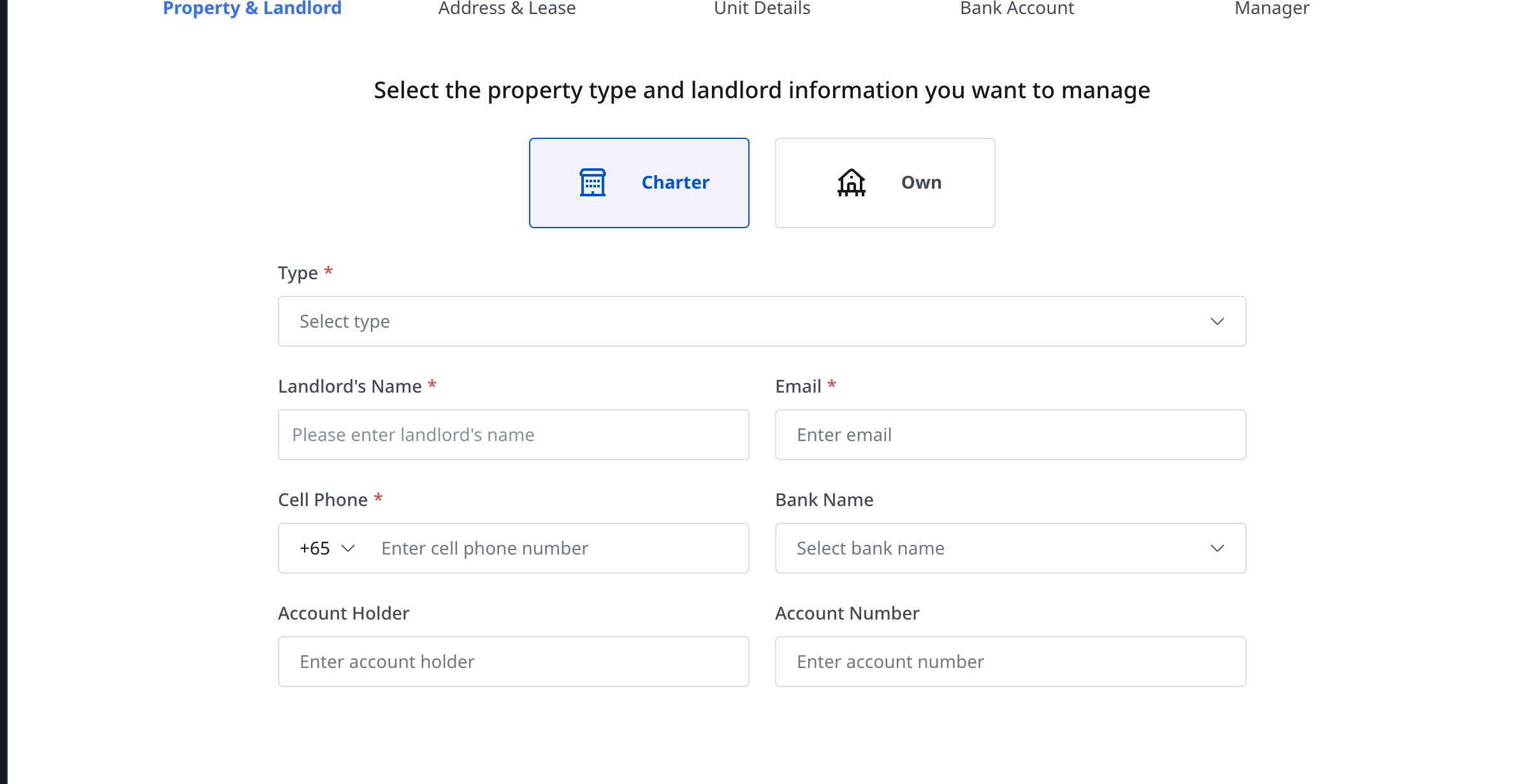
Step 1 Open [Add Property]. On the first step, keep the ownership as [Charter], choose the property [Type], and complete the landlord information block:
- [Landlord's Name]
- [Email]
- [Cell Phone]
- [Bank Name]
- [Account Holder]
- [Account Number]
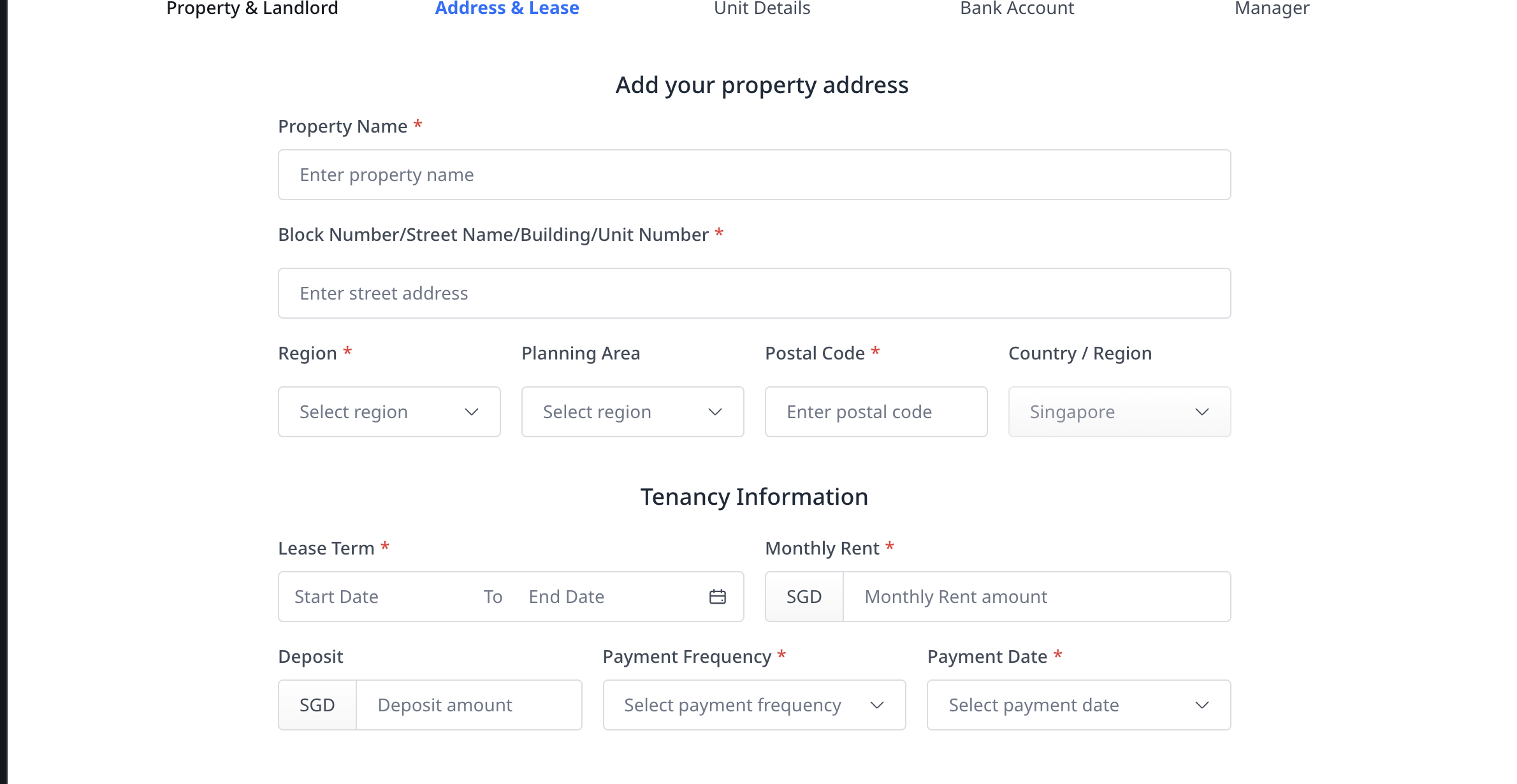
Step 2 Click [Next] to move to [Address & Lease]. In the same step, complete the [Tenancy Information] block for the landlord lease:
- [Lease Term]
- [Rent]
- [Deposit]
- [Payment Frequency]
- [Payment Date]
Step 3 After the landlord tenancy details are complete, continue with the remaining property setup steps until the property record is ready to save.
Note:
- If you switch the ownership to [Own], the landlord tenancy section is removed from [Address & Lease].
- Each step must pass validation before you can continue to the next step.
- This flow is currently available on Web only. App does not provide a dedicated [Add Property] page at this time.