How do I add and manage rental units under a property?
Use the property's [Active Units] area to review the units under that property. On Web, you can add and manage units directly inside [Property Detail]. On App, the property detail tab is for review and unit drill-down, while adding or editing a unit is done from [All Units].
Entry:
- Web: [Properties] -> [All Properties] -> select the property -> [Active Units]
- App review: [Properties] -> [All Properties] -> select the property -> [Active Units]
- App add or edit: [Properties] -> [All Units]
Web
Step 1 Open the target property and switch to [Active Units]. Use this tab to review the current unit list, search for a unit, filter the list, and access [Import], [Export], or [Add Unit].
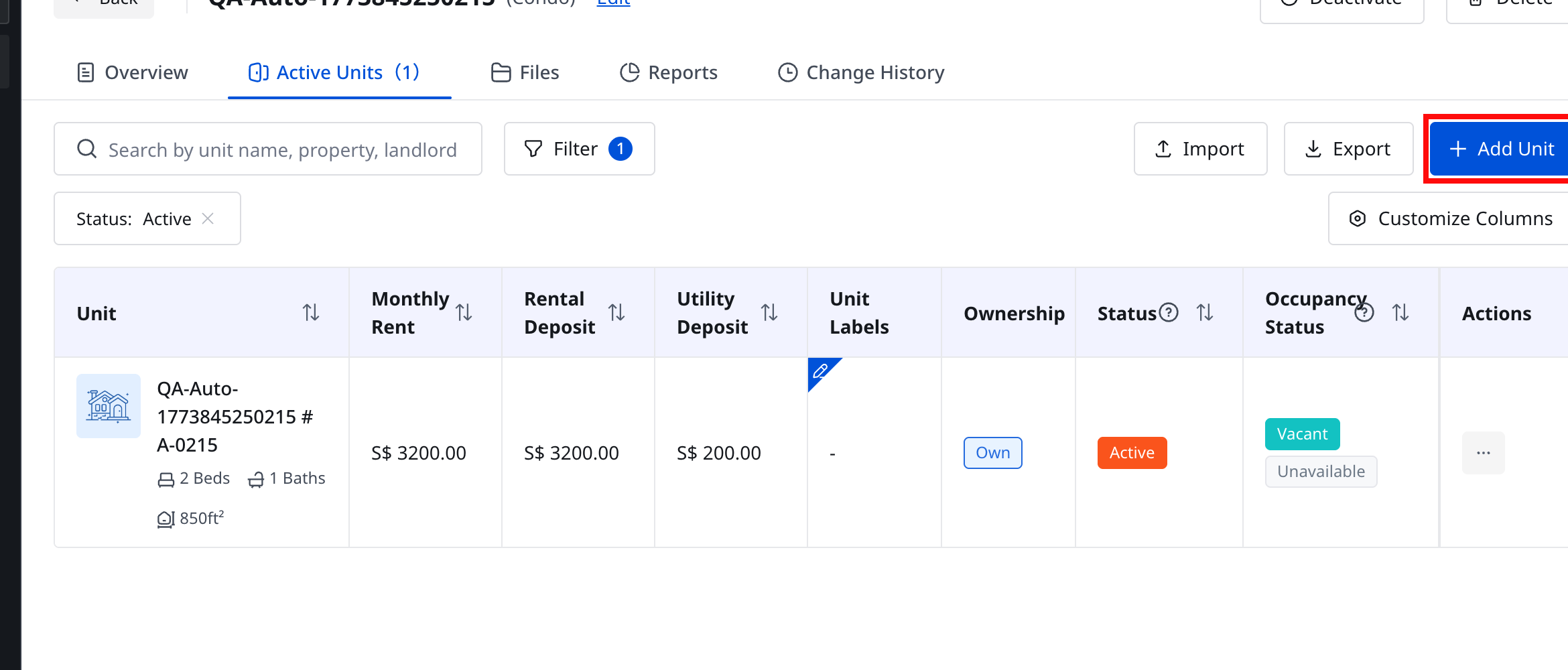
Step 2 Click [Add Unit] to open the unit form. When you open the form from [Property Detail], the current property is already selected. Complete the unit details in the same form block:
- Required: [Property], [Unit]
- Common fields: [Monthly Rent], [Rental Deposit], [Utility Deposit]
- Unit details: [Beds], [Bathrooms], [Size (sq. ft.)]
- Optional fields: [Unit Labels], [Remark]
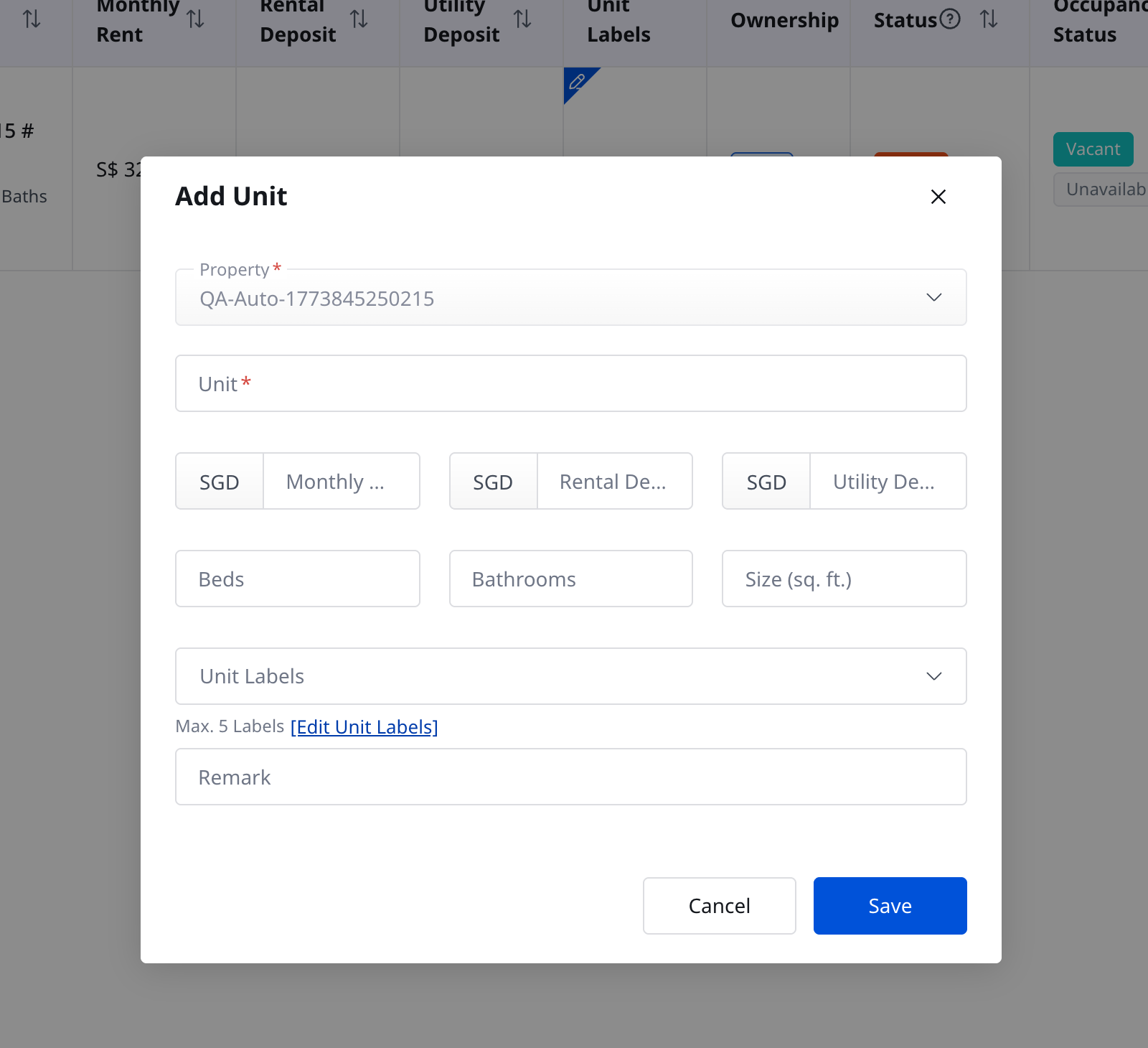
Step 3 Click [Save]. To manage an existing unit later, use the row action area from the same [Active Units] tab. Depending on the unit state and your permissions, actions can include [Edit], [Deactivate], [Delete], [Activate], [Restore], and [Update Detailed Status].
App
Step 1 Open the target property and switch to [Active Units]. Use this tab to review the units under that property, then tap a unit card to open [Unit Details].
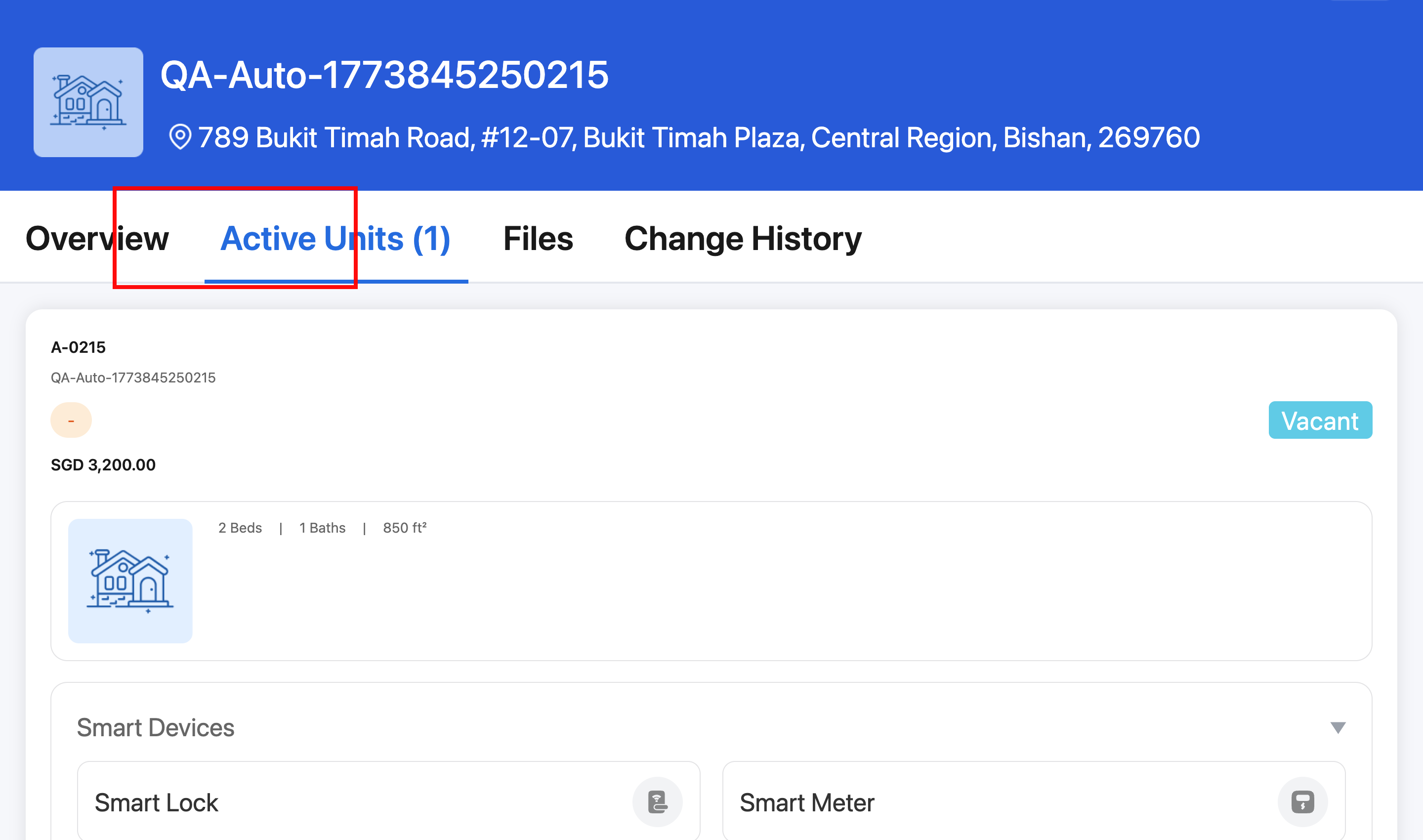
Step 2 To add a new unit or edit an existing one, go to [All Units]. Tap [Add Unit] to create a unit, or open the unit in [All Units] and use [Edit Unit] when that action is available. On the form, choose the property and complete the unit details in one pass:
- Required: [Property], [Unit]
- Common fields: [Monthly Rent], [Rental Deposit], [Utility Deposit]
- Unit details: [Beds], [Bathrooms], [Size (sq.ft.)]
- Optional fields: [Unit Labels], [Remark]
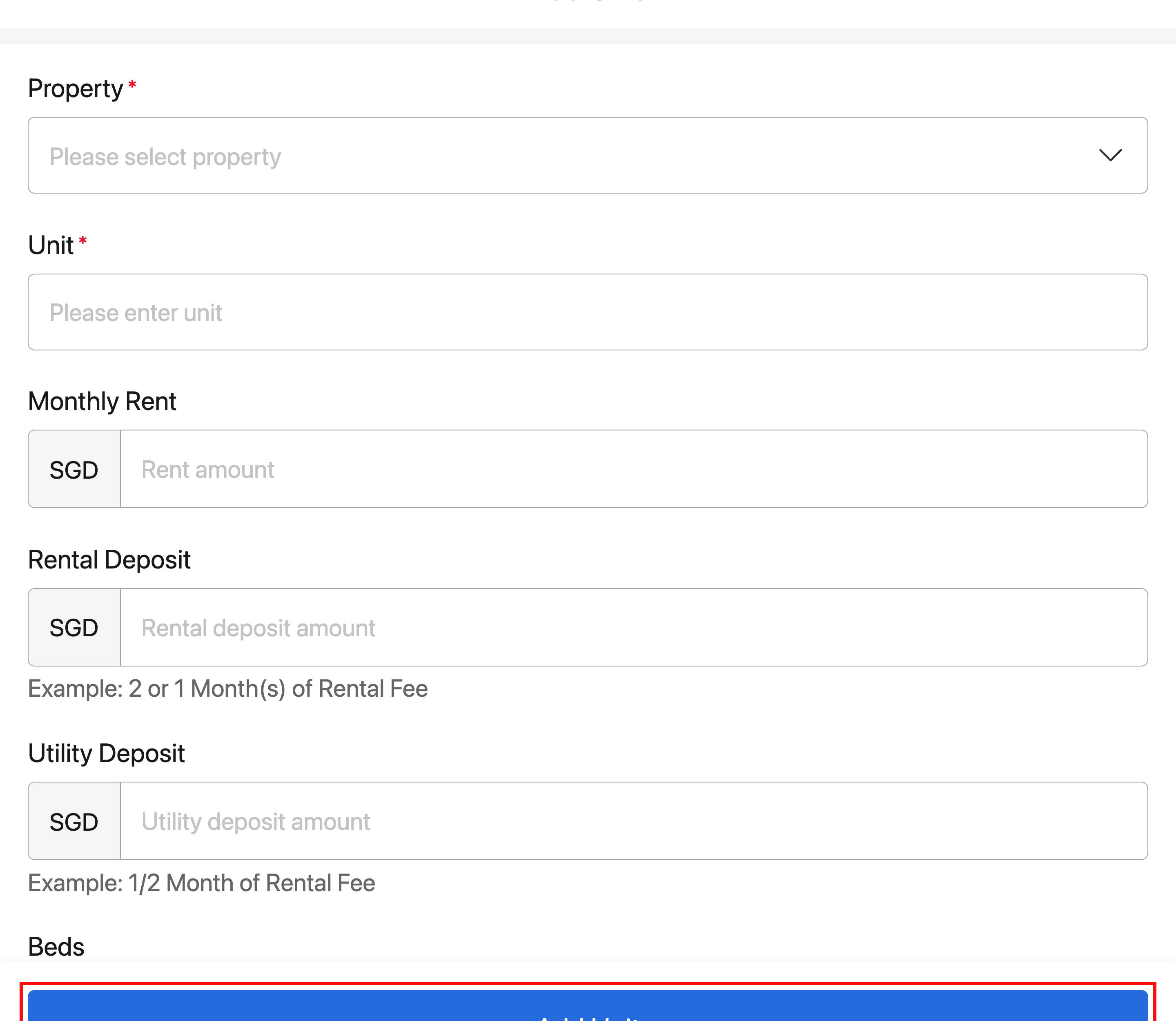
Step 3 Tap [Add Unit] to create the unit, or tap [Save] when you edit an existing unit. After that, return to the property and open [Active Units] again if you want to confirm the unit is listed under that property.
Platform differences
| Topic | Web | App |
|---|---|---|
| Property-scoped unit list | [Property Detail] -> [Active Units] supports review and management in the same tab | [Property Detail] -> [Active Units] is for review and unit drill-down |
| Add or edit entry | Open [Add Unit] directly from the property's [Active Units] tab | Use [All Units] for [Add Unit], [Edit Unit], and other unit actions |
| Bulk tools | [Import] and [Export] are available in the property tab | No bulk import or export actions in the property detail tab |
| Existing unit actions | Row actions are available directly in the table | Property detail unit cards do not show action menus; management happens in [All Units] |
Note:
- [Active Units] only shows the units under the current property.
- Available actions depend on the unit state and your permissions.
- On App, [Active Units] in [Property Detail] is not the main editing carrier. Use [All Units] when you need to add or modify unit data.