How do I manage my created contract templates?
Use [Contract Templates] to search your saved templates, open the details you need, and choose the next management action from the same list.
Entry:
- Web: [Contracts & Files] -> [Contract Templates]
Web
Step 1: Find the template Open [Contract Templates], then use the search box or filters to locate the template you want to work on.
- Search by [Template Name]
- Review the list details, including [Usage Count], [Created At], [Created By], and [Updated At]
- Sort or customize the visible columns if you need a different review view
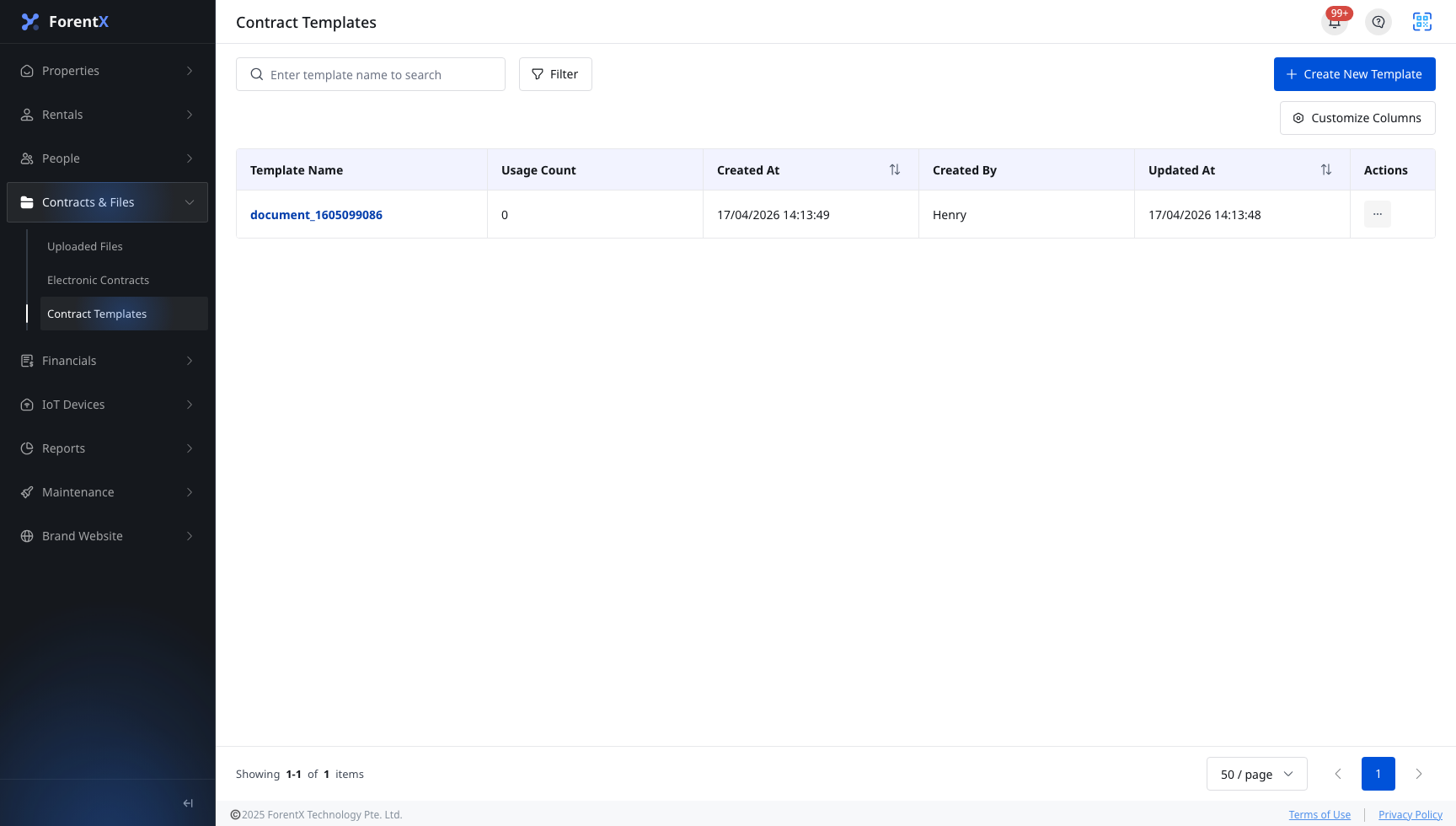
Step 2: Choose the management action Open the row action menu for the template you want to manage.
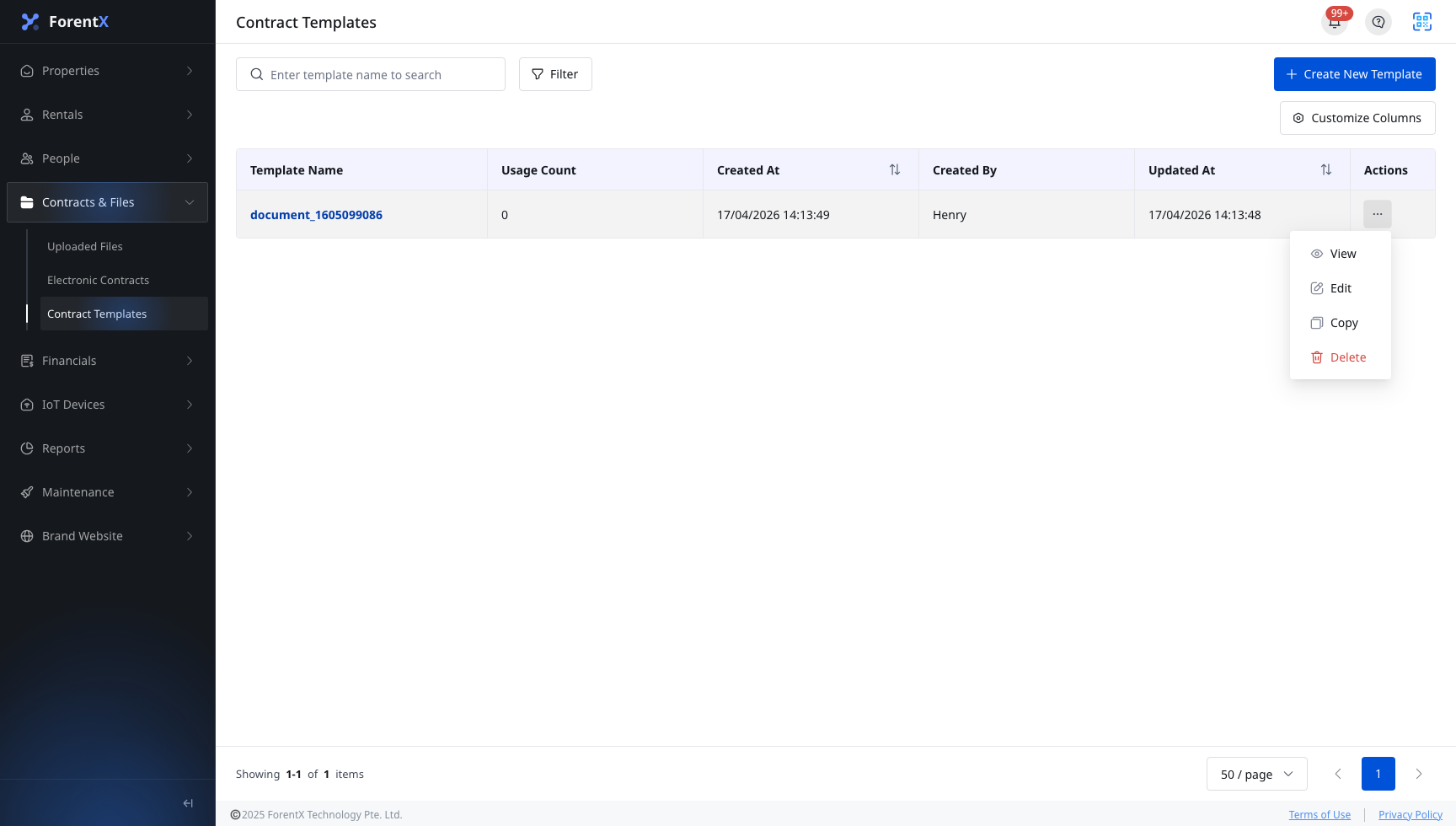
- [View]: Open the preview to review the current PDF and mapped fields.
- [Edit]: Open the template editor and update the file settings or field positions.
- [Copy]: Duplicate the template so you can reuse it as the starting point for another version.
- [Delete]: Remove a template that is no longer needed.
Platform differences
- Web: Supports the full management flow from [Contract Templates], including [View], [Edit], [Copy], and [Delete].
- App: The current [Contracts Templates] tab only supports searching existing templates and opening [Preview]. It does not provide create, edit, copy, or delete actions.
Note:
- Clicking [Template Name] also opens the preview directly.
- System templates can be viewed and copied, but they do not expose the same edit or delete actions as your editable custom templates.
- Use [Create New Template] when you need a brand-new template instead of changing an existing one.