How do I create a reusable electronic contract template?
Use [Contract Templates] to upload a reusable PDF, place the required template fields, and save a template that you can reuse in [Electronic Contracts].
Entry:
- Web: [Contracts & Files] -> [Contract Templates]
Web
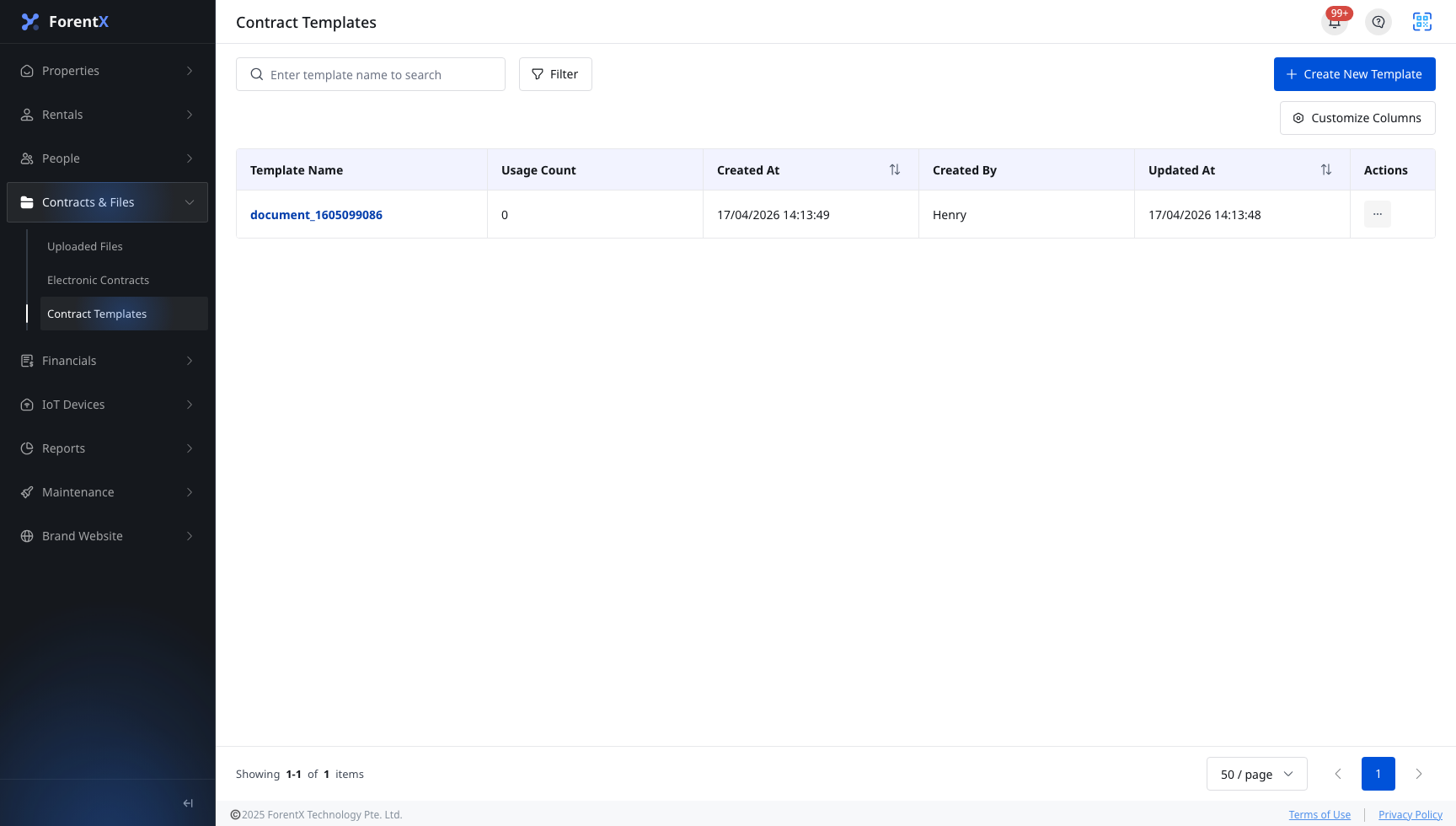
Step 1 Open [Contract Templates], then click [Create New Template].
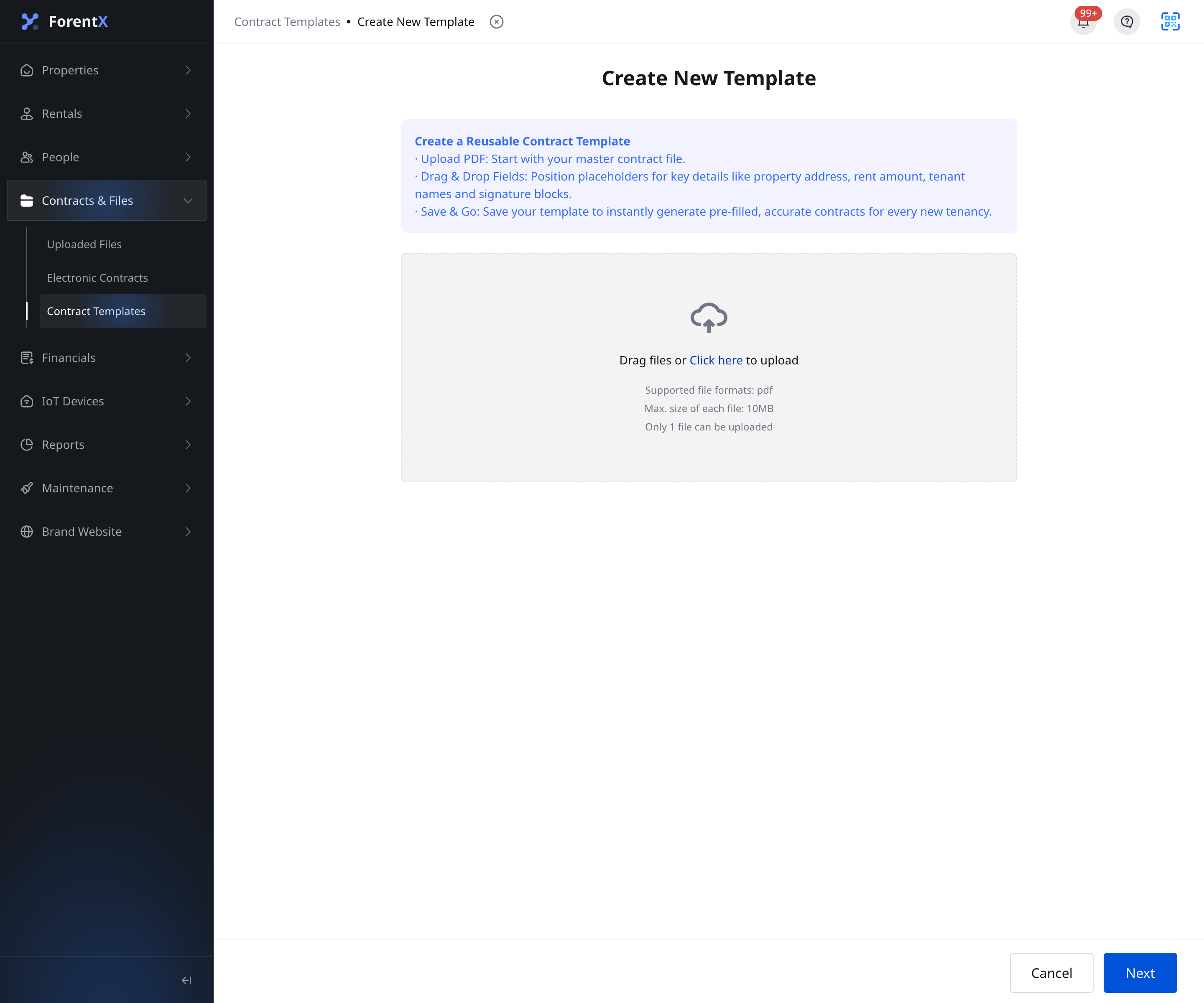
Step 2 Upload one blank contract PDF, then click [Next].
- Supported format:
pdf - Maximum size:
10MB - Upload limit:
1file each time
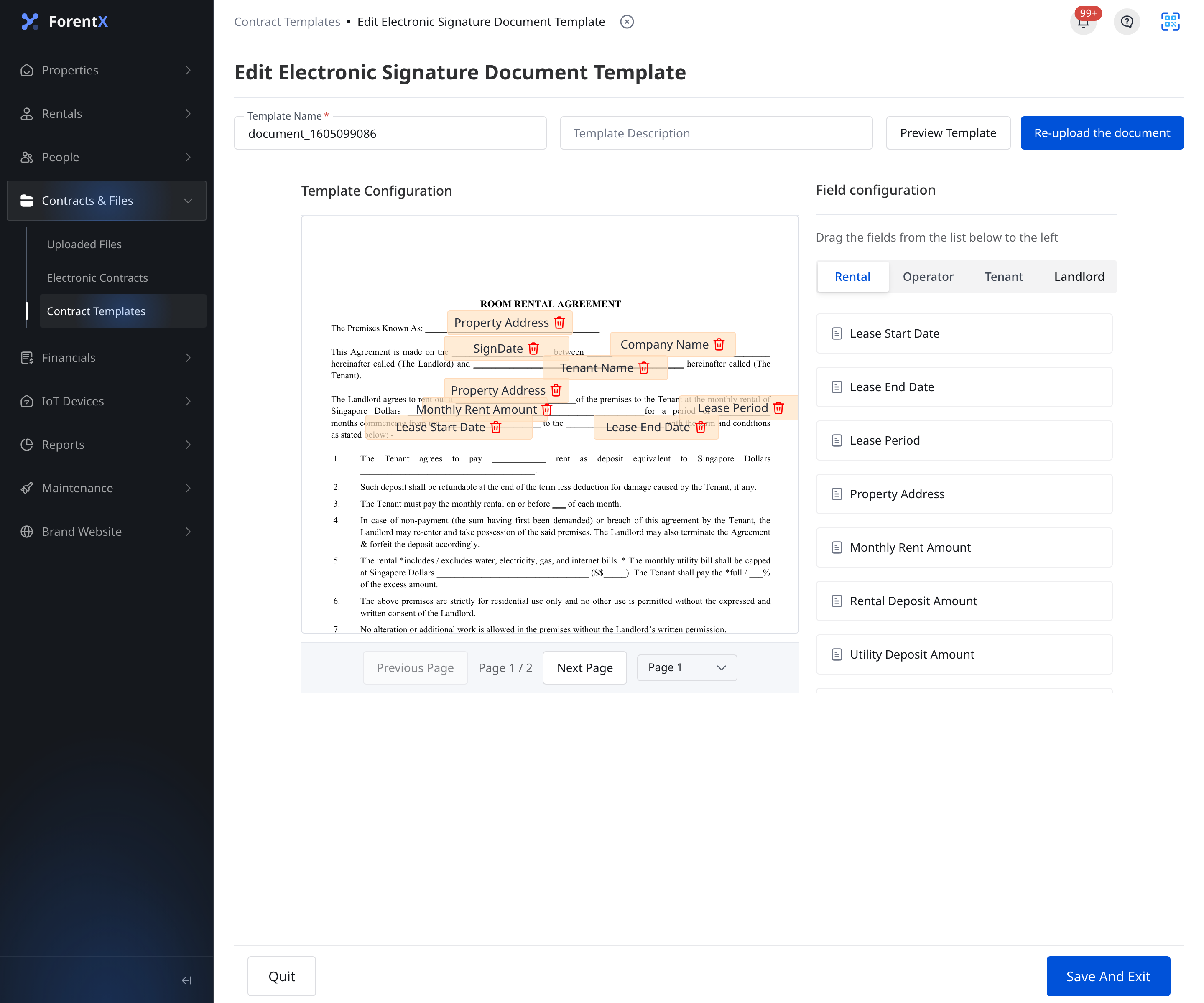
Step 3 After the file opens in the template editor, complete the template setup:
- Enter [Template Name] and, if needed, [Template Description]
- Use the [Rental], [Operator], [Tenant], and [Landlord] field tabs to place the required placeholders on the PDF
- Use [Preview Template] to check the current layout
- Use [Re-upload the document] if you need to replace the source PDF
- Click [Save And Exit] when the required fields are in the correct positions
Platform differences
- Web: Supports [Create New Template], PDF upload, the template editor, [Preview Template], [Re-upload the document], and [Save And Exit].
- App: The current [Contracts Templates] tab only supports searching existing templates and previewing the file. It does not provide [Create New Template], PDF upload, or the template editor. The empty state also directs operators to create templates on Web.
Note:
- Prepare a clean PDF with enough blank space for the dynamic fields before you upload it.
- The same template editor is used when you create a new template and when you later edit an existing one.
- Your template becomes available in [Electronic Contracts] after you save it successfully.