How do I manually record an incoming payment?
Use [Add Collection] to register a new incoming payment in [Financials] -> [Cash Movements] -> [Collections]. This action is currently available on Web.
Entry:
- Web: [Financials] -> [Cash Movements] -> [Collections]
- App: Open [Financials] -> [Payments] to view payment records only. App does not provide [Add Collection].
Web
Step 1 Open [Collections], then click [Add Collection].
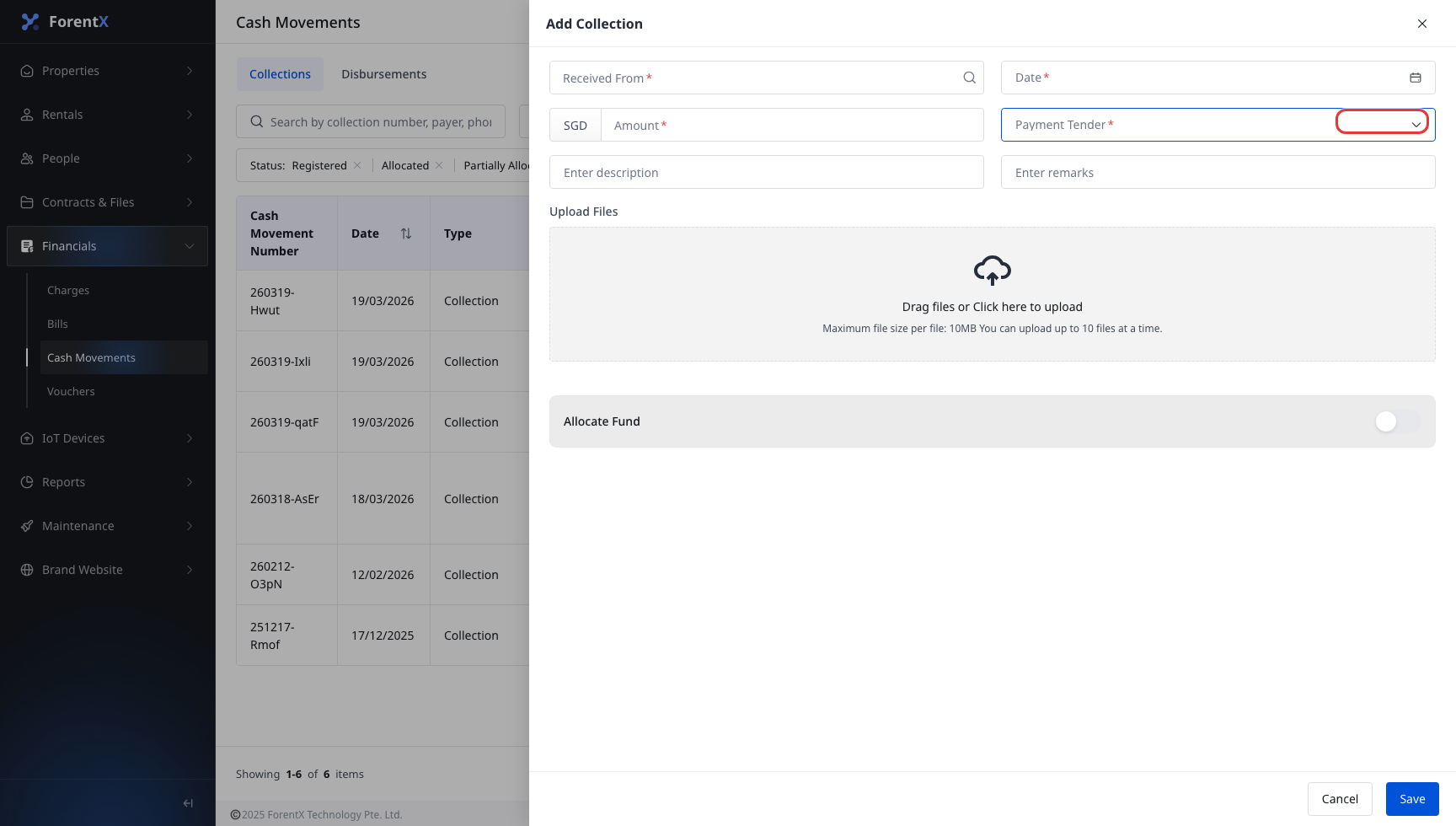
Step 2 In [Add Collection], complete the payment details:
- [Received From]
- [Date]
- [Amount]
- [Payment Tender]
- Optional [Description]
- Optional [Remarks]
- Optional [Upload Files]
If you want to allocate the payment immediately, turn on [Allocate Fund]. The drawer then shows additional allocation fields such as [Charge To] and the related tenancy or property selectors. After you finish the entry, click [Save].
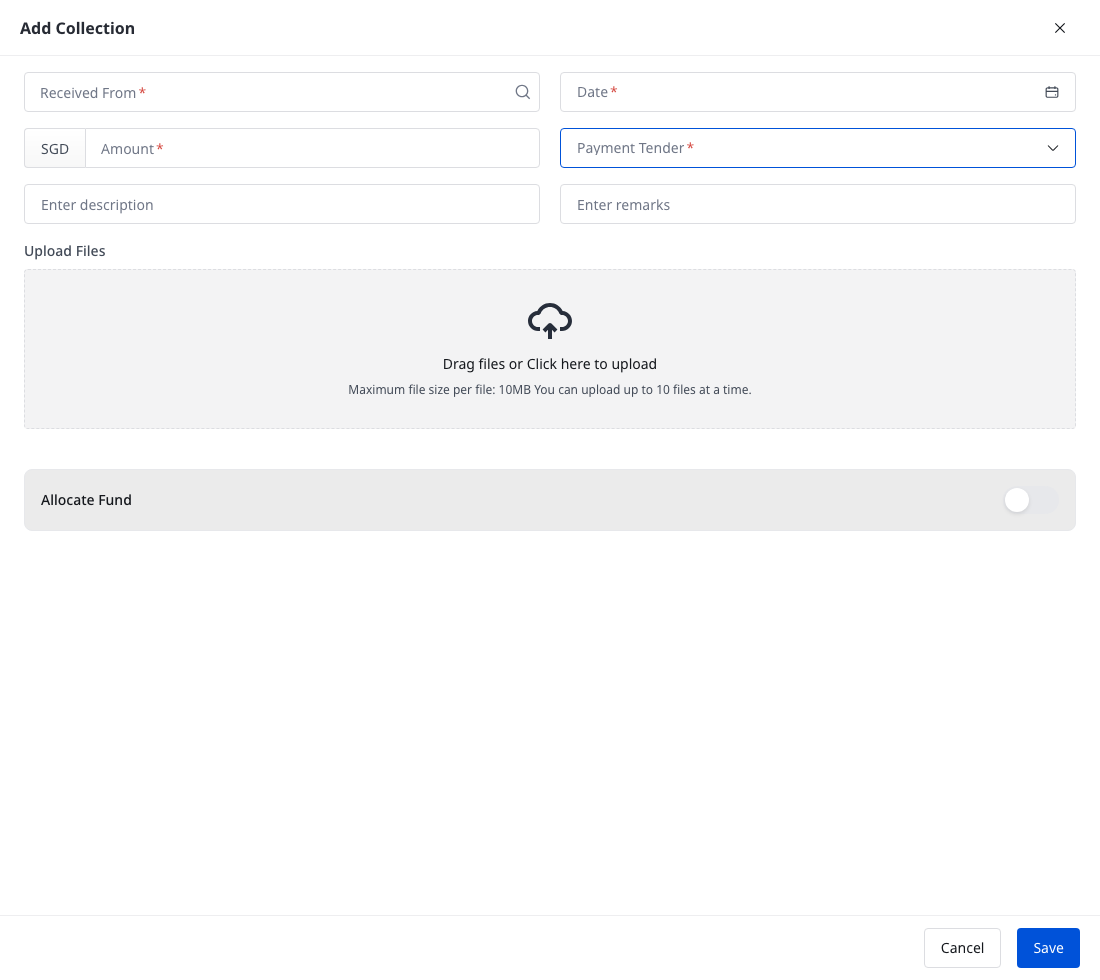
Step 3 After saving, the payment returns to the [Collections] list. A manually entered collection can stay in [Registered] status until you allocate it.
App
App currently supports the payment record flow after a collection already exists:
- View the [Collections] list
- Filter collection records
- Open payment details for an existing collection
App does not currently provide [Add Collection], the manual incoming payment form, or the allocation form used during Web entry.
Platform differences
| Topic | Web | App |
|---|---|---|
| Entry | [Financials] -> [Cash Movements] -> [Collections] | [Financials] -> [Payments] for list and details only |
| Manual incoming payment entry | Supported through [Add Collection] | Not supported |
| Form presentation | Drawer-based form in the Collections list | No manual entry form |
| Allocation during entry | Optional [Allocate Fund] inside the same drawer | Not supported during creation |
Note:
- On Web, [Add Collection] opens as a drawer, not a separate page.
- [Description] appears on the receipt, while [Remarks] stays internal.
- If you only register the payment first, it can remain [Registered] until you allocate it later.