How do I download the invoice PDF for a charge?
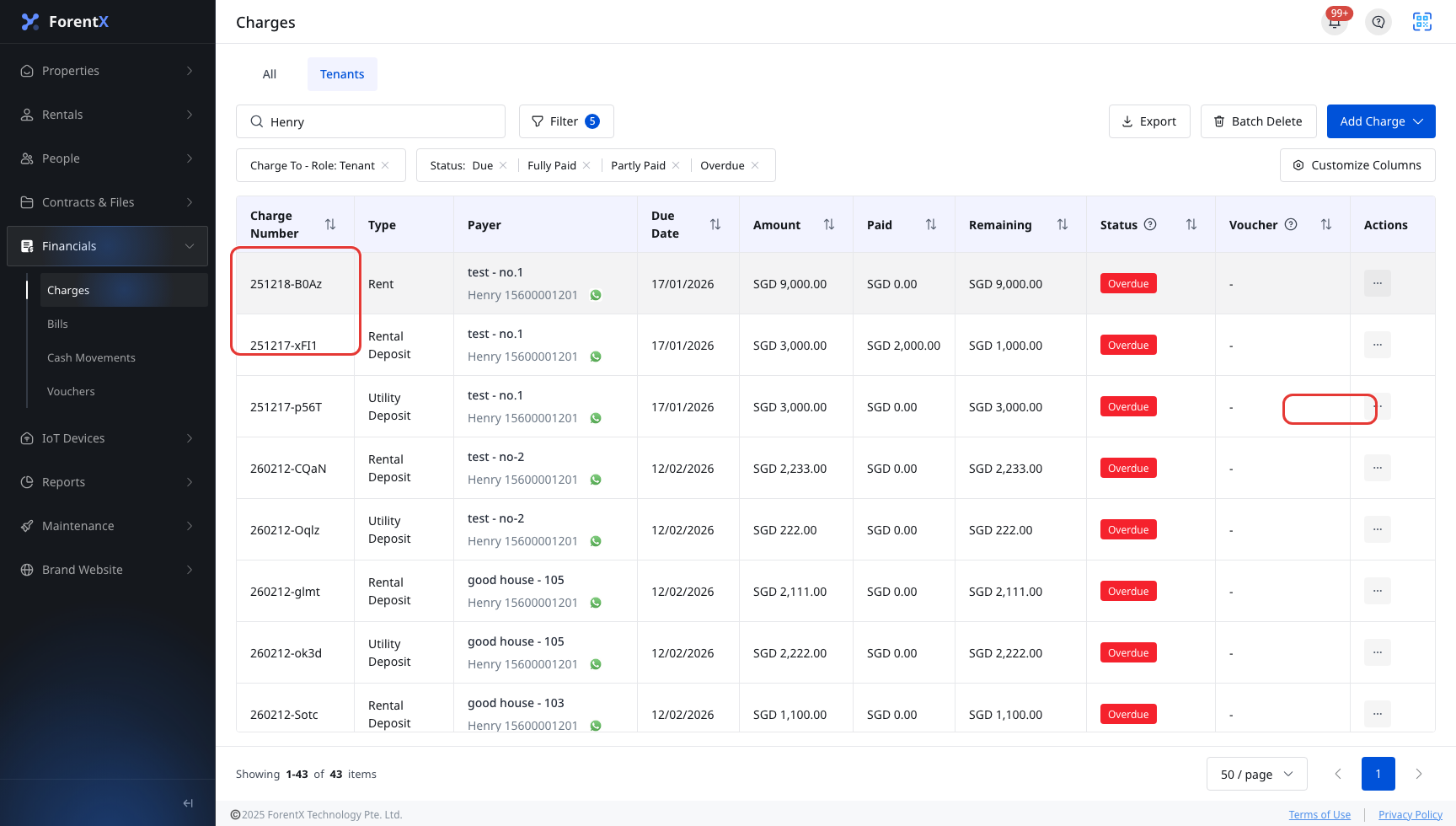
Use [Financials] -> [Charges] when you need the current invoice PDF for a charge.
Entry:
- Web: [Financials] -> [Charges]
Web
Step 1 Open [Charges], find the charge you want, open the row [Actions] menu, then click [View Invoice].
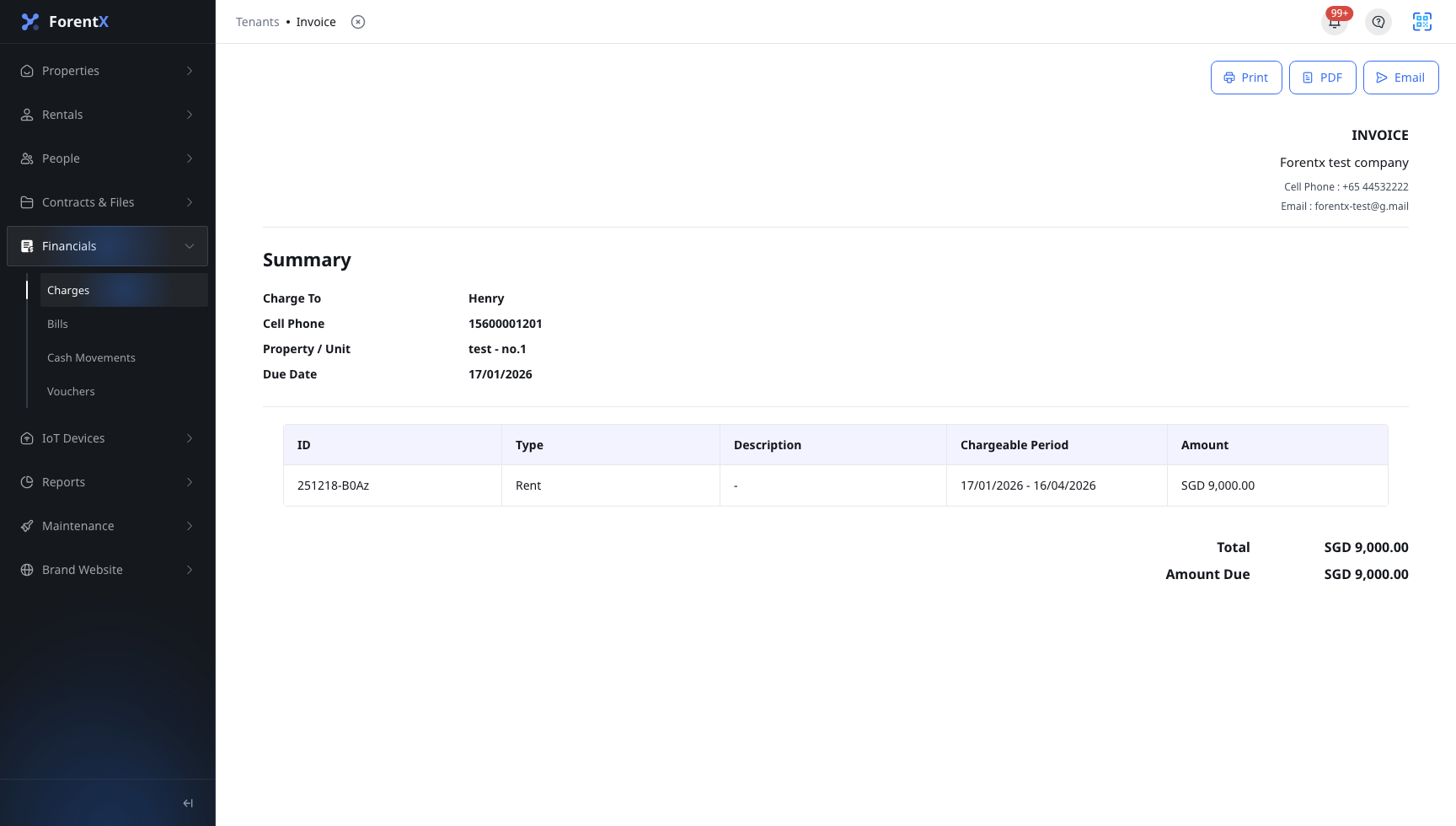
Step 2 On the invoice page, use the action bar to download or share the invoice.
- Click [PDF] to download the file.
- Use [Print] if you need a printed copy.
- Use [Email] if you need to send the invoice to the payer from the same page.
Step 3 After the download completes, open the saved PDF from your browser or downloads folder.
App
The mobile app currently supports the Charges list, filters, and charge details, but it does not provide [View Invoice] or an invoice [PDF] action.
Platform differences
- Web opens a dedicated invoice page with [Print], [PDF], and [Email].
- The mobile app stops at charge details and uploaded files. Invoice download is not available there.
Note:
- The current Charges action menu uses [View Invoice].
- The invoice opens inside the current Charges flow as a separate invoice page.