How do I add a bill payable to a landlord?
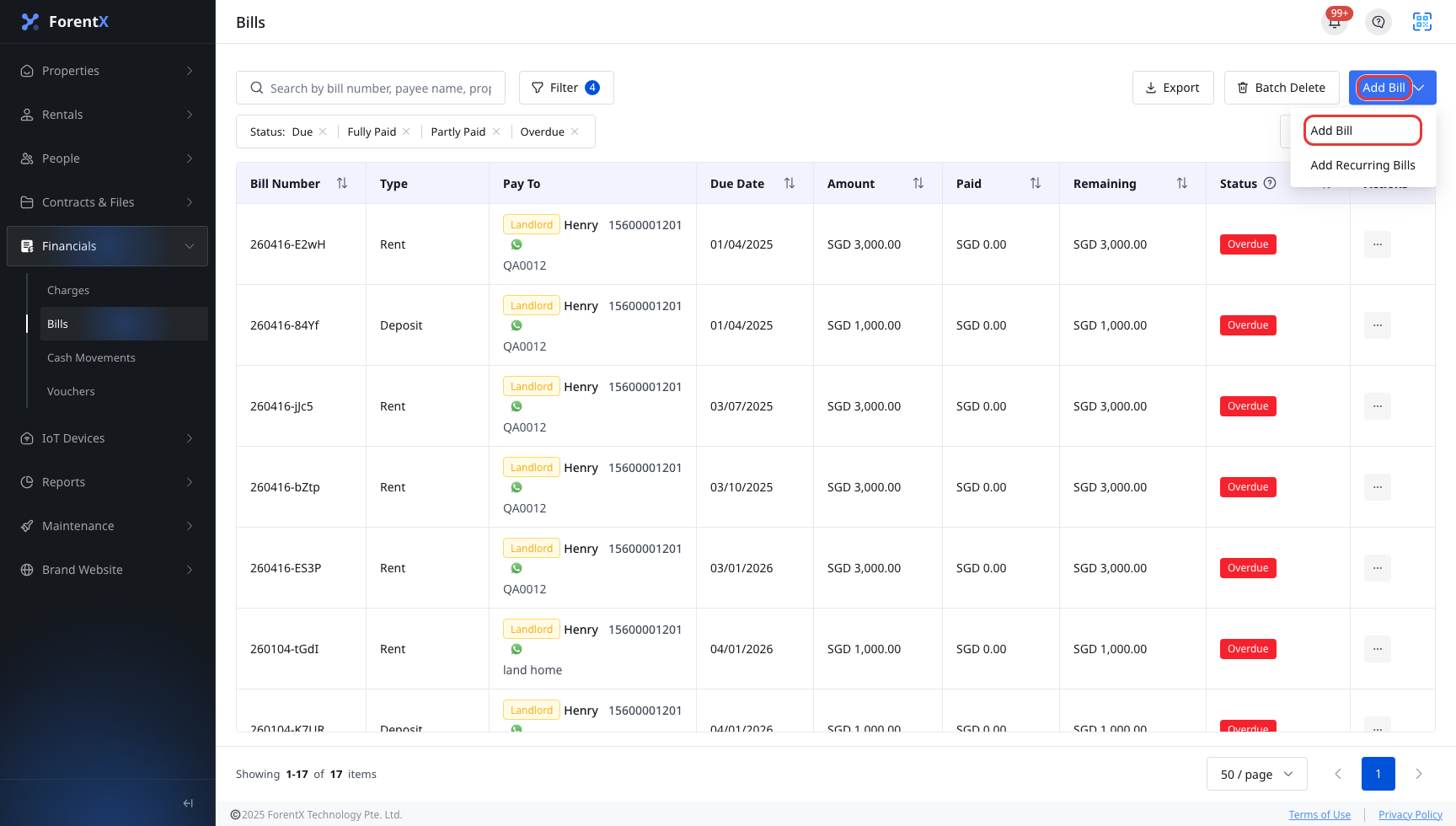
Use [Financials] -> [Bills] when you need to create a one-off bill that your company will pay to a landlord.
Entry:
- Web: [Financials] -> [Bills]
Web
Step 1 Open [Bills]. Click [Add Bill], then choose [Add Bill] from the dropdown.
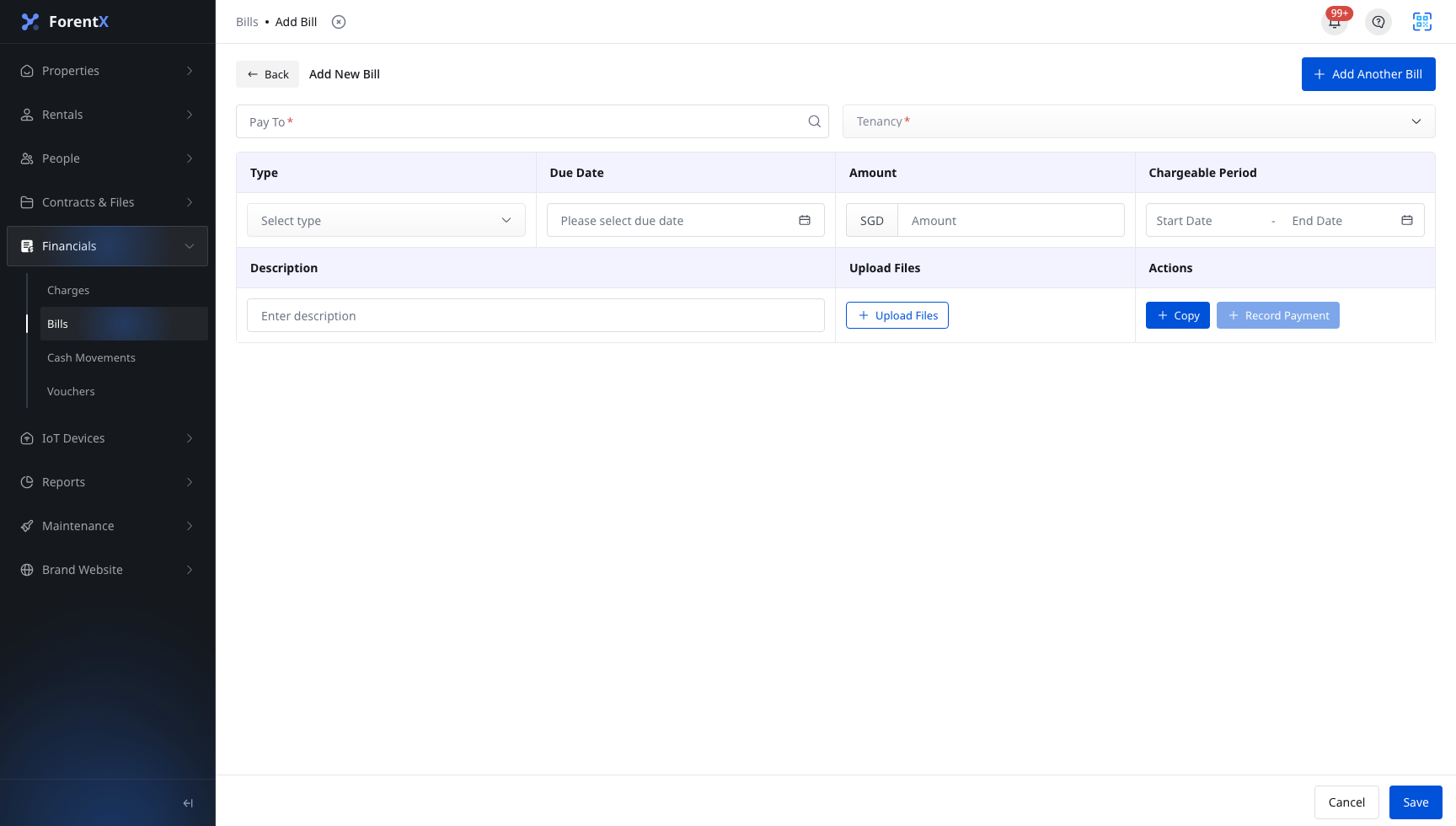
Step 2 In [Add New Bill], complete the payee and tenancy section.
- Select the landlord in [Pay To]
- Choose the related [Tenancy]
Step 3 Complete the bill details, then click [Save].
- Select [Type]
- Set [Due Date]
- Enter [Amount]
- Add optional details such as [Billing Date], [Reference No.], [Chargeable Period], [Description], [Remarks], and [Upload Files] when needed
Step 4 After the bill is created, the page returns to [Bills] and the new landlord bill appears in the list.
Note:
- This action is currently available on Web only. The mobile app lets you review the bills list, use bill filters, and open bill details, but it does not provide [Add Bill].
- The current page name is [Bills]. It is no longer the older BookStack wording such as
Bill Management. - [Add Bill] is a dropdown. Use [Add Recurring Bills] instead when you need a recurring landlord bill instead of a one-off bill.
- This article covers the current operator bill flow for creating a payable bill to a landlord. It does not document the cash movement disbursement flow.