How do I access charges, contracts, and smart device actions from the tenant home page?
Use [Home] to open the current lease summary. If the selected lease has an outstanding bill, a contract link, or linked smart devices, you can open those actions from the same page.
Entry:
- Bills: [Home] -> [Pay Now] or bottom [Charges]
- Contract: [Home] -> [View Contract] when the button is shown
- Smart devices: [Home] -> [My Smart Lock] or [My Smart Meter] when the card is shown
App
At the top of [Home], choose the lease you want to review first. The bill, contract, and smart device entries on this page follow the selected lease.
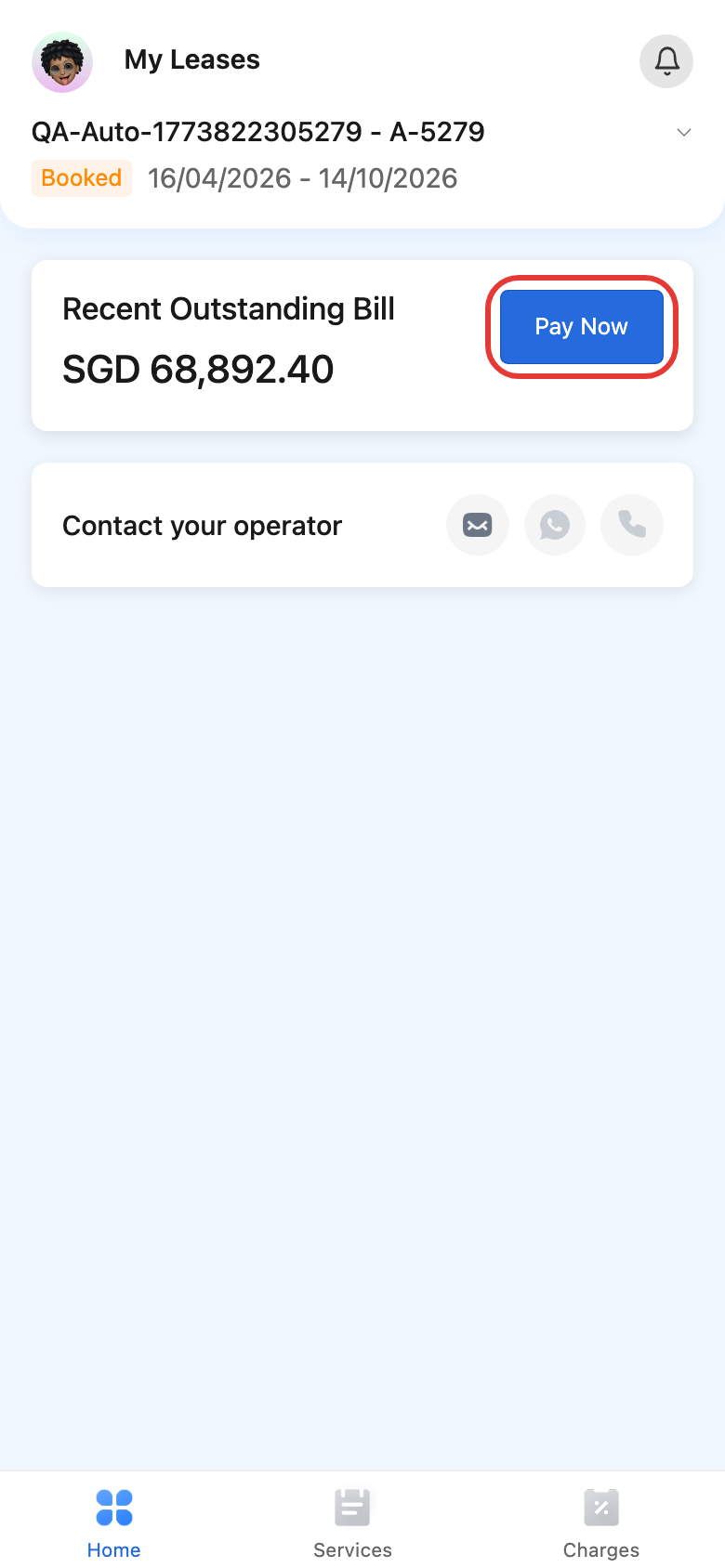
Open bills from [Home] or [Charges]
- Use [Pay Now] in [Recent Outstanding Bill] to jump directly to the bill list for the current lease.
- You can also open the bottom [Charges] tab directly.
- On [Charges], use [Outstanding] or [Paid] to switch status, then use [Upload Voucher] or [Pay Now] on the bill you want to handle.
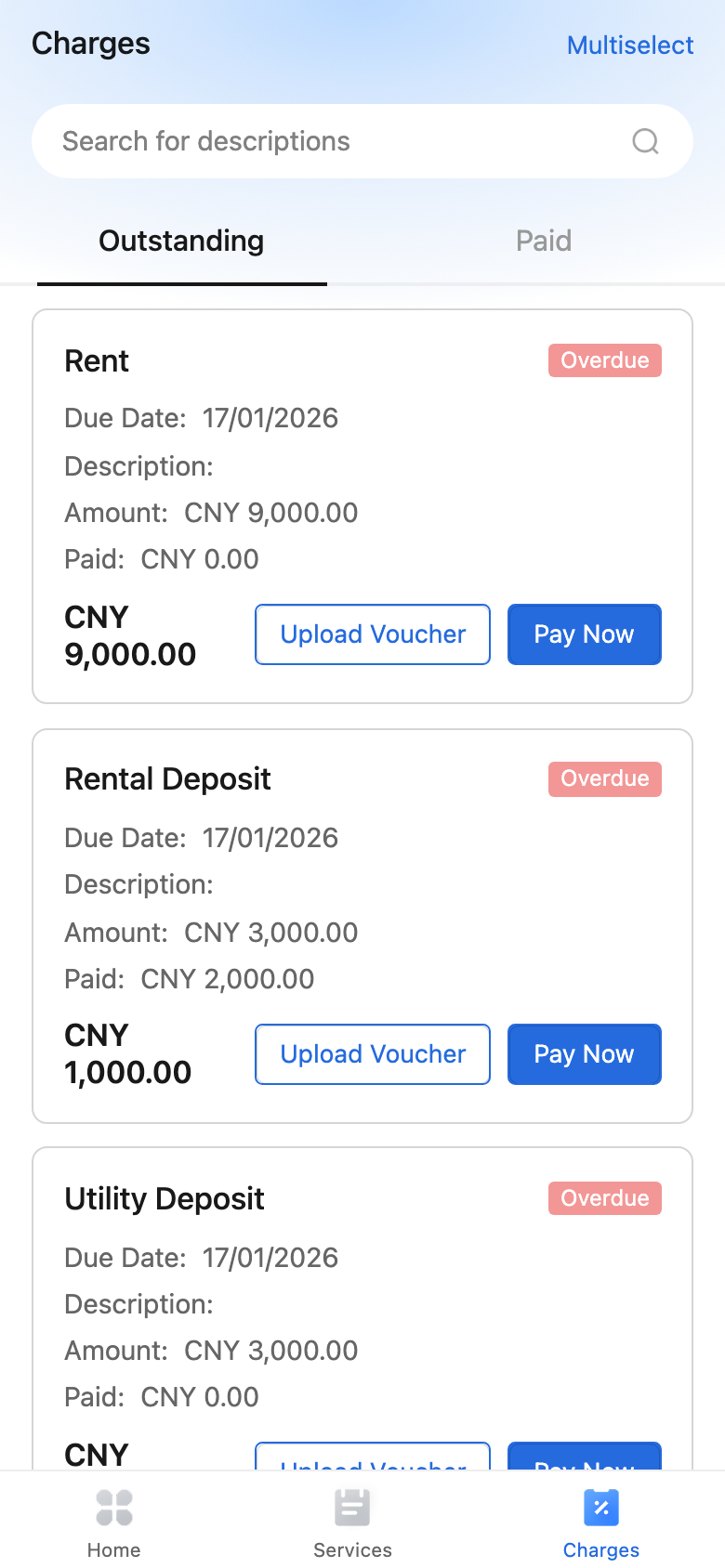
Open contract or smart device entries when they are available
- If [View Contract] appears beside [My Leases], tap it to open the current lease contract in a browser or webview.
- If [My Smart Lock] appears on [Home], use the card actions that are shown for that lease, such as lock access or passcode-related actions.
- If [My Smart Meter] appears, tap the card to open meter details. Prepaid meters can continue to [Recharge] from that path.
Note:
- [View Contract], [My Smart Lock], and [My Smart Meter] are conditional entries. They only appear when the selected lease has the related contract or smart device data.
- If you switch to another lease, the entries on [Home] can change with that lease's status and linked data.