How do I use the "Rent Payment" report to analyze my collection status?
Use [Rent Payment] on Web to review what each tenancy should pay, what has already been collected, and what is still outstanding for the selected bill period.
Entry:
- Web: [Reports] -> [Rent Payment]
Web
Step 1 Open [Rent Payment] and review the current list, summary cards, and action buttons at the top of the page.
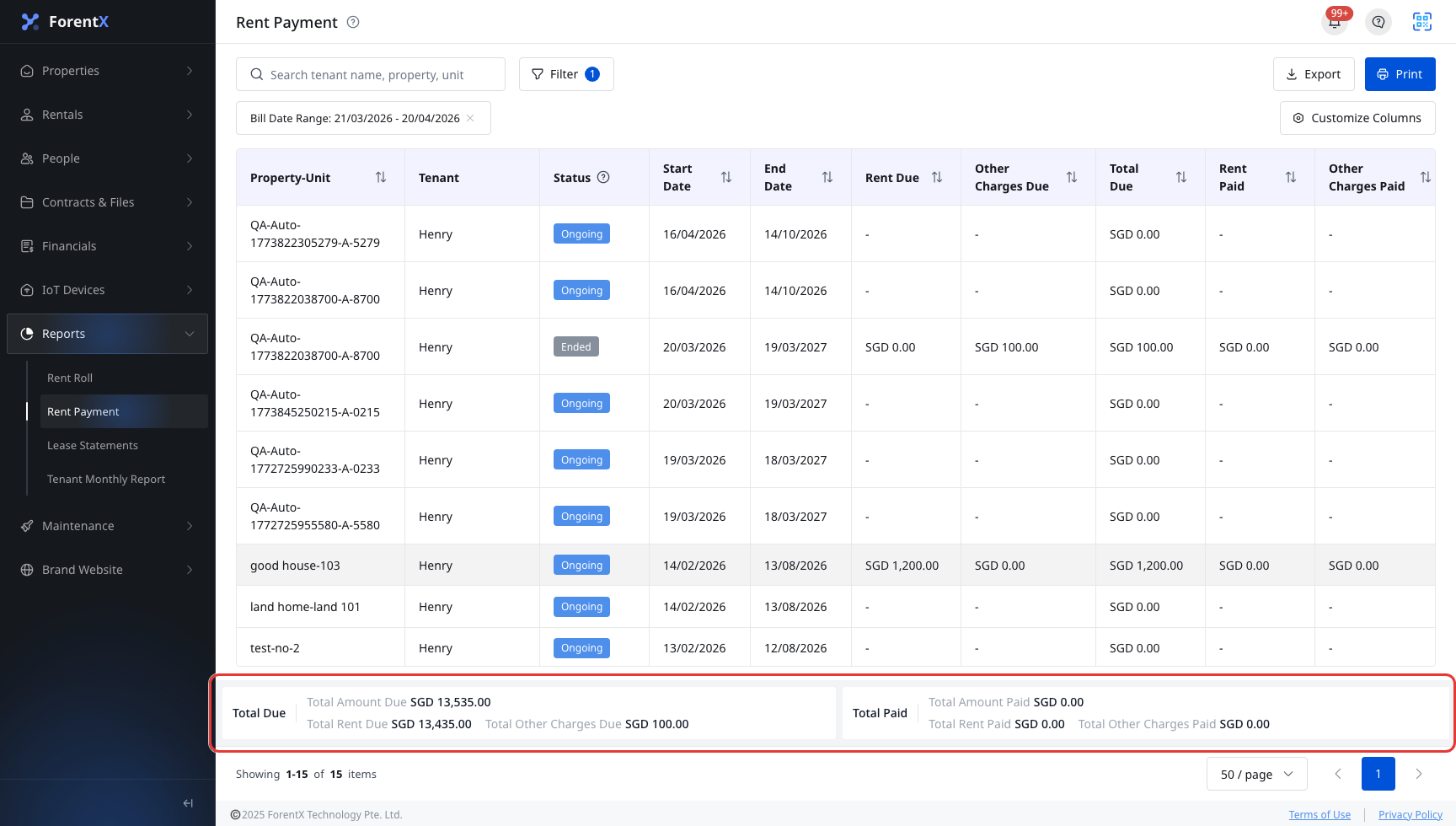
Step 2 Check the current [Bill Date Range] first. If you need a narrower result set, select [Filter] and add conditions such as [Property], [Tenant], [Tenancy], or [Status].

Step 3 Compare the table and summary cards together to understand your collection status for the same period. The current report can show fields such as:
- [Property-Unit]
- [Tenant]
- [Status]
- [Start Date]
- [End Date]
- [Rent Due]
- [Other Charges Due]
- [Total Due]
- [Rent Paid]
- [Other Charges Paid]
- [Total Paid]
- [Previous Balance]
- [Current Due]
Step 4 Use [Export], [Print], or [Customize Columns] when you need to share the report, keep a copy, or adjust the visible columns.
App
The current App does not provide a [Rent Payment] report page. Use Web when you need to filter, print, export, or customize this report.
Platform differences
- Web supports the full [Rent Payment] report, including bill date filtering, summary totals, export, print, and column customization.
- App currently does not provide a matching report page for this workflow.
Note:
- The page opens with a [Bill Date Range] already applied.
- The summary cards update together with the current filters, so you can compare due, paid, and outstanding amounts for the same result set.
- The visible columns can differ if your saved [Customize Columns] settings are different.