How do I view my tenant list and their account activation status?
Use the tenant directory to check each tenant's current portal status and open the tenant profile when you need more details.
Entry:
- Web: [People] -> [Tenants]
- App: [Home] -> [Tenant Portal]
Web
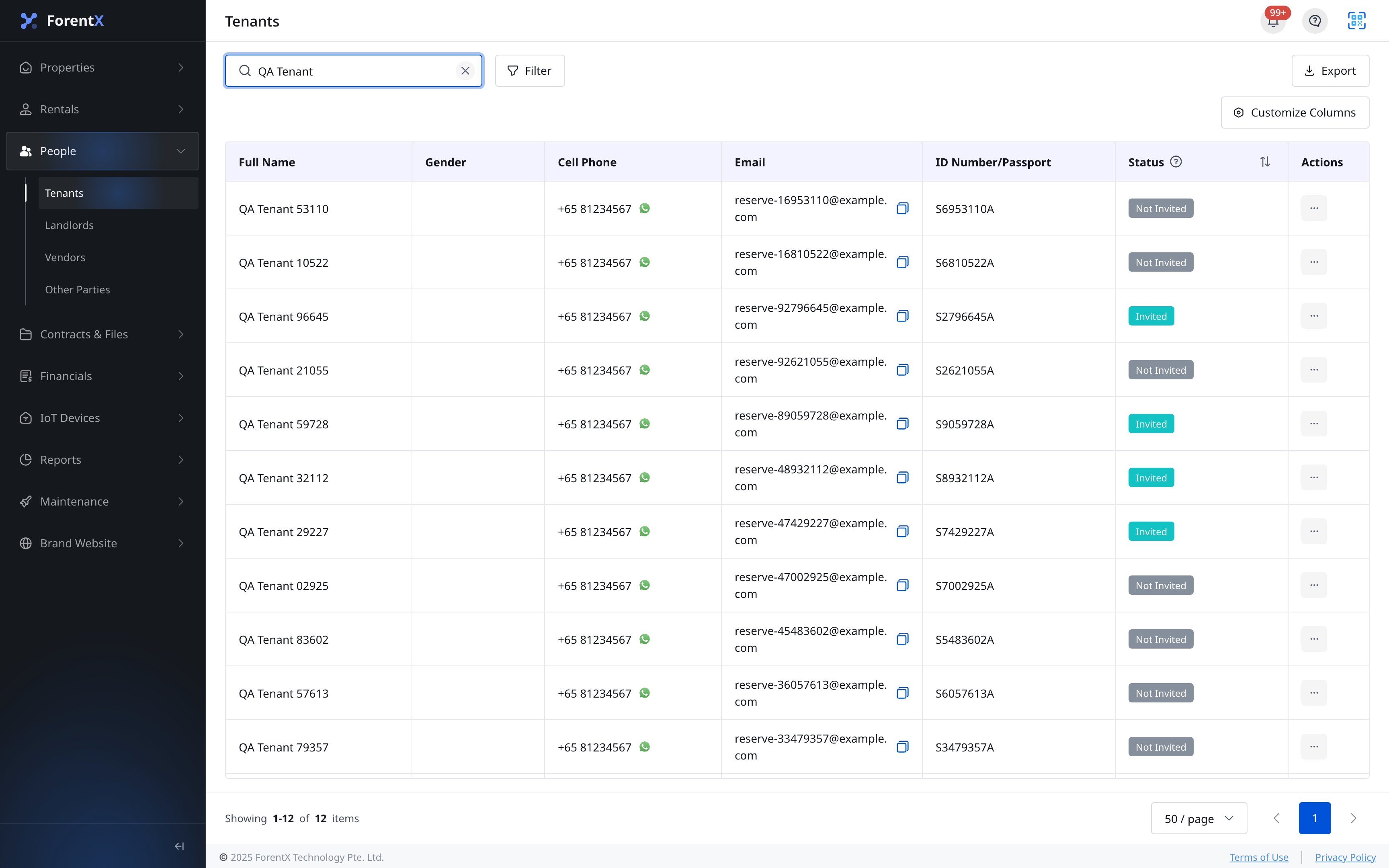
Step 1 Open [People] -> [Tenants]. The list shows each tenant's name, contact details, ID number or passport number, and the current portal [Status].
Step 2 Review the [Status] column:
- [Not Invited]: The welcome email has not been sent yet.
- [Invited]: The welcome email has been sent, but the tenant has not activated the portal account yet.
- [Active]: The tenant has set a password and can already use the tenant portal.
If you need the built-in explanation for each status, hover the question-mark icon in the [Status] column header.
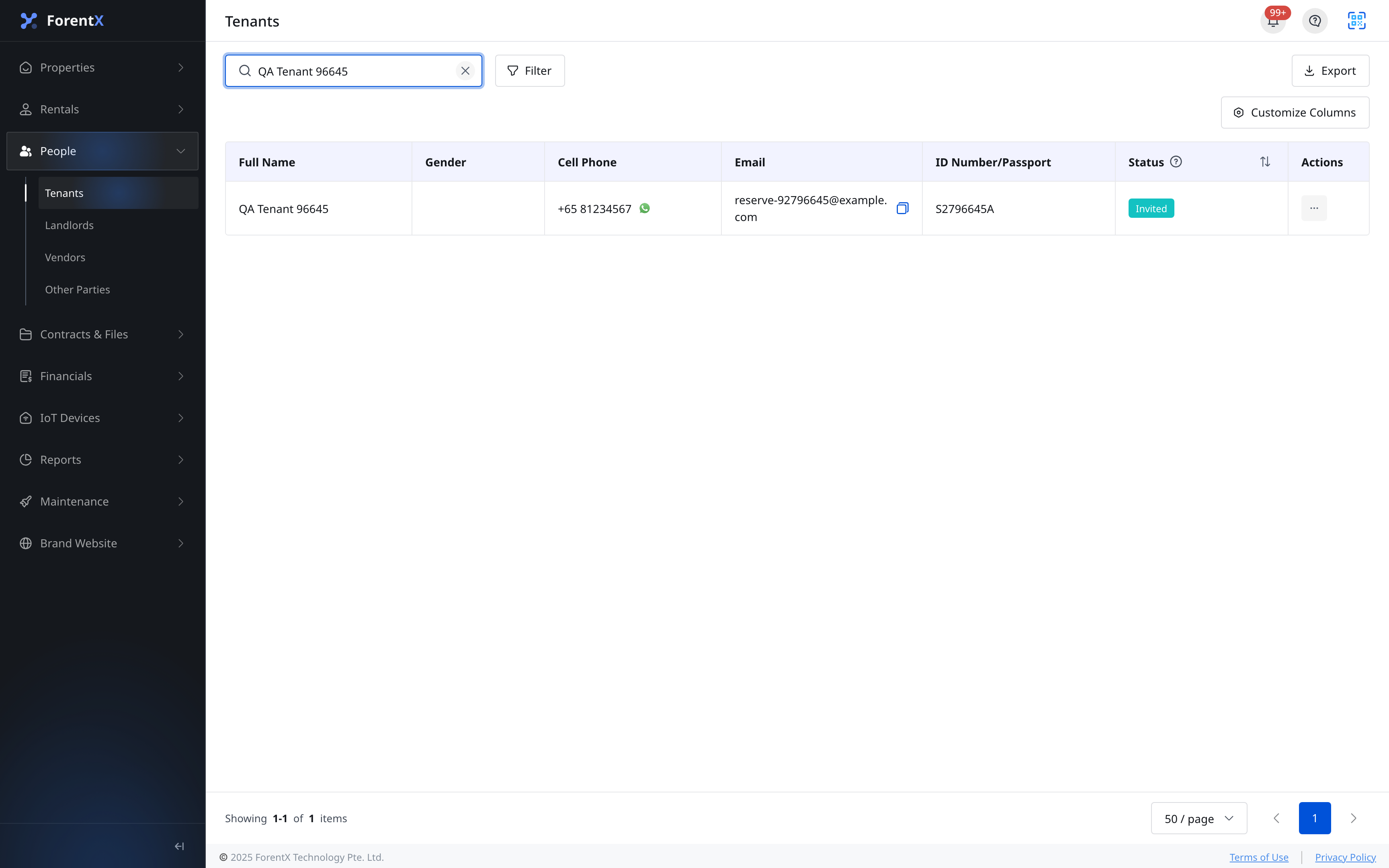
Step 3 Use search or [Filter] to narrow the list, then click a tenant row to open the tenant profile page.
App
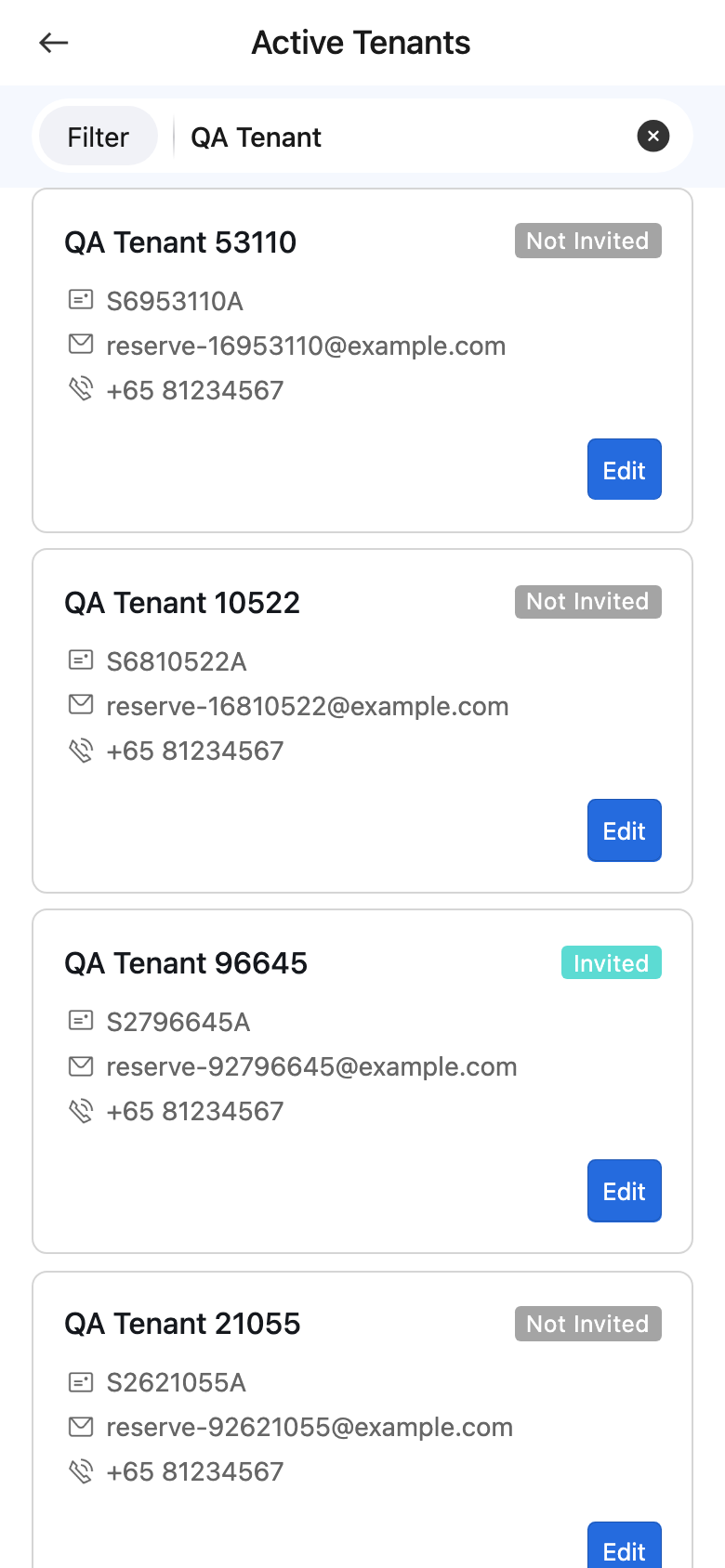
Step 1 Open [Home] -> [Tenant Portal]. The current list page opens under [Active Tenants], where you can search the tenant directory and review the status tags on each tenant card.
Step 2 Review the tenant status tag:
- [Not Invited]: The welcome email has not been sent yet.
- [Invited]: The welcome email has been sent, but the tenant has not activated the portal account yet.
- [Active]: The tenant can already sign in to the tenant portal.
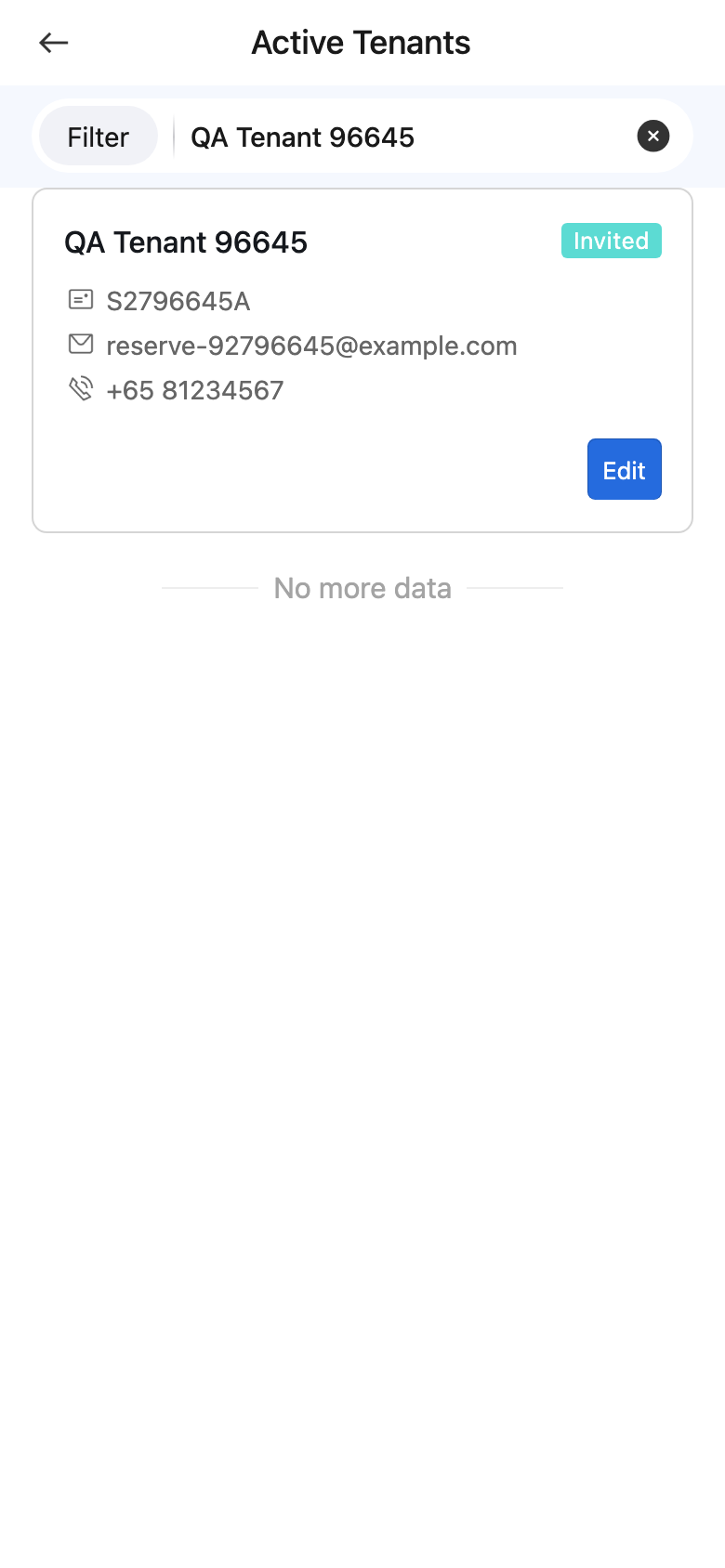
Step 3 Tap [Filter] when you need to narrow the list by tenant or status. Tap a tenant card to open the tenant detail page.
Platform differences
| Topic | Web | App |
|---|---|---|
| Entry | [People] -> [Tenants] | [Home] -> [Tenant Portal] |
| List layout | Table with columns for contact details and portal status | Card list with status tags on each tenant card |
| Status help | Hover the question-mark icon in the [Status] column header | Review the status tag directly on the card |
| Extra list tools | Search, [Filter], [Export], and [Customize Columns] | Search and [Filter] |
| Open tenant details | Click a tenant row | Tap a tenant card |
Note:
- The current Web page includes [Export] and [Customize Columns]; the App page does not.
- The current zh-hk wording for [Active] is [活躍] on Web and [啟用] on App.