How do I view the details of a completed End Tenancy?
Use the ended tenancy detail record when you need to review the final move-out information and settlement result for a tenancy that has already ended.
Entry:
- Web: [Rentals] -> [Tenant Tenancies]
- App: [Rentals] -> [Tenant Tenancies]
Web
Step 1 Open the ended tenancy from [Tenant Tenancies], then open [Ended Tenancy Details].
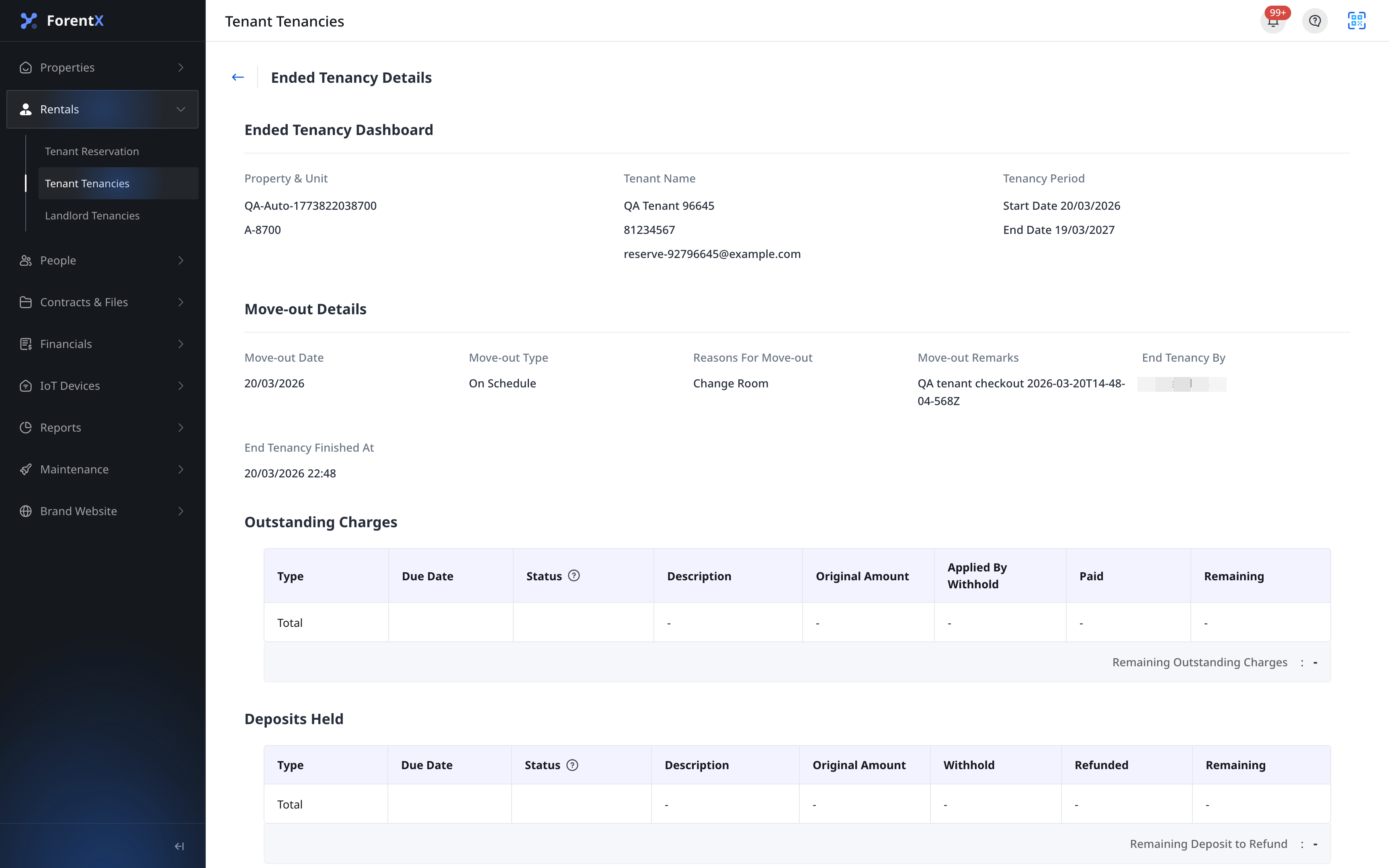
Step 2 Review the final sections on the page:
- [Ended Tenancy Dashboard]
- [Move-out Details]
- [Outstanding Charges]
- [Deposits Held]
Step 3 Use this page as the final read-only record for the move-out date, move-out reason, settlement balance, and deposit result.
App
Step 1 Open the ended tenancy from [Rentals] -> [Tenant Tenancies]. The tenancy opens on [View Rental], where you can confirm the tenancy is already [Ended].
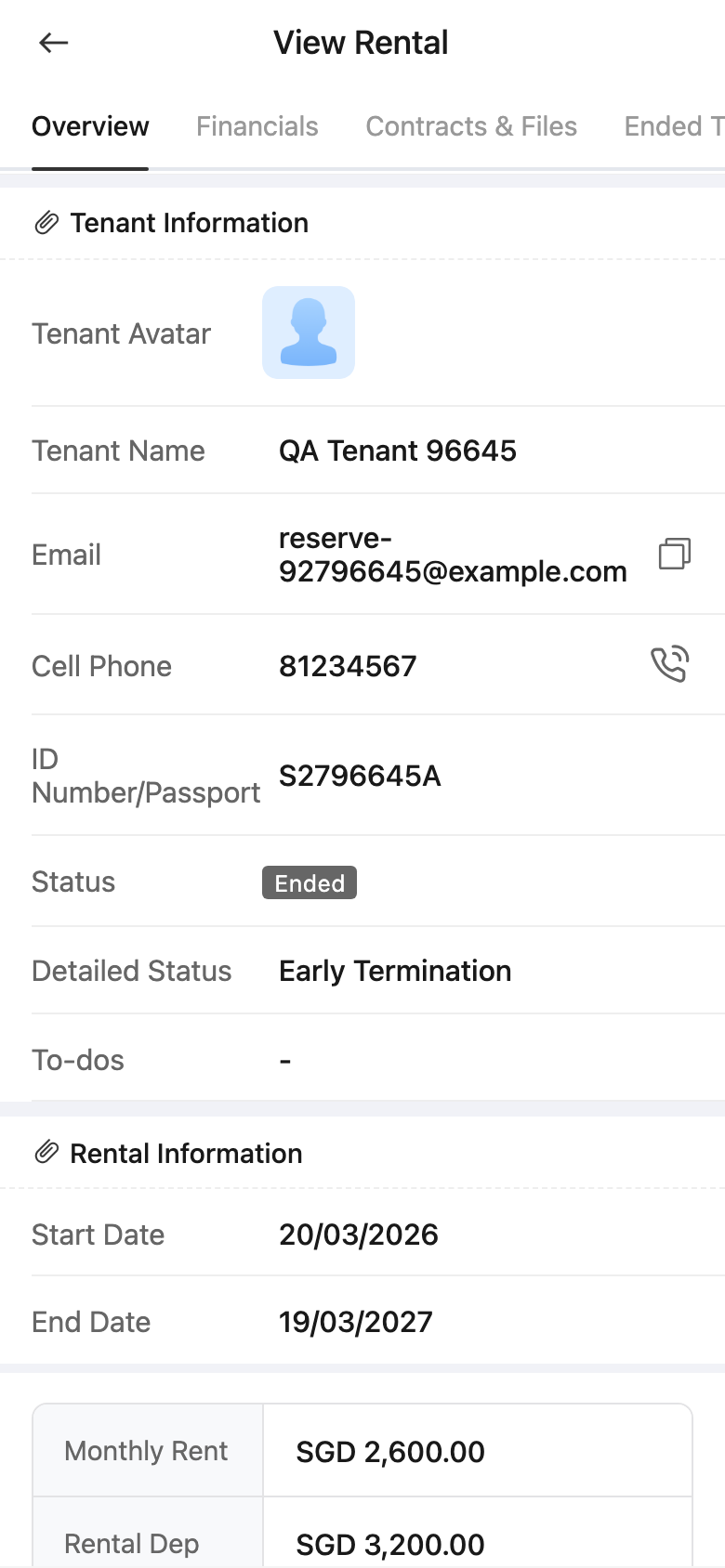
Step 2 Tap [Ended Tenancy Details].
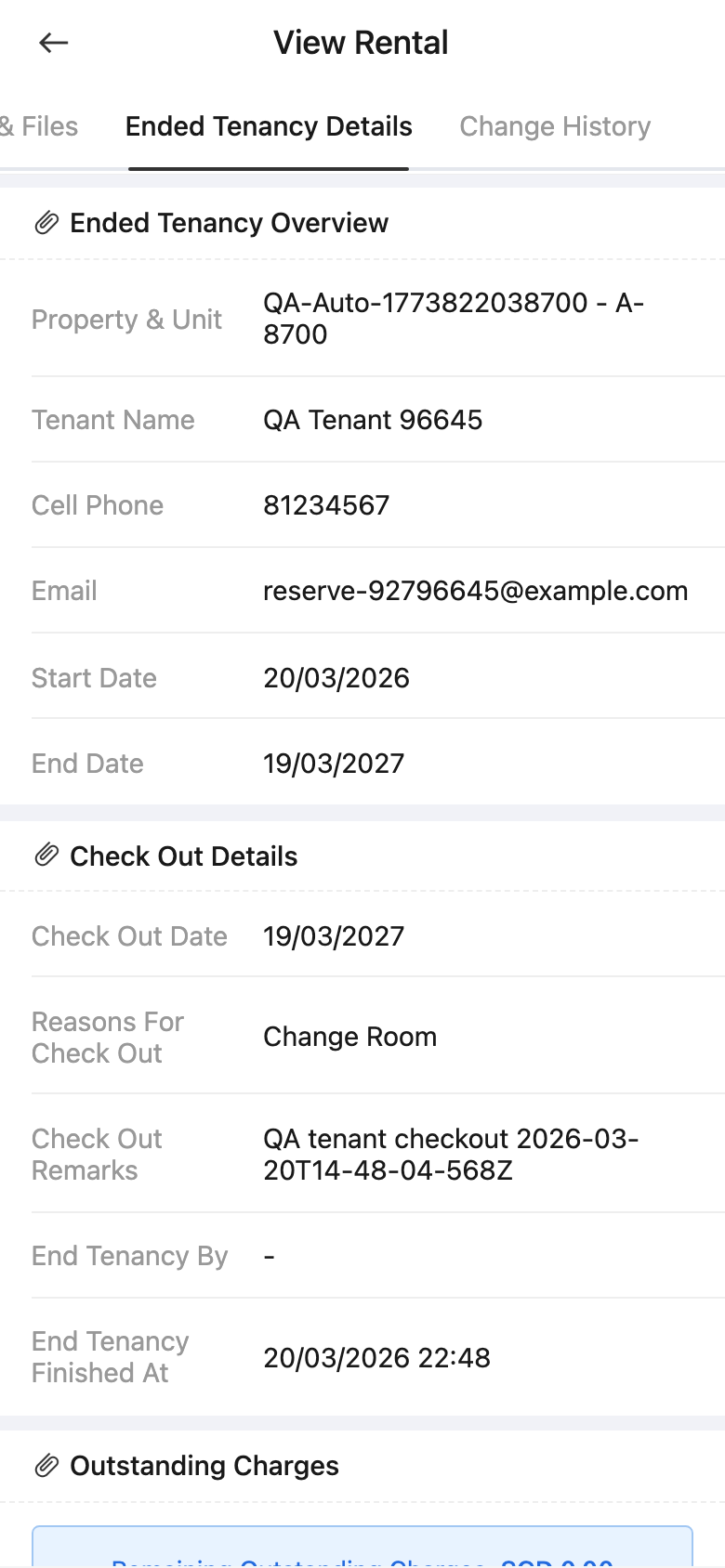
Step 3 Review the same final record on App:
- [Ended Tenancy Overview]
- [Check Out Details]
- [Outstanding Charges]
- [Deposits Held]
Platform differences
| Topic | Web | App |
|---|---|---|
| Entry surface | Opens a dedicated [Ended Tenancy Details] page | Opens the tenancy detail page first, then uses the [Ended Tenancy Details] tab |
| Section labels | [Ended Tenancy Dashboard], [Move-out Details], [Outstanding Charges], [Deposits Held] | [Ended Tenancy Overview], [Check Out Details], [Outstanding Charges], [Deposits Held] |
| Financial layout | Table-style settlement summary | Mobile cards and expandable rows inside the tab |
| Final record | Read-only ended-tenancy detail page | Read-only ended-tenancy detail tab |
Note:
- On App, [Ended Tenancy Details] only appears after the tenancy has already ended.
- Use this record to confirm the final move-out date, reason, outstanding balance, and deposit outcome after checkout is completed.