How to understand the status of a tenant tenancy?
In [Tenant Tenancies] on Web, or [Rentals] -> [Tenant Tenancies] on App, you can check a tenancy's current lifecycle stage, its more specific status, and the next action that still needs follow-up.
Entry:
- Web: [Rentals] -> [Tenant Tenancies]
- App: bottom navigation [Rentals] -> top tab [Tenant Tenancies]
Web
Open [Tenant Tenancies]. The list shows three status layers together: [Status], [Detailed Status], and [To-dos].
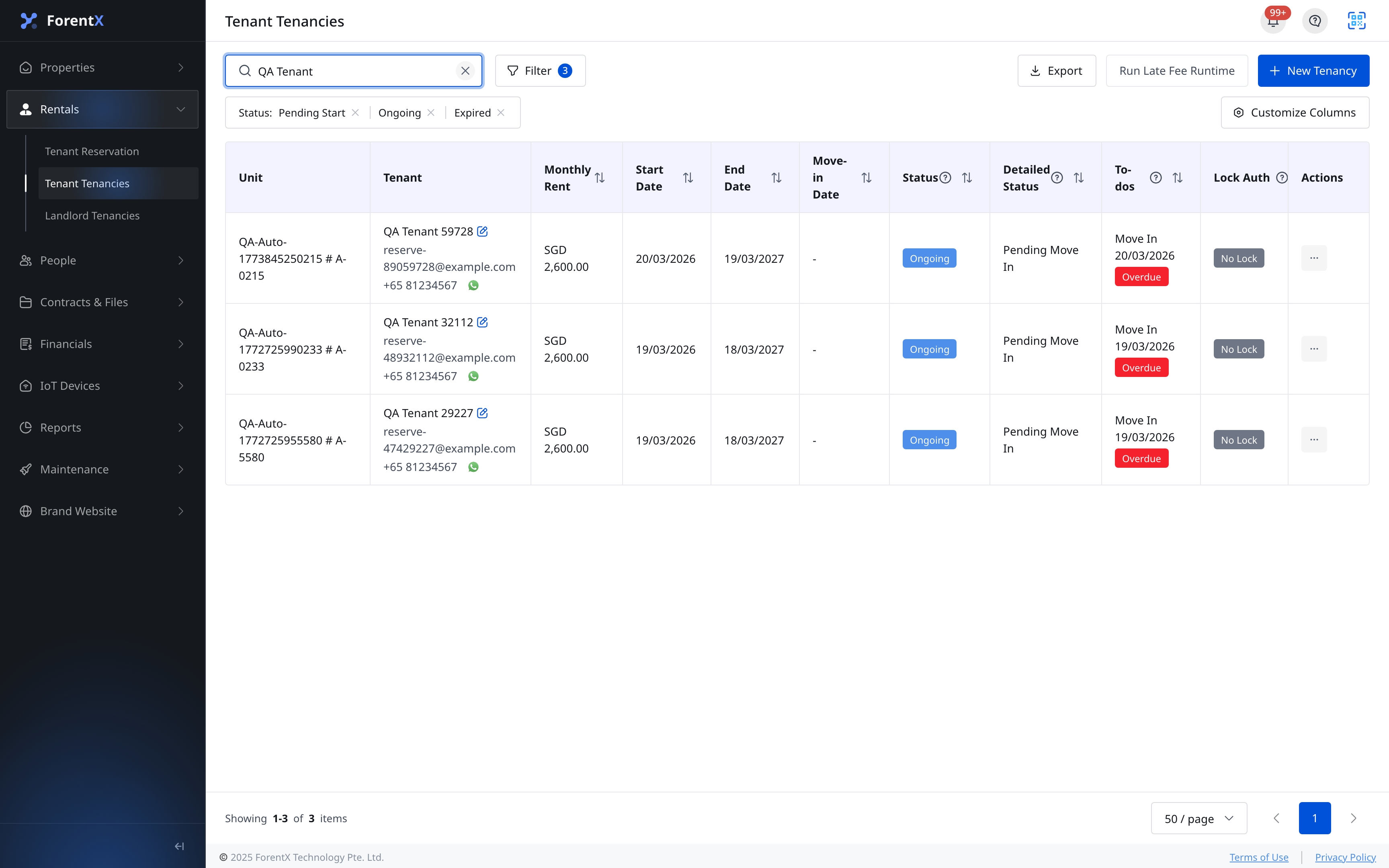
- [Status] is the broad lifecycle:
- [Pending Start]
- [Ongoing]
- [Expired]
- [Ended]
- [Detailed Status] explains the exact stage or outcome. Current live Web labels include:
- [Pending Move In]
- [Moved In]
- [Near Expiry Date]
- [Renewed]
- [Notified: Move-out On Schedule]
- [Notified: Early Termination]
- [Notified: Late Move-Out]
- [Checked Out On Schedule]
- [Early Termination]
- [Late Move-Out]
- [Voided]
- [To-dos] tells you what still needs action, such as:
- [Move In]
- [Prepare Renewal/Ending]
- [Move-out On Schedule]
- [Early Termination]
- [Late Move-Out]
- If the tenancy has already missed the required action date, Web adds an [Overdue] tag beside the to-do.
App
Open [Rentals], then switch to [Tenant Tenancies]. The same status logic is shown inside each tenancy card instead of separate table columns.
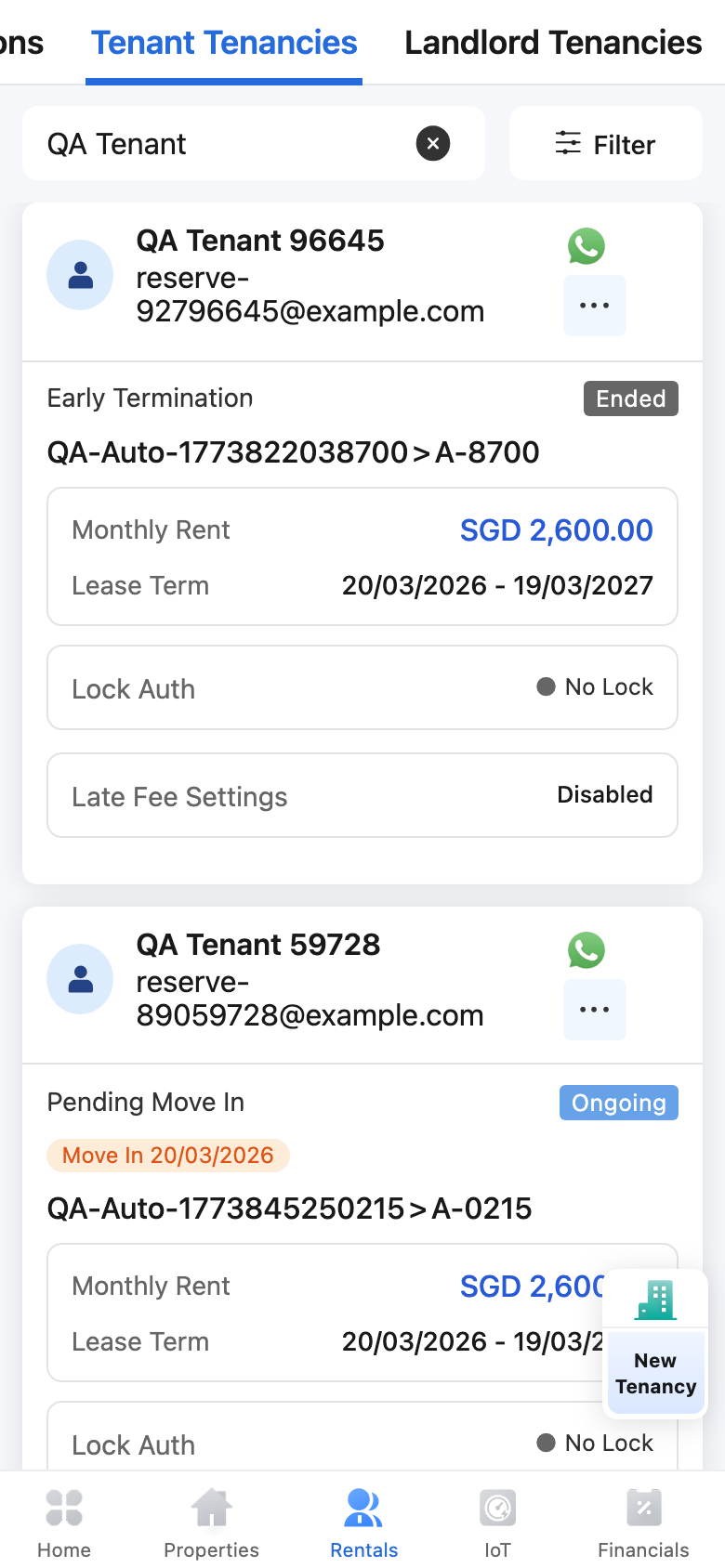
- The main tenancy status appears as the status tag on the card.
- When the tenancy is in a more specific stage, the card shows the [Detailed Status] row above the property and unit.
- When an action is still pending, the card shows the [To-dos] item with its date on a separate row.
- App uses the same current status families as Web for the main status, detailed status, and to-do labels.
Platform differences
- Web shows [Status], [Detailed Status], and [To-dos] as separate list columns.
- App shows the same three layers inside each tenancy card.
- Web can add an explicit [Overdue] tag beside [To-dos]. App keeps the pending action visible on the card, and you can open the tenancy detail for more context.
Note:
- Read all three layers together. [Status] tells you the tenancy's broad lifecycle, while [Detailed Status] and [To-dos] explain the exact stage and next action.
- If you need the full contract context, open the tenancy detail from the Web row or the App card.