How do I process a renewal for an existing tenant?
Use [Renewal] when you need to extend an existing tenancy and update the next term's dates, payment settings, rent, deposits, or renewal charges.
Entry:
- Web: [Rentals] -> [Tenant Tenancies] -> locate the tenancy -> [Renewal]
- App: [Rentals] -> [Tenant Tenancies] -> [More Operations] -> [Renewal]
Web
Step 1 Open the tenancy's [Renewal] form from [Tenant Tenancies]. The current Web renewal flow opens the renewal dialog for the selected tenancy.
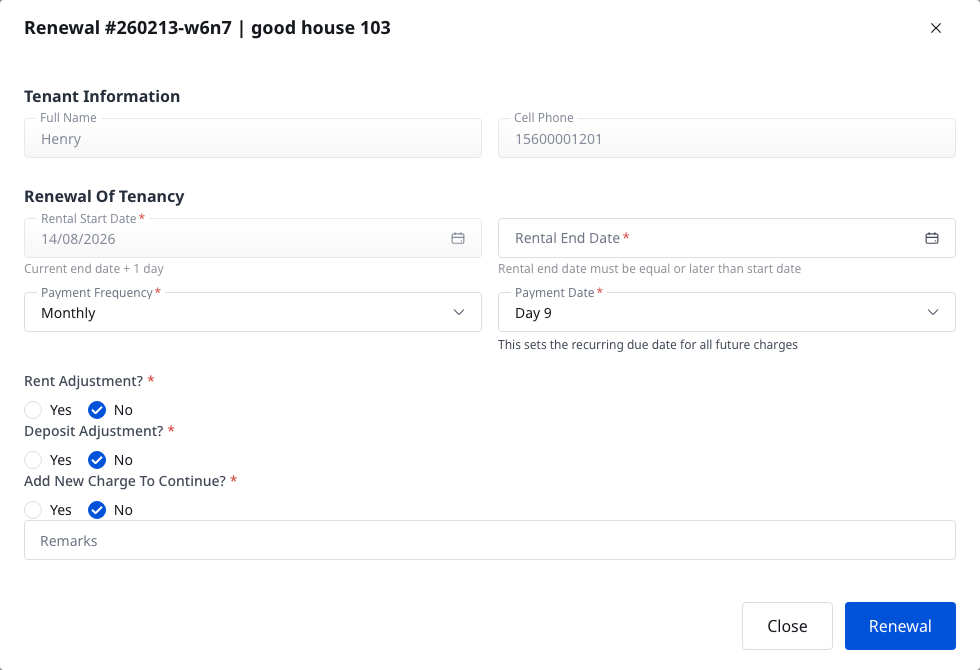
Step 2 Confirm the next tenancy term in the Web dialog:
- [Rental Start Date]
- [Rental End Date]
- [Payment Frequency]
- [Payment Date]
The current Web dialog uses [Current end date + 1 day] as the renewal start-date hint.
Step 3 Turn on the adjustment blocks only when you need them:
- [Rent Adjustment]
- [Deposit Adjustment]
- [Add New Charge To Continue]
If you enable one of these sections, complete the corresponding new rent, deposit, or additional charge details before continuing.
Step 4 Select [Renewal] to open the renewal bill preview. Review the previewed renewal charges, then continue to submit the renewal. After the renewal is saved, the current Web flow prompts you to continue with the contract follow-up step for the renewed tenancy.
App
Step 1 Open [Renewal] from the tenancy's [More Operations] menu. The current App flow opens [Add Renewal].

Step 2 Complete the renewal form for the next term:
- [Rental Start Date]
- [Rental End Date]
- [Payment Frequency]
- [Payment Date]
- optional [Rent Adjustment], [Deposit Adjustment], and [Add New Charge To Continue?]
The current App loads the renewal start date from the existing tenancy and requires a new rental end date before you can continue.
Step 3 Select [Next] to review the renewal bill preview, then continue to the files step.

Step 4 On the next App page, use [Upload Files] or [Electronic Contract] to attach lease documents or continue with the e-signature template before you finish the renewal.
Platform differences
- Web keeps the renewal form and bill preview in the dialog flow, then prompts you for the contract follow-up step after the renewal is saved.
- App splits the renewal into [Add Renewal] and a separate [Upload Files] / [Electronic Contract] page before the final completion step.
Note:
- [Renewal] is only available for tenancy states that currently allow renewal.
- The renewal start date defaults to the current tenancy end date plus one day.
- If a renewal has already been saved, the action changes to [Cancel Renewal].