How do I generate an electronic contract for a tenant during new tenancy creation?
Use step 4 of [New Tenancy] when you want to save contract files together with the tenancy, or generate an electronic contract from the tenancy data during creation.
Entry:
- Web: [Rentals] -> [Tenant Tenancies] -> [New Tenancy]
- App: [Rentals] -> [Tenant Tenancies] -> [New Tenancy]
Web
Step 1 Open [New Tenancy], then complete steps 1 to 3 first so the tenancy data, tenant details, rent settings, and bill preview are ready.
Step 2 In step 4, choose the contract method that matches your case:
- [Completed offline signing of paper contract]: upload the scanned copy and keep it with this tenancy record
- [Completed contract filling]: upload the completed contract file and continue to the e-signing flow after the tenancy is added
- [Use templates to quickly create electronic contracts]: select a template and let the system generate the contract from the tenancy data

Step 3 If you choose [Completed contract filling], complete the upload-and-sign block:
- [Upload and initiate electronic signature]
- A completed contract file upload
- Signer details in the signer form
After you click [Add Tenancy], Web creates the tenancy first, transfers the uploaded file, and opens the e-sign contract preview for that new tenancy.
Step 4 If you choose [Use templates to quickly create electronic contracts], complete the template block:
- Review or adjust [Document Name]
- Add [Categories] if needed
- Complete the signer details
- Select [Contract Template]
- Optionally review [Additional Terms] and [Including a schedule of charges]
- Use [Preview Template] when you need to confirm the template before creating the tenancy
After you click [Add Tenancy], Web opens the generated contract preview for the new tenancy.
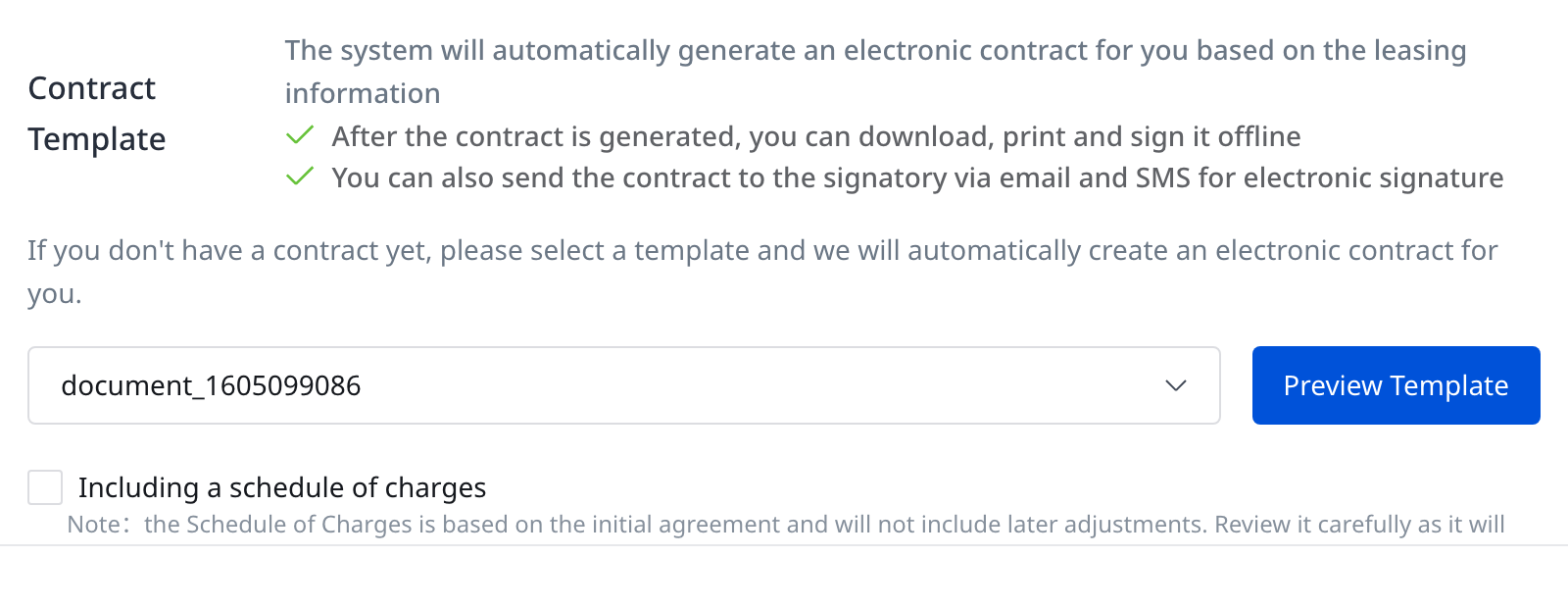
Step 5 If you choose [Completed offline signing of paper contract], upload the signed contract scan or related files in step 4 and finish [Add Tenancy]. Web saves the files as tenancy attachments and does not open the e-sign preview from this path.
App
Step 1 Open [New Tenancy], then complete steps 1 to 3 first so the tenancy, tenant, rent, and bill preview data are ready.
Step 2 In step 4, switch from [Upload Files] to [Electronic Contract].
Step 3 In [Electronic Contract], complete the contract setup block:
- Review the selected signers
- Select [Contract Template]
- Turn on [Including a schedule of charges] when the generated contract should include the charge schedule
After you tap [Complete], the app shows the tenancy confirmation card. Tap [Continue to Sign] to open the generated contract preview for the new tenancy.
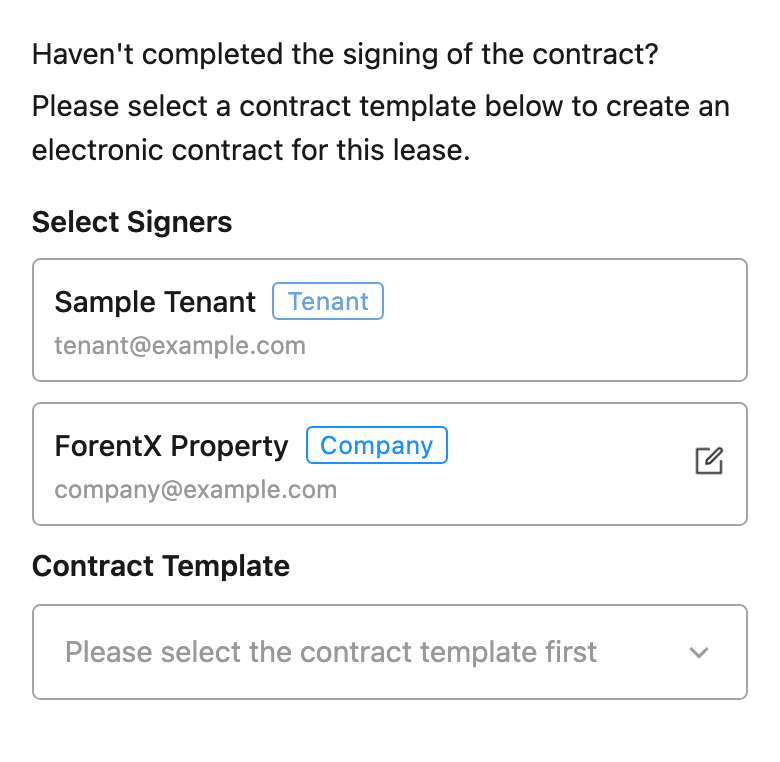
Step 4 If you only need to keep supporting files without generating an electronic contract, stay in [Upload Files], upload the files you need, and complete the tenancy without using the [Electronic Contract] tab.
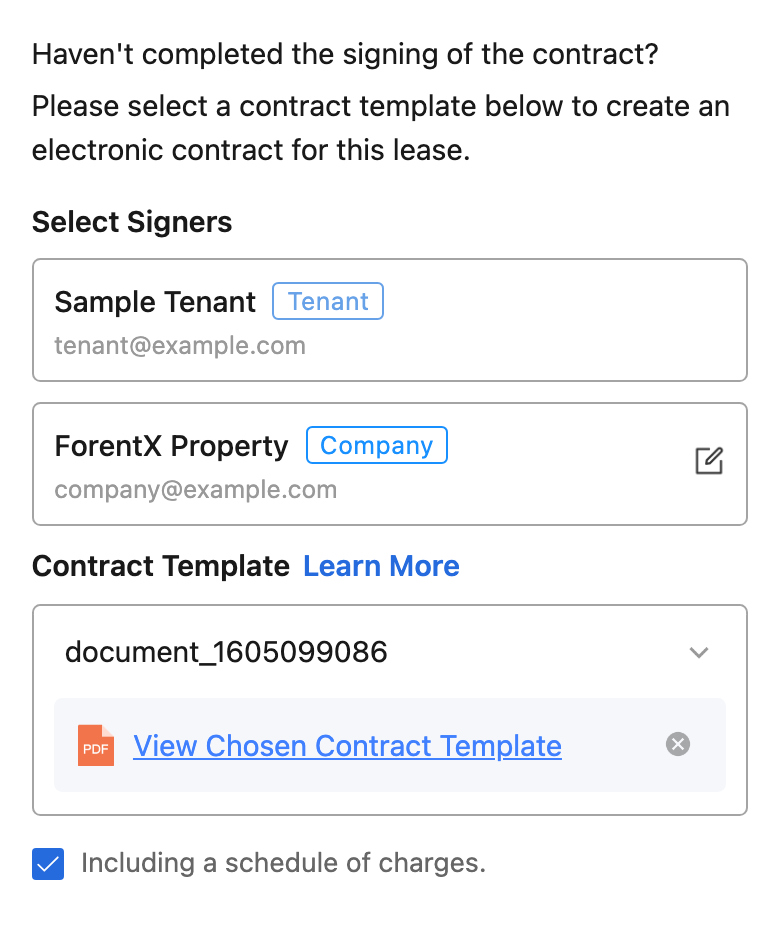
Platform differences
- [Contract setup in step 4]: Web shows 3 method cards in one panel. App splits the flow into [Upload Files] and [Electronic Contract] tabs.
- [Template-generated preview]: Web opens the preview after [Add Tenancy]. App opens the preview after [Complete] -> [Continue to Sign].
- [Attachment-only path]: Web can save offline scans or completed files directly from its method cards. App uses [Upload Files] for attachment-only handling in this flow.
- [Current App scope]: In the current [New Tenancy] flow, App supports template-based electronic contract generation, while Web also exposes the offline-scan and completed-contract upload methods in the same step.
Note:
- The e-sign preview path depends on the current account having usable signer and template data.
- If the selected signer is missing required contact details on App, the app asks you to complete that information before it continues to the preview.
- Reservation conversion and existing-tenancy contract pages also use related contract components, but this article only covers the current [New Tenancy] flow.