How do I create a property reservation for a prospective tenant?
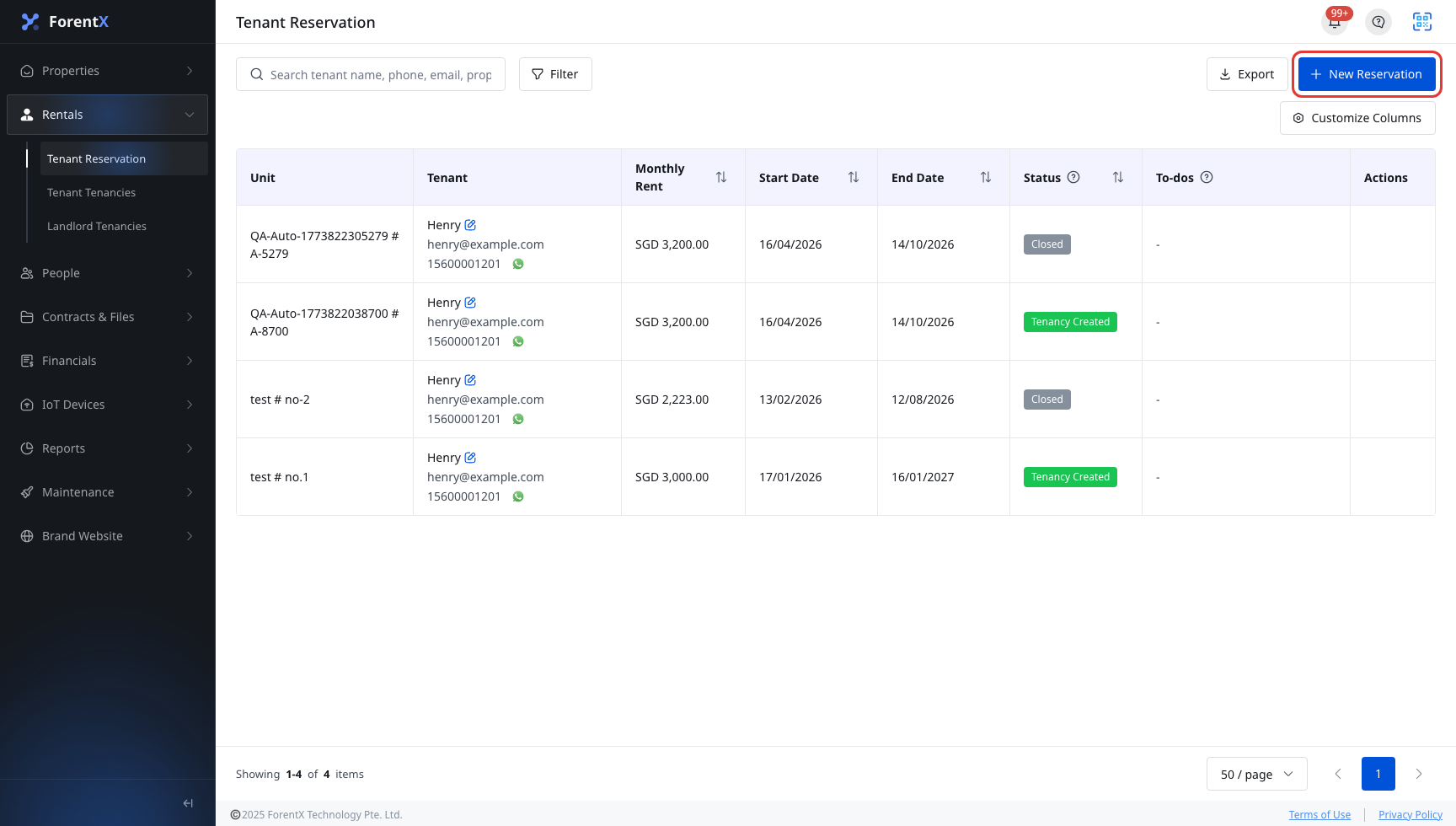
Use [Tenant Reservations] when you need to hold a unit for a prospective tenant before converting the reservation into a tenancy later.
Entry:
- Web: [Rentals] -> [Tenant Reservations] -> [New Reservation]
- App: [Rentals] -> [Tenant Reservations] -> [Add Reservation]
Web
Step 1 Open [Tenant Reservations], then click [New Reservation].
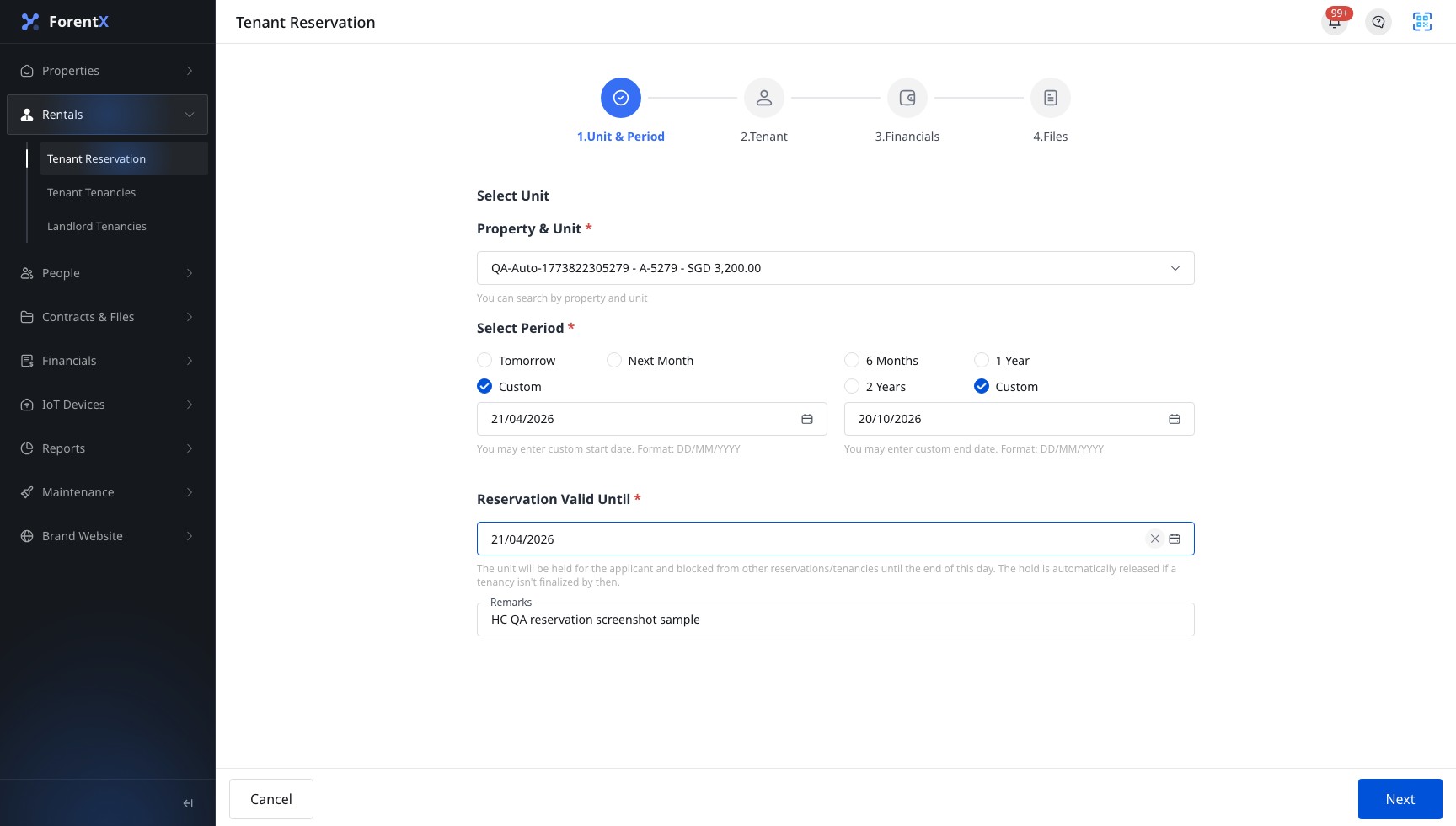
Step 2 In [Unit & Period], complete the reservation setup:
- Use [Select Unit] to choose the property and unit
- Set [Rental Start Date] and [Rental End Date]
- Set [Expiration Date]
- Add [Remarks] if needed
- Click [Next]
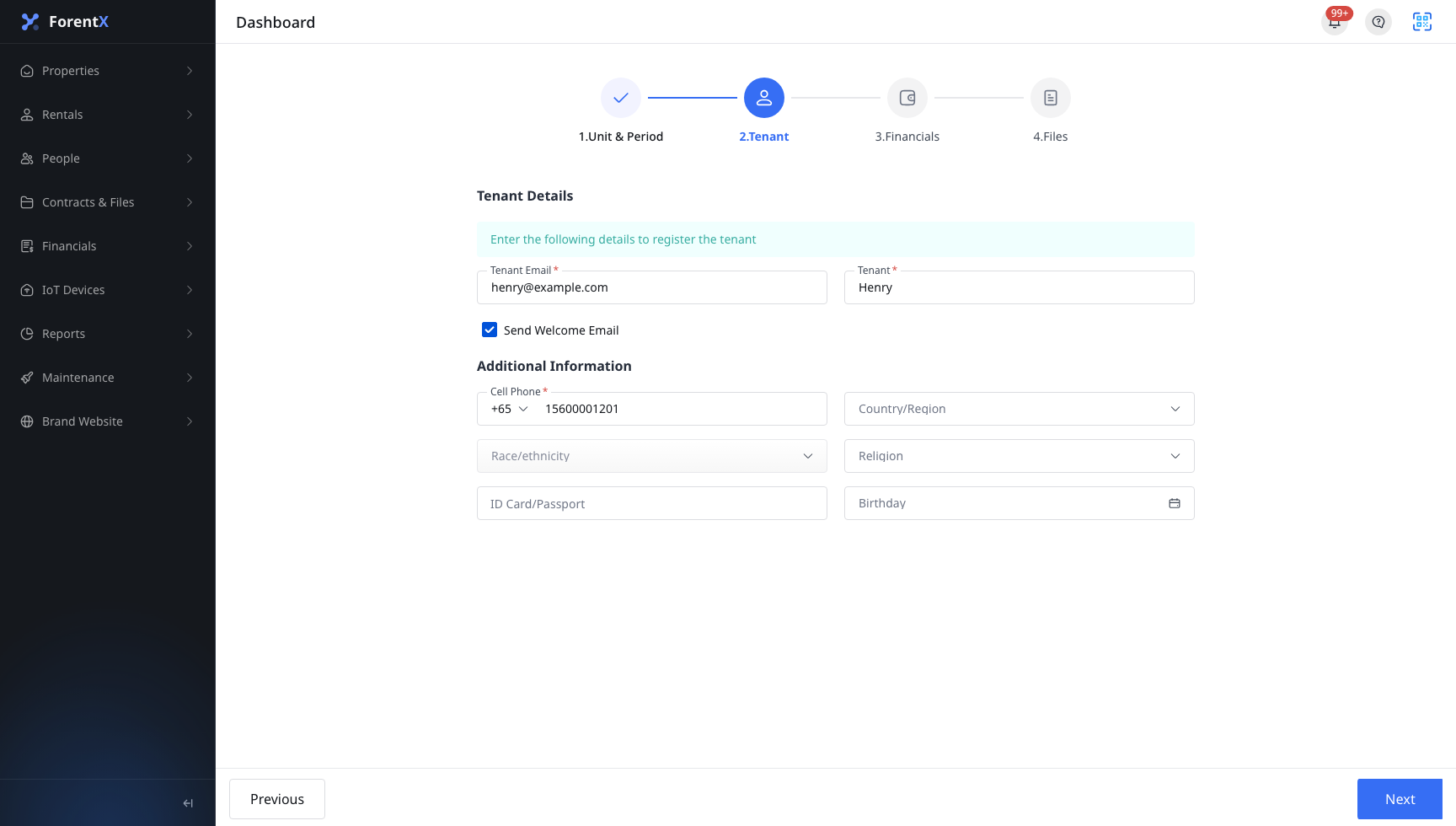
Step 3 In [Tenant], enter the tenant details:
- [Tenant Email]
- [Tenant]
- Decide whether to turn on [Send Welcome Email]
- Complete the contact number and other optional tenant fields that apply to your process
- Click [Next]
If the email already belongs to an existing tenant, the current flow uses that tenant profile instead of creating a duplicate.
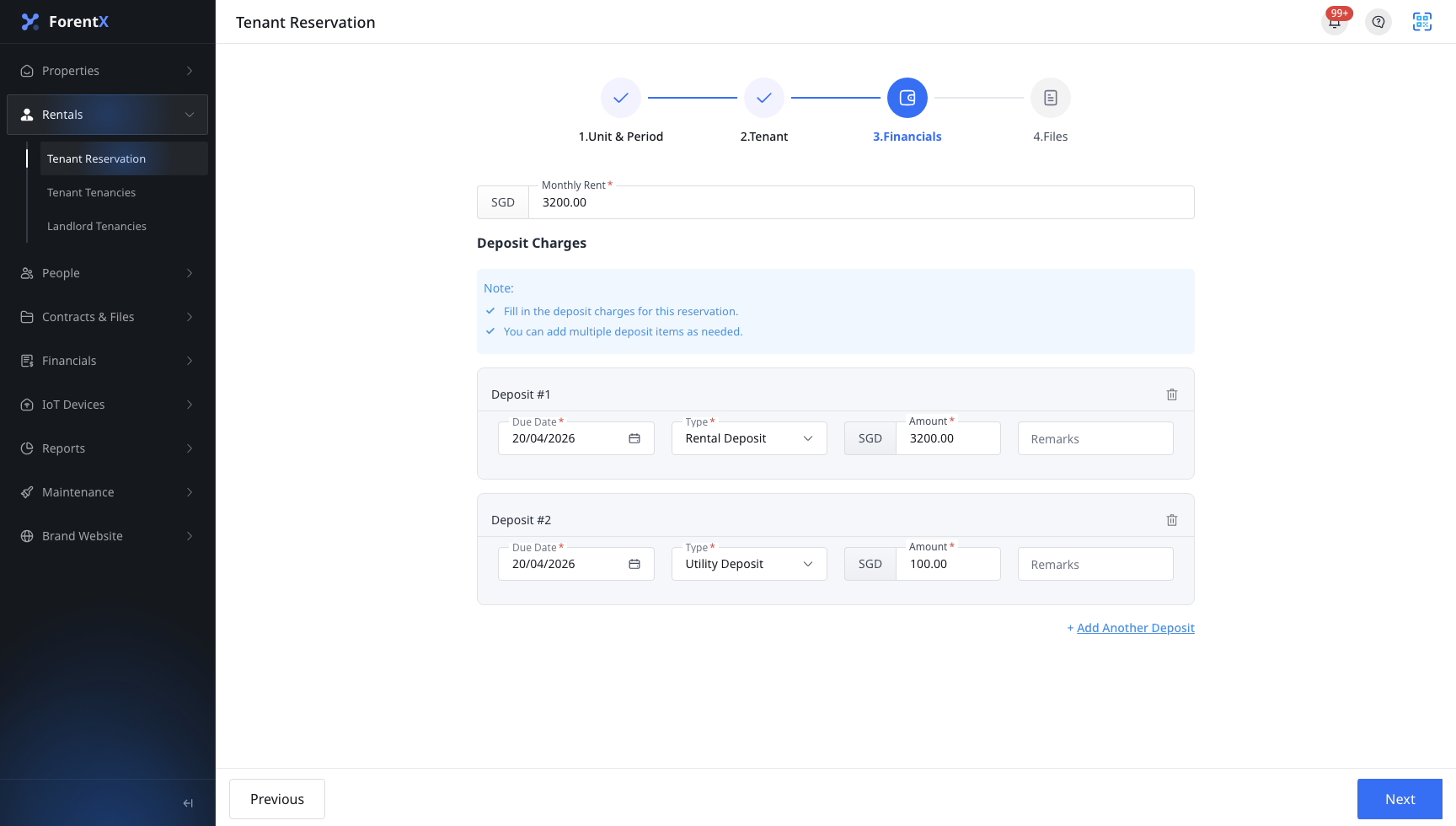
Step 4 In [Financials], review the rent and deposit setup:
- Confirm the rent and billing details that should apply to this reservation
- [Bill Date]
- [Bill Type]
- [Amount]
- Add more deposit rows if needed
- Click [Next]
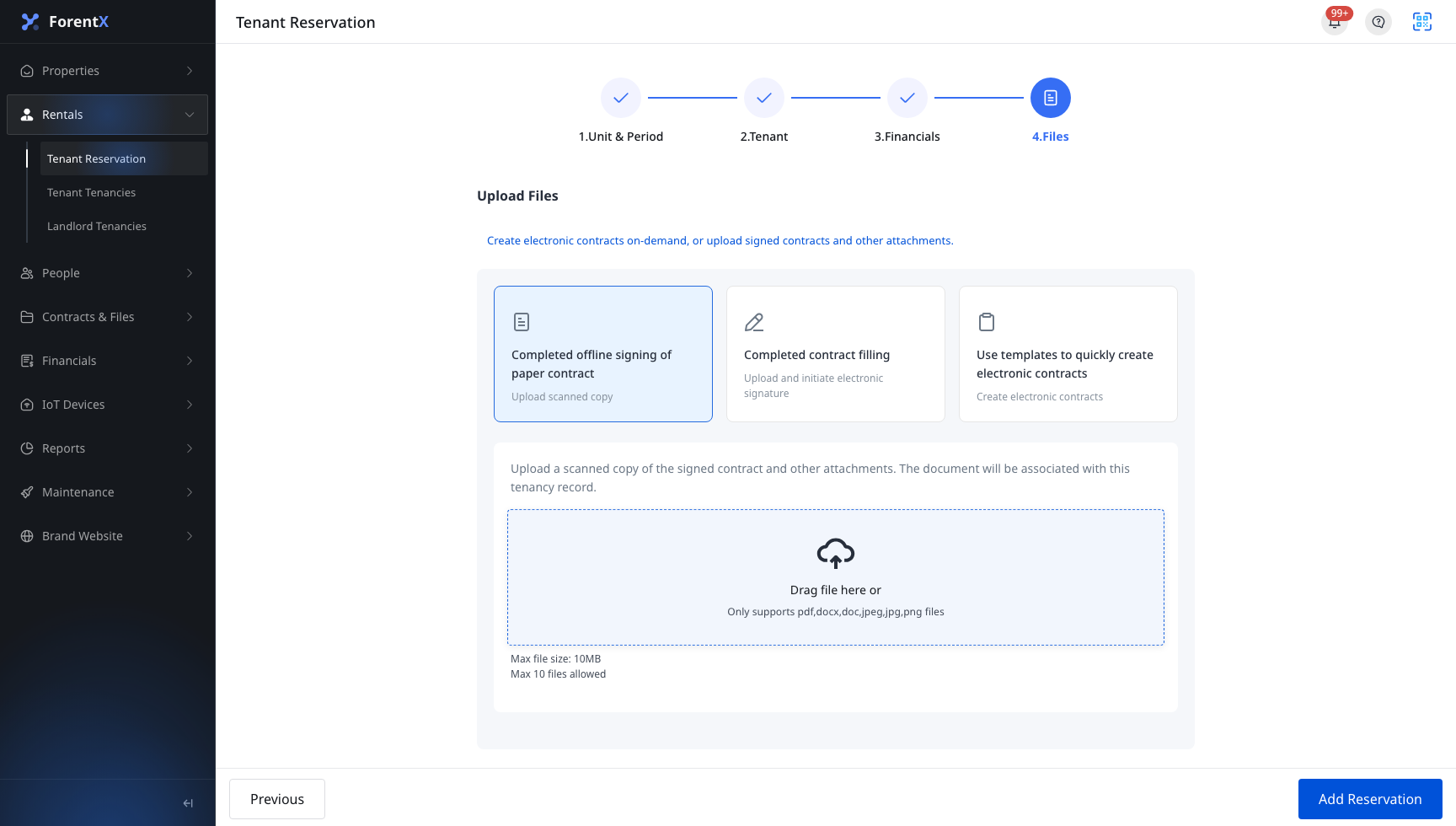
Step 5 In [Files], upload the supporting files or contract content you want to keep with the reservation. When everything is ready, click [Add Reservation].
App
Step 1 Open [Tenant Reservations], then tap [Add Reservation].

Step 2 In [Unit & Period], complete the reservation setup:
- Tap the unit selector to choose the property and unit
- Set [Rental Start Date] and [Rental End Date]
- Set [Expiration Date]
- Add [Remarks] if needed
- Tap [Next]

Step 3 In [Tenant], enter the tenant details:
- [Tenant Email]
- [Tenant]
- Decide whether to turn on [Send Welcome Email]
- Complete the contact number and other optional tenant fields that apply to your process
- Tap [Next]

Step 4 In [Financials], review the rent and deposit setup:
- Confirm the rent and billing details that should apply to this reservation
- Complete each deposit row with [Bill Date], [Bill Type], and [Amount]
- Add more deposit rows if needed
- Tap [Next]

Step 5 In [Files], upload the supporting files or contract content you want to keep with the reservation. When everything is ready, tap [Add Reservation].

Platform differences
| Topic | Web | App |
|---|---|---|
| Entry | [Rentals] -> [Tenant Reservations] -> [New Reservation] | [Rentals] -> [Tenant Reservations] -> [Add Reservation] |
| Reservation form | Opens from the list page into the 4-step reservation wizard | Opens from the Rentals tab with the same 4-step reservation wizard |
| Unit selection | Choose the unit from the Web selector on [Unit & Period] | Choose the unit from the mobile selector on [Unit & Period] |
| Save action | Click [Add Reservation] on the last step | Tap [Add Reservation] on the last step |
Note:
- [Expiration Date] is required. It must be later than today and cannot be later than the rental start date.
- The current reservation list uses [Ongoing], [Tenancy Created], and [Closed] as the reservation status values.
- A reservation only holds the unit. Convert it into a tenancy before the reservation expires if the tenant is moving in.